Apple Music’s streaming quality now lives in Settings > Apps > Music > Audio Quality. There you can turn on Lossless Audio and choose the quality separately for cellular streaming, Wi-Fi streaming and downloads. Higher quality sounds better on the right equipment but uses more data and more storage, which is why it is split by connection. The old High Quality Streaming switch was replaced by these options.
Before you change anything
A few things decide whether the setting will do anything for you:
- An Apple Music subscription. Apple describes lossless audio as a feature for Apple Music subscribers.
- Where you live. Apple says lossless audio isn’t available in all countries or regions.
- A current version of iOS. Apple’s page about lossless audio in Apple Music asks you to update your iPhone to the latest version of iOS first.
- Cellular access for Music. The cellular quality choice only matters if the Music app is allowed to use cellular data at all. If it isn’t, see how to let the Music app stream over cellular data.
Turn on Lossless Audio and pick a quality
These steps follow Apple’s iPhone User Guide page on lossless audio for iOS 18 and later, where app settings sit under Settings > Apps.
- Open the Settings app.
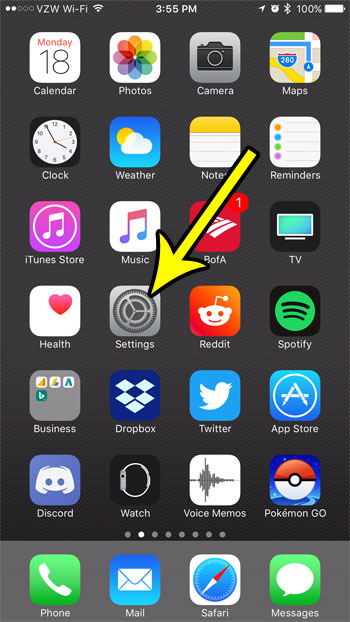
Older iOS version shown; current screens look different. - Tap Apps, then tap Music.
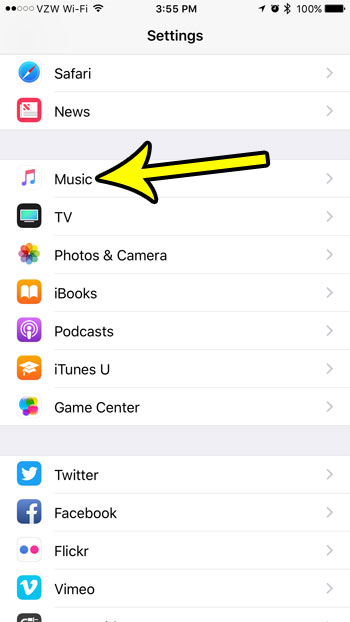
Older iOS version shown; Music settings now sit under Settings > Apps. - Tap Audio Quality.
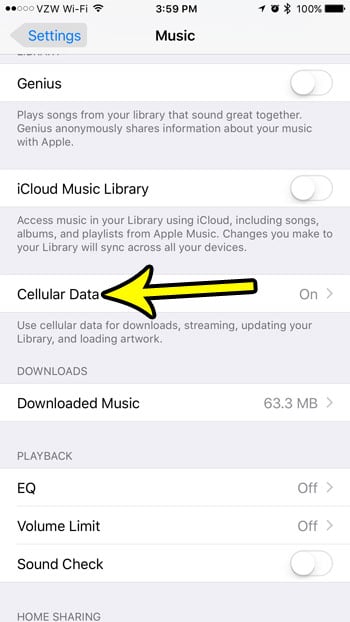
The old layout, where streaming quality was under Cellular Data. Current iOS uses Audio Quality instead. - Tap Lossless Audio to turn it on.
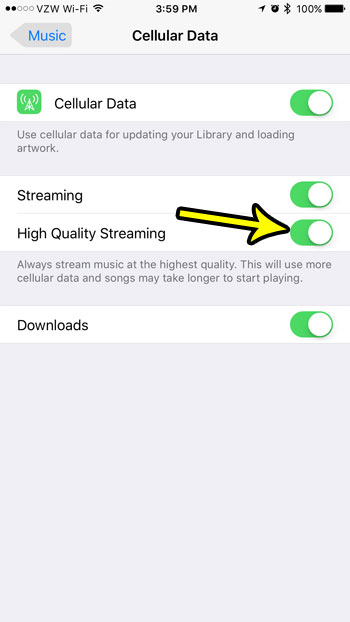
The retired High Quality Streaming switch from an older iOS version. - Choose the audio quality for cellular streaming, Wi-Fi streaming and downloads. Each one is set on its own, so you can pick a high setting at home and a lighter one on the go.
To undo a change, go back to the same screen and turn Lossless Audio off or choose a lower quality. Apple’s guide doesn’t publish the names of the non-lossless choices, so if you see more options than the two described next, the lower ones trade sound quality for less data.
Lossless or Hi-Res Lossless: which to choose
Apple offers two lossless levels, and the right one depends on what you listen with.
| Choice | Maximum resolution (per Apple) | Good fit when |
|---|---|---|
| Lossless | 24-bit/48 kHz | You use wired headphones or speakers and want better sound without extra hardware |
| Hi-Res Lossless | 24-bit/192 kHz | You have an external digital-to-analog converter (DAC) and gear that can make use of it |
Apple says that to play songs at sample rates higher than 48 kHz on iPhone, you need an external DAC. Without one, your iPhone can’t play the higher sample rates that Hi-Res Lossless adds, so the setting mostly costs more data and storage. Hi-Res Lossless also has a side effect: Apple notes that Automix and Crossfade aren’t available while it’s turned on. If you like songs blending into each other, stick with Lossless.
Not every song is available at every level. Apple Music’s catalog ranges from 16-bit/44.1 kHz up to 24-bit/192 kHz, and Apple says the quality you actually get when streaming also depends on the song, your network conditions and what your headphones can handle.
Why you might not hear a difference
The most common reason is Bluetooth. Apple states that Bluetooth connections aren’t lossless. Apple’s lossless help page lists AirPods (3rd generation) and earlier, AirPods Pro (1st generation), AirPods Pro 2 with the Lightning charging case, AirPods Max and most Beats wireless headphones as using the AAC Bluetooth codec, so turning on Lossless Audio doesn’t make them play lossless over a wireless connection. The exception it names is AirPods Max with USB-C (and AirPods Max 2) connected with a USB-C cable.
Apple says you can hear lossless audio through wired headphones, receivers or powered speakers, and through the iPhone’s built-in speakers.
What higher quality costs in data and storage
Apple doesn’t give per-song figures, but it is clear about the direction: streaming lossless audio over cellular or Wi-Fi consumes significantly more data, downloading lossless audio uses significantly more space, and higher resolutions use more of both than lower ones.
A practical setup for most people on a limited plan:
- Wi-Fi streaming: Lossless, or Hi-Res Lossless if you use a DAC at home.
- Cellular streaming: a lower quality, or Lossless only if your plan has plenty of data.
- Downloads: match the headphones you use most. Lossless downloads take significantly more space, and Bluetooth headphones don’t play them as lossless.
To see how much the change affects your plan, reset your iPhone’s cellular usage statistics at the start of a billing period and check the Music line later.
Get lossless versions of songs you already downloaded
Turning on lossless doesn’t upgrade music that is already on the phone. Apple’s guidance is to delete the music and redownload it after Lossless Audio is on. If you have a large library, start with the albums you play most; there’s more on removing songs, albums and everything at once in how to delete music from your iPhone.
The reverse works too: if downloads are eating storage, delete them, lower the download quality, and download them again.
Check that a song is playing in lossless
Apple shows a Lossless icon on album pages for music that is available in lossless. To see the icon on the Now Playing screen as well, Lossless Audio needs to be turned on in Settings > Apps > Music > Audio Quality. If an album shows no icon, that music isn’t available in lossless, and your setting won’t change it.
Dolby Atmos is a separate setting
Spatial Audio with Dolby Atmos is not part of lossless quality. Apple’s page about Spatial Audio with Dolby Atmos in Apple Music says to go to Settings > Apps > Music and, under Audio, tap Dolby Atmos, then choose Automatic, Always On or Off. Apple suggests Always On if you use wired headphones.
On older versions of iOS
Before iOS 18, app settings were listed directly in the Settings app, so Music’s options were under Settings > Music. The screenshots above come from a much older version, when the only choice was a High Quality Streaming switch under Cellular Data. That switch no longer exists; the Audio Quality screen took its place.
Apple Music audio quality questions
Does this change how Spotify or other apps sound?
No. Audio Quality in Settings > Apps > Music only affects Apple Music. Other streaming apps have their own quality settings inside each app.
Why don’t I see Lossless Audio?
Check that you’re signed in with an Apple Music subscription, that your iPhone is on the latest version of iOS, and that lossless is offered in your country or region. Apple lists all three as conditions.
Does the setting carry over to my iPad or Mac?
Apple’s lossless page uses the same steps for iPhone and iPad, with separate steps for Mac, Apple TV, Android and other devices. Turn it on on each device you listen with.
Is lossless the same as turning up the volume or using the EQ?
No. Lossless changes the file quality that is streamed or downloaded. Volume, EQ and Sound Check change how that audio is played back, and they are separate settings.
While you’re in the Music app’s settings, you might also like to use dark mode in the Apple Music app.

Kermit Matthews runs Live2Tech from just outside Philadelphia. He is an IT specialist with over 20 years of experience, from a university help desk to small-business IT, IT management and his own consulting practice, and has written tech guides full time since 2020. Steps are checked against the current software on a real device or the maker’s official documentation. More about Kermit.