Apple Music looks great in dark mode, and it’s easier on your eyes at night. On iPhone, iPad, and Mac, though, the Music app doesn’t have its own dark mode switch: it follows your device’s system appearance. Turn on Dark Mode for the device, and Apple Music switches with it. This guide shows how on each device, including Android and Windows.
Quick Answer
On iPhone or iPad, go to Settings > Display & Brightness and choose Dark. Apple Music (and other apps that support it) turns dark immediately. You can also press and hold the brightness slider in Control Center and tap Dark Mode.
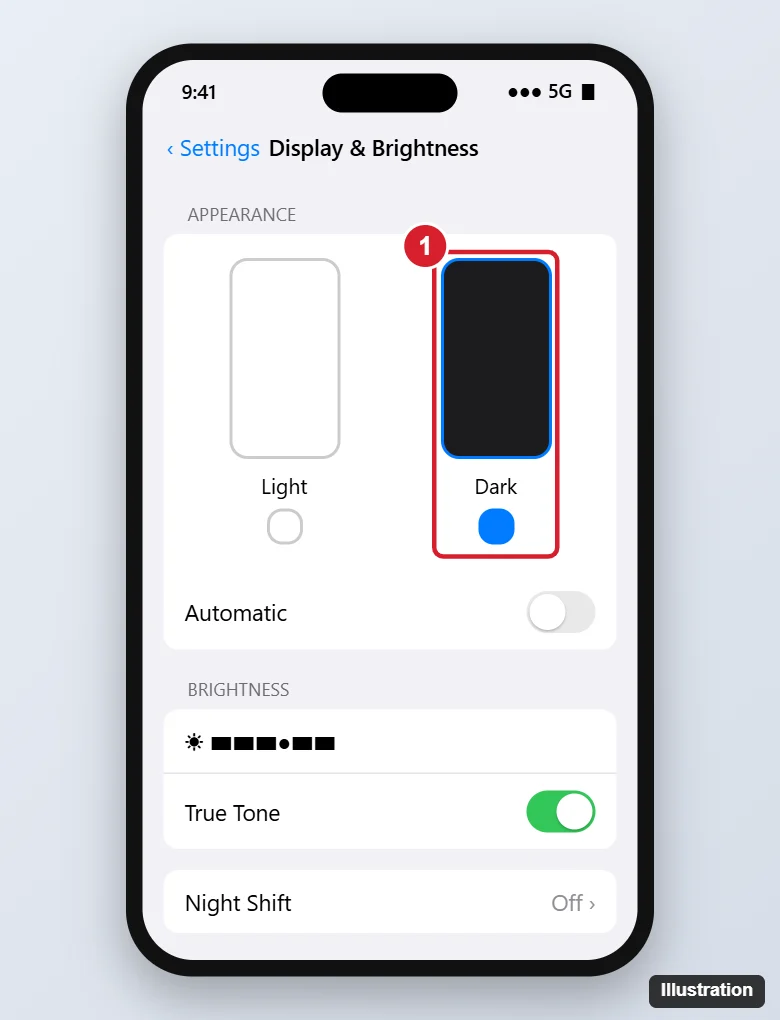
iPhone and iPad
- Open Settings and tap Display & Brightness.
- Under Appearance, tap Dark.
- Optionally turn on Automatic to switch between light and dark at sunset and sunrise, or tap Options to set a custom schedule.
Faster: Open Control Center (swipe down from the top-right corner), press and hold the brightness slider, and tap the Dark Mode button. You can also add a Dark Mode control to Control Center.
Mac
- Choose Apple menu > System Settings (or System Preferences).
- Click Appearance.
- Select Dark (or Auto).
The Music app on Mac follows this setting.
Android
The Apple Music app for Android follows your phone’s system theme on most versions. Turn on dark theme in Settings > Display > Dark theme (the name varies by phone maker). If your version of Apple Music has a theme option in its own settings (tap the three dots > Settings), you can choose Dark there too.
Windows
The Apple Music app for Windows follows the Windows app mode. Go to Settings > Personalization > Colors and set Choose your mode (or Choose your default app mode) to Dark.
Web Player
At music.apple.com, the web player follows your browser and system theme. Set your device or browser to dark mode.
Dark Mode Not Working in Music?
- Update iOS and the Music app.
- Check that Smart Invert or Classic Invert isn’t on in Settings > Accessibility > Display & Text Size; these can make colors look wrong.
- Album artwork keeps its original colors in dark mode; only the app’s background and text change.
- Force-quit and reopen the Music app.
Summary
- Apple Music uses your device’s appearance setting.
- iPhone/iPad: Settings > Display & Brightness > Dark.
- Mac: System Settings > Appearance > Dark.
- Android and Windows: turn on the system dark theme.

Kermit Matthews is a freelance writer based in Philadelphia, Pennsylvania with more than a decade of experience writing technology guides. He has a Bachelor’s and Master’s degree in Computer Science and has spent much of his professional career in IT management.
He specializes in writing content about iPhones, Android devices, Microsoft Office, and many other popular applications and devices.