How you close windows on an iPad depends on your iPadOS version and multitasking mode. On iPadOS 26 and later with windowed apps, tap the red Close button at the top-left of a window (swipe down slightly from the top of the window if the buttons are hidden). To fully quit an app in any version, swipe up from the bottom of the screen and pause to open the App Switcher, then swipe the app’s card up and off the screen.
Closing a window doesn’t delete anything. The app stops showing that window.
Close a Window With the Window Controls (iPadOS 26 and Later)
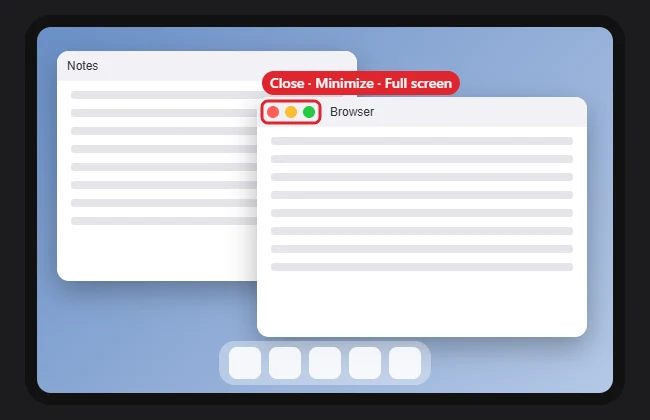
- Look at the top-left corner of the app window for three colored buttons. If you don’t see them, swipe down slightly from the top edge of the window.
- Tap the red Close button to close the window.
- Tap the yellow Minimize button to hide it without closing, or the green button to make it full screen.
Does closing a window delete my work?
No. Most apps save automatically, but save open documents first to be safe. To remove an app completely instead, see how to delete an app on an iPad.
Close Apps From the App Switcher (All Versions)
- Swipe up from the bottom of the screen and pause in the middle. On an iPad with a Home button, double-click the Home button.
- Swipe left or right to find the app.
- Swipe the app’s card up and off the screen.
You can close up to three apps at once by swiping several cards up together.
Do I need to close apps to save battery?
Usually not. iPadOS pauses background apps. Close an app when it’s frozen or misbehaving.
On a phone, multitasking works differently, as switching apps on iPhone explains.
Close Extra Windows of the Same App
Many apps, such as Safari, Notes, and Files, can have several windows. Touch and hold the app icon in the Dock and choose Show All Windows to see them, then close the ones you don’t need with the window controls or by swiping each preview up.
Multitasking Modes at a Glance
| Mode (iPadOS 26+) | How windows behave | How to close |
|---|---|---|
| Full Screen Apps | One app at a time, like earlier iPads | App Switcher |
| Windowed Apps | Resizable windows you can overlap | Red Close button or App Switcher |
| Stage Manager | Windows grouped into stages | Window controls or App Switcher |
Change the mode in Settings > Multitasking & Gestures. On iPadOS 18 and earlier, Split View and Slide Over were closed by dragging the divider to the screen edge or swiping a Slide Over window off screen.
When Windows or Gestures Don’t Behave
- Swiping up doesn’t open the App Switcher: Check gesture settings in Settings > Multitasking & Gestures, and restart the iPad.
- Windows keep reopening: Some apps restore windows on launch. Close them inside the app, or close the app from the App Switcher.
- Your iPad doesn’t show window controls: It may be set to Full Screen Apps, or it may not support iPadOS 26; see how to update an iPad to check your version.

Kermit Matthews runs Live2Tech from just outside Philadelphia. He is an IT specialist with over 20 years of experience, from a university help desk to small-business IT, IT management and his own consulting practice, and has written tech guides full time since 2020. Steps are checked against the current software on a real device or the maker’s official documentation. More about Kermit.