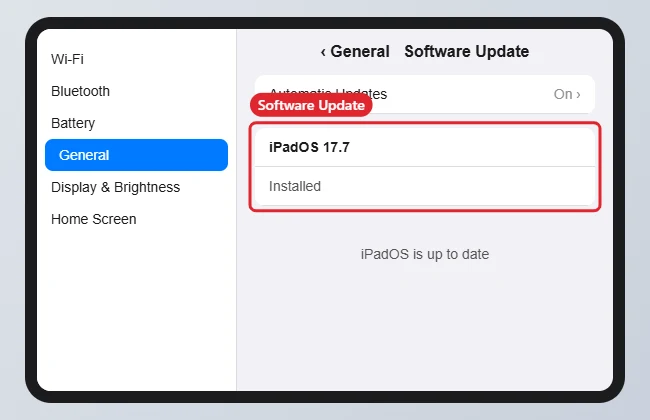
To update an iPad 6th generation, go to Settings > General > Software Update and tap Update Now or Install Now. The iPad 6th generation (2018) can run up to iPadOS 17; it doesn’t support iPadOS 18 or later releases, so the Software Update screen will only offer iPadOS 17 updates.
Apple has continued to release occasional iPadOS 17 security updates for older models, so it’s still worth installing anything that’s offered.
Quick Answer
Settings > General > Software Update > Update Now. The newest major version this model supports is iPadOS 17.
How to Update Your iPad
- Plug the iPad into power and connect to Wi-Fi.
- Open Settings > General > Software Update.
- If an update is listed, tap Update Now (or Download and Install).
- Enter your passcode and agree to the terms.
- Leave the iPad on the charger until it restarts with the new version.
Turn On Automatic Updates
In Settings > General > Software Update > Automatic Updates, turn on Download and Install for security responses and system files. The iPad then updates overnight while charging and connected to Wi-Fi.
Confirm You Have an iPad 6th Generation
Go to Settings > General > About. Tap the Model Number until it shows a number starting with A. The iPad 6th generation is A1893 (Wi-Fi) or A1954 (Wi-Fi + Cellular). It has a Home button and a 9.7-inch screen.
What the iPad 6th Generation Can Run
| Item | iPad 6th generation |
|---|---|
| Highest major version | iPadOS 17 |
| iPadOS 18 and later | Not supported |
| Security updates | Occasional iPadOS 17 updates, as Apple releases them |
| App Store apps | Most still install; some newer apps require a later iPadOS |
If an app says it needs a newer iPadOS, the App Store may offer the last compatible version when you download it from your Purchased list.
Update With a Computer
- Connect the iPad with a cable to a Mac (Finder) or a Windows PC (the Apple Devices app or iTunes).
- Select the iPad and click Check for Update.
- Click Download and Update.
Using iPadOS 26 or later? Learn how to close windows and apps on iPad.
Troubleshooting
- “Unable to install update”: Free up at least a few GB of storage in Settings > General > iPad Storage, for example by deleting apps you don’t use.
- Update is stuck on “Preparing”: Restart the iPad and try again on a stable Wi-Fi network.
- Software Update says you’re up to date but you want iPadOS 18: This model can’t install it. You’ll need a newer iPad for current iPadOS features.
Frequently Asked Questions
Can an iPad 6th gen still be used?
Yes, for browsing, video, and most apps. Over time, more apps will require newer iPadOS versions.
Can the iPad 6th gen update to iPadOS 26?
No. Its last supported major version is iPadOS 17.
How long do updates take?
Usually 20 to 60 minutes, depending on the update size and your connection.
Summary
- Charge the iPad and connect to Wi-Fi.
- Open Settings > General > Software Update.
- Tap Update Now.
- Expect iPadOS 17 as the newest version for this model.

Kermit Matthews is a freelance writer based in Philadelphia, Pennsylvania with more than a decade of experience writing technology guides. He has a Bachelor’s and Master’s degree in Computer Science and has spent much of his professional career in IT management.
He specializes in writing content about iPhones, Android devices, Microsoft Office, and many other popular applications and devices.