Signed in to Goodnotes for Windows and found an empty library? The PC shows iPad notebooks only when the account uses Goodnotes Cloud, included with Goodnotes Pro, so an empty one usually means the iPad is still on iCloud or you signed in differently. On the iPad, choose Goodnotes menu > Cloud & Backup > Get started, then install Goodnotes for Windows from the Microsoft Store and sign in the same way. Without Pro, share a link or export PDFs.
Pick the route that fits your plan
There are three realistic ways to see iPad notes on a Windows machine, and they are not interchangeable. The table is based on the Goodnotes help pages on syncing with Goodnotes Cloud and on sharing notebooks with a share link.
| Route | What moves | Direction | Plan needed | Best for |
|---|---|---|---|---|
| Goodnotes Cloud | Whole library: folders and notebooks | Two-way, automatic | Goodnotes Pro | Editing the same notes on both devices every day |
| Share link | One notebook at a time | Two-way for that notebook | Paid plan to open on the web; link creation on iPad | One class notebook or one project file |
| PDF export or auto-backup | Flat PDF copies | One-way, iPad to PC | None | Reading or printing notes on the PC |
| iCloud Sync | Whole library, Apple devices only | Two-way, Apple only | Uses your iCloud storage | iPad plus iPhone or Mac, no Windows |
Someone who writes lecture notes on the iPad and revises them on a Windows laptop needs the first row. Someone who only wants to print a handful of pages at work needs the third row and can skip the subscription entirely.
Check your plan and finish iCloud sync before you switch
Two things decide whether the Get started button even appears.
The plan
Goodnotes publishes three plan names, and only one includes cross-platform sync:
- Goodnotes Pro: includes Goodnotes Cloud.
- Goodnotes Essential (formerly All Platforms Yearly): does not include Goodnotes Cloud.
- Goodnotes Special Edition (formerly the Apple one-time purchase): does not include Goodnotes Cloud or full access to Goodnotes on Android, Windows and Web.
If you bought Goodnotes years ago as a single purchase, you are on Special Edition, and the Windows app will not sync with your iPad library until you move to Pro. Check your current plan inside the app’s account screen before going further. Prices change often and are not listed here for that reason.
The iPad and its iCloud state
The current Goodnotes app needs iPadOS 18.7 or later according to the Goodnotes system requirements page. Update the iPad and the app first. Then make sure iCloud sync has finished, because Goodnotes will not offer the Cloud invitation while notebooks are still half-uploaded:
- Open Goodnotes and go to the Library.
- Tap the Cloud & Backup Status icon at the top right.
- Under Cloud Sync, tap Sync Now, and wait until no errors remain.
- Close and reopen Goodnotes, wait a few seconds in the Library, then check Goodnotes menu > Cloud & Backup again.
If the invitation still does not appear after a full sync, the Goodnotes help page gives the other option: turn off iCloud for Goodnotes on the iPad. The path it describes is the iPad’s Settings app > your profile > iCloud > See All (next to Saved to iCloud) > switch off Goodnotes. Do this only after the Sync Now step shows everything is uploaded, since you are telling the iPad to stop relying on iCloud for these files.
Move the iPad library to Goodnotes Cloud
Before switching, make a backup you can restore. Goodnotes on the iPad may offer a manual backup under Goodnotes menu > Cloud & Backup; if your version does not show one, export your most important notebooks as Goodnotes files.
- On the iPad, open Goodnotes and tap the Goodnotes menu (the app’s main menu in the Library).
- Tap Cloud & Backup.
- If your account is eligible, a Goodnotes Cloud section with a Get started button is shown. Tap it and follow the prompts.
- Leave the app open on Wi-Fi while the migration runs. Goodnotes says your documents stay available during the migration, so you can keep reading them, but editing heavily during the move makes it harder to tell later which version is current.
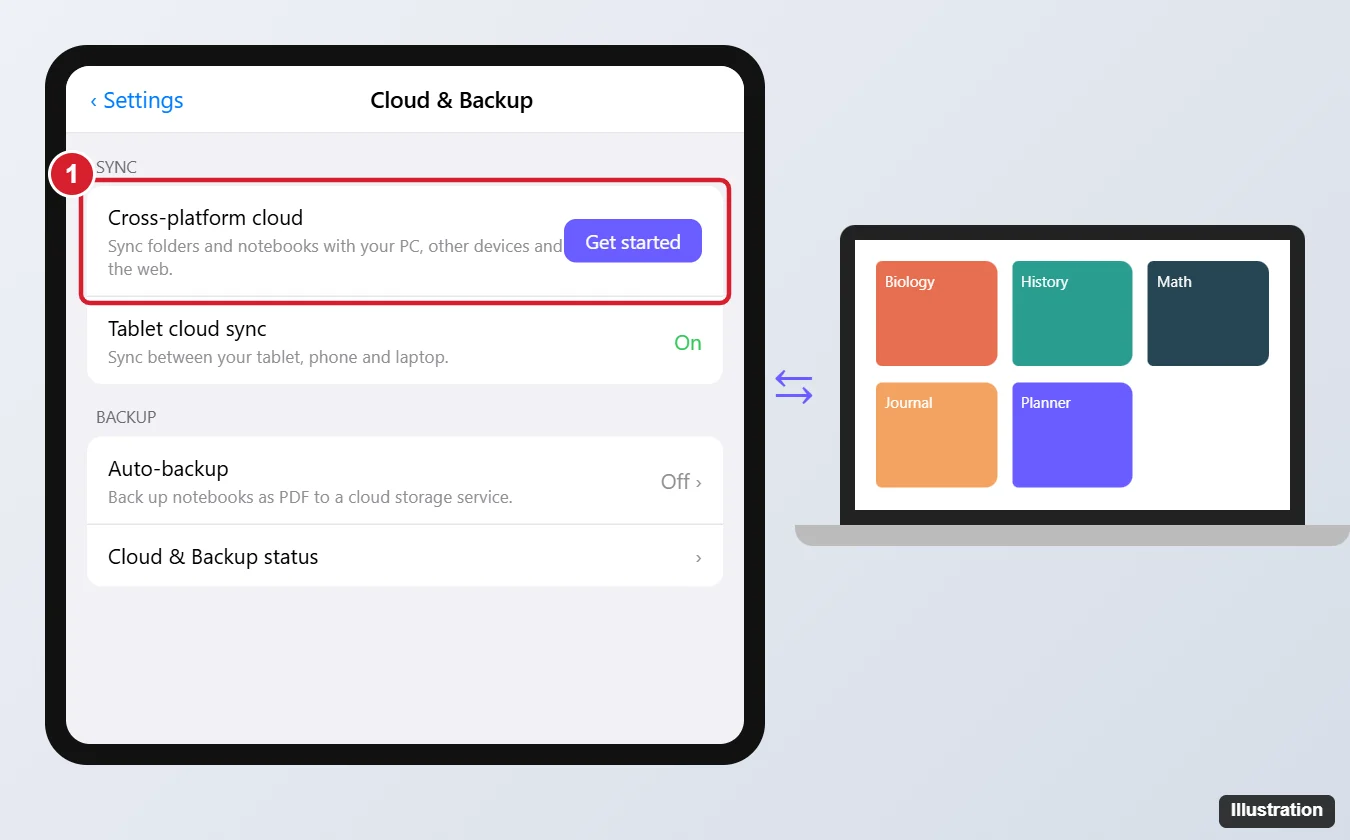
The switch is tied to your Goodnotes account. If an iPhone or Mac on the same account later shows a “Goodnotes Cloud Sync Disabled” alert, that device still holds iCloud documents and needs to finish the move on that device. If no Get started button is shown, go back to the plan and iCloud checks above; those two causes cover almost every case.
Open your library on Windows
- On the PC, open the Microsoft Store app, search for Goodnotes, and install it. The Goodnotes FAQ for Windows names the Microsoft Store as the place to get it; there is no separate installer to download from a website.
- Open Goodnotes and sign in. Use the same sign-in method you use on the iPad. Signing in with Apple works on Windows as long as it resolves to the same Goodnotes account.
- Wait for the library to fill. Goodnotes says to keep both devices online during the first sync. A large library can fill in gradually, so give it time.
- Open a notebook, add a line, and check the iPad a minute later. Then write something on the iPad and confirm it reaches the PC. A sync that works in only one direction usually means the iPad is still on iCloud.
If the PC cannot install Store apps (some work laptops block the Store), the Goodnotes web app in a supported browser signs in with the same account and shows the same Cloud library. Goodnotes asks for a supported browser without listing them, so try the browser you have and switch if the app refuses to load.
Why the Windows library looks empty
An empty or nearly empty library on the PC is the single most common complaint, and the cause is nearly always one of these four.
| What you see | Likely cause | Check |
|---|---|---|
| Nothing at all | The iPad library is still on iCloud Sync | On the iPad, Goodnotes menu > Cloud & Backup should show Goodnotes Cloud as active |
| Nothing at all, but Cloud is on | Different account: same email but a different provider (Apple, Google, Microsoft) creates a separate account | Compare the account email and sign-in method on both devices |
| A few notebooks only | Initial sync still running | Keep both devices online and wait |
| Old notebooks only | Recent iPad edits never left the iPad | Run Sync Now on the iPad and check for sync errors |
The provider trap deserves a closer look. A typical case: the iPad was set up with Sign in with Apple, which can hand Goodnotes a hidden relay address instead of the real one, and the Windows app was then given the regular Gmail address with a password. Those are two accounts, both valid, one empty. The fix is to sign out on Windows and sign in the same way as on the iPad.
What you give up on Windows
The Windows app is a full editor, not a viewer, but a few iPad features have no Windows equivalent yet. Knowing them in advance avoids a panic when a tool seems to have vanished.
- Time Keeper and Study Sets are not available in Goodnotes for Android, Windows and Web. The notebooks that contain them still sync; the features themselves do not run on the PC.
- Custom dynamic template sizes and themes can only be created on Apple devices. Windows can use notebooks already made from dynamic templates, and you can import your own PDF or image templates through Manage Notebook Templates.
- A full manual library backup is not offered on Windows. To keep an offline copy from the PC, export individual notebooks as PDFs or Goodnotes files.
- Custom elements, templates and Marketplace stickers are kept, not deleted, but may look or behave a little differently on the other platform.
Handwriting on Windows works best with a pen-enabled touchscreen. On a plain laptop you can type, highlight and annotate with a mouse or trackpad, which is fine for reviewing and adding typed notes, less so for fresh handwriting.
No Pro? Free ways to read your notes on Windows
Share one notebook with a link
A share link makes a single notebook available outside Apple devices. On the iPad, open the notebook, tap the share icon, then Enable Share Link to Collaborate. Under Sharing Settings, turn on Open Document on Web, then Send Link. On Windows, the recipient opens the link, chooses Open in Goodnotes (or opens it in a browser), signs in, and finds the notebook under the Shared tab. Two warnings from the Goodnotes help page before you use this for anything private: the link is public, so anyone who has it can view and edit the notebook, and there is no way to invite people by email or set per-person permissions. Turning sharing off is the only way to revoke access. Opening a shared notebook in the web app needs a paid version, so a free Windows user should open it in the installed app. Goodnotes’ share-link page says the notebook must be stored in iCloud and must not be password protected, or the link option will not work.
Send PDF copies
For reading only, export the notebook as a PDF from the share menu on the iPad and move it to the PC through a cloud folder or email. The Auto-backup option in Cloud & Backup can do this continuously to Google Drive, Dropbox or OneDrive, and the walkthrough for backing up Goodnotes to Google Drive covers the setup. This is strictly one-way: a PDF edited on the PC does not flow back into the iPad notebook. To mark up those PDFs on the tablet instead, see how to edit a PDF on an iPad. If OneDrive is the folder you use, adding OneDrive to File Explorer in Windows 11 puts the exported PDFs a click away.
Do not expect iCloud for Windows or icloud.com to show the Goodnotes library. The Goodnotes help page is explicit that iCloud Sync does not sync the full library to Windows.
Undo or pause: switching back and the lock-out warning
To return the iPad to iCloud, open the Goodnotes menu > Cloud & Backup and choose Switch back to iCloud. Goodnotes warns that switching back temporarily prevents you from switching to Goodnotes Cloud again, so this is not a toggle to flip while experimenting. Decide once, and if the only goal was to test the Windows app, test it with a share link first.
Two related alerts have simple explanations. A “Goodnotes Cloud Sync Disabled” message on the iPad means the account is on Goodnotes Cloud but that particular device still holds documents stored locally through iCloud Sync; finish the migration on that device rather than switching back. And deleting a Goodnotes account permanently deletes its Cloud data, so export anything you need before closing an account, whichever platform you do it from.
Goodnotes sync questions
Will switching to Goodnotes Cloud delete my notebooks from iCloud?
Goodnotes says the documents remain available while the migration completes, and it does not describe deleting anything. Make a manual backup from the iPad first anyway, since switching back to iCloud later temporarily blocks a return to Goodnotes Cloud.
Once both devices show the same notebook with the same last edit, the setup is done. From then on the only habit that matters is letting each device finish syncing before you close the app or go offline.

Kermit Matthews runs Live2Tech from just outside Philadelphia. He is an IT specialist with over 20 years of experience, from a university help desk to small-business IT, IT management and his own consulting practice, and has written tech guides full time since 2020. Steps are checked against the current software on a real device or the maker’s official documentation. More about Kermit.