The quickest way to restart a Windows 11 or Windows 10 PC is Start > Power > Restart. With no mouse, press Ctrl + Alt + Delete, Tab to the power icon in the bottom-right corner, press Enter, and choose Restart. Which route is best depends on what’s going on: a frozen app, a dead mouse, a pending update, or a PC you’re controlling remotely. Each case is below.
Restart with the mouse or touchpad
Microsoft’s own instruction is the same for both versions: go to Start, select the Power button, and select Restart. The only difference is where the Power button sits.
- Click Start (or press the Windows key).
- Click the Power icon. In Windows 11 it’s at the bottom right of the Start menu. In Windows 10 it’s in the narrow column on the left, just above the Start button.
- Click Restart.

A second mouse route is the menu you get by right-clicking Start: point to Shut down or sign out, then click Restart. It’s useful if the Start menu itself won’t open but the taskbar still responds.
Restart from the keyboard
These four shortcuts work in both Windows 11 and Windows 10, which makes them the fallback when the mouse, touchpad, or Bluetooth receiver stops working. On a laptop whose top row controls volume and brightness, you may need to hold Fn with F4.
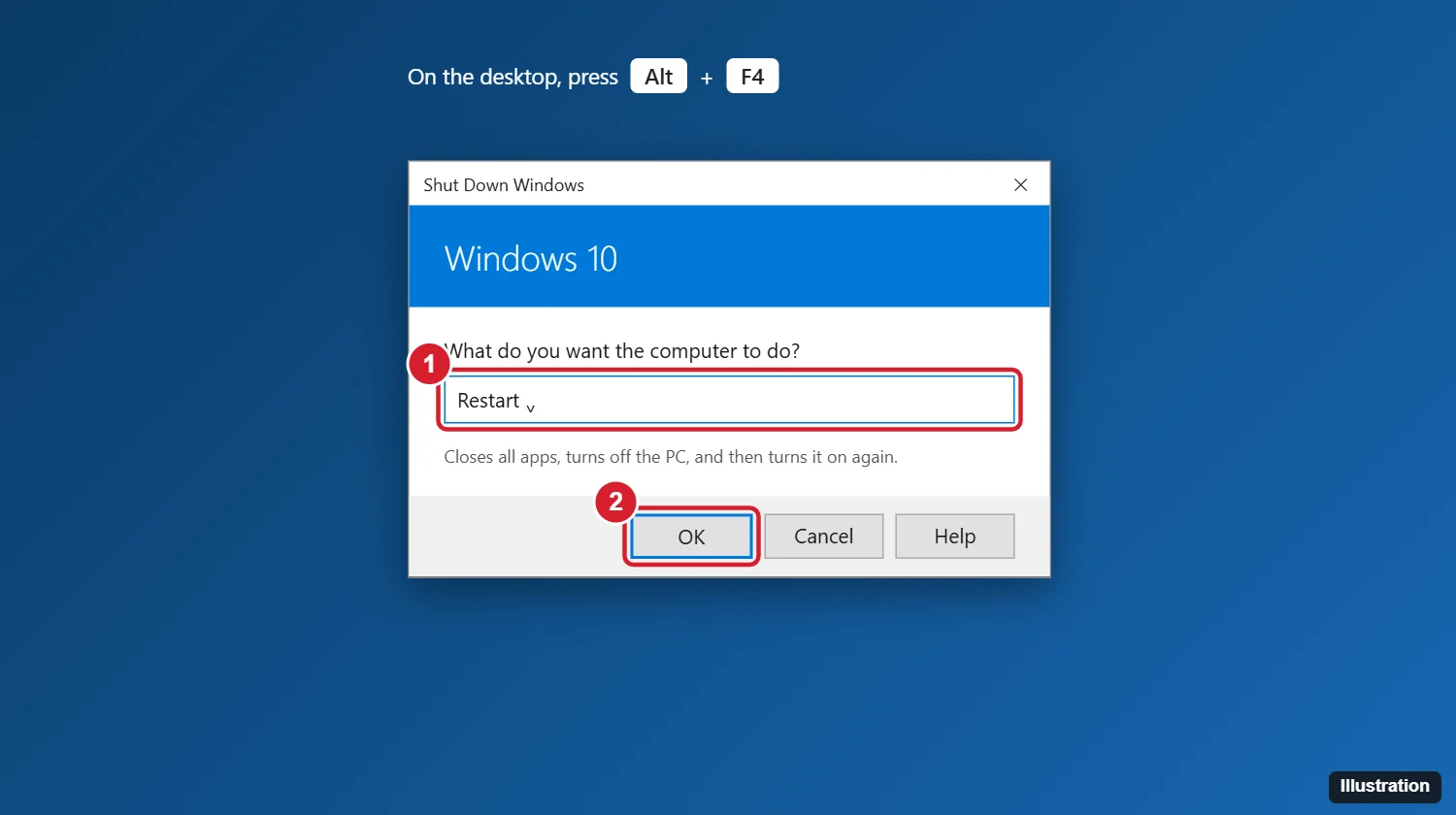
Alt + F4 on the desktop
Alt + F4 closes the active window, and only shows the shut-down prompt when no window is active. Clear the screen first.
- Press Windows + D to show the desktop.
- Press Alt + F4. The Shut Down Windows box opens.
- The list usually starts on Shut down, especially in Windows 10. Press the Down arrow until it reads Restart. (If the focus is on a button instead, press Tab to move back to the list.)
- Press Enter.
Windows + X, then U, then R
Windows + X opens the same menu as right-clicking Start (Microsoft calls it the Quick Link menu; many people call it the Power User menu). Press U to open Shut down or sign out, then R to restart. Press the keys one after another, not together. The letters follow the underlined characters in English menus; in other display languages, use the arrow keys and Enter.
Ctrl + Alt + Delete
Press Ctrl + Alt + Delete, press Tab until the power icon in the bottom-right corner is outlined, press Enter, and pick Restart. This security screen loads even when an app has frozen the desktop.
The Start menu without a mouse in Windows 10
Windows 10 puts Power in the left column, so the keyboard path differs from Windows 11:
- Press the Windows key to open Start.
- Press Tab (it may take one or two presses) until focus moves to the left column of icons.
- Press the Down arrow until the Power icon is selected, then press Enter.
- Arrow to Restart and press Enter.
For the Windows 11 Start menu with only the keyboard, plus laptop-specific tips such as a dead touchpad, a black screen, and a homemade one-key restart, see restarting a Windows 11 laptop with the keyboard.
Restart with a command
The shutdown command works the same in both versions and is the most predictable option for scripts, remote sessions, and moments when the Start menu won’t cooperate.
- Press Windows + R to open Run, or open Command Prompt, PowerShell, or Terminal.
- Type
shutdown /r /t 0and press Enter.
Here’s what the parts mean, from Microsoft’s shutdown reference:
| Switch | What it does |
|---|---|
| /r | Restarts the computer after shutting it down. |
| /s | Shuts down instead of restarting. |
| /t seconds | Waits before acting. The default is 30 seconds; 0 means immediately. |
| /f | Forces running apps to close without warning. Any /t above 0 already implies /f. |
| /a | Cancels a pending shutdown or restart during the countdown. |
| /o | Used with /r, restarts into the Advanced boot options menu. |
So shutdown /r /t 300 gives you five minutes to save files, and shutdown /a in a new window calls it off. More on stopping a countdown is in how to cancel a shutdown in Windows. In PowerShell, Restart-Computer does the same job as shutdown /r.
If the taskbar is unresponsive and Run won’t open, press Ctrl + Shift + Esc to open Task Manager. In Windows 11 select Run new task; in Windows 10 choose File > Run new task. Type the same command and press Enter.
Restart a PC you’re connected to remotely
In a Remote Desktop session, pressing Ctrl + Alt + Delete goes to your own computer, not the remote one. The Remote Desktop app usually sends that key combination to the remote PC as Ctrl + Alt + End. The most dependable route, though, is to open Run or Terminal inside the remote session and type shutdown /r /t 0.
Expect the connection to drop. Wait a minute or two, then reconnect. Only restart a remote PC you can reach again: if it doesn’t come back (for example, it stops at a BitLocker prompt or a failed update), someone will need to be there in person. Never use Shut down on a remote PC unless that’s your intention, since nobody will be there to press the power button.
When Windows is frozen
Work from the gentlest option to the harshest, because each step down risks more unsaved work:
- Close the stuck app, not the PC. If one program is hung, force quit the app in Windows and keep everything else open.
- Restart from Ctrl + Alt + Delete. If the security screen appears, use its power icon as described above.
- Emergency restart. On that same screen, hold Ctrl while you select the power icon. Windows offers an Emergency restart that restarts immediately and discards unsaved work.
- Hold the power button. If nothing responds for several minutes, press and hold the power button for about 10 seconds until the PC turns off, wait a few seconds, and press it again.
Step 4 is a forced power-off, so open files may not be saved and an update in progress can be interrupted. For desktop PCs, laptops with sealed batteries, and other hard cases, see how to force restart Windows.
When updates are waiting
If Windows has downloaded an update that needs a restart, the Power menu shows Update and restart (and Update and shut down) instead of the plain options. Choosing it installs the update during the restart, which can take noticeably longer than usual and may restart the PC more than once. Keep laptops plugged in and don’t hold the power button while you see a “Working on updates” message.
To keep Windows from restarting while you’re working, set Active hours: in Windows 11 go to Settings > Windows Update > Advanced options; in Windows 10 go to Settings > Update & Security > Windows Update and choose Change active hours. When a restart is pending, Windows Update may also offer to schedule it for a time you pick.
Windows 10 reached end of support on October 14, 2025. Every restart method here still works on it, but security updates now come only through the Extended Security Updates program (for consumers, through October 12, 2027).
Restart into Safe Mode or recovery
A normal restart reloads Windows the usual way. Sometimes you need the blue Choose an option screen instead, for Startup Repair, System Restore, or Safe Mode. Hold Shift while you select Restart in the Power menu, or run shutdown /r /o /t 0. From there, Microsoft’s path to Safe Mode is Troubleshoot > Advanced options > Startup Settings > Restart, then press 4 or 5. Full steps are in the guides to booting Windows 11 into Safe Mode and Safe Mode in Windows 10, and the recovery tools themselves are covered in entering recovery mode.
Windows 11 and Windows 10 side by side
| Task | Windows 11 | Windows 10 |
|---|---|---|
| Power icon in Start | Bottom right of the Start menu | Left column, above the Start button |
| Right-click Start / Windows + X | Shut down or sign out > Restart | Same |
| Alt + F4 on the desktop | Shut Down Windows box | Same; usually opens on Shut down |
| Task Manager command | Run new task button | File > Run new task |
| Advanced startup in Settings | System > Recovery > Restart now | Update & Security > Recovery > Restart now |
| Active hours | Windows Update > Advanced options | Update & Security > Windows Update |
Why Restart and Shut down give different results
On many PCs, Fast Startup is turned on. With it, Shut down closes your apps and signs you out but saves the Windows core to disk, so the next start is faster. That also means a driver or system glitch can survive a shutdown. Restart skips Fast Startup and loads Windows from scratch every time.
Practical rule: when a troubleshooting step, an installer, or an update says “restart,” choose Restart. If you prefer that Shut down also gives a full fresh start, you can turn off Fast Startup, at the cost of slightly slower boots.
If the restart hangs
- An app is blocking it. Windows may show a list of apps that are preventing the restart, with a Restart anyway option. Switch back and save first if the app has unsaved work.
- It says “Restarting” for a long time. If the drive light flickers or you see update progress, wait. A large feature update can take up to an hour. If the screen hasn’t changed at all for well over that, a forced power-off is reasonable.
- Nothing happens when you click Restart. Use
shutdown /r /t 0from Run or Task Manager. If File Explorer or the taskbar is the problem rather than Windows, you may only need to restart Windows Explorer. - Power options are missing. On work or school PCs, an administrator can hide them. Ctrl + Alt + Delete or the shutdown command may still work; otherwise ask IT.
Common questions about restarting Windows
How do I shut down instead of restart?
Use the same menus and choose Shut down, press Windows + X, then U, then U again, or run shutdown /s /t 0.
Does restarting delete files or settings?
No. Saved files, installed apps, and settings stay. Only unsaved changes in open apps are lost, mainly with the forced methods.
Is restarting bad for the PC?
A normal restart is routine. Holding the power button is the one to avoid using often, because it doesn’t let Windows close files cleanly.
How often should I restart?
There’s no fixed rule. Restart when Windows asks after an update, when the PC feels sluggish after days of sleep, or when a device stops working. Sleep alone doesn’t clear those problems.
For the command details, see Microsoft’s shutdown command reference and its short page on restarting your PC. If Windows won’t start properly after a restart, move on to recovery mode and Startup Repair.

Kermit Matthews runs Live2Tech from just outside Philadelphia. He is an IT specialist with over 20 years of experience, from a university help desk to small-business IT, IT management and his own consulting practice, and has written tech guides full time since 2020. Steps are checked against the current software on a real device or the maker’s official documentation. More about Kermit.