When the touchpad on a Windows 11 laptop stops responding, you can still restart from the keyboard. Press Windows + D to reach the desktop, press Alt + F4, choose Restart in the list, and press Enter. If the desktop is stuck, press Ctrl + Alt + Delete, Tab to the power icon, press Enter, and pick Restart.
Below is every Windows 11 restart route, keyboard first, plus what to do when nothing responds.
Pick the right method for your situation
| What’s happening | Best method |
|---|---|
| Touchpad or mouse is dead, Windows works | Windows + X, then U, then R (or Alt + F4 on the desktop) |
| One app is frozen and won’t let go | Ctrl + Alt + Delete, then the power icon |
| Taskbar or Start menu won’t open | Task Manager (Ctrl + Shift + Esc) > Run new task |
| You want a timed or scripted restart | shutdown /r /t 60 in Run or Terminal |
| You need repair tools or UEFI settings | Restart into Advanced startup |
| Screen is black but the laptop is on | Windows + Ctrl + Shift + B first, then a restart |
| Nothing responds at all | Hold the power button (last resort) |
Before any of these, save your work. Press Ctrl + S in each open app. Most methods ask apps to close, but the command line with a timer, the emergency restart, and the power button can close apps without asking.
Method 1: Windows + X, U, R
This is the fastest keyboard path because it never needs the arrow keys. Microsoft calls the Windows + X menu the Quick Link menu; it’s the same menu you get by right-clicking Start.
- Press Windows + X. The Quick Link menu opens above the Start button.
- Press U to open Shut down or sign out.
- Press R. Windows closes your apps and restarts.
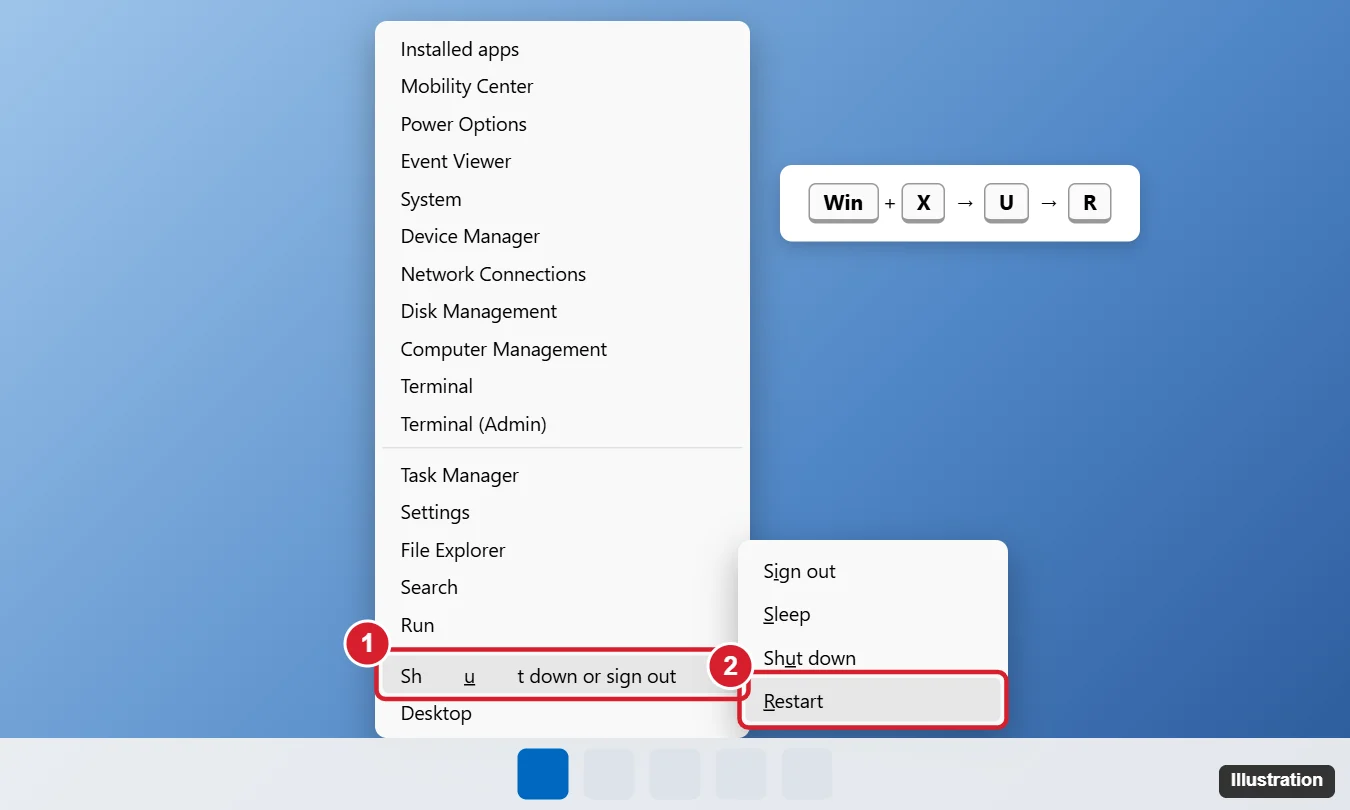
In the same submenu, a second U shuts down, S puts the laptop to sleep, and I signs you out. The letters match the underlined characters in English menus. If Windows uses another display language, the letters change, so use the arrow keys and Enter instead.
Method 2: Alt + F4 on the desktop
Microsoft describes Alt + F4 as “close the active window,” and only when no window is active does it prompt to shut down. That’s why the first step matters.
- Press Windows + D to show the desktop. Without it, Alt + F4 closes whatever app is in front.
- Press Alt + F4. The Shut Down Windows box opens.
- If the list shows another choice, such as Shut down, press the Up or Down arrow until it says Restart.
- Press Enter.
On many laptops the top row is set to media keys, so F4 changes volume or brightness. If nothing happens, press Fn + Alt + F4, or toggle Fn Lock (often Fn + Esc, depending on the maker).
Method 3: Ctrl + Alt + Delete
The security screen appears even when an app has taken over the desktop, which makes it the go-to when a game or browser freezes.
- Press Ctrl + Alt + Delete.
- Press Tab until the power icon in the bottom-right corner shows a focus outline.
- Press Enter, arrow to Restart, and press Enter again.
If a normal restart hangs, hold Ctrl while you select the power icon on this screen. Windows offers an Emergency restart that restarts at once and discards unsaved work, so keep it for when nothing else gets through. If only one program is frozen, try to force quit that app before restarting the whole laptop.
If the touchpad works, this is the familiar route Microsoft documents: Start, Power, Restart.
- Press the Windows key (or Ctrl + Esc) to open Start.
- Click the Power button at the bottom right of Start. From the keyboard, press Tab until the Power button has a focus outline; the number of presses depends on your Start layout.
- Choose Restart (click it, or arrow to it and press Enter).

If an update is waiting, the menu shows Update and restart instead of plain Restart. Choosing it installs the update, so expect the restart to take longer and keep the laptop plugged in.
Method 5: A command in Run, Terminal, or Task Manager
The shutdown command restarts Windows from any text box that runs programs, and it’s handy when the taskbar itself is misbehaving.
- Press Windows + R to open Run. If Run won’t open, press Ctrl + Shift + Esc to open Task Manager and choose Run new task.
- Type shutdown /r /t 0.
- Press Enter. The laptop restarts with no countdown.
Useful variations, per Microsoft’s shutdown reference:
- shutdown /r /t 60 waits 60 seconds. Without /t, the default wait is 30 seconds.
- shutdown /a cancels a pending restart if you run it during that countdown.
- shutdown /f forces apps to close without warning. Any /t value above 0 already implies /f, so a timed restart can lose unsaved work.
- shutdown /r /o /t 0 restarts into Advanced startup (see below).
In PowerShell or Windows Terminal you can also type Restart-Computer, which restarts the local PC.
Restart from the sign-in screen
If you’re at the lock or sign-in screen (press Windows + L to get there), you don’t need to sign in to restart. Press Space to clear the lock screen, press Tab until the power icon in the bottom-right corner is selected, press Enter, and choose Restart. This is useful when a laptop is shared and someone else’s session is stuck.
Restart into Advanced startup
Advanced startup is the blue Choose an option screen where you’ll find Troubleshoot tools such as Startup Repair, System Restore, Startup Settings (for Safe Mode), and UEFI firmware settings. There are three ways to get there:
- Shift + Restart: open the Power menu in Start or on the sign-in screen, hold Shift, and choose Restart (press Enter while holding Shift if you’re on the keyboard).
- Settings: press Windows + I, go to System > Recovery, and select Restart now next to Advanced startup.
- Command: run shutdown /r /o /t 0. Microsoft notes /o only works together with /r.
To go back to normal Windows from that screen, choose Continue. What each recovery tile does is covered in the guide to entering recovery mode in Windows 11, and if you only need Safe Mode, see booting Windows 11 into Safe Mode.
Black or frozen screen first
A blank screen doesn’t always mean Windows has crashed. Microsoft lists Windows + Ctrl + Shift + B as the shortcut to “wake up the device when the screen is blank or black.” It is not a restart, and nothing closes, so try it before you lose work. If the picture returns, save everything, then restart with Method 1 or 3.
When neither the keyboard nor the screen responds for a few minutes, press and hold the laptop’s power button until it turns off, usually around 10 seconds (the time varies by model). Wait a few seconds, then press it again to start up.
If the laptop sits on Restarting or Working on updates, wait at least 15 to 20 minutes (longer for a large update) while the drive light or progress changes. Only force it off if the screen hasn’t changed for well over that.
This is a forced shutdown, not a clean restart: unsaved work is lost, and cutting power while Windows shows “Working on updates” can leave an update half-installed. For desktops and other stubborn cases, see ways to force restart Windows, safest first. A restart also reloads Windows completely, while Shut down with Fast Startup on can carry some glitches over.
Make a one-key restart shortcut
Windows doesn’t have a single restart key, but you can build one in a minute:
- Right-click the desktop and choose New > Shortcut.
- For the location, type shutdown /r /t 0, select Next, name it Restart, and select Finish.
- Right-click the new shortcut, choose Properties, click the Shortcut key box, and press a letter such as R. Windows turns it into Ctrl + Alt + R.
- Select OK. Pressing that combination now restarts the laptop with no confirmation, so pick a letter you won’t hit by accident.
When the laptop keyboard doesn’t work either
- Plug in a USB or Bluetooth keyboard. Every shortcut above works the same way.
- Use the on-screen keyboard with a touchscreen or external mouse: go to Settings > Accessibility > Keyboard and turn on On-screen keyboard.
- Check for a disabled touchpad after the restart: many laptops have an Fn key that turns the touchpad off, and Windows 11 has a Touchpad switch under Settings > Bluetooth & devices > Touchpad.
- If the keyboard works in the firmware setup screen but not in Windows, the cause is likely a driver; check Device Manager once you’re back in.
Using Windows 10 or a desktop with a mouse? The general guide to restarting Windows covers the Windows 10 menus and mouse-first routes.
Restarting Windows 11 from the keyboard
Why did Alt + F4 close my app instead of showing Restart?
Alt + F4 closes the active window first. Only with no active window does it show the shut-down box, so press Windows + D before Alt + F4.
Why is the power icon missing on my work laptop?
An organization can hide power options through policy. Try Ctrl + Alt + Delete or the shutdown command; if those are blocked too, ask your IT team.
Can I stop Windows from restarting for updates while I’m working?
Yes. In Settings > Windows Update > Advanced options, set Active hours so Windows avoids automatic restarts during those times. When a restart is pending, Windows Update may also offer to schedule it.
How do I cancel a restart I set with a timer?
Open a new Run box or Terminal window before the countdown ends and run shutdown /a.
If restarts keep failing or the laptop won’t start properly afterward, the next step is Advanced startup and Startup Repair. You can read the Microsoft details in its shutdown command reference and the Windows keyboard shortcuts list.

Kermit Matthews runs Live2Tech from just outside Philadelphia. He is an IT specialist with over 20 years of experience, from a university help desk to small-business IT, IT management and his own consulting practice, and has written tech guides full time since 2020. Steps are checked against the current software on a real device or the maker’s official documentation. More about Kermit.