Your laptop keyboard was working a minute ago, and now it types nothing, types numbers instead of letters, or only responds when you hold a key down. The keyboard is rarely broken. Start with Filter Keys: in Windows 11, open Settings > Accessibility > Keyboard (in Windows 10, Settings > Ease of Access > Keyboard) and turn it off. Then check Num Lock and Fn Lock, restart, and reinstall the keyboard driver if it still won’t type.
Match the symptom to the fix
The way the keyboard misbehaves points to the cause. Find your symptom, then jump to that section. The fixes work on Windows 11 and Windows 10 laptops and on desktop PCs with a separate keyboard; where a menu name differs, both are given.
| What you see | Most likely cause | Where to look |
|---|---|---|
| Keys only register if held for a second, or quick taps are ignored | Filter Keys | Accessibility keyboard settings |
| Shift, Ctrl, or Alt acts as if it’s held down; a beep on every modifier | Sticky Keys | Accessibility keyboard settings |
| Letters such as J, K, L, U, I, O type numbers | Num Lock on a laptop with an embedded number pad | Lock keys |
| F1 to F12 change volume or brightness, or the reverse | Fn Lock | Lock keys |
| Windows key does nothing, other keys fine | Win Lock or game mode on the keyboard | Lock keys |
| Wrong symbols, such as @ and ” swapped or letters in another alphabet | Keyboard layout changed | Wrong characters |
| Nothing types at all, mouse still moves | Lock key, glitch, connection, or driver | Basics, then driver |
| Works in BIOS setup but not in Windows | Driver or software | Driver, then software |
| Doesn’t work anywhere, even in BIOS | Hardware | Hardware tests |
First, make sure it’s the keyboard
If the pointer won’t move either, the whole PC is frozen, not the keyboard. Wait a minute in case Windows is busy, then press Ctrl + Alt + Delete. If nothing responds, hold the power button for about 10 seconds to force a shutdown, wait a few seconds, and turn the PC back on. A forced shutdown can lose unsaved work, so use it only when nothing else responds.
If the mouse or touchpad still works, restart normally: click Start > Power > Restart. A restart clears a surprising number of stuck-keyboard cases, because it reloads the keyboard driver and resets any modifier key Windows thinks is held down.
Type without the keyboard while you troubleshoot
The on-screen keyboard lets you type with the mouse or touch screen. Open it with Windows key + Ctrl + O (if some keys work), or search Start for On-Screen Keyboard. In Windows 11 it’s also a switch under Settings > Accessibility > Keyboard; in Windows 10 it’s under Settings > Ease of Access > Keyboard. If you’re stuck at the sign-in screen, click the Accessibility icon in the lower-right corner and choose On-screen keyboard to type your PIN or password.
External keyboards: check the connection
- Wired USB: unplug it, wait a few seconds, and plug it into a different USB port directly on the PC, not a hub or monitor port.
- Wireless with a USB receiver: replace or recharge the batteries, check that the power switch on the keyboard is on, and move the receiver to a port closer to the keyboard.
- Bluetooth: make sure Bluetooth is on, then remove the keyboard in Settings > Bluetooth & devices (Windows 10: Settings > Devices > Bluetooth & other devices) and pair it again.
Turn off Filter Keys and Sticky Keys
These two accessibility features are behind most “locked” keyboards, because their shortcuts are easy to trigger by accident. Microsoft’s list of Windows accessibility keyboard shortcuts spells them out:
- Filter Keys turns on when you hold the right Shift key for eight seconds and accept the prompt. It tells Windows to ignore brief or repeated keystrokes, so ordinary typing seems dead.
- Sticky Keys turns on when you press Shift five times. Modifier keys then stay active after you let go, so the next key you press acts like a shortcut.
- Toggle Keys turns on when you hold Num Lock for five seconds. It only plays a sound when you press lock keys, so it’s harmless, but the beeps can be confusing.
Holding right Shift for eight seconds again usually switches Filter Keys back off. The settings page is the reliable fix, and it lets you turn off the shortcut too.
Windows 11
- Click Start > Settings with the mouse, or press Windows key + U if that shortcut still works, to go straight to accessibility settings.
- Select Accessibility, then Keyboard.
- Switch Filter keys off.
- Switch Sticky keys off, and Toggle keys too if you don’t use it.
- Click the arrow next to Filter keys and turn off its keyboard shortcut, then do the same for Sticky keys, so neither comes back the next time you hold Shift.
Microsoft’s page on how to make your keyboard and other input devices easier to use confirms the Windows 11 location. The two screenshots below show the Windows 10 version of the page; on Windows 11 the switches have the same names in a slightly different layout.
Windows 10
- Click Start, then the gear icon to open Settings.
- Go to Ease of Access > Keyboard.
- Turn off Use Sticky Keys and Use Filter Keys.

- Under each feature, clear the box that allows the shortcut key to start it, so holding Shift or tapping it five times doesn’t switch it back on.
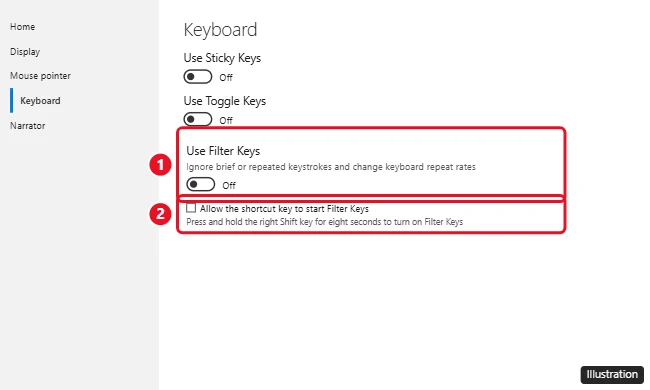
Type a few words in Notepad to test. If quick taps now register, Filter Keys was the cause. For every Sticky Keys option and the Control Panel route, see how to turn off Sticky Keys in Windows 11.
Windows 10 reached end of support on October 14, 2025 (consumer Extended Security Updates continue through October 12, 2027), but these settings still work on it the same way.
Check Num Lock, Fn Lock, Win Lock, and laptop lock keys
Lock keys don’t stop the keyboard, but they change what keys do, which looks just like a fault. Their combinations depend on the laptop or keyboard maker, so treat the examples here as common patterns and check the icons printed on your keys or your model’s manual.
- Num Lock: many compact laptops have no separate number pad, so a block of letter keys doubles as one when Num Lock is on. If letters type numbers, press Num Lock, or Fn plus the key labeled Num Lk (on some models it shares a key such as F11 or Scroll Lock).
- Fn Lock: if the top row controls volume or brightness when you want F1 to F12, or the other way round, Fn Lock is on or off. Many laptops toggle it with Fn + Esc or a key with a padlock and “Fn” icon. More brand-by-brand combinations are in how to turn off Fn Lock in Windows 11.
- Win Lock: gaming keyboards often have a key, switch, or Fn + Windows combination that disables the Windows key so it can’t interrupt a game. If only the Windows key is dead, press it again. Some keyboards call this game mode and show a light when it’s on.
- Keyboard or touchpad lock key: a few laptops have a function key with a keyboard or padlock icon that turns the built-in keyboard off. Press it with Fn. The laptop maker’s hotkey or control app may also have a keyboard disable option.
- Caps Lock and Scroll Lock: check the indicator lights and press each once if it’s lit unexpectedly.
Windows itself has no built-in shortcut that locks only the keyboard. Windows key + L locks the whole PC and shows the sign-in screen; sign in and you’re back. If the built-in keyboard was turned off deliberately through Device Manager, the reverse of how to disable a laptop keyboard on Windows 11 brings it back: right-click the keyboard there and choose Enable device.
HP owners have extra model-specific checks in this walkthrough to get an HP laptop keyboard working again.
Wrong characters instead of no characters
If keys type, but the wrong symbols come out (for example, Shift + 2 gives ” instead of @, or Y and Z are swapped), Windows has switched to a different keyboard layout. Press Windows key + Space to cycle through installed layouts, or click the language abbreviation (such as ENG) near the clock and pick the right one. Pressing Ctrl + Shift also switches layouts when more than one is installed, and on many PCs Left Alt + Shift switches the input language, which is how this often happens by accident.
To remove a layout you never use, go to Settings > Time & language > Language & region, open the options for your language, and remove the extra keyboard. Full steps are in how to reset keyboard settings in Windows 11.
Reinstall or update the keyboard driver
If the keyboard works in BIOS setup or on another PC but not in Windows, the driver is the next suspect. Reinstalling it forces Windows to set the keyboard up from scratch.
- Right-click Start with the mouse and choose Device Manager.
- Expand Keyboards. A built-in laptop keyboard usually appears as Standard PS/2 Keyboard; USB and Bluetooth ones often show as HID Keyboard Device. A yellow warning triangle points to a driver problem.
- Right-click the keyboard and choose Uninstall device, then confirm with Uninstall.
- Restart the PC. Windows detects the keyboard and installs the driver again. You can also choose Action > Scan for hardware changes in Device Manager instead of restarting.
If the keyboard still won’t type, right-click it and choose Update driver, then the option to search automatically for drivers, check Windows Update for optional driver updates, or download the keyboard, chipset, and hotkey drivers from your laptop maker’s support page for your exact model.
Rule out software and startup problems
- Keyboard troubleshooter: on Windows 10, look in Settings > Update & Security > Troubleshoot > Additional troubleshooters for Keyboard; on current builds it may hand you to the Get Help app instead. Current versions of Windows 11 route most troubleshooting through the Get Help app; check Settings > System > Troubleshoot > Other troubleshooters for a keyboard entry, which may not be listed on your PC.
- Fast Startup: this feature restores part of the previous session at boot, and occasionally a device doesn’t come back up properly. Go to Control Panel > Power Options > Choose what the power buttons do, click Change settings that are currently unavailable, clear Turn on fast startup, save, and do a full shutdown.
- Recently added apps: key remappers, macro tools, and some game overlays can grab keystrokes. Uninstall or quit anything new and test again.
- Safe Mode: start Windows in Safe Mode, which loads only basic drivers. If the keyboard works there, a startup program or third-party driver is responsible.
Test for a hardware fault
- Check in BIOS or UEFI setup: restart and press the setup key as the laptop starts (often F2, F10, Del, or Esc, depending on the maker). If you can move around the setup screens with the arrow keys, the keyboard hardware works and the problem is in Windows.
- Try a different keyboard: plug a USB keyboard into the laptop. If it works, you can keep using the PC while you sort out the built-in one. You can also try your external keyboard on another computer to see whether the problem follows it.
- Look for stuck keys and debris: shut down, tilt the laptop, and use short bursts of compressed air between the keys. Press Shift, Ctrl, Alt, and the Windows key several times each; a stuck modifier can make every other key misbehave.
- After a spill: turn the laptop off right away, unplug it, and let it dry completely before you try it again. Liquid can damage the keyboard and the board under it.
- Swollen battery warning: if the keyboard or touchpad is bulging or lifting, stop using the laptop and have it serviced. A swelling battery can push up from below and is a safety risk.
If the built-in keyboard doesn’t work in BIOS setup either, the keyboard or its internal ribbon cable likely needs repair. Contact the manufacturer, especially if the laptop is still under warranty.
Keyboard lock questions
Why does the keyboard work at the sign-in screen but not after I sign in?
That points to something that loads with your account: an accessibility setting saved in your profile, a remapping app, or a startup program. Check Filter Keys first, then try Safe Mode.
Only a few keys don’t work. Is it the same problem?
Usually not. A single dead key or a small group is more often dirt, a worn key switch, or a lock key such as Num Lock changing a block of keys. Test in Notepad and the on-screen keyboard to see whether Windows receives the keypress.
Can a Windows update cause this?
Sometimes a driver installed through Windows Update doesn’t suit a specific laptop. If the problem started right after an update, roll back the keyboard driver in Device Manager (Properties > Driver > Roll Back Driver, if available), or install the driver from the laptop maker’s site.
Will these steps work on a desktop PC?
Yes, apart from laptop-only lock keys and battery checks. On a desktop, the connection and Win Lock checks matter more.
Most keyboards are back to normal after the Filter Keys check and a restart. If yours isn’t, work down through the driver and hardware tests, and keep the on-screen keyboard handy until it’s fixed.

Kermit Matthews runs Live2Tech from just outside Philadelphia. He is an IT specialist with over 20 years of experience, from a university help desk to small-business IT, IT management and his own consulting practice, and has written tech guides full time since 2020. Steps are checked against the current software on a real device or the maker’s official documentation. More about Kermit.