Windows 11 does not have a single "reset keyboard" button, but you can return every keyboard setting to normal in a few minutes. Whether your keyboard is typing the wrong characters, switching layouts on its own, lagging, repeating keys, or behaving oddly after an update, this guide covers each setting that affects it and how to put it back to its default.
Quick Answer
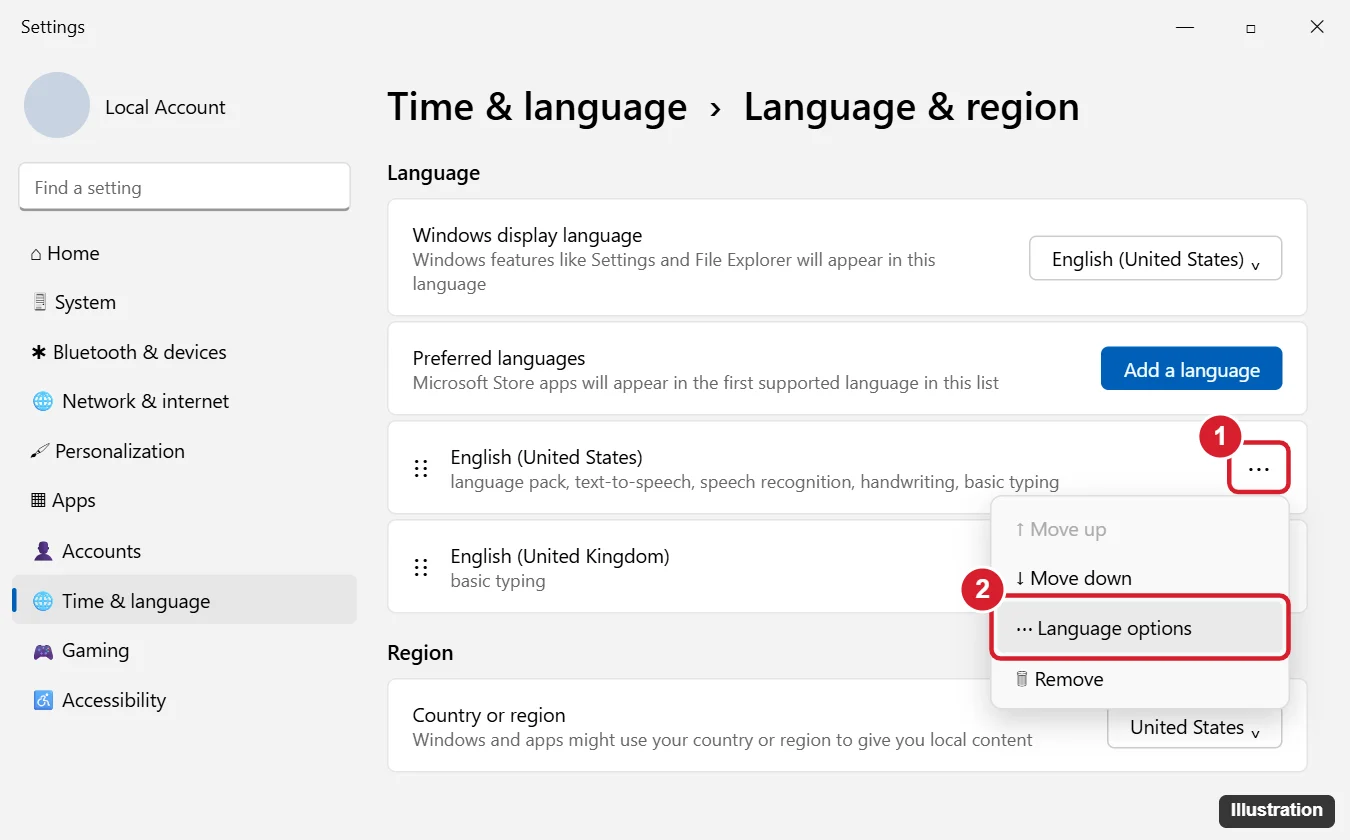
Go to Settings > Time & language > Language & region, click the ⋯ menu next to your language, choose Language options, and remove any keyboard layout you do not use. Then turn off Sticky keys and Filter keys in Settings > Accessibility > Keyboard, and reinstall the keyboard driver in Device Manager if problems continue.
What "Resetting" Covers
| Setting | Default | Where to change it |
|---|---|---|
| Keyboard layout | The layout for your region (for example, US for English (United States)) | Time & language > Language & region |
| Input switching | Windows + Spacebar; Left Alt + Shift | Time & language > Typing > Advanced keyboard settings |
| Sticky, Filter, and Toggle keys | Off | Accessibility > Keyboard |
| Typing suggestions and autocorrect | Varies (touch keyboard autocorrect on) | Time & language > Typing |
| Repeat delay and rate | Short delay, fast rate | Control Panel > Keyboard |
| Driver | Standard Windows keyboard driver | Device Manager |
Step 1: Reset Your Keyboard Layout
An extra language or layout is the most common reason a keyboard types the wrong symbols (for example, @ and " swapped) or letters (Y and Z swapped).
- Press Windows key + I to open Settings.
- Go to Time & language > Language & region.
- Under Preferred languages, click ⋯ next to any language you do not use and choose Remove.
- Click ⋯ next to your main language and choose Language options.
- Under Keyboards, make sure your normal layout is listed (for example, US QWERTY). If not, click Add a keyboard.
- Click ⋯ next to any other keyboard (such as United States-International) and choose Remove.
The United States-International layout makes the apostrophe and quote keys wait for the next letter so it can add accents. If your quotes do not appear until you press another key, remove that layout.
To switch layouts quickly without removing any, press Windows key + Spacebar or click the language indicator (such as ENG) in the taskbar.
Step 2: Stop Layouts From Changing on Their Own
- Go to Settings > Time & language > Typing > Advanced keyboard settings.
- Under Override for default input method, choose your normal keyboard.
- Uncheck Let me use a different input method for each app window unless you want per-app layouts.
- Click Input language hot keys to change or disable the Left Alt + Shift and Ctrl + Shift shortcuts. Select the action, click Change Key Sequence, and choose Not Assigned.
Step 3: Turn Off Accessibility Keyboard Features
- Go to Settings > Accessibility > Keyboard.
- Turn off Sticky keys, Filter keys, and Toggle keys.
- Click each one and turn off its Keyboard shortcut so it does not turn on again accidentally (pressing Shift five times or holding right Shift for eight seconds).
- Make sure On-screen keyboard is off unless you want it.
Also check Use the Print screen key to open screen capture on the same page if Print Screen is not behaving as you expect.
Step 4: Reset Typing Settings
- Go to Settings > Time & language > Typing.
- Review Show text suggestions when typing on the physical keyboard, Autocorrect misspelled words, and Highlight misspelled words, and set them the way you prefer.
- Open Touch keyboard and turn off any options you did not intentionally enable.
Step 5: Reset Repeat Delay and Rate
- Press Windows key + R, type control keyboard, and press Enter.
- On the Speed tab, set Repeat delay one notch from the shortest and Repeat rate to the fastest, which is close to the Windows default.
- Test in the box and click OK.
Step 6: Reinstall the Keyboard Driver
- Right-click Start and choose Device Manager.
- Expand Keyboards.
- Right-click your keyboard (for example, HID Keyboard Device or Standard PS/2 Keyboard) and choose Uninstall device.
- Restart your PC. Windows installs a fresh driver automatically.
If your keyboard has its own software for macros, lighting, or key remapping, reset its profile to default in that app as well. Utilities such as Microsoft PowerToys' Keyboard Manager can also remap keys, so check them if one key types the wrong thing.
Step 7: Run the Troubleshooter and Update Windows
- Go to Settings > System > Troubleshoot > Other troubleshooters and run the Keyboard troubleshooter if it is listed. On newer builds, some troubleshooters have moved to the Get Help app.
- Install pending updates in Settings > Windows Update.
Step 8: If Nothing Else Works
- Create a new user account (Settings > Accounts > Other users) and test the keyboard there. If it works, the problem is in your profile settings.
- Use System Restore to go back to a point before the problem started.
- Test the keyboard on another PC, or try another keyboard on this one, to rule out hardware.
- Reset this PC (Settings > System > Recovery) is a last resort. Choose Keep my files, and back up first.
Frequently Asked Questions
Is there a keyboard reset button in Windows 11?
No. You reset the layout, accessibility options, typing settings, and driver separately, as shown above.
Why does my keyboard type the wrong symbols?
A different layout is active. Press Windows + Spacebar to switch, and remove layouts you do not use.
Will removing a language delete my files?
No. It only removes the language and its keyboards. You can add it back anytime.
How do I reset a laptop keyboard that will not type at all?
Restart, turn off Filter keys, check Num Lock and Fn Lock, and reinstall the driver. If it does not work in the BIOS either, it may be a hardware problem.
Summary
- Remove extra languages and keyboard layouts in Language & region.
- Set a default input method and disable layout switching shortcuts if needed.
- Turn off Sticky, Filter, and Toggle keys.
- Review typing settings and repeat speed.
- Reinstall the keyboard driver and reset any keyboard software.

Kermit Matthews is a freelance writer based in Philadelphia, Pennsylvania with more than a decade of experience writing technology guides. He has a Bachelor’s and Master’s degree in Computer Science and has spent much of his professional career in IT management.
He specializes in writing content about iPhones, Android devices, Microsoft Office, and many other popular applications and devices.