If you type in more than one language, Windows 10 lets you switch keyboard layouts in a second. First add the language, then use a shortcut or the taskbar. Windows 10 reached end of support on October 14, 2025. Consumer Extended Security Updates (ESU) now run until October 12, 2027.
Quick Answer
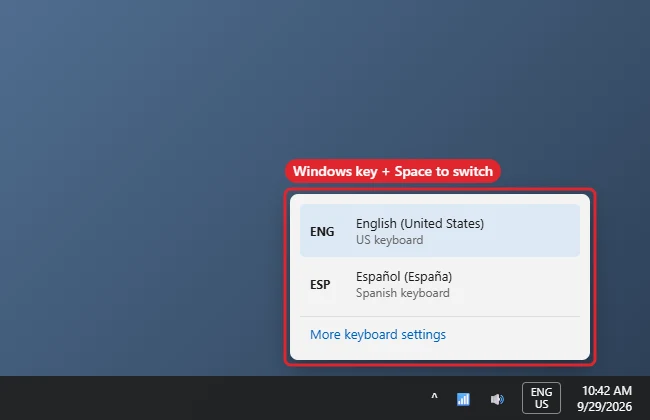
Press Windows key + Space to cycle through keyboard languages, or click the language code (such as ENG) on the taskbar and pick one.
How to Switch Keyboard Language in Windows 10
- Open Settings, Time and Language, Language.
- Under Preferred languages, click Add a language, choose one and click Next, then Install.
- To add only a keyboard, select a language, click Options, then Add a keyboard.
- Press Windows key + Space to switch between installed keyboards.
- Or click the language code near the clock and choose a keyboard.
- Left Alt + Shift also switches, if that shortcut is enabled.
Switching Methods
| Method | Notes |
|---|---|
| Windows key + Space | Shows a list; press again to move down |
| Left Alt + Shift | Cycles without a list |
| Language code on taskbar | Click and pick |
| Per-app language | Advanced keyboard settings, Let me use a different input method for each app window |
Troubleshooting
- Language switches by itself: Alt + Shift may be pressed accidentally. Change or turn off the hotkey in Advanced keyboard settings, Input language hot keys.
- Language bar missing: turn it on in Advanced keyboard settings, Use the desktop language bar.
- Wrong characters on the keys: you have the wrong layout (for example US vs UK). Remove the extra layout.
- Related: changing the display language and the Windows 11 steps.
Frequently Asked Questions
Does this change the Windows display language?
No. Keyboard layouts are separate from the display language.
How do I remove a keyboard?
Language settings, select the language, Options, then remove the keyboard.
Can I type accents without another layout?
Yes. See typing accents.
Is it the same in Windows 11?
Very similar; the shortcut is the same.
Summary
- Add a language.
- Add keyboards if needed.
- Press Windows key + Space.
- Or use the taskbar code.
- Adjust hotkeys if needed.

Kermit Matthews is a freelance writer based in Philadelphia, Pennsylvania with more than a decade of experience writing technology guides. He has a Bachelor’s and Master’s degree in Computer Science and has spent much of his professional career in IT management.
He specializes in writing content about iPhones, Android devices, Microsoft Office, and many other popular applications and devices.