A QR code on a flyer, menu, event program, or business card lets readers open a website, Wi-Fi details, or contact card with their phone camera. Microsoft Word can create QR codes itself with a little-known field code, so you do not need a separate app. This guide covers the built-in DISPLAYBARCODE method step by step, the add-in and online-generator alternatives, how to size and test the code, and how to fix codes that will not scan.
Quick Answer
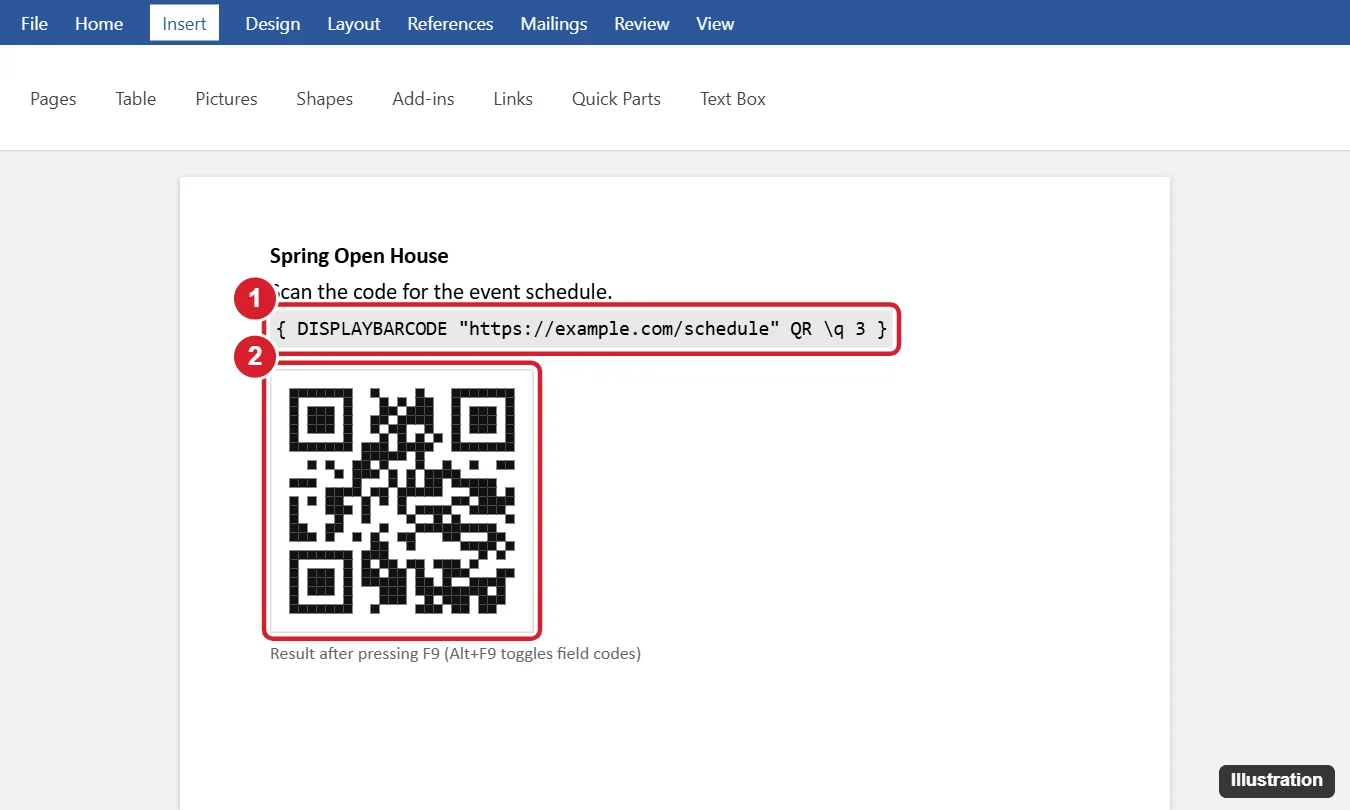
In Word for Windows, click where you want the code and press Ctrl + F9 to insert field braces. Type DISPLAYBARCODE "https://yourwebsite.com" QR \q 3 between the braces. Then right-click the field and choose Update Field (or press F9). The QR code appears in place. Press Alt + F9 to switch between the code and the result.
Method 1: Create a QR Code with a Word Field (No Add-in)
- Click where the QR code should go.
- Press Ctrl + F9. Gray braces
{ }appear. Do not type the braces yourself, because typed braces will not work. - Inside the braces, type:
DISPLAYBARCODE "https://yourwebsite.com" QR \q 3 - Right-click the field and choose Update Field, or click inside it and press F9.
- If you still see the code instead of the QR image, press Alt + F9 to switch field codes off.
- Scan the code with your phone to test it.
You can also insert the field through Insert > Quick Parts > Field. DISPLAYBARCODE may not appear in the field list, so choosing Field Codes and typing the code is easier with the Ctrl + F9 method.
Useful DISPLAYBARCODE Switches
| Switch | What it does | Example |
|---|---|---|
\q |
Error correction level from 0 (lowest) to 3 (highest). Higher levels scan more reliably when printed small or smudged. | \q 3 |
\s |
Scale as a percentage, from 10 to 1000 | \s 150 |
\f and \b |
Foreground and background colors as hex values | \f 0x000000 \b 0xFFFFFF |
\r |
Rotation (0, 1, 2, or 3 for 0, 90, 180, or 270 degrees) | \r 0 |
Keep dark modules on a light background with strong contrast. Inverted or low-contrast codes often fail to scan.
What You Can Put in the Code
| Content | Text to use inside the quotes |
|---|---|
| Website | https://example.com/page |
mailto:name@example.com |
|
| Phone call | tel:+15555550123 |
| Wi-Fi network | WIFI:T:WPA;S:NetworkName;P:Password;; |
| Plain text | Any short message |
Method 2: Use a QR Code Add-in
- Go to Insert > Get Add-ins (or Add-ins in newer versions).
- Search for QR and choose a well-reviewed QR code add-in.
- Enter your URL or text, adjust the size and colors, and click Insert.
Add-ins are the easiest option in Word for Mac and Word for the web, where field codes may not work. Some organizations block add-ins, so check with IT if the store doesn’t open.
Method 3: Insert a QR Image from Another Tool
- Microsoft Edge: open the web page, right-click it, and choose Create QR code for this page. Download the image, then use Insert > Pictures in Word.
- Chrome: use the share or QR option in the address bar or menu to create and download a code for the current page.
- Online generators: choose a static QR code. Some “dynamic” codes redirect through the generator’s servers and can stop working if a subscription ends.
Sizing and Printing Tips
- Minimum size: about 2 cm (0.8 in) square for close scanning. Go larger for posters seen from a distance.
- Quiet zone: leave white space around the code, and do not crop it tightly or place text against it.
- Shorter data scans better: long URLs create dense codes. Use a shorter page address when you can.
- Test the printout, not just the screen, with more than one phone.
Related: How to Make Business Cards in Microsoft Word.
Troubleshooting
I see “Error! Not a valid …” or nothing happens
Make sure the braces were created with Ctrl + F9, the text is in straight double quotes, and QR is spelled in capitals after the text. Then update the field again with F9.
The QR code shows as code text when printed
Press Alt + F9 to hide field codes, and in File > Options > Advanced, make sure Show field codes instead of their values is off.
The code scans but opens the wrong page
Press Alt + F9, fix the URL inside the quotes, then press F9 to update it.
The field doesn’t work in Word for Mac or the web
Field support differs between versions. Use an add-in or insert a QR image instead.
Frequently Asked Questions
Does Word have a built-in QR code generator?
Not as a menu button, but the DISPLAYBARCODE field code in Word for Windows generates QR codes without any add-in.
Do QR codes made in Word expire?
No. A code made with the field or a static image contains the data directly and keeps working as long as the destination exists.
Can I make a QR code for each row in a mail merge?
Yes. Nest a merge field inside the DISPLAYBARCODE field in place of the fixed URL, so each record gets its own code.
Summary
- Press Ctrl + F9 and type
DISPLAYBARCODE "your link" QR \q 3. - Press F9 to update and Alt + F9 to show the QR code.
- Adjust the size with
\sand keep strong contrast. - Use an add-in or an image from Edge or a generator if fields aren’t available.
- Test the printed code before sharing.

Kermit Matthews is a freelance writer based in Philadelphia, Pennsylvania with more than a decade of experience writing technology guides. He has a Bachelor’s and Master’s degree in Computer Science and has spent much of his professional career in IT management.
He specializes in writing content about iPhones, Android devices, Microsoft Office, and many other popular applications and devices.