Two-factor authentication (2FA) stops someone who has your Facebook password from logging in, because they’d also need a six-digit code from your phone. Using Google Authenticator for those codes is more secure than text messages, works without a phone signal, and protects you from SIM-swap attacks. Facebook now manages 2FA through Meta’s Accounts Center. This guide shows the current steps on a computer and in the Facebook app, plus how to save recovery codes and move Authenticator to a new phone without getting locked out.
Quick Answer
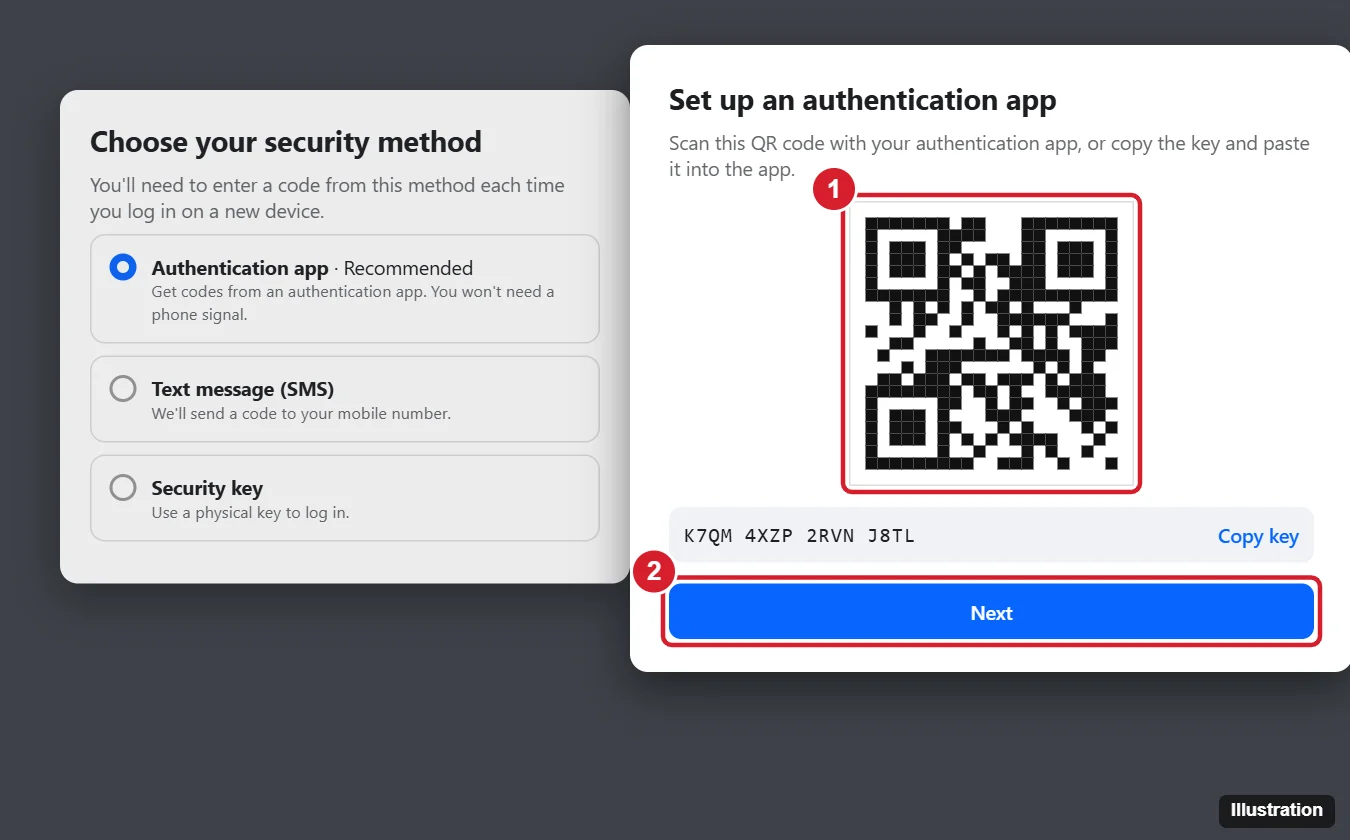
In Facebook, go to Settings & privacy > Settings > Accounts Center > Password and security > Two-factor authentication, choose your account, select Authentication app, and click Next. In Google Authenticator, tap + > Scan a QR code, scan the code Facebook shows, then type the six-digit code into Facebook to finish.
Before You Start
- Install Google Authenticator from the App Store or Google Play on your phone.
- Have your Facebook password handy; you’ll be asked to re-enter it.
- If you use Authenticator on the same phone as Facebook, you can copy the setup key instead of scanning a QR code.
Set Up Google Authenticator for Facebook on a Computer
- Log in to Facebook, click your profile picture in the top right, then click Settings & privacy > Settings.
- Click Accounts Center (in the left menu or at the top).
- Click Password and security, then Two-factor authentication.
- Choose your Facebook account. Re-enter your password if asked.
- Select Authentication app and click Next. Facebook shows a QR code and a text key.
- On your phone, open Google Authenticator, tap the + button, and choose Scan a QR code. Point the camera at the code on screen.
- A new Facebook entry appears in Authenticator with a six-digit code that changes every 30 seconds.
- On Facebook, click Next, type the current code, and click Next again. Click Done.
Set It Up in the Facebook App
- In the Facebook app, tap the menu (your profile picture or three lines), then the gear icon or Settings & privacy > Settings.
- Tap Accounts Center > Password and security > Two-factor authentication.
- Choose your account and select Authentication app, then tap Next.
- Tap Copy key.
- Open Google Authenticator, tap + > Enter a setup key, enter “Facebook” as the name, paste the key, keep Time based selected, and tap Add.
- Go back to Facebook, tap Next, and enter the six-digit code from Authenticator.
Save Your Recovery Codes
If you lose your phone, recovery codes are the fastest way back into your account. Each code works once.
- Go to Accounts Center > Password and security > Two-factor authentication and choose your account.
- Under Additional methods, select Recovery codes.
- Write the codes down or print them, and store them somewhere safe, away from your phone. You can generate new codes, which cancels the old ones.
Logging In With Google Authenticator
When you log in on a new browser or device, enter your password as usual. Facebook then asks for a code; open Google Authenticator and type the current six-digit code for Facebook. You can check Trust this device so you aren’t asked every time on your own computer.
Moving to a New Phone
- Cloud sync: newer versions of Google Authenticator can back up codes to your Google account. Tap your profile picture in the app and sign in to turn on sync, then sign in with the same account on the new phone.
- Transfer accounts: in Authenticator on the old phone, tap the menu > Transfer accounts > Export accounts, then scan the QR code with Authenticator on the new phone.
- Set up again: if the old phone is still working, log in to Facebook, turn the authentication app off and back on in Accounts Center, and scan the new QR code with the new phone.
Don’t erase your old phone until you’ve confirmed codes work on the new one.
For your Google Account itself, keep a set of Google backup codes.
Related: where Facebook keeps deleted posts.
Troubleshooting
- “The code you entered is incorrect”: the phone’s clock may be off. Turn on automatic date and time in your phone’s settings. On Android, you can also use Authenticator’s Time correction for codes setting if available.
- Code expired: codes change every 30 seconds. Wait for a fresh one and type it quickly.
- Lost your phone: use a recovery code, approve the login from a device where you’re already logged in, or follow Facebook’s recovery prompts on the login screen. See how to recover Google Authenticator codes.
- Can’t find Accounts Center: update the Facebook app, or use a computer at facebook.com.
Related: deactivate Facebook on an iPhone.
Related: sign into Pokémon GO with Google.
Frequently Asked Questions
Can I use a different authenticator app?
Yes. Facebook works with any standard time-based authenticator, including Microsoft Authenticator, Authy and many password managers.
Does Instagram use the same setting?
Instagram has its own 2FA setting in Accounts Center. If both accounts are in the same Accounts Center, you can set them up from the same place, but each account gets its own code entry.
Is Google Authenticator safer than text messages?
Yes. Codes are generated on your phone, so they can’t be intercepted over the phone network or stolen through a SIM swap.
Can I turn two-factor authentication off later?
Yes, from the same Two-factor authentication screen, but we don’t recommend it.
Summary
- Open Accounts Center > Password and security > Two-factor authentication.
- Choose Authentication app.
- Scan the QR code in Google Authenticator (+ > Scan a QR code).
- Enter the six-digit code to confirm.
- Save your recovery codes somewhere safe.

Kermit Matthews is a freelance writer based in Philadelphia, Pennsylvania with more than a decade of experience writing technology guides. He has a Bachelor’s and Master’s degree in Computer Science and has spent much of his professional career in IT management.
He specializes in writing content about iPhones, Android devices, Microsoft Office, and many other popular applications and devices.