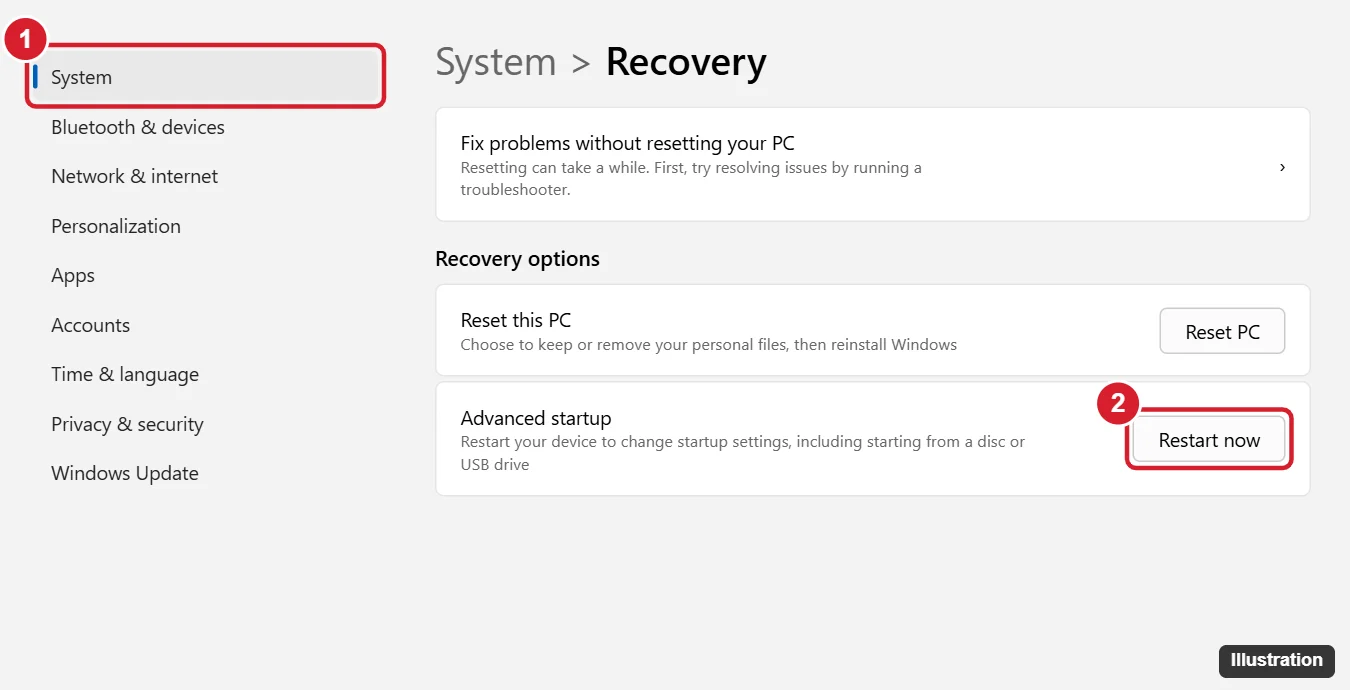
When a Windows 11 or Windows 10 PC needs repair tools such as Startup Repair, System Restore, or Safe Mode, you get to them through recovery mode. If Windows still starts, open Settings > System > Recovery and select Restart now next to Advanced startup, or hold Shift while you choose Restart. If Windows won’t start, there are ways in for that too.
What recovery mode is
Recovery mode is Microsoft’s Windows Recovery Environment, or WinRE: a small, separate copy of Windows stored on its own partition. Because it runs outside your normal Windows installation, it can repair problems that keep Windows from loading. Opening it changes nothing on its own. You’ll land on a blue Choose an option screen, and nothing happens until you pick a tool.
Which way in depends on how far your PC gets:
| Your situation | Use |
|---|---|
| Windows starts and you can sign in | Settings, Shift + Restart, or a command |
| You reach the sign-in screen but can’t sign in | Shift + Restart from the sign-in screen |
| Windows fails to start | Automatic Repair after failed starts, or the maker’s recovery key |
| WinRE is missing or damaged | A recovery drive or Windows installation USB |
Before you start, if your drive uses BitLocker or device encryption, have your recovery key ready (see the BitLocker section below). Windows 10 reached end of support on October 14, 2025, but WinRE works the same way on it; where a step differs, it’s noted.
Way 1: From Settings
- Save your work and close your apps.
- Press Windows + I to open Settings.
- In Windows 11, go to System > Recovery. In Windows 10, go to Update & Security > Recovery.
- Next to Advanced startup, select Restart now, then confirm.
- The PC restarts to Choose an option.
Windows 10 screens and the other Advanced startup routes for that version are in opening Advanced startup options in Windows 10.
Way 2: Hold Shift while you choose Restart
This is the fastest route, and it works from several places. In each case, hold Shift down as you select Restart and keep holding it until the screen goes dark or shows “Please wait.”
- Start menu: select Start, then the Power button, then Shift + Restart.
- Right-click Start (or Windows + X): Shut down or sign out, then Shift + Restart.
- Ctrl + Alt + Delete screen: select the power icon in the bottom-right corner, then Shift + Restart.
- Sign-in screen: select the power icon in the bottom-right corner, then Shift + Restart. Microsoft documents this entry point, and it’s the one to use when you can’t get past the password.
If the PC simply restarts into Windows, you let go of Shift too early. Try again, or use Settings.
Way 3: With a command
This route suits a broken mouse or a remote session. Right-click Start, open Terminal (Windows 11) or Windows PowerShell (Windows 10), and run:
shutdown /r /o /t 0
Microsoft’s reference explains the parts: /r restarts, /o goes to the advanced boot options menu (it only works together with /r), and /t 0 means no delay. Adding /f closes running apps without warning; it’s optional, so save your files first either way. Other keyboard restart routes are listed in restarting a Windows 11 laptop with the keyboard.
Another option is to open Terminal or Command Prompt as administrator and run reagentc /boottore. That sets WinRE to start the next time the PC boots; it doesn’t restart by itself, so restart normally afterward.
Way 4: When Windows won’t start
Windows is designed to open WinRE by itself. Microsoft lists the triggers: two failed attempts to start Windows in a row, two unexpected shutdowns in a row within two minutes of startup finishing, a Secure Boot error, and a BitLocker error on touch-only devices. If your PC keeps failing, you may already see Preparing Automatic Repair.
If it doesn’t appear, you can trigger it yourself. This involves forcing the power off, which carries a small risk to open files and should never be done while the screen shows that updates are installing.
- Turn the PC on.
- As soon as the maker’s logo or the spinning dots appear, hold the power button for about 10 seconds until the PC turns off.
- Repeat once more. Microsoft documents two failed starts as the trigger, but some PCs need a third interrupted start.
- Turn the PC on and let it run. You should see Preparing Automatic Repair and then an Automatic Repair screen.
- Select Advanced options to reach Choose an option.
The maker’s recovery key
Microsoft also notes that PC makers can set up a hardware recovery button. On many PCs it’s a function key pressed right after power-on, often F11, F9, F10, or F12 depending on the brand and model. Some of these keys open the maker’s own recovery tool rather than WinRE. Check your model’s support page for the exact key.
Way 5: From a recovery drive or installation USB
If WinRE itself is damaged, start the PC from USB instead. On a working PC, either create a recovery drive (search Start for Create a recovery drive) or make Windows installation media with Microsoft’s Media Creation Tool.
- Plug the USB drive into the problem PC.
- Turn the PC on and open its boot menu (often F12, Esc, or F9), then choose the USB drive.
- With a recovery drive, choose your keyboard layout and you’ll see Choose an option.
- With installation media, pick your language, select Next, and then select Repair your computer instead of Install now.
Fuller USB repair steps for Windows 11 are in repairing Windows 11 from USB.
What each recovery option does
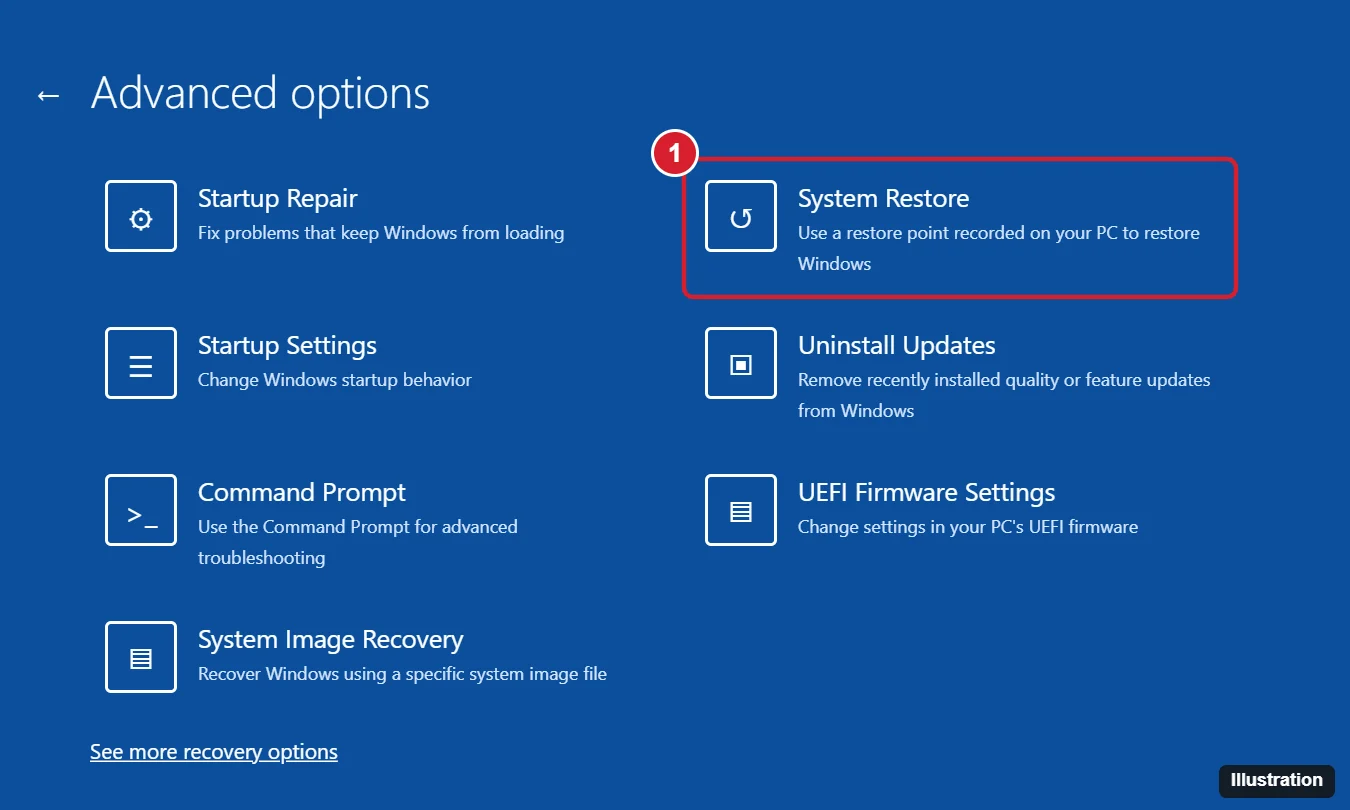
On Choose an option, select Troubleshoot. You’ll see Reset this PC and Advanced options.
| Option | Use it when |
|---|---|
| Startup Repair | Windows won’t load and you want Windows to find and fix the cause automatically. |
| Startup Settings | You need Safe Mode or another startup option. |
| Uninstall Updates | Trouble began right after an update; remove the latest quality or feature update. |
| System Restore | You want system files and settings back to an earlier restore point; personal files stay. |
| Command Prompt | You’re comfortable with repair commands such as sfc, chkdsk, or bootrec. |
| UEFI Firmware Settings | You need the PC’s firmware setup (shown only on UEFI PCs). |
| System Image Recovery | You made a full system image backup and want to restore it (may not appear on every PC). |
A sensible order for a PC that won’t boot: run Startup Repair first, then Uninstall Updates if the problem started after an update, then System Restore. Leave Reset this PC for last.
Safe Mode from recovery
Go to Troubleshoot > Advanced options > Startup Settings > Restart. After the restart, press 4 for Safe Mode, 5 for Safe Mode with Networking, or 6 for Safe Mode with Command Prompt. The F4 to F6 keys work too. More detail is in booting into Safe Mode on Windows 11.
Reset this PC
Reset reinstalls Windows. Keep my files preserves personal files but removes apps and settings; Remove everything erases personal files too, so back up first if you can. The full process, including cloud download versus local reinstall, is in factory resetting Windows 11 and 10. If you can’t sign in to any account, see factory resetting Windows without a password.
Quick Machine Recovery
On Windows 11, version 24H2 or later, Microsoft adds Quick Machine Recovery: when a widespread problem stops PCs from starting, WinRE can connect to the internet and apply a fix from Microsoft. How to check and change its settings is covered in using Quick Machine Recovery in Windows 11.
To leave recovery without changing anything, choose Continue to start Windows, or Turn off your PC.
If recovery asks for a BitLocker key
On an encrypted drive, WinRE may ask for the 48-digit BitLocker recovery key before it lets tools such as Startup Settings, Command Prompt, or System Restore reach the drive. Microsoft’s Safe Mode instructions say an encrypted device needs the key. The key is often stored in the Microsoft account used on the PC, and you can look it up from another device. Other places to check are in finding your BitLocker recovery key. You can select Skip this drive to use tools that don’t need it, but most repairs do.
When recovery won’t open
- “Could not find the recovery environment” or Advanced startup does nothing: open Terminal (Windows 11) or Windows PowerShell (Windows 10) as administrator and run
reagentc /info. If the status says Disabled, runreagentc /enable. If that fails, use a recovery drive or installation USB. - Keyboard or mouse doesn’t work in WinRE: try another USB port, or a wired keyboard instead of a Bluetooth one, since wireless devices may not load until Windows does.
- Stuck in an Automatic Repair loop: select Advanced options and work through Startup Repair, Uninstall Updates, and System Restore. If Startup Repair reports it couldn’t repair the PC, the next steps are in fixing “Startup Repair couldn’t repair your PC”.
Once you are in recovery, fixing Windows 11 step by step explains which of these tools to try first.
Recovery mode questions
Does pressing F8 at startup still work?
On most PCs running Windows 11 or 10, no. Modern PCs start too quickly to catch it, and Microsoft’s current Safe Mode instructions go through WinRE instead.
Is recovery mode the same as Safe Mode?
No. WinRE is a separate repair environment. Safe Mode is Windows itself running with a minimal set of drivers, and you can launch it from WinRE.
Will opening WinRE delete anything?
No. Only certain choices change files: Reset this PC with Remove everything erases personal files, and System Image Recovery replaces the drive’s contents with the image.
Can I get into recovery on a PC that isn’t mine to sign in to?
Yes, from the sign-in screen with Shift + Restart. Tools that touch the drive may still ask for the BitLocker key or an administrator password.
Microsoft’s technical background is in its Windows Recovery Environment reference and its page on recovery options in Windows. Start with Startup Repair, and keep a recovery drive on hand for next time.

Kermit Matthews runs Live2Tech from just outside Philadelphia. He is an IT specialist with over 20 years of experience, from a university help desk to small-business IT, IT management and his own consulting practice, and has written tech guides full time since 2020. Steps are checked against the current software on a real device or the maker’s official documentation. More about Kermit.