Two questions decide how you boot a Windows 10 PC from a USB drive: does Windows still start, and do you need the USB once or every time? For a single boot, press your PC’s one-time boot menu key (often F12, F11, F9 or Esc) as it powers on and pick the drive. If Windows works, hold Shift while you click Restart, then choose Use a device. Changing the permanent boot order is the last resort.
Choose your route in 30 seconds
Most people only need the USB drive once: to install or reinstall Windows, run a repair tool, or start a rescue or Linux live system. A one-time choice is safer than a permanent change because the PC goes back to its normal drive on the next restart with no cleanup.
| Your situation | Best route | Why |
|---|---|---|
| Windows won’t start, or you’re on a new PC with no OS | Route A: one-time boot menu key | Works before Windows loads |
| Windows starts normally | Route B: Shift + Restart, then Use a device | No key timing, no firmware menus |
| You’ll boot from USB on every start (a portable OS, a lab PC) | Route C: change the firmware boot order | Sticks until you change it back |
| Microsoft Surface | Volume-down button plus power | Surface has no boot menu key |
| The PC ignores the USB on every route | Fixes section below | The drive or a firmware setting is usually the cause |
Check the drive and your PC first
A few minutes of checking here saves most failed boots.
- The drive has to be bootable. Files dragged onto a USB stick won’t start a PC. For a Windows 10 installer, Microsoft’s Windows 10 download page asks for a blank USB flash drive of at least 8 GB, and the Media Creation Tool deletes everything on it. See making a bootable Windows 10 USB drive, or downloading Windows 10 onto a USB drive if you still need the files. Rescue tools and Linux images come with their own instructions for writing the drive.
- Know what “UEFI” and “Legacy” mean. UEFI is the modern firmware that replaced the old BIOS on most PCs sold in the last decade; “Legacy” or “CSM” is a compatibility mode that imitates the old BIOS. A drive prepared for one mode may not appear in the other.
- Have your BitLocker recovery key handy if your Windows drive is encrypted. Firmware changes can make Windows ask for it on the next normal start, and it’s far easier to find before you need it.
- Plug the drive into a port on the PC itself, not a hub or a monitor’s USB port, which may not have power or be visible this early in startup.
One more thing to know before installing anything: Windows 10 reached end of support on October 14, 2025, so it no longer gets free security updates. Microsoft offers a consumer Extended Security Updates program for eligible Windows 10 version 22H2 PCs that runs through October 12, 2027, and PCs that meet the requirements can move to Windows 11 for free. The details are on Microsoft’s Windows 10 end of support page. Booting from USB works the same either way.
This is the go-to route when Windows is broken or missing. The boot menu applies to this one start only and changes no settings.
- Shut the PC down fully, then plug in the USB drive.
- Press the power button, and as soon as the screen lights up, tap the boot menu key about once a second. Holding it down doesn’t work on many keyboards.
- In the list that appears, use the arrow keys to highlight the USB drive and press Enter. If the same drive is listed twice, pick the entry that starts with UEFI unless you deliberately made a Legacy drive.
- If the screen says “Press any key to boot from USB” (or CD/DVD), press a key straight away. You get only a few seconds; miss it and Windows loads instead.
The table below lists the keys commonly used by each brand.
| Brand | Boot menu key | BIOS/UEFI setup key |
|---|---|---|
| Dell | F12 | F2 |
| HP | F9 (or Esc, then F9) | F10 |
| Lenovo | F12 or Fn + F12 (Novo button on some models) | F1 or F2 |
| Acer | F12 (may need enabling in BIOS) | F2 |
| ASUS | Esc (laptops), F8 (desktops) | F2 or Delete |
| MSI | F11 | Delete |
| Gigabyte | F12 | Delete |
| Microsoft Surface | Hold Volume Down while pressing Power | Hold Volume Up while pressing Power |
HP documents Esc and F9 for its boot menu and F10 for setup. The other keys are typical defaults that can differ by model and age, so if one doesn’t work, check the startup screen (many PCs briefly show something like “F12 Boot Menu”) or the support page for your exact model. If the PC races past the logo before you can press anything, use Route B or the fast startup fix further down.
Route B: Restart straight into the USB from Windows
When Windows still loads, let it hand the restart to the USB drive. There’s no key to time, and you never see a firmware screen.
- Plug in the USB drive and close your open apps.
- Select Start > Power, then press and hold Shift while you select Restart. Keep holding Shift until the blue screen appears. The longer path is Settings > Update & Security > Recovery, then Restart now under Advanced startup.
- On the Choose an option screen, select Use a device.
- Pick the USB entry (it may be named after the drive’s brand or shown as USB Storage). The PC restarts and starts from it.
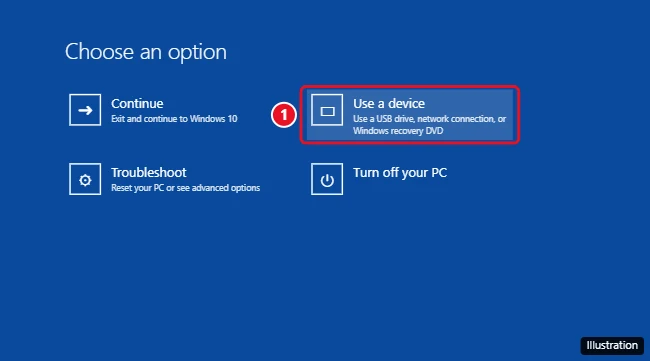
No Use a device tile usually means the PC is running in Legacy mode or the firmware doesn’t offer the option. Go back to Route A, or use Route C.
Route C: Put the USB first in the firmware boot order
Choose this when the PC should start from USB every time, or when it has no one-time boot menu. Change only the boot order while you’re in the firmware; other settings can stop Windows from starting.
- Open the firmware settings. Either press the setup key from the table as the PC starts, or in Windows go to Advanced startup (Route B, step 2), then Troubleshoot > Advanced options > UEFI Firmware Settings > Restart. Some PCs label that tile UEFI Settings. For brand-specific help, see entering the BIOS on Windows 10.
- Open the Boot tab or a section named something like Boot Priority or Boot Sequence.
- Move the USB entry to the top. It may appear as USB HDD, Removable Devices or the drive’s brand name. Some firmware only lists the stick while it’s plugged in.
- Save and exit (F10 on many PCs) and confirm when asked.
The PC now tries the USB drive first on every start and falls back to the internal drive when no bootable stick is present.
Surface tablets and laptops have no boot menu key. Shut the Surface down, insert the USB drive, then press and hold the volume-down button while you press and release the power button. Let go of volume-down when spinning dots appear under the logo. Unplug other USB drives first, or the Surface may try to start from one of them. Microsoft’s Surface USB boot instructions also describe the Windows route: Use a device > USB Storage.
When the PC skips your USB: fixes in order of likelihood
Work down this table; the top rows solve most cases.
| What you see | Likely cause | What to do |
|---|---|---|
| USB not in the boot menu at all | Drive isn’t bootable, or was written in a way the PC can’t read | Recreate it with the Media Creation Tool or Rufus. In Rufus, a GPT partition scheme with a UEFI target suits most PCs from the last decade; see using Rufus to install Windows 10 |
| USB listed, but choosing it returns to the menu or loads Windows | Boot mode mismatch (UEFI vs Legacy) | Pick the other entry for the same drive, or rebuild the drive for UEFI. Moving the PC itself to UEFI is covered in changing Legacy to UEFI without reinstalling |
| A security or signature error on screen | Secure Boot rejects the drive’s boot loader | Official Windows installers are normally fine. Some Linux and tool drives need Secure Boot off; see disabling Secure Boot in Windows 10 and turn it back on afterward |
| The logo flashes by before any key works | Fast Boot in firmware, or Windows fast startup | Turn off Fast Boot in the firmware, or use Route B, which skips the race entirely. To turn off Windows fast startup, open Control Panel > Power Options > Choose what the power buttons do, select Change settings that are currently unavailable, clear Turn on fast startup, then select Save changes |
| Business laptop never shows USB devices | USB boot disabled by the firmware or a policy | Look for a USB Boot setting and enable it; on work PCs, ask IT |
| Works on one port but not another | Port or hub issue | Use a rear port on a desktop; on older PCs a USB 2.0 port can work better than USB 3 |
| The PC starts from the wrong USB device | Another USB drive or card reader is plugged in | Unplug other USB storage so only the boot drive is connected |
| Nothing helps | A worn or very cheap stick | Write the image to a different USB drive |
If the firmware asks for a supervisor password you don’t have, you can’t change boot settings. On a work or school PC, the IT team holds that password.
Confirm it worked and put things back
You’ll know the PC started from the USB when you see the tool’s own screen instead of the Windows sign-in: Windows Setup asks for a language and keyboard, a Linux live drive shows its desktop or boot menu, and a Windows recovery drive opens its recovery screens, which may ask you to choose a keyboard layout before showing Choose an option. If you’re installing Windows, continue with installing Windows on a PC.
To return to normal:
- Routes A and B: nothing to undo. Remove the USB drive and restart.
- Route C: either leave the order as is and simply unplug the stick, or go back into the firmware and move Windows Boot Manager (the usual name for the internal Windows drive) to the top.
- Secure Boot or Fast Boot changes: switch them back on once you’re done, so the PC keeps its startup protections and speed.
Need the same thing with an external SSD or hard drive on a newer machine? The steps in booting from an external hard drive in Windows 11 follow the same logic.
If you booted the drive to reinstall, continue with a clean install of Windows 10 from USB for the Custom install and activation steps.
USB boot questions
I pressed the key, so why did Windows load anyway?
Usually one of three things: the key press landed too late (start tapping as soon as the PC powers on), Windows fast startup shortened the startup so the key was never read (use Route B instead), or the drive wasn’t bootable and the PC fell back to the internal disk.
How quickly do I need to answer “Press any key to boot from USB”?
Within a few seconds. The prompt appears once, and if no key is pressed the PC continues to the next device, usually your Windows drive.
Will changing the boot order delete anything?
No. The boot order only decides which drive the PC tries first. Data is only touched if you choose to install, format or wipe something in the tool you boot into.
Does the same boot menu key work after upgrading to Windows 11?
Yes. The boot menu belongs to the PC’s firmware, not to Windows, so the key stays the same. In Windows 11 the Advanced startup button lives in Settings > System > Recovery.
Next step: if your USB drive isn’t ready yet, build it first, then come back and pick the route from the table at the top.

Kermit Matthews runs Live2Tech from just outside Philadelphia. He is an IT specialist with over 20 years of experience, from a university help desk to small-business IT, IT management and his own consulting practice, and has written tech guides full time since 2020. Steps are checked against the current software on a real device or the maker’s official documentation. More about Kermit.