When a PC has become slow, keeps crashing, or is about to go to a new owner, a factory reset puts Windows back to a clean state. On Windows 11, open Settings > System > Recovery, select Reset PC, choose Keep my files or Remove everything, then pick Cloud download or Local reinstall. Windows 10 uses the same tool under a different menu, covered further down.
Pick your starting point
Where you begin depends on what the PC can still do. Use this to jump to the right section.
| Your situation | Start here |
|---|---|
| Windows 11 starts and you can sign in | Reset from Settings |
| Windows starts, but you can’t sign in | Reset from the sign-in screen |
| Windows won’t finish starting | Reset from the recovery environment |
| Reset this PC failed or keeps failing | Cloud rebuild, then installation media |
| The PC still runs Windows 10 | The Windows 10 route |
| You only want to fix a recent problem | Lighter fixes to try first |
Lighter fixes to try first
Microsoft describes Reset this PC as the most disruptive of its everyday recovery options, so if you are keeping the PC and only something recent broke, one of these may be enough.
- Reinstall the current version with Windows Update. On Windows 11, version 22H2 or later, the Recovery page offers a reinstall through Windows Update that keeps your files, apps and settings. On many PCs the button sits next to a line such as Fix problems using Windows Update; the wording can vary.
- Uninstall a recent update if problems started right after one.
- Point-in-time restore (Windows 11, version 24H2 or later) rolls the whole PC back to an automatic restore point from the last few days, including apps, settings and personal files, so copy any files you changed since then somewhere safe first.
- System Restore rolls back system files and settings without touching personal files, if a restore point exists.
If those don’t help, or the PC is leaving your hands, carry on with a reset.
Prep checklist before any reset
- Back up personal files to an external drive or OneDrive, even if you plan to keep them. Microsoft also suggests turning on Windows Backup (Settings > Accounts > Windows Backup) so apps and settings can come back after recovery.
- Get your BitLocker recovery key. Many Windows 11 laptops encrypt the drive automatically, and the recovery environment often asks for the key. If you don’t know where it is, follow finding your BitLocker recovery key first. Microsoft can’t recreate a lost key.
- Know your Microsoft account password. You’ll sign in during setup, and that account is how the digital license reactivates.
- List your apps and license keys. Every desktop app you installed is removed by both reset choices.
- Sign out of software with device limits so the license can move to the next PC.
- Plug in the laptop. Microsoft says recovery typically takes 30 minutes to 2 hours, and losing power mid-reset can leave Windows unable to start.
What each reset choice removes
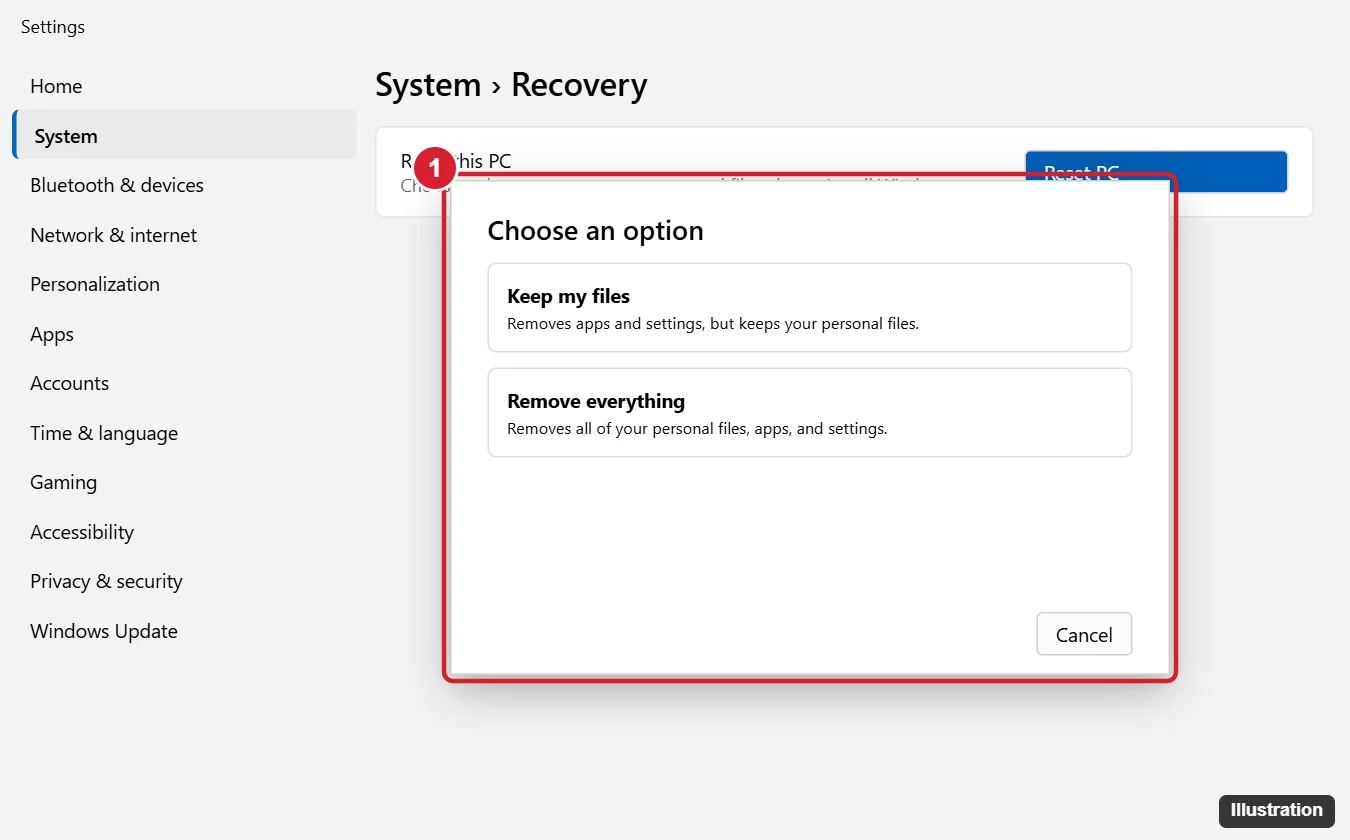
| Choice | Personal files | Apps and settings | Extra switch | Use it for |
|---|---|---|---|---|
| Keep my files (Refresh) | Kept | Removed | Restore preinstalled apps | A PC you will keep using |
| Remove everything (Reset) | Deleted | Removed | Clean data | Selling, donating, or a full fresh start |
| Cloud download | Downloads a fresh copy of the latest Windows version from Microsoft | Damaged system files, or when local reinstall fails | ||
| Local reinstall | Rebuilds from files already on the PC; may not include the latest updates | Slow or no internet | ||
On branded laptops, Local reinstall often brings back the maker’s drivers and tools, while Cloud download gives a cleaner Microsoft image. Not sure? Cloud download is the safer default when the internet connection is decent.
Three common cases
- A work laptop of your own that has become sluggish and that you’ll keep: Keep my files, Cloud download, Restore preinstalled apps on if you rely on the maker’s tools (touchpad or battery utilities, for example). Afterward, reinstall apps from your list.
- A family desktop going to a relative: Remove everything, Cloud download, Clean data on. The relative signs in with their own Microsoft account, so you stop at the first setup screen.
- A PC you suspect is infected: back up only documents and photos and run a full Windows Security scan. If the problem remains, Microsoft recommends reinstalling from installation media; Remove everything with Cloud download is the fallback when you have no USB drive.
One more decision affects time rather than results: Clean data can add hours on a large hard disk, so on a PC you’re keeping, leave it off.
Reset a Windows 11 PC from Settings
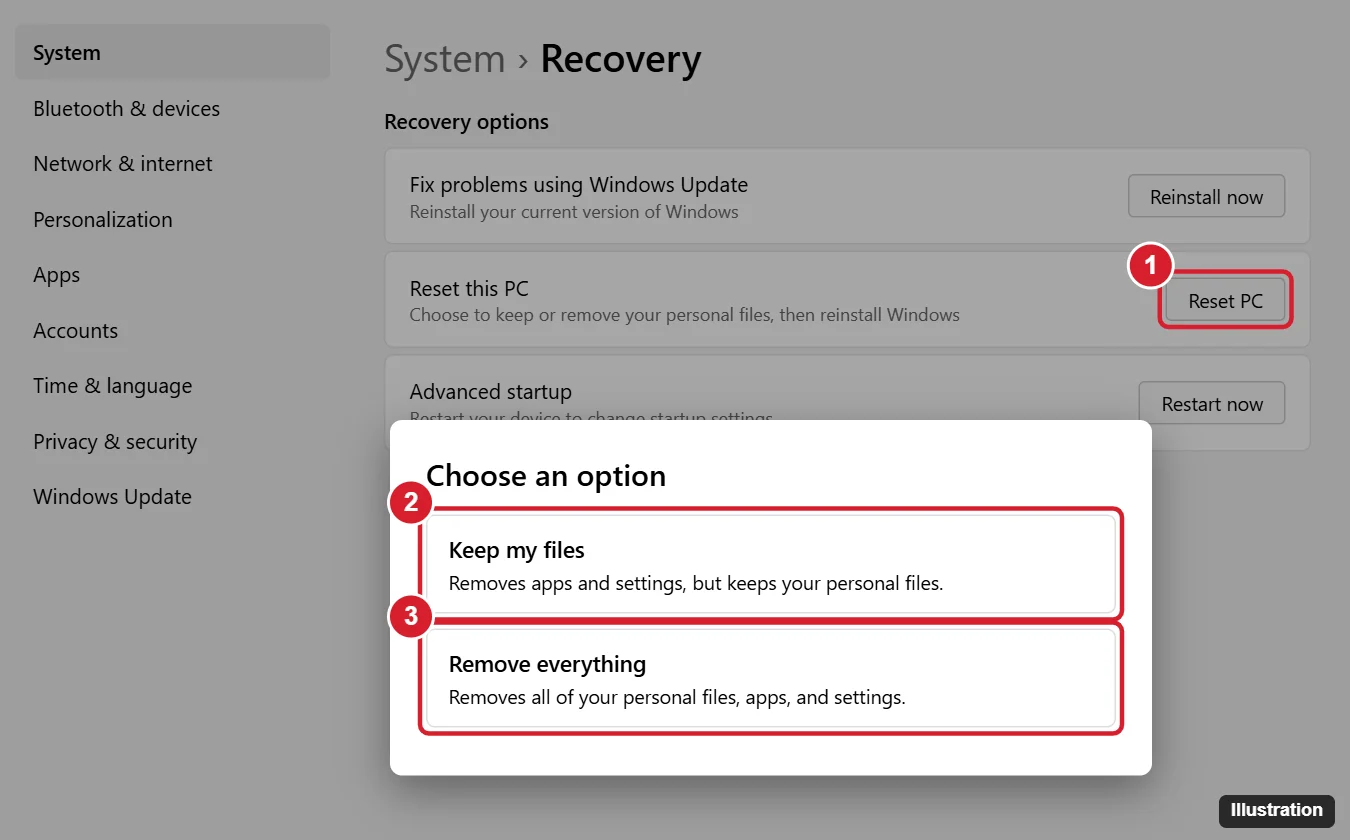
- Press Windows key + I to open Settings.
- Select System, then Recovery.
- Under Recovery options, find Reset this PC and select Reset PC.
- Choose Keep my files or Remove everything.
- Choose Cloud download or Local reinstall.
- On the additional settings screen, select Change settings if you want to adjust the extra switches (see the next section), then select Next.
- Review the summary and select Reset.
The PC restarts several times. Microsoft warns that the screen may go black for a long time, occasionally more than 15 minutes, and that restarting it yourself during this can make the reset fail. Wait it out.
The switches under Change settings
Microsoft’s names are Restore preinstalled apps (with Keep my files) and Clean data (with Remove everything). Some current Windows 11 builds show differently worded toggles for the same ideas, such as one for erasing data and one for including other data drives. Read each toggle’s description and set them to match your goal: clean the drive if the PC is leaving you, and include other drives only if they hold nothing you need.
Reset from the sign-in screen
Forgot your password, or Windows starts but your account won’t load? You can reach the reset without signing in.
- On the sign-in screen, select the power icon in the lower-right corner.
- Hold Shift and select Restart. Keep holding until the blue Choose an option screen appears.
- Select Troubleshoot > Reset this PC.
- Pick Keep my files or Remove everything, then the reinstall source, and follow the prompts.
Keep my files may ask you to sign in with an administrator account. Without any working administrator password, Remove everything is the path that still works; resetting Windows without a password goes through that situation in detail.
Reset from the recovery environment after failed starts
The Windows Recovery Environment (WinRE) is the repair menu Windows loads before the desktop. When Windows can’t start properly, it usually opens WinRE by itself after repeated failed starts, showing an Automatic Repair screen with Advanced options. From there:
- Select Advanced options if you see the Automatic Repair screen.
- Select Troubleshoot > Reset this PC.
- Enter the BitLocker recovery key if asked. Microsoft notes that most WinRE options need it on encrypted devices.
- Choose your options and confirm.
Some people force WinRE open by turning the PC off while the logo shows, three times in a row. That is a workaround rather than a Microsoft-documented step. Every other route in, including from Settings and from a USB drive, is covered in entering recovery mode in Windows 11.
Laptop-specific notes
- Stay on the charger for the whole reset, even if the battery looks full.
- Use Wi-Fi you trust for Cloud download, or a wired adapter if Wi-Fi is unreliable.
- Expect the maker’s apps back with Local reinstall and the Restore preinstalled apps switch on; turn the switch off if you want fewer extras.
- Keyboard shortcuts for maker recovery differ by brand. HP models often use F11, Lenovo uses a Novo button or pinhole on many models, and Dell offers SupportAssist OS Recovery. Check your model’s support page rather than guessing keys. HP owners can follow resetting an HP laptop with Windows 11.
Handing the PC to someone else
- Back up and confirm the backup opens on another device.
- Sign out of apps with license limits and of browsers that sync passwords.
- Run Reset this PC with Remove everything, then turn on Clean data (or the equivalent erase toggle) under Change settings. Include other internal drives if they held your files.
- When setup reaches its first screen, turn the PC off. The new owner will finish setup with their own account.
- On another device, sign in at account.microsoft.com/devices, remove the old PC, and turn off Find my device for it. These are practical housekeeping steps rather than part of Microsoft’s reset instructions.
Microsoft notes that the reset’s data erasure is aimed at consumers and doesn’t meet government and industry erasure standards. More background on preparing a PC for sale is in wiping a Windows 11 computer.
Cloud rebuild and installation media when reset fails
If Reset this PC fails or doesn’t fix the problem, Windows 11 has a newer option called Cloud rebuild. It reinstalls Windows with a fresh copy of Windows and drivers from Windows Update, and removes all personal files, apps and settings. Files stored in OneDrive are not affected. Start it from Settings > System > Recovery > Rebuild PC, or in WinRE from Troubleshoot > Cloud rebuild. It may not appear on every PC yet; it is a Windows 11 feature only.
The next step down is the PC maker’s recovery media, which Microsoft recommends for the best hardware compatibility, or Microsoft’s installation media. Microsoft also points to installation media if you suspect malware that a Windows Security scan didn’t clear. With media, you can reinstall from a USB drive and delete every partition; reinstalling Windows 11 with repair, reset or a clean install compares all three routes, and wiping the hard drive and reinstalling Windows covers the full wipe.
The Windows 10 route
Windows 10 uses the same Reset this PC tool, but the menu is in a different place.
- Open Start > Settings > Update & Security > Recovery.
- Under Reset this PC, select Get started.
- Choose Keep my files or Remove everything, then Cloud download or Local reinstall, and follow the prompts.
Windows 10 doesn’t have Cloud rebuild or the Windows Update reinstall option. Microsoft ended Windows 10 support on October 14, 2025; consumer Extended Security Updates run through October 12, 2027. For a short Windows 10 version of the steps, see doing a factory reset on Windows 10. For the Windows 10 options in depth, including manufacturer tools and recovery drives, see restoring Windows 10 to factory settings. To wipe a Windows 10 PC and start over from a USB drive instead, follow the Windows 10 clean install walkthrough.
How long it takes and what you’ll see
Microsoft puts typical recovery at 30 minutes to 2 hours. Cloud download adds download time, and Clean data on a large hard disk can push a reset well past that. A typical sequence is: a preparing screen, a restart, a long progress percentage (with possible black screens), several more restarts, then either the sign-in screen (Keep my files) or the first setup screen (Remove everything). Treat a still percentage as normal unless nothing changes for hours.
Checks after the reset
- Finish setup and sign in with your Microsoft account.
- Open Settings > Windows Update and install updates until none remain, including optional driver updates.
- Open Device Manager and look for an Other devices group or warning icons; get missing drivers from the maker’s support site.
- Check Settings > System > Activation. A previously activated PC usually reactivates by itself. If not, see activating Windows.
- Reinstall apps and restore files. After Keep my files, many PCs leave a list of removed apps on the desktop.
Reset errors and fixes
| Problem | What to try |
|---|---|
| “There was a problem resetting your PC” | Switch reinstall source (Cloud download instead of Local reinstall, or the reverse), start from WinRE instead of Settings, then try Cloud rebuild |
| Asks for a BitLocker recovery key | Enter the key from your Microsoft account or wherever it was saved |
| Stuck at a percentage | Wait; Clean data is slow. Forcing a restart can break the reset |
| Not enough disk space | Free space or move large files before trying again |
| Reset option missing or blocked | Work or school PCs may be managed; contact the IT department |
| Repeated failures | Repair system files (DISM, then sfc /scannow), or reinstall from installation media |
If you are keeping the PC but handing it to someone else, you may only need to remove your account from Windows 11 instead of resetting everything.
Factory reset questions
Is a factory reset the same as a hard reset?
Not on a PC. “Hard reset” often means holding the power button until the PC turns off, a forced restart for a frozen system that changes nothing on the drive. A factory reset reinstalls Windows.
Can I undo a factory reset?
No. Once it runs, removed apps and deleted files come back only from your own backup or Windows Backup.
Will OneDrive files be deleted?
Files stored in OneDrive stay in the cloud and sync back once you sign in. Files that lived only on the PC are gone after Remove everything unless you backed them up.
Does a reset change my Windows 11 version?
A Cloud download installs the latest available version. A Local reinstall rebuilds what’s on the PC and may need updates afterward.
Does a reset remove malware?
Usually, but not always. Microsoft suggests a Windows Security scan first and a clean install from installation media if the infection persists.
With the backup done and the BitLocker key on hand, open Settings > System > Recovery and choose the option that fits where the PC is going next. Microsoft’s own reference pages, Reset your PC and Recovery options in Windows, list every option by Windows version.

Kermit Matthews runs Live2Tech from just outside Philadelphia. He is an IT specialist with over 20 years of experience, from a university help desk to small-business IT, IT management and his own consulting practice, and has written tech guides full time since 2020. Steps are checked against the current software on a real device or the maker’s official documentation. More about Kermit.