Selling an old Windows 10 PC, passing it to a relative, or fixing one that has become slow and unstable usually ends in the same place: a factory restore. Open Settings > Update & Security > Recovery, select Get started under Reset this PC, then choose Keep my files or Remove everything. No USB drive or product key is needed. This covers Windows 10 only, including PCs that won’t start.
What a Windows 10 factory restore does
Reset this PC reinstalls Windows 10 on the same drive. Microsoft calls the two choices Refresh (Keep my files) and Reset (Remove everything). Both remove the desktop apps you installed and return Windows settings to their defaults. The difference is what happens to your personal files: Refresh keeps the documents, photos and other files in your user folders, while Reset deletes them along with every user account.
It is not the same as a clean install from a USB drive. Reset this PC keeps the existing drive layout, can bring back software the PC maker installed, and works from inside Windows or from the recovery screens. A clean install deletes the partitions and starts from installation media. The section on USB clean installs below explains when that heavier route is worth it.
A factory restore is also the most disruptive repair Windows offers. If the trouble started after one specific change, such as a new driver, a System Restore point is a far smaller step. It only helps if a point exists, so it is worth getting in the habit to make a restore point in Windows 10 before you install drivers or system tools.
Get these ready first
A few minutes of preparation prevents the problems that make resets painful. Work through this list before you open Settings.
- Back up your files. Copy documents, photos, browser bookmarks and game saves to an external drive or a cloud service such as OneDrive. Do this even if you plan to choose Keep my files, because a failed reset or a wrong click can still cost you data.
- List your apps. Both choices remove the desktop programs you installed. Write down what you use and where to download it, and find any license keys for paid software.
- Sign out of licensed software. Programs that limit how many computers can use one license (photo editors, music stores, some Microsoft 365 plans) may count the old installation until you sign out or deactivate it.
- Find your BitLocker recovery key. If the drive is encrypted, Windows can ask for the recovery key during the reset, especially from the recovery screens. On many personal PCs it is saved to the Microsoft account, which you can check at aka.ms/myrecoverykey. If you are not sure where yours is, see where to look for a BitLocker recovery key before you start. Microsoft can’t recreate a lost key.
- Know your Microsoft account password. You will sign in again during setup, and a Windows 10 digital license linked to that account reactivates on the same PC without a product key.
- Plug in a laptop. Microsoft says recovery typically takes 30 minutes to 2 hours, and a battery that dies partway through can leave Windows unusable.
- Disconnect extras. Unplug external drives, memory cards and USB sticks you don’t need so nothing important is touched by mistake.
Keep my files or Remove everything?
This is the choice that matters most, and it can’t be undone once the reset starts.

| Keep my files (Refresh) | Remove everything (Reset) | |
|---|---|---|
| Personal files in your user folders | Kept | Deleted |
| User accounts | Kept | Deleted |
| Desktop apps you installed | Removed | Removed |
| Windows settings | Back to defaults | Back to defaults |
| Extra switch under Change settings | Restore preinstalled apps | Clean data |
| Best for | A slow or crashing PC you will keep using | Selling, donating or a fully fresh start |
A simple rule: if you will keep using the PC and only Windows misbehaves, start with Keep my files. If anyone else will own the PC, or you suspect files themselves are causing trouble, choose Remove everything.
Cloud download or Local reinstall?
After the first choice, Windows asks where to get the new copy of Windows 10.
- Cloud download fetches a fresh copy from Microsoft, so you get the latest version with its updates. It helps when local system files are damaged or missing. It needs a working internet connection and several gigabytes of download, so allow extra time on a slow line.
- Local reinstall rebuilds Windows from files already on the PC. It is faster on a slow connection but may not include the latest updates, and it depends on those local files being healthy.
On many branded laptops and desktops, the result also differs in what comes back: a local reinstall can bring back the maker’s drivers and utilities, while a cloud download gives a plainer Microsoft image. If one method fails, try the other before anything more drastic.
Restore Windows 10 from Settings
Use this route whenever Windows 10 still starts and you can sign in with an administrator account.
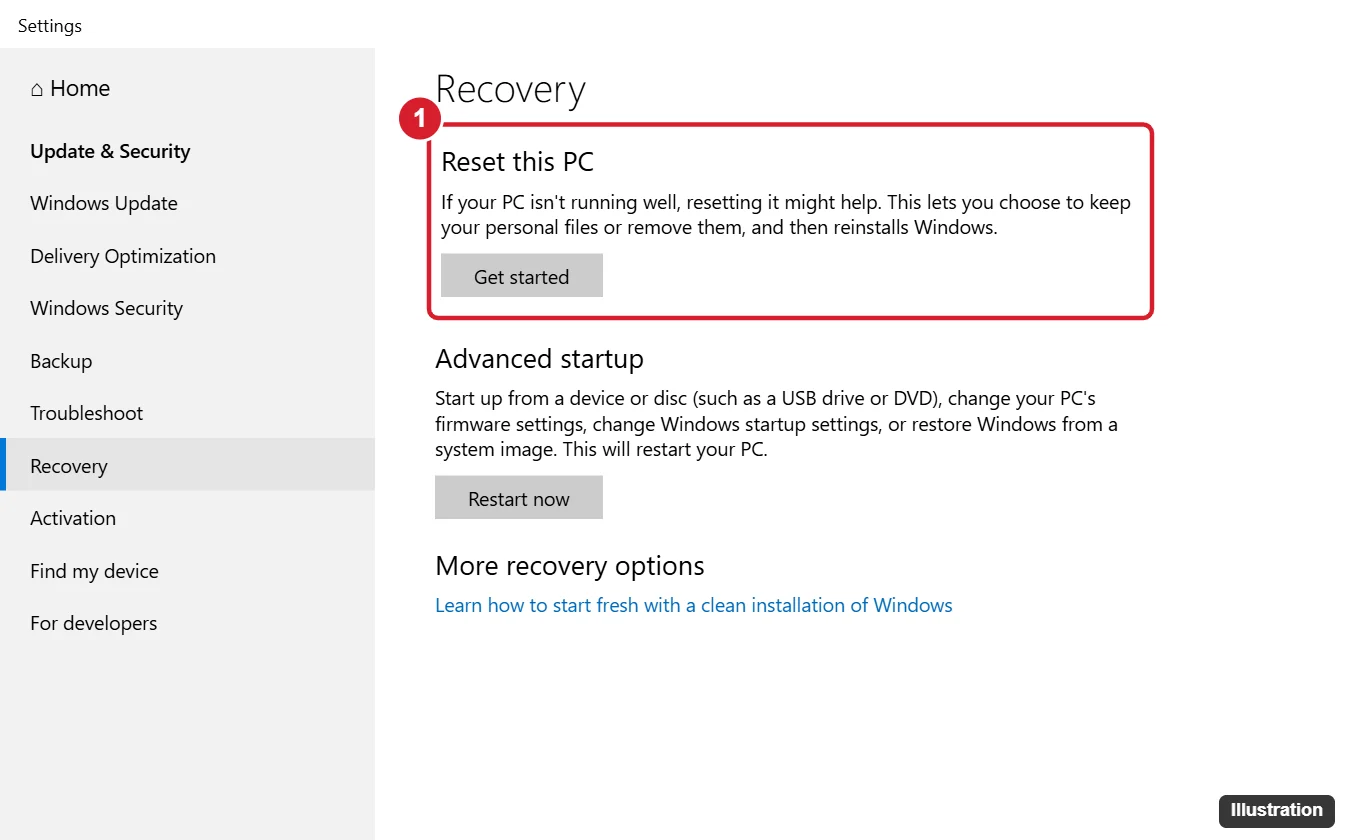
- Select Start > Settings, or press Windows key + I.
- Choose Update & Security, then Recovery in the left pane.
- Under Reset this PC, select Get started.
- Choose Keep my files or Remove everything.
- Choose Cloud download or Local reinstall.
- On the additional settings screen, review the summary. Select Change settings if you want to adjust the switches described in the next section, then confirm.
- Select Next. With Keep my files, Windows can show the list of apps it will remove; read it so nothing surprises you later.
- Select Reset and let the PC work.
Expect several restarts and long stretches with only a progress percentage. Microsoft warns that the screen can stay black for a long time, occasionally more than 15 minutes, and that restarting the PC yourself during this time can make the reset fail. Leave it alone unless nothing has changed for hours.
When it finishes, Keep my files returns you to the sign-in screen with your account intact. Remove everything ends at the first setup screen, the same one a new PC shows.
The extra switches under Change settings
The Change settings link is easy to skip, but its switches decide how thorough the reset is. The names below follow Microsoft’s reset page; some Windows 10 builds phrase them as questions, such as “Clean data?”.
- Restore preinstalled apps (Keep my files): when on, the customizations and apps the PC maker added are put back. Turn it off if you want a plainer system without the maker’s extras. If the switch is missing, the PC has no maker apps to restore.
- Clean data (Remove everything): removes files and also cleans the drive, which makes deleted files harder for anyone to recover. It can add hours, especially on a large hard disk, but it is the right choice before a sale or donation.
- Delete files from all drives (Remove everything, on PCs with more than one internal drive): extends the wipe beyond the Windows drive to other internal data drives. Leave it off if a second drive holds files you want to keep.
When Windows 10 won’t start or you can’t sign in
The same reset is available from the Windows Recovery Environment (WinRE), the blue menu Windows uses for repairs. You need it when the PC crashes during startup, loops on a repair screen, or you can’t get past the sign-in screen.
- On the sign-in screen, select the power icon in the lower-right corner, hold Shift, and select Restart. Keep holding Shift until the blue Choose an option screen appears.
- If Windows never reaches the sign-in screen, it usually opens recovery on its own after repeated failed starts. Many people trigger this by turning the PC off while the logo is showing, three times in a row, then choosing Advanced options on the Automatic Repair screen. This is a common workaround rather than a Microsoft-documented step, so use it only when nothing else gets you in.
- Select Troubleshoot > Reset this PC.
- Choose Keep my files or Remove everything, then Cloud download or Local reinstall, exactly as in Settings.
- Enter your BitLocker recovery key if asked, then confirm the reset.
Keep my files can ask you to sign in with an administrator account before it continues. If you no longer know any administrator password, the steps for a factory reset without a password explain which choice still works and what you will lose. For every other way into the recovery menu, including from a working desktop, see opening Advanced startup options in Windows 10.
Getting the PC ready for a new owner
Before a Windows 10 PC leaves your hands, the goal is to remove your files and accounts and leave Windows ready for someone else to set up.
- Confirm your backup opens on another device, and that you can still sign in to your Microsoft account elsewhere.
- Sign out of or deactivate software with device limits, and sign out of browsers that sync passwords.
- Start Reset this PC and choose Remove everything.
- Select Change settings and turn on Clean data. If the PC has a second internal drive with your files, also include all drives.
- Choose Cloud download or Local reinstall and start the reset.
- When the first setup screen appears (the region choice), turn the PC off with the power button. The new owner will start setup with their own account.
- From another device, sign in at account.microsoft.com/devices and remove the old PC from your device list. This is housekeeping rather than a Microsoft reset step, but it keeps your account tidy.
Keep expectations realistic. Microsoft notes that the data erasure in Reset this PC is aimed at consumers and does not meet government and industry data erasure standards. For a PC that held business records or very sensitive data, consider keeping or physically destroying the drive instead of selling it.
PC maker recovery tools and recovery drives
Many laptops and desktops ship with their own recovery tool, such as HP Cloud Recovery, Dell SupportAssist OS Recovery or the Lenovo Novo button menu. These tools restore the image the PC came with, including the maker’s drivers and apps, and some can rebuild Windows even after the drive was wiped or replaced. The startup key (often F11 on HP models) varies by brand and model, so check the support page for your exact model. Microsoft also suggests the maker’s recovery media for the best hardware compatibility.
HP owners can follow the walkthrough to reset an HP laptop with F11 or HP Cloud Recovery; it is written for Windows 11, but the F11 and HP Cloud Recovery parts work the same way on many Windows 10 HP models.
A Windows recovery drive is the other fallback. While the PC still works, search for Recovery Drive, keep Back up system files to the recovery drive selected, and follow the prompts. Microsoft notes the process erases the USB drive. If the PC later refuses to start, booting from that drive lets you reinstall Windows. The full process is in creating a Windows 10 recovery drive.
When a USB clean install is the better call
Reset this PC can’t help when its own recovery files are damaged, when the reset keeps failing, or when you want every partition gone. Microsoft also recommends installation media for a PC you suspect has malware that a Windows Security scan didn’t remove. In those cases, build a Windows 10 USB installer on another computer and reinstall from it; the full process for that route is in wiping Windows 10 and doing a clean install from USB. If the PC has a brand-new, empty drive with no Windows at all, start with installing Windows on a new PC instead.
The first hour after the reset
- Finish setup and sign in with your Microsoft account so the digital license and your OneDrive files come back.
- Run Windows Update from Settings > Update & Security > Windows Update, and keep selecting Check for updates until nothing new appears. A Local reinstall in particular may start a few updates behind.
- Check drivers. Right-click Start, open Device Manager, and look for an Other devices group or yellow warning icons. Get any missing drivers from the PC maker’s support site.
- Confirm activation. Windows 10 shows activation status under Settings > Update & Security > Activation. A PC that was activated before usually reactivates on its own once online.
- Reinstall apps from your list. If you chose Keep my files, look on the desktop for a file listing the removed apps, which many PCs create.
- Restore files from your backup, scanning anything that came from a PC you suspected was infected.
If the reset stops or fails
- “There was a problem resetting your PC. No changes were made.” Try the other reinstall source (Cloud download instead of Local reinstall, or the reverse). Starting the reset from the recovery screens instead of Settings sometimes helps too.
- Damaged system files. Open Command Prompt as administrator and run DISM /Online /Cleanup-Image /RestoreHealth, then sfc /scannow, restart, and try again.
- Stuck at a percentage. Wait. Clean data on a large hard disk can take many hours, and Microsoft warns that forcing a restart can break the reset. Only power off if the percentage and drive light haven’t changed for several hours.
- Not enough free space. Delete large files or move them to another drive first; a reset needs working room.
- Reset this PC is missing or grayed out. Work or school PCs are often managed by an IT department that blocks resets. Contact them rather than trying to bypass it.
- Still failing. Move on to the USB clean install described above.
Windows 10 support and what to do next
Microsoft ended support for Windows 10 on October 14, 2025, which means no more free security fixes through Windows Update. Home users can keep getting security updates through the consumer Extended Security Updates (ESU) program, which runs until October 12, 2027. If you are keeping the PC, enroll after the reset; setting up Windows 10 after end of support covers that along with the first-run screens.
A reset is also a good moment to check whether the PC can run Windows 11, which is a free upgrade on eligible hardware. On Windows 11, the reset lives under Settings > System > Recovery > Reset PC, and it adds options such as Cloud rebuild. Those steps are in factory resetting Windows 11 and 10.
Windows 10 reset questions
Will a reset undo Windows updates?
It depends on the source. A Local reinstall rebuilds from the files on the PC and may land a few updates behind, so run Windows Update afterward. A Cloud download installs the latest Windows 10 version Microsoft offers.
Do I need my product key afterward?
Usually not. Windows 10 reactivates automatically with its digital license on the same hardware once you are online. A major hardware change, such as a new motherboard, can stop that from working, and the Activation troubleshooter can help in that case.
Can I cancel a reset once it starts?
You can back out on the screens before you select Reset. After that, don’t try to stop it. Interrupting the process is the most common way to end up with a PC that won’t start, which then needs the USB route.
Does Remove everything get rid of viruses?
It removes most malware stored with Windows and your files, but it is not guaranteed. Microsoft’s advice for a suspected infection is to scan with Windows Security first and, if the problem persists, do a clean install from installation media. Scan your backed-up files before you copy them back.
Will my OneDrive files be deleted?
Files stored in OneDrive stay in the cloud. Remove everything deletes the local copies on the PC; once you sign back in, OneDrive syncs them again. Files that were only on the PC are gone unless you backed them up.
Once your backup is confirmed and your BitLocker key is saved, open Settings > Update & Security > Recovery and start with the option that fits how the PC will be used next. For the full background on each option, see Microsoft’s Reset your PC page and its overview of recovery options in Windows.

Kermit Matthews runs Live2Tech from just outside Philadelphia. He is an IT specialist with over 20 years of experience, from a university help desk to small-business IT, IT management and his own consulting practice, and has written tech guides full time since 2020. Steps are checked against the current software on a real device or the maker’s official documentation. More about Kermit.