Locked out of your own Windows 11 or Windows 10 PC and want back in without losing your files? If the sign-in screen shows an email address, it’s a Microsoft account: select I forgot my password there, or reset it online from another device. If it shows only a name, it’s a local account: answer your security questions or use a password reset disk. Another administrator on the PC can also set a new password. Toshiba, Dynabook, HP and Dell laptops all use these same Windows steps.
Which account is on the sign-in screen?
Every fix depends on the type of account, and the sign-in screen tells you which one you have. Look at what’s written under your picture.
| What the sign-in screen shows | Account type | How to reset it |
|---|---|---|
| An email address (Outlook, Hotmail, Gmail or another address) | Microsoft account | I forgot my password, or Microsoft’s reset page on any device |
| Only a name, such as “Home” or a first name | Local account | Security questions, a password reset disk, or another administrator |
| Your work or school email | Work or school account | Your organization’s IT department or its self-service reset tool |
The difference matters because a Microsoft account password lives online with Microsoft, while a local account password exists only on this one PC. That’s why a Microsoft account can be reset from your phone, but a local account can only be reset on the PC itself.
Windows 10 users: Windows 10 reached end of support on October 14, 2025, and home users can get security updates for a limited time through Extended Security Updates (ESU). The sign-in screen and recovery options described here are the same on Windows 10 and current versions of Windows 11.
This article covers only the recovery methods Microsoft supports. It doesn’t cover password-cracking tools or tricks that swap system files, for reasons explained further down.
Windows password or firmware password?
Before you start, check which password is being asked for, because the fixes are completely different.
- The Windows sign-in screen shows your name or email, the time and a background picture, with options in the lower corners. That’s your Windows account password, and the rest of this article applies.
- A plain prompt before Windows loads, often on a black or blue screen with a padlock icon or a short “Enter password” line and nothing else, is a BIOS, supervisor or power-on password stored in the PC’s firmware. Windows recovery tools can’t change or remove it. Contact the laptop maker or an authorized service center; expect to show proof of ownership, such as a receipt.
Rule out a sign-in problem that isn’t a forgotten password
Sometimes the password is right and something else is stopping it. These checks take a minute and can save you a reset:
- Caps Lock and keyboard layout. Passwords are case-sensitive. Check the Caps Lock light, and if the sign-in screen shows a language code such as ENG or FRA in the lower-right corner, make sure it matches the keyboard you used to create the password. A different layout can move symbols and some letters.
- Num Lock for a numeric PIN. On laptops with a number pad, the PIN won’t type if Num Lock is off.
- The right account. On PCs with several users, the account list is in the lower-left corner. Make sure you selected yours.
- A recently changed Microsoft account password. If you changed it on another device, the PC may still expect the old one until it gets online. Connect it to the internet and try the new password again.
- A plain restart. Microsoft’s sign-in troubleshooting starts with restarting the PC, which clears some temporary problems with the sign-in screen.
- Too many attempts. Some PCs, particularly managed ones, lock the account for a while after repeated wrong passwords. Wait and try again rather than guessing more.
If the password itself is the problem, go on to the account type you identified above.
Try your PIN, fingerprint or face first
If you set up Windows Hello, you may not need the password at all. Select Sign-in options under the password box and choose the PIN, fingerprint or face icon. A PIN is tied to this device, so it often works even when you can’t remember the account password. Once you’re in, you can use the PC as normal, then reset the forgotten password with the steps below; Settings only changes a password when you can enter the current one.
Forgot the PIN instead? Select I forgot my PIN below the PIN box. That link works for Microsoft accounts: you verify your identity and set a new PIN. On a local account, sign in with your password instead and then change the PIN in Settings. The details are in resetting a forgotten Windows PIN.
Reset a Microsoft account password
A Microsoft account password is reset through Microsoft, so the PC usually needs an internet connection to accept the new one. Check the network icon in the lower-right corner of the sign-in screen first and connect to Wi-Fi if it’s offline.
From the sign-in screen
- Type any password and press Enter. When Windows says the password is incorrect, select OK.
- Select I forgot my password below the password box.
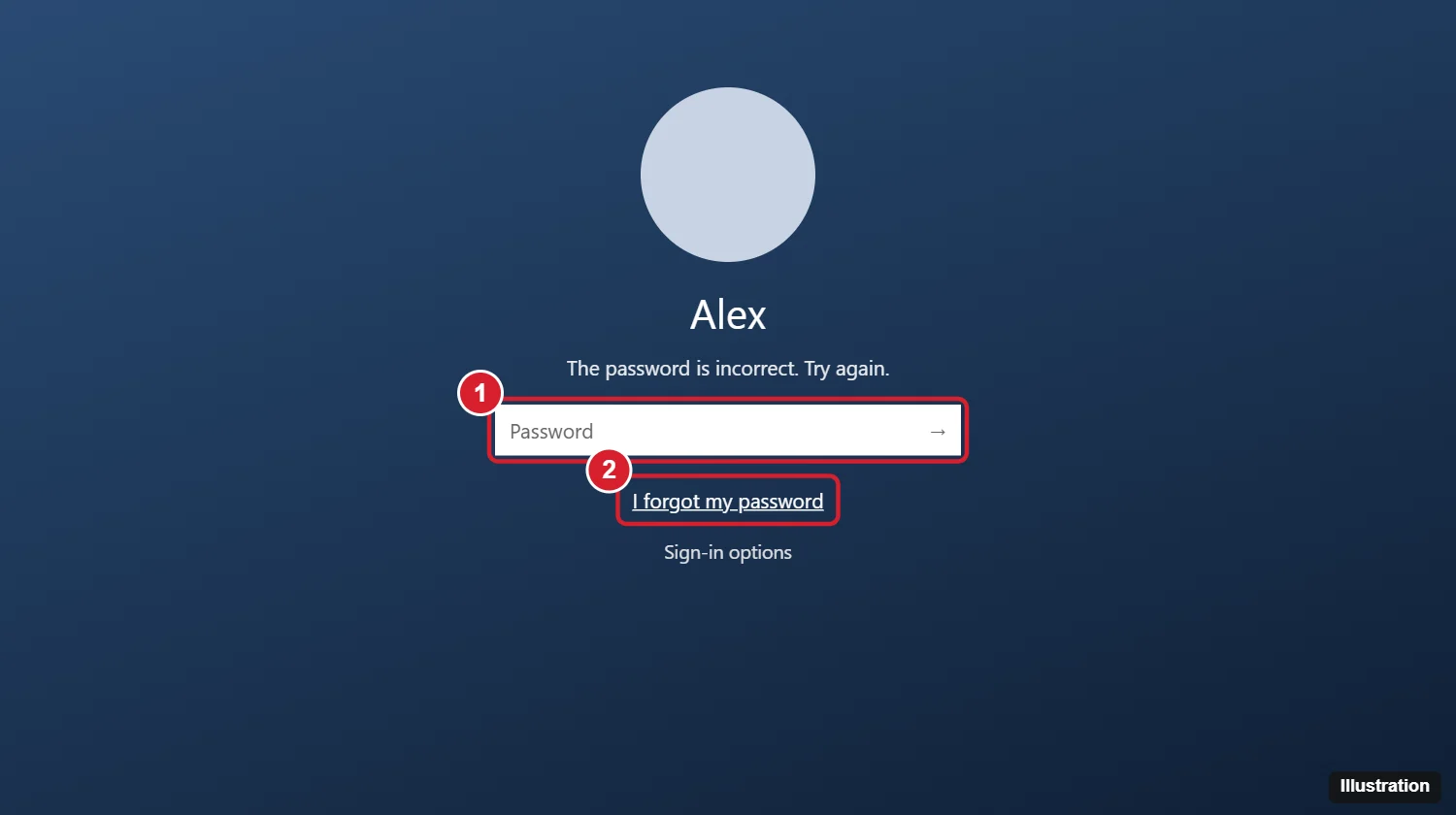
(1) After a wrong password, (2) click I forgot my password to start the reset. (Illustration) - Confirm the account and complete the character check if one appears.
- Choose where to receive a security code: the recovery email address or phone number on the account.
- Enter the code, then type and confirm a new password.
- Return to the sign-in screen and sign in with the new password.
If the link doesn’t appear, select Sign-in options. On current versions of Windows, a Web sign-in option there may offer Forgot my password, which starts the same reset.
From a phone or another computer
- Open a browser and go to Microsoft’s Reset password page (Microsoft’s forgotten password help page, linked below, has a direct link).
- Enter the username for the account, which is the email address or phone number you sign in with.
- Get the code sent to your recovery info, enter it, and set a new password.
- Back at the locked PC, make sure it’s online, then sign in with the new password.
Microsoft’s forgotten Microsoft account password page covers the verification screens if they look different on your device.
When you can’t get the security code
If the recovery email or phone number is old and you can’t receive a code, Microsoft offers an account recovery form, reached through the reset page when you say you don’t have access to the listed options. You answer questions about the account, such as old passwords and the exact subject lines of recent emails, ideally from a device and place where you usually sign in. You need a working email address for the reply (it can belong to a friend or relative), and Microsoft says it reviews the answers and responds within 24 hours. Microsoft Support can’t reset the password for you outside of this process.
Reset a local account password
Local accounts have two built-in recovery options, and both have to be set up before you forget the password. If neither was, skip to the administrator section.
Answer your security questions
- On the sign-in screen, type any password and select the arrow (or press Enter).
- When the incorrect-password message appears, select OK.
- Select Reset password below the password box.

(1) After a wrong password, (2) click Reset password to start recovery. (Illustration) - Answer the security questions you chose when the account was created.
- Enter a new password, confirm it, and add a hint you’ll recognize.
Answers must match what you typed originally, so try the spelling and capitalization you’d have used at the time. If the Reset password link doesn’t appear after a wrong password, the account most likely has no security questions.
Use a password reset disk
A password reset disk is a USB flash drive you created from the account while you could still sign in. It works even after you change the password later.
- Plug in the USB drive.
- Type a wrong password, select OK, then Reset password.
- Choose Use a password reset disk instead.
- Follow the wizard to pick the drive and set a new password.
Have another administrator set a new password
On a shared family PC, anyone with an administrator account can set a new password for a local account. This doesn’t work for Microsoft accounts: their passwords can only be changed through Microsoft, so use the previous section instead.
Warning before you start: Windows warns that setting a new password this way can make some information protected by the old password unreadable. That includes files encrypted with EFS (the Encrypt contents option in a file’s properties), and saved passwords and certificates for websites and network drives. Most home users don’t use EFS, but if you did, recover the password another way if possible, or ask whether an exported encryption certificate exists before going ahead.
- Sign in with the other administrator account.
- Right-click the Start button and select Computer Management.
- Expand Local Users and Groups, then select Users.
- Right-click the locked account and choose Set Password….
- Read the warning, confirm it, and enter the new password twice.
- Sign out, then sign in to the locked account with its new password.
On Home editions of Windows, Local Users and Groups may be missing from Computer Management. A signed-in administrator on those PCs can set the password from an elevated Command Prompt instead, as described in resetting a Windows 10 password with Command Prompt. That method is for an administrator who is already signed in, not a way around the sign-in screen.
No second administrator on the PC? Once you’re back in, add one so this route exists next time. Adding a user in Windows 11 shows how to create a spare account and make it an administrator.
Work or school PCs
If you sign in with a work or school email, the password belongs to your organization. Use the self-service password reset link if your organization set one up (it may appear on the sign-in screen), or contact the IT department or help desk. Don’t try the local account methods or reset the PC: managed devices can be locked to the organization, and a reset can lose data the organization needs and still leave the device tied to it.
Locked out of a Toshiba, Dynabook, HP, Dell or Lenovo laptop
The Windows password belongs to your account, not to the laptop, so the brand doesn’t change the steps. A Toshiba laptop (Toshiba’s PC business now trades as Dynabook) running Windows 11 or 10 uses exactly the same sign-in screen, Microsoft account reset, security questions and administrator options as any HP, Dell, Lenovo, Acer or ASUS laptop.
A few things do vary by maker and model:
- Fingerprint readers and face-recognition cameras. If your laptop has one and you enrolled it in Windows Hello, use it from Sign-in options before anything else.
- Firmware passwords. A power-on or supervisor password is set in the laptop’s firmware. Only the maker or an authorized service provider can help, usually after you prove ownership.
- Factory recovery tools. Many laptops, especially older Toshiba models, shipped with their own recovery partition and tools. They reinstall the factory image and erase your files, so treat them as the last resort below, not a password fix. Check the support site for your model before using them.
Why this article skips password-removal tools and tricks
Search results are full of methods that promise to remove or “bypass” a Windows password: replacing accessibility tools from a recovery prompt, enabling hidden administrator accounts, booting third-party password removers. They’re left out here on purpose.
- They don’t work on Microsoft accounts, whose passwords aren’t stored on the PC.
- They can’t read drives protected by BitLocker or device encryption, which many newer laptops turn on by default.
- Downloaded “password recovery” tools are a common way to pick up malware.
- Modifying system files can break Windows or leave it less secure.
- Anything that works on your PC without a password works just as well for someone who steals it.
The supported options above, plus the reset below, cover every legitimate situation on a PC you own.
Last resort: reset the PC
If you can’t recover any password and there’s no other administrator, Microsoft’s guidance is to reset the device. That reinstalls Windows and removes the account, so files not backed up elsewhere, such as in OneDrive or on an external drive, are lost. The short version: on the sign-in screen, select Power, hold Shift and select Restart, then choose Troubleshoot > Reset this PC > Remove everything.
If the drive is encrypted, the reset asks for the BitLocker recovery key. For most home PCs it’s saved in the Microsoft account used to set up the PC; finding your BitLocker recovery key lists every place to look. The full reset process, including Cloud download, Clean data and what to do when the PC won’t reach the sign-in screen, is in how to factory reset Windows without a password.
Once you’re back in: easier sign-in and fewer lockouts
A few minutes of setup now makes the next forgotten password a non-event.
- Set up a PIN or Windows Hello. Go to Settings > Accounts > Sign-in options and add a PIN, fingerprint or face sign-in. A PIN is quicker to type and is a second way in.
- Update your Microsoft account recovery info. At account.microsoft.com, open the security settings and confirm the recovery email and phone number are current, so you’ll actually receive the code next time.
- Local accounts: add security questions and make a reset disk. Plug in a USB drive, open Control Panel, type create password reset in its search box, select Create a password reset disk, and follow the wizard. Store the drive somewhere safe.
- Keep a second administrator account. On a family PC, make a trusted person’s account an administrator, or create a spare one.
- Store the password and BitLocker key safely. A password manager, or a printed copy kept at home, both work.
- Change a password you know. In Settings > Accounts > Sign-in options > Password, select Change.
If the real problem is typing the password too often, you can also adjust when Windows asks for it after the PC wakes from sleep, or turn on Dynamic Lock so the PC locks when your paired phone leaves the room. Option names differ slightly between Windows versions, so look under Sign-in options for “Require sign-in” or a similar setting. Removing the password entirely is possible but leaves the PC open to anyone who picks it up.
Locked-out questions
Will resetting my password delete my files?
No. A Microsoft account reset, security questions, a reset disk and a PIN all keep everything. An administrator reset keeps your files too, with the EFS and saved-password caveat above. Only a full PC reset with Remove everything deletes files.
Can I reset a Windows password without internet?
For a local account, yes: security questions, a reset disk and another administrator all work offline. A Microsoft account needs internet on the device you use for the reset, and the locked PC usually needs to be online to sign in with the new password.
Can a local administrator reset my Microsoft account password?
No. Computer Management only changes local account passwords. A Microsoft account password can be changed only through Microsoft’s reset process.
Can Microsoft Support tell me my password?
No. Microsoft can’t retrieve or bypass a lost local account password, and for Microsoft accounts it can only point you to the reset and recovery form.
Is it the same on Windows 11 and Windows 10?
Yes. The sign-in screen links, the local account options and the administrator route work the same way on both. Only some Settings labels differ.
Is it legal to get into a locked PC this way?
Using these recovery options on a computer you own, or one you’re authorized to manage, is fine. Getting into someone else’s computer without permission is illegal in most places.
Start with the account type on your sign-in screen, try a PIN, and work down the list from there. Once you’re signed in, set up a PIN and update your recovery info so the next lockout takes a minute instead of an afternoon.

Kermit Matthews runs Live2Tech from just outside Philadelphia. He is an IT specialist with over 20 years of experience, from a university help desk to small-business IT, IT management and his own consulting practice, and has written tech guides full time since 2020. Steps are checked against the current software on a real device or the maker’s official documentation. More about Kermit.