Safe Mode is what you reach for when a bad driver, a broken update or a misbehaving app keeps Windows from working normally. If the PC still starts, the quickest way in is to hold Shift and select Restart, then choose Troubleshoot > Advanced options > Startup Settings > Restart and press 4 (or 5 for Safe Mode with Networking). The steps below cover current versions of Windows 11 and Windows 10.
What Safe Mode does and which version to pick
Safe Mode starts Windows with a limited set of files and drivers. Third-party startup apps, most hardware drivers and many background services stay off. If a problem disappears in Safe Mode, that tells you the cause is probably something that loads during a normal start, such as a new graphics driver, antivirus tool or app that launches at sign-in. If the problem is still there in Safe Mode, the basic Windows files or the hardware itself are more likely suspects.
Because Windows uses a basic display driver in Safe Mode, the screen usually looks lower resolution than normal, and the words “Safe Mode” appear in the corners of the desktop. Some devices, such as speakers or printers, may not work until you restart normally.
You’ll see three main choices on the Startup Settings screen. They map to the options in the System Configuration tool (msconfig), which is covered later.
| Startup Settings key | Option | Closest msconfig setting | Pick it when you need to |
|---|---|---|---|
| 4 or F4 | Enable Safe Mode | Safe boot: Minimal | Remove a driver or app, or test whether a problem goes away |
| 5 or F5 | Safe Mode with Networking | Safe boot: Network | Download a driver, run an online malware scan or reach a network share |
| 6 or F6 | Safe Mode with Command Prompt | Safe boot: Alternate shell | Run commands such as sfc when the desktop itself won’t load |
If you’re not sure, start with plain Safe Mode (4). Choose networking only when you actually need the internet, since it also loads network drivers that could be part of the problem.
Before you start: two things to have ready
- Your BitLocker recovery key. If the drive is encrypted with BitLocker or device encryption, Windows may ask for the recovery key when you enter the recovery screens. Look it up before you restart, especially if this is your only device. If you don’t know where it is, see where to look for a lost BitLocker recovery key.
- Your account password. You still sign in to Windows in Safe Mode, and a face or fingerprint reader may not work with its regular driver turned off, so know your PIN or password.
Save any open work first. Every method here restarts the PC.
Which route fits your situation
| Your situation | Best route | Why |
|---|---|---|
| Windows starts and you can reach the desktop | Method 1 (Shift + Restart) or Method 2 (Settings) | One trip into Safe Mode, then a normal restart brings regular Windows back |
| Windows reaches the sign-in screen but crashes after you sign in | Shift + Restart from the sign-in screen | You never have to load the desktop that crashes |
| You need several restarts in a row in Safe Mode | Method 3 (msconfig) | Safe Mode sticks until you turn it off |
| Windows freezes on the logo or shows a blue screen before sign-in | Method 4 (forced restarts or a USB drive) | It opens the recovery screens without needing Windows to load |
Method 1: Hold Shift and restart (fastest when Windows works)
This route works the same way on Windows 11 and Windows 10, and it doesn’t change any boot settings, so the next normal restart goes straight back to regular Windows.
- Open Start and select the Power button.
- Press and hold Shift on the keyboard, then select Restart. Keep holding Shift until a blue “Please wait” or “Choose an option” screen appears.
- On Choose an option, select Troubleshoot.
- Select Advanced options, then Startup Settings.
- Select Restart. The PC restarts and shows a numbered list of startup options.
- Press 4 or F4 for Safe Mode, 5 or F5 for Safe Mode with Networking, or 6 or F6 for Safe Mode with Command Prompt. Pressing Enter instead starts Windows normally.
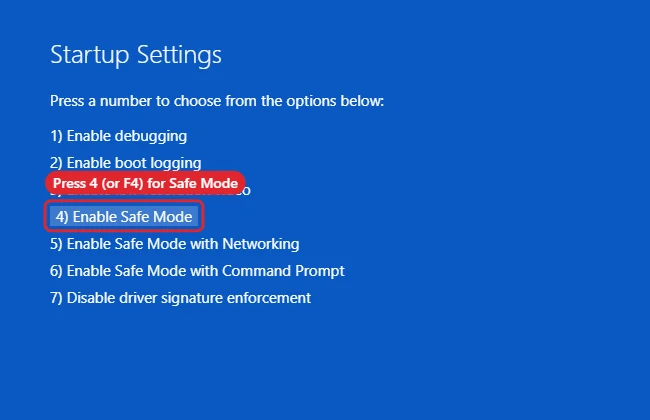
Expected result: Windows starts, you sign in, and the desktop shows “Safe Mode” in each corner on a plain black background.
From the sign-in screen
If Windows starts but you can’t get to the desktop (for example, it freezes right after sign-in), use the same trick from the lock screen. Select the Power icon in the lower-right corner, hold Shift, and select Restart. Then follow steps 3 to 6 above. This is the route to use when a startup app crashes the desktop as soon as it loads.
Method 2: Use Advanced startup in Settings
The Settings app reaches the same recovery screens. It’s handy when the Shift key isn’t registering, or you’re working with a keyboard that’s awkward to hold down while clicking.
Windows 11
- Open Settings (Windows key + I).
- Go to System > Recovery.
- Under Recovery options, find Advanced startup and select Restart now. Confirm when Windows asks.
- On the blue screen, choose Troubleshoot > Advanced options > Startup Settings > Restart, then press 4, 5 or 6.
A shortcut to the same page: press Windows key + R, type ms-settings:recovery and press Enter.
Windows 10
- Open Settings and select Update & Security.
- Select Recovery in the left pane.
- Under Advanced startup, select Restart now.
- Choose Troubleshoot > Advanced options > Startup Settings > Restart, then press 4, 5 or 6.
Windows 10 reached end of support on October 14, 2025. Microsoft’s Windows 10 end of support notice says consumer Extended Security Updates protect enrolled PCs until October 12, 2027. The Safe Mode steps still work, but an unsupported PC is worth upgrading once it’s fixed. For version-specific screenshots and extra detail, see booting Windows 11 into Safe Mode or Safe Mode steps for Windows 10.
Method 3: Set Safe boot in System Configuration (msconfig)
System Configuration tells Windows to start in Safe Mode on every restart until you turn it off. That makes it useful when a fix needs several restarts in Safe Mode, such as removing stubborn security software. It’s also the method most likely to leave someone stuck, so read the warning before step 3.
- Press Windows key + R, type msconfig, and press Enter.
- Select the Boot tab.
- Under Boot options, check Safe boot, then pick the type:
- Minimal: standard Safe Mode.
- Network: Safe Mode with Networking.
- Alternate shell: Safe Mode with Command Prompt instead of the desktop.
- Select Apply, then OK.
- Choose Restart when Windows offers it, or restart from the Start menu.
Warning: with Safe boot checked, Windows keeps starting in Safe Mode until you go back into msconfig and clear the box. If you pick Alternate shell, you won’t have a Start menu or File Explorer. Type msconfig at the command prompt to get back to the Boot tab when you’re done.
Avoid this method if you can’t sign in normally, because if Safe Mode also fails to sign in you’ll need the recovery screens to undo it.
Method 4: When Windows won’t start at all
If the PC crashes, freezes on the logo or shows a blue screen before you can sign in, you can’t use Start or Settings. Windows has a built-in recovery environment (Windows RE) for this case, and Safe Mode is one of its options.
Let Windows open recovery on its own
According to Microsoft’s Windows Recovery Environment page, Windows opens recovery automatically after startup fails repeatedly. You can trigger it yourself:
- Turn the PC on. When the manufacturer or Windows logo appears, press and hold the power button until the PC turns off.
- Do this a second time.
- Turn the PC on a third time and let it start. Windows shows Preparing Automatic Repair and then an Automatic Repair screen.
- Select Advanced options. You arrive at Choose an option.
- Choose Troubleshoot > Advanced options > Startup Settings > Restart, then press 4, 5 or 6.
Two interrupted starts are usually enough; the third start is the one that opens recovery. Forcing the power off is a recovery step, not something to do routinely, because it can interrupt writes to the drive. For more ways into these screens, see getting to Recovery Mode in Windows 10.
Use a recovery drive or Windows installation USB
If the forced-restart trick never shows Automatic Repair, boot from a USB recovery drive or Windows installation media made on another PC. You may need a one-time boot menu key (it varies by manufacturer) to start from the USB.
- Recovery drive: after choosing your keyboard layout, you land on Choose an option. Go to Troubleshoot > Advanced options.
- Installation USB: on the first setup screen, choose your language and select Next, then Repair my PC (older media says Repair your computer), then Troubleshoot > Advanced options.
From there, Startup Repair is often the better first try when Windows can’t boot. If Startup Settings isn’t listed when you boot from USB, use Startup Repair or System Restore from the same menu instead.
What to do once you’re in Safe Mode
Safe Mode is a workspace, not a fix by itself. Pick the task that matches what changed before the trouble started.
- A new driver caused it: right-click Start, open Device Manager, find the device (often under Display adapters), open its Properties and use Roll Back Driver on the Driver tab, or uninstall the device and restart.
- A recent update caused it: remove the update from Safe Mode. The steps are in undoing a problem Windows update.
- An app or startup program causes crashes: uninstall it in Settings > Apps > Installed apps (Windows 11) or Settings > Apps > Apps & features (Windows 10).
- You suspect malware: run a full scan in Windows Security. Use Safe Mode with Networking if the scanner needs to download updates.
- System files may be damaged: open Command Prompt as administrator and run sfc /scannow. More detail is in running an SFC scan.
- Repeated blue screens: note the stop code, then work through common blue screen fixes.
Here’s how it plays out in a typical case: a laptop installs a new graphics driver overnight and then shows a black screen after sign-in. Starting in plain Safe Mode loads the basic display driver instead, so the desktop appears. Rolling back the graphics driver in Device Manager and restarting normally usually brings the regular display back.
How to leave Safe Mode
- If you used Method 1, 2 or 4, just restart from the Start menu. Windows starts normally.
- If you used msconfig, press Windows key + R, type msconfig, open the Boot tab, uncheck Safe boot, select Apply and OK, then restart.
Microsoft’s Start your PC in Safe Mode page gives the same advice: if the PC keeps starting in Safe Mode after a restart, clear Safe boot in System Configuration. You’ll know you’re out when the corner “Safe Mode” labels are gone and your normal resolution and wallpaper return.
When Safe Mode won’t cooperate
Pressing F8 at startup does nothing
The old F8 menu from Windows 7 isn’t part of normal startup on Windows 11 or 10. On most modern PCs the key press isn’t picked up during startup, so use Shift + Restart, Settings or the forced-restart method instead. If you still run a Windows 7 machine, the separate steps for starting Windows 7 in Safe Mode apply.
Windows asks for a BitLocker recovery key
This is normal on encrypted drives when you open recovery options. Enter the 48-digit key. Without it, Windows can’t open the encrypted drive, so find it before you go further.
The PC loops back into Safe Mode
Safe boot is still checked in msconfig. Clear it as described in the previous section. If you can’t reach the desktop, use System Restore from Troubleshoot > Advanced options to roll back to a point before the change.
Safe Mode also crashes or won’t sign in
If even Safe Mode fails, the problem is deeper than an add-on driver or app. From the recovery screens, try Startup Repair, then System Restore to roll back to a point before the problem began.
Safe Mode questions
Will Safe Mode delete my files or apps?
No. Safe Mode only changes what loads at startup. Your files, apps and settings are untouched. Anything you remove while in Safe Mode, such as a driver or update, stays removed after you restart.
Why don’t my sound and second monitor work in Safe Mode?
Their drivers are among the many that don’t load. Audio, extra displays and some USB devices come back after a normal restart.
Can I install a driver while in Safe Mode?
Sometimes. You can uninstall drivers reliably, but some driver installers refuse to run in Safe Mode. A common approach is to remove the bad driver in Safe Mode, restart normally, then install the replacement.
Is Safe Mode with Networking safe to use if I suspect malware?
It’s fine for downloading a scanner or updates, but stay off unrelated sites and disconnect once the download is done. If you don’t need the internet, plain Safe Mode keeps the PC offline.
Next step: once the problem is fixed, restart normally, then check Windows Update so the PC picks up any fixes released since the trouble began.

Kermit Matthews runs Live2Tech from just outside Philadelphia. He is an IT specialist with over 20 years of experience, from a university help desk to small-business IT, IT management and his own consulting practice, and has written tech guides full time since 2020. Steps are checked against the current software on a real device or the maker’s official documentation. More about Kermit.