Fast Startup is a Windows 10 feature that makes your PC boot faster after a shutdown by saving part of the system state to disk instead of fully closing it. It is on by default on most PCs, and while it saves a few seconds, it can cause problems: updates that do not finish installing, dual-boot systems that cannot access the Windows drive, USB devices or keyboards that do not work after startup, and trouble entering the BIOS. This guide shows how to turn it off, what changes when you do, and how to turn it back on.
Quick Answer
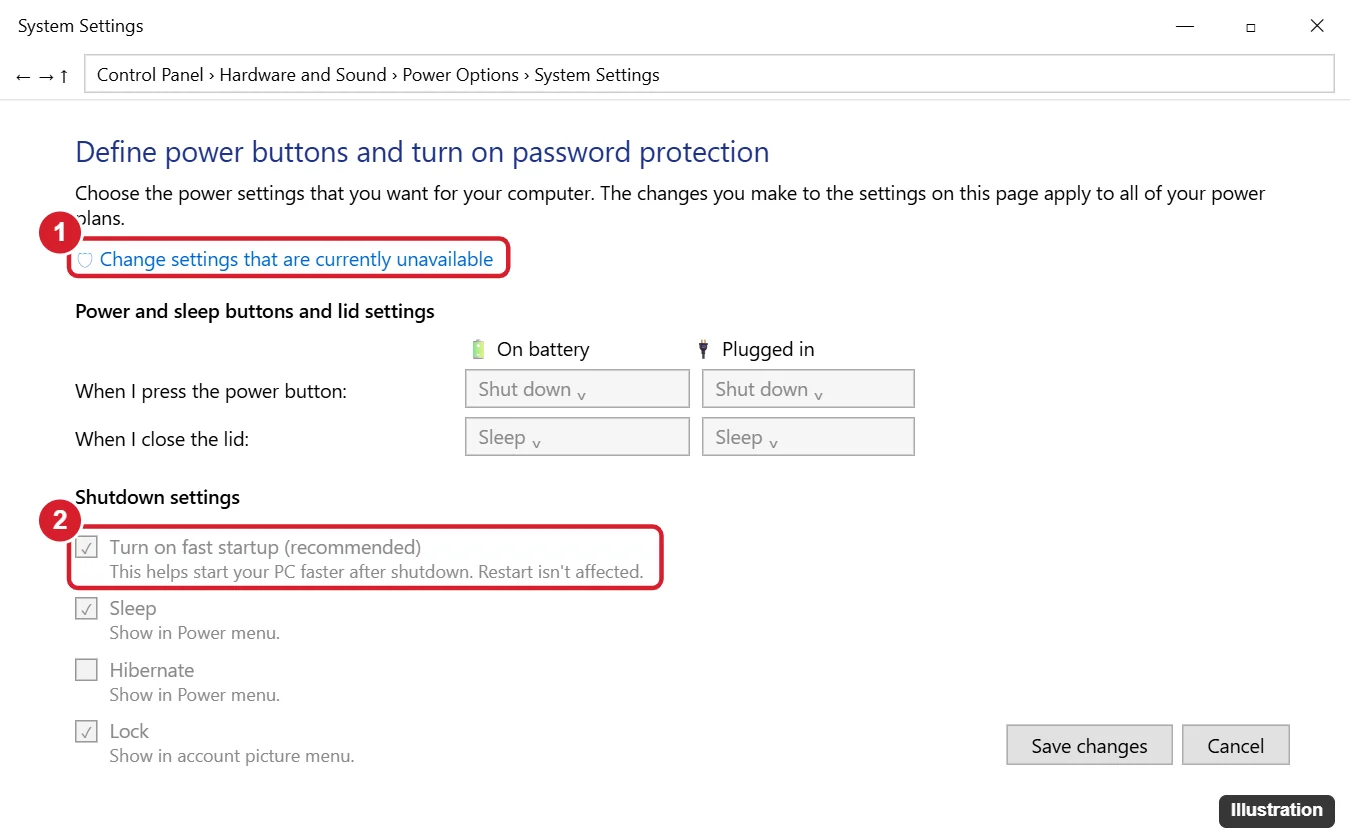
Open Control Panel > Hardware and Sound > Power Options and click Choose what the power buttons do. Click Change settings that are currently unavailable, uncheck Turn on fast startup (recommended), and click Save changes.
What Fast Startup Does
When you shut down with Fast Startup on, Windows closes your apps and signs you out, but saves the Windows kernel and drivers to a file (hiberfil.sys), similar to hibernation. The next boot reloads that file instead of starting from scratch. A Restart is not affected; it always does a full shutdown and startup.
Should You Turn It Off?
| Turn it off if | Keep it on if |
|---|---|
| You dual-boot Windows with Linux or another OS | Your PC starts and runs normally |
| Windows updates keep asking to finish installing | You have an older hard drive and value faster boots |
| USB devices, Wi-Fi, or the keyboard sometimes do not work after startup | You rarely shut down fully |
| You cannot get into BIOS/UEFI with the setup key | |
| You use Wake-on-LAN or have drive encryption issues |
On PCs with an SSD, the time difference is usually small, so there is little downside to turning it off.
Method 1: Turn Off Fast Startup in Control Panel
- Press Windows key + R, type control, and press Enter to open Control Panel.
- Click Hardware and Sound, then Power Options. (If Control Panel is in icon view, click Power Options directly.)
- In the left pane, click Choose what the power buttons do.
- Click Change settings that are currently unavailable. Approve the administrator prompt if it appears.
- Under Shutdown settings, uncheck Turn on fast startup (recommended).
- Click Save changes.
Shortcut: press Windows key + R, type powercfg.cpl, and press Enter to open Power Options directly.
Method 2: Disable Hibernation (Removes Fast Startup Too)
Fast Startup depends on hibernation. Turning off hibernation removes both features and frees the disk space used by hiberfil.sys.
- Open Command Prompt as administrator (search for cmd, right-click, Run as administrator).
- Run:
powercfg /hibernate off
To turn hibernation back on, run powercfg /hibernate on. Note that this also removes the Hibernate option from the power menu, which some laptop users rely on.
Method 3: Group Policy (Pro and Enterprise)
- Press Windows key + R, type gpedit.msc, and press Enter.
- Go to Computer Configuration > Administrative Templates > System > Shutdown.
- Double-click Require use of fast startup and set it to Disabled.
- Click OK, then use Method 1 to uncheck the setting.
This is mainly useful if the checkbox is grayed out because a policy forces Fast Startup on.
Do a One-Time Full Shutdown
If you only need a full shutdown once, such as before changing hardware, hold Shift while clicking Shut down in the Start menu. Or run shutdown /s /f /t 0 in Command Prompt.
How to Turn Fast Startup Back On
Repeat Method 1 and check Turn on fast startup (recommended). If the option is missing, turn hibernation back on with powercfg /hibernate on.
Troubleshooting
The Fast Startup option is missing
Hibernation is turned off, or your hardware does not support it. Run powercfg /hibernate on as administrator and check again.
The checkbox is grayed out
Click Change settings that are currently unavailable first. If it is still gray, a Group Policy may be enforcing the setting, so check Method 3 or ask your IT department.
The setting turns itself back on
Major Windows updates can occasionally reset it. Check again after feature updates.
Related: See uptime in Windows 10.
Related: Disable Fast Boot in Windows 11.
A restart always skips Fast Startup, and the different ways to restart Windows 11 and 10 include Start, Ctrl+Alt+Delete and the shutdown command.
Frequently Asked Questions
Does turning off Fast Startup slow down my PC?
Only the startup after a shutdown may take a few seconds longer. Performance after startup is unchanged.
Does Restart use Fast Startup?
No. Restart always does a full shutdown and reload.
Is Fast Startup the same as sleep?
No. Sleep keeps everything in memory with low power. Fast Startup shuts down but saves the system core to disk.
Is it safe to turn off Fast Startup?
Yes. It does not affect your files or apps, and you can turn it back on anytime.
Summary
- Open Power Options > Choose what the power buttons do.
- Click Change settings that are currently unavailable.
- Uncheck Turn on fast startup and save.
- Or disable hibernation with
powercfg /hibernate off.

Kermit Matthews runs Live2Tech from just outside Philadelphia. He is an IT specialist with over 20 years of experience, from a university help desk to small-business IT, IT management and his own consulting practice, and has written tech guides full time since 2020. Steps are checked against the current software on a real device or the maker’s official documentation. More about Kermit.