How long does the PC need to stay awake? If the answer is “always,” change the sleep timer in Settings to Never. If it only has to last through one long download, backup or render, turn on PowerToys Awake and leave your normal settings alone. If it’s a laptop that should keep running with the lid shut, change what closing the lid does. Each fix below works on current versions of Windows 11 and can be reversed in a minute.
Pick the fix by how long the PC must stay awake
The right method depends less on your hardware and more on how long you need the computer running unattended. Use this table to jump to the section that matches your situation.
| Your situation | Best fix | What stays changed |
|---|---|---|
| A desktop or always-plugged-in laptop that should never doze off | Set the sleep timers to Never in Settings | The setting stays until you change it back |
| One long job tonight (a game download, a cloud backup, a video export) | PowerToys Awake with a time interval | Nothing; normal sleep returns when Awake stops |
| A laptop connected to a monitor with the lid closed | Change the lid-close action to Do nothing | Only the lid behavior |
| Several PCs, or you want a script you can rerun | The powercfg /change command |
The timers in the active power plan |
| A work or school PC where the setting won’t stick | Ask IT about the power policy | Managed by your organization |
If you only need files to finish transferring, this post on keeping a download going while Windows 11 would otherwise sleep covers that case in more detail.
Why Windows 11 falls asleep so quickly
Many people notice that a new Windows 11 PC goes to sleep much sooner than their old one did. That’s by design. Microsoft lowered the default timeouts to cut energy use, and the values depend on the kind of sleep your PC supports.
- PCs with Modern Standby (most recent laptops and many thin desktops): the screen turns off after 3 minutes on battery or 5 minutes plugged in, and the device sleeps after 3 minutes on battery or 5 minutes plugged in.
- PCs that use traditional S3 sleep (common on older or custom-built desktops): the screen turns off after 3 or 5 minutes, and sleep starts after 10 minutes on battery or 15 minutes plugged in.
Modern Standby is Microsoft’s name for the S0 low power idle model, where the PC can stay connected to the network in a phone-like idle state. You can’t switch a PC between Modern Standby and S3 with a firmware setting, so don’t go hunting in the BIOS for a fix. The timers in the next section control both types.
A screen that goes dark is not the same as sleep. The display timer and the sleep timer are separate, so your PC can keep working with the screen off. A lock screen or screen saver is also not sleep; if that’s what keeps interrupting you, see how to turn off the screen saver in Windows 11.
Set the sleep timers to Never
This is the permanent fix for a PC that should stay on all the time.
- Press Windows + I to open Settings.
- Select System, then Power & battery. On a desktop without a battery the page is named Power.
- Expand Screen, sleep, & hibernate timeouts.
- Open the Make my device sleep after dropdown and choose Never. On a laptop there are separate values for plugged in and on battery; change the one you need.
- Optionally, leave Turn my screen off after at a short value. The screen saves power while the PC keeps working.
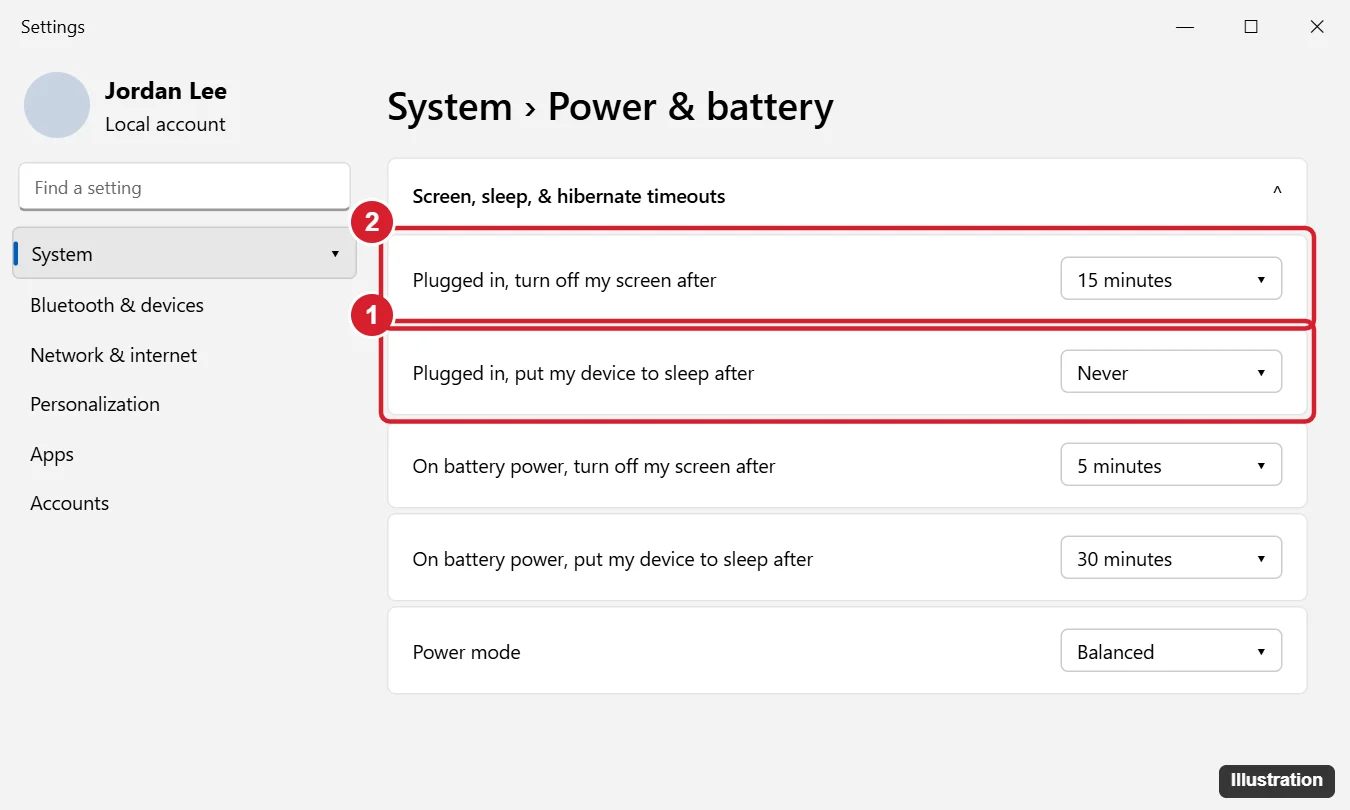
The change saves immediately; there’s no Apply button. Before you set the battery value to Never, think about where the laptop will be. A laptop left on battery with sleep disabled can drain to empty unnoticed, so a middle value such as 15 or 30 minutes on battery is a safer compromise for most people.
These timers belong to the active power plan. If you switch plans, the timers can change with it. Control Panel’s Power Options > Change plan settings shows the same timers per plan, which helps if you use more than one. If you’re tuning plans for speed as well, see how to get the High Performance power plan on Windows 11.
Keep it awake for one job with PowerToys Awake
Awake is a utility inside Microsoft PowerToys, a free set of tools for Windows. It keeps the PC awake without touching your power plan, so normal sleep comes back as soon as you turn it off. PowerToys runs on Windows 11 (and on Windows 10 version 2004 or later) and installs from the Microsoft Store or from Microsoft’s GitHub page.
- Install PowerToys from the Microsoft Store and open it.
- Select Awake in the left pane.
- Turn on Enable Awake.
- Choose a mode (see the table).
- To switch modes later without opening the window, right-click the Awake icon in the system tray.
| Mode | What it does | Good for |
|---|---|---|
| Keep using the selected power plan | Awake does nothing; your normal timers apply | Pausing Awake without disabling it |
| Keep awake indefinitely | Stays awake until you change the mode or close PowerToys | A job with no clear end time |
| Keep awake for a time interval | Stays awake for the hours and minutes you set | “Give this upload three hours” |
| Keep awake until expiration | Stays awake until a date and time you pick | Overnight work that should stop by morning |
The Keep screen on toggle also stops the display from turning off, but only while you’re signed in and the PC isn’t locked. Awake also won’t block sleep you start yourself: choosing Sleep from the Start menu or pressing the power button still puts the PC to sleep.
Closing the lid without sleep
Laptops treat the lid as a separate switch. Even with the timers at Never, closing the lid can still put the PC to sleep, so change the lid action if you run a laptop docked to a monitor.
- Open Control Panel and go to Hardware and Sound > Power Options. Typing lid in the Start search box usually finds the setting faster.
- Select Choose what closing the lid does.
- Next to When I close the lid, choose Do nothing for plugged in, and for battery if you need it.
- Select Save changes.
On many current Windows 11 laptops the same choice also appears in Settings under System > Power & battery, in a lid and power button section. Control Panel still works if you don’t see it there.
The lid setting offers four actions: Do nothing, Sleep, Hibernate and Shut down. Before you close a running laptop, make sure it has airflow. Don’t slide a running laptop into a bag, where heat builds up fast.
Change the timers with powercfg
The powercfg command changes the same timers from Terminal, Command Prompt or PowerShell, which is handy for a script or for several PCs. Values are in minutes and apply to the current power plan. “ac” means plugged in and “dc” means on battery.
| Command | Effect |
|---|---|
powercfg /change standby-timeout-ac 0 |
Never sleep when plugged in |
powercfg /change standby-timeout-dc 0 |
Never sleep on battery |
powercfg /change monitor-timeout-ac 10 |
Turn the screen off after 10 minutes when plugged in |
powercfg /change hibernate-timeout-ac 0 |
Never hibernate automatically when plugged in |
powercfg /change standby-timeout-ac 30 |
Go back to sleeping after 30 minutes when plugged in |
A value of 0 is widely used to mean “never.” If you’d rather confirm it, check the Settings page afterward; the dropdown should read Never. Note that powercfg /hibernate off is a different command: it turns hibernation off entirely and does not stop sleep. The full option list is on Microsoft’s powercfg command-line options page.
Find what is still putting it to sleep or waking it
If the PC sleeps even with every timer at Never, work through these checks in order. Open Terminal as administrator (right-click Start, then choose Terminal (Admin)) so every command can report.
- Confirm which sleep states the PC supports. Run
powercfg /a. It lists the available sleep states, so you can tell if the PC uses Modern Standby or S3. - Check the active plan. Open Control Panel’s Power Options and confirm the plan you edited is the selected one. Editing a plan that isn’t active changes nothing.
- See which programs hold power requests. Run
powercfg /requests. It shows apps, services and drivers currently asking Windows to keep the display or system awake. An empty list while a download runs tells you that app isn’t asking for the PC to stay awake, which is why Awake or the Never timer is needed. - Find out what woke it last. If your issue is the reverse (a PC that wakes by itself), run
powercfg /lastwake, thenpowercfg /waketimersto list scheduled wake events, andpowercfg /devicequery wake_armedto see which devices, such as a mouse or network adapter, are allowed to wake it. - Override a misbehaving request.
powercfg /requestsoverridelets you tell Windows to ignore a specific process, service or driver’s request, for the Display, System or Awaymode request type. Use it sparingly and note what you changed. - Recheck after updates and driver changes. A feature update, a new graphics or chipset driver, or a PC maker’s power utility can switch plans or restore defaults. If sleep returns after an update, repeat the Settings steps and check the PC maker’s app.
Work and school PCs
On a PC managed by an employer or school, the sleep timers may be set by policy. Microsoft’s management policies include standby timeouts for plugged in and battery, plus an unattended sleep timeout, and they apply to Windows 11 Pro, Enterprise and Education. When a policy is in force, your changes in Settings can be ignored or reset. Ask your IT team whether a power policy applies, and explain the task you need the PC awake for; they can often allow an exception or schedule the job differently.
Put the defaults back
- Settings: return Make my device sleep after to a value such as 15 or 30 minutes.
- PowerToys Awake: choose Keep using the selected power plan or turn off Enable Awake.
- Lid: set When I close the lid back to Sleep.
- powercfg: run the same command with a number of minutes, for example
powercfg /change standby-timeout-ac 15.
To send the PC to sleep on demand afterward, see how to put Windows 11 to sleep from the Start menu or keyboard. Still on an older machine? The Windows 10 layout is different; see how to keep a Windows 10 computer from sleeping or adjust power and sleep settings in Windows 10.
The lid row sits beside the power button row on the same page, so it is worth checking what your power button is set to do while you are there.
Sleep setting questions
Why does my brand-new PC sleep after only a few minutes?
Microsoft’s current defaults are short: on Modern Standby PCs, sleep starts after 5 minutes plugged in and 3 minutes on battery. Nothing is broken; change the timer as described above. Microsoft lists the defaults on its Windows 11 power settings page.
Does PowerToys Awake keep the screen on when the PC is locked?
No. Keep screen on works only while you’re signed in and the PC isn’t locked. The PC itself can stay awake while locked, but the display may still turn off. Details are on Microsoft’s PowerToys Awake page.
Can I keep the PC awake for a few hours and then go back to normal?
Yes. Use Awake’s Keep awake for a time interval mode, or Keep awake until expiration if you want a specific end time. Your power plan never changes, so there’s nothing to undo.
Why is the sleep setting missing or ignored on my work laptop?
Your organization probably manages power settings through policy. Your IT team controls those values, and local changes may be reversed at the next policy refresh.
What does powercfg /requests actually tell me?
It shows which apps, services or drivers are currently asking Windows to stay awake or keep the display on. It’s useful for spotting a program that keeps the PC from sleeping when you want it to, and for confirming that a download tool isn’t making that request on its own.
Start with the table at the top: pick the shortest-lasting fix that covers your job, and you won’t have to remember to undo anything later.

Kermit Matthews runs Live2Tech from just outside Philadelphia. He is an IT specialist with over 20 years of experience, from a university help desk to small-business IT, IT management and his own consulting practice, and has written tech guides full time since 2020. Steps are checked against the current software on a real device or the maker’s official documentation. More about Kermit.