Windows 10 puts your PC to sleep after a period of inactivity to save power, which is annoying when you’re downloading a big file, rendering a video, running a backup, or using remote access. You can stop sleep entirely, only while plugged in, or just temporarily. This guide covers every option, including what happens when you close a laptop lid and how to fix a PC that sleeps anyway. Moved to a newer PC? The settings page and default timers differ there, so see how to keep a Windows 11 PC awake.
Quick Answer
Go to Settings > System > Power & sleep, and under Sleep, set When plugged in, PC goes to sleep after (and On battery power, on laptops) to Never. The screen can still turn off to save power; that doesn’t interrupt what your PC is doing.
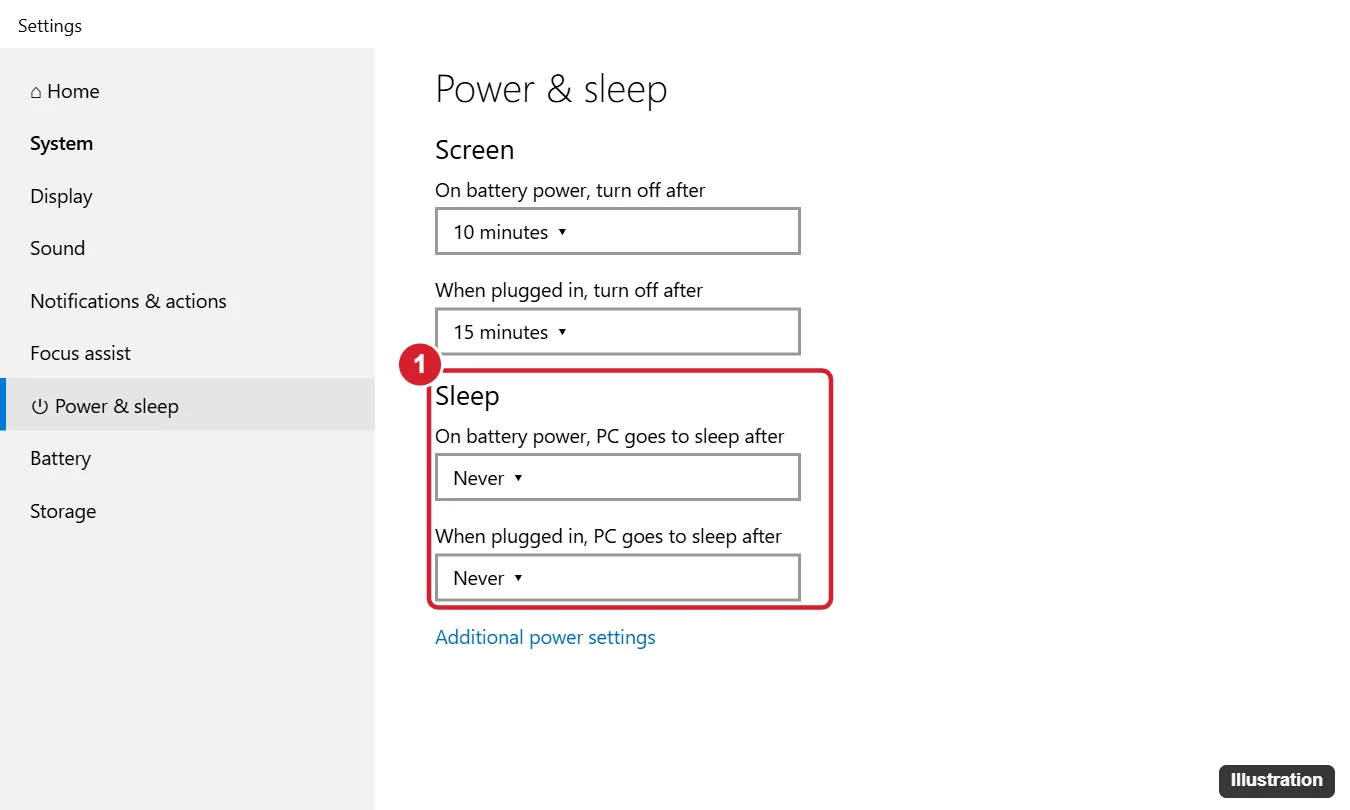
Method 1: Power & Sleep Settings
- Press Windows + I and go to System > Power & sleep.
- Under Sleep, choose Never for When plugged in.
- On a laptop, also set On battery power to Never if you want it to stay awake on battery (this drains the battery faster).
- Optionally set the Screen timeouts so the display still turns off.
Method 2: Keep a Laptop Awake With the Lid Closed
- Open Control Panel > Hardware and Sound > Power Options.
- Click Choose what closing the lid does.
- Set When I close the lid to Do nothing for Plugged in (and On battery if needed).
- Click Save changes.
Don’t put a running laptop in a bag with the lid closed; it can overheat.
Method 3: Stay Awake Temporarily
- Microsoft PowerToys Awake: Install free PowerToys from the Microsoft Store and turn on Awake. Choose to keep the PC awake indefinitely or for a set time, then return to normal settings automatically.
- Presentation settings (laptops): Press Windows + X, choose Mobility Center, and turn on presentation mode where available.
Method 4: Command Line
In an administrator Command Prompt:
- powercfg /change standby-timeout-ac 0 (never sleep when plugged in)
- powercfg /change standby-timeout-dc 0 (never sleep on battery)
- powercfg /change hibernate-timeout-ac 0 (never hibernate when plugged in)
PC Still Goes to Sleep?
- Check advanced settings: In Power Options > Change plan settings > Change advanced power settings, expand Sleep and set Sleep after, Hibernate after, and System unattended sleep timeout as needed. Also check Hybrid sleep.
- Different power plan: The plan you edited may not be active. Select the right plan in Power Options.
- Screen saver lock: A screen saver with “On resume, display logon screen” can look like sleep. Check Settings > Personalization > Lock screen > Screen saver settings.
- Work PC policies: Your organization may enforce sleep. Contact IT.
- Manufacturer apps: Some laptops’ power utilities override Windows settings.
A PC that stays awake can still ask for a password when you return, and stopping Windows 10 from locking after inactivity deals with that separate prompt.
Summary
- Set Sleep to Never in Settings > System > Power & sleep.
- Set the lid action to Do nothing to keep a closed laptop running.
- Use PowerToys Awake for temporary stay-awake.
- Check advanced power settings if it still sleeps.

Kermit Matthews runs Live2Tech from just outside Philadelphia. He is an IT specialist with over 20 years of experience, from a university help desk to small-business IT, IT management and his own consulting practice, and has written tech guides full time since 2020. Steps are checked against the current software on a real device or the maker’s official documentation. More about Kermit.