You set Screen and Sleep to Never, yet your Windows 10 PC still drops to the sign-in screen after a few idle minutes. That happens because several separate settings can lock Windows 10, and the power timers are only one of them. Find the one firing with the table below and fix it. The usual culprits are the screen saver’s logon option, Dynamic lock and, on a laptop, the separate on-battery timers that still let the screen turn off.
Find out which lock is firing
Note what you see just before the lock and match it here. Each row points to one setting.
| What you see | Likely source | Where to change it |
|---|---|---|
| The screen goes dark, and moving the mouse brings up the sign-in screen | Windows asks for sign-in again after the display turns off or the PC sleeps | Settings > Accounts > Sign-in options |
| An animation or blank screen saver appears first, then sign-in | Screen saver set to show the logon screen on resume | Screen Saver Settings |
| It locks about a minute after you walk away with your phone | Dynamic lock | Settings > Accounts > Sign-in options |
| Locks at an identical idle interval every time, even with the screen saver off | Machine inactivity limit policy | Local Security Policy (Pro, Enterprise, Education) |
| Options are grayed out or change back on their own | Your organization manages the PC | Your IT team |
Stop the sign-in prompt after the screen turns off
This is the cause when the screen still goes dark first, which often happens on a laptop running on battery because it has its own timers. Windows 10 can ask you to sign in again whenever you come back from sleep or a display timeout, so the PC looks locked even though nothing else is set to lock it.
- Press Windows + I and select Accounts > Sign-in options.
- Find Require sign-in and the question “If you’ve been away, when should Windows require you to sign in again?”
- Choose Never.
If the list is missing or only offers one choice, a Windows Hello setting or an organization policy may be controlling it. On a home PC, check the Windows Hello options on the same page.
The power timers decide when the display turns off and when the PC sleeps. Leaving them short is fine once sign-in is set to Never, but if you want the screen to stay on as well, change them in Settings > System > Power & sleep.
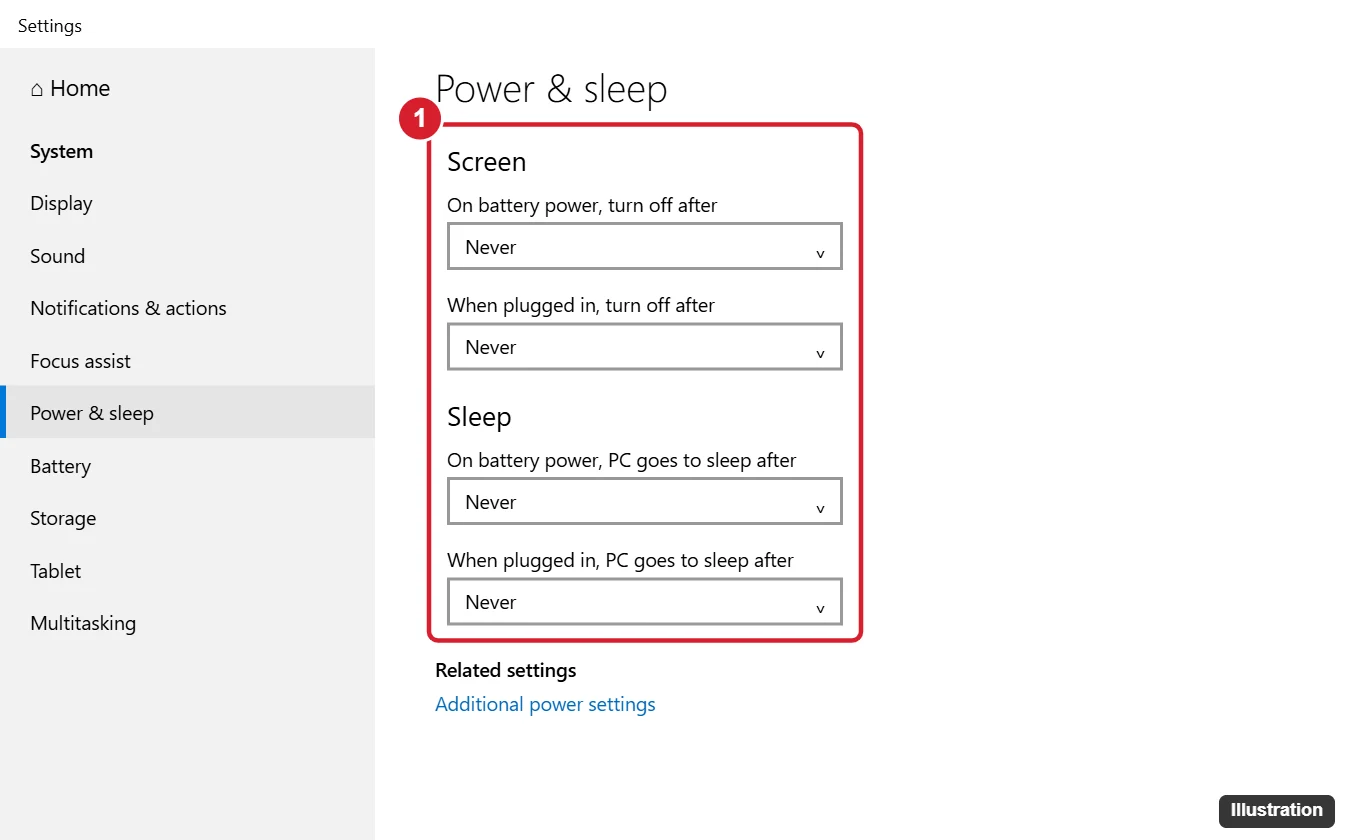
On a laptop, a sensible split is Never while plugged in and a short screen timeout on battery. Keeping a Windows 10 PC from sleeping covers the sleep side, including lid settings, and adjusting power and sleep settings in Windows 10 explains power plans.
Turn off the screen saver’s logon screen
An old screen saver setting is a frequent reason the lock “comes back.” The screen saver itself is harmless; the checkbox that shows the logon screen when it ends is what locks the PC.
- Right-click the desktop and choose Personalize > Lock screen.
- Scroll down and select Screen saver settings.
- Clear On resume, display logon screen, or set Screen saver to (None).
- Select OK.
If the controls are grayed out, a policy is setting them, which points to the last two rows of the table.
Stop the lock from a paired phone
Dynamic lock watches a Bluetooth phone paired with the PC. When the phone goes out of range, Windows locks within about a minute. A flaky Bluetooth connection can trigger it while you are still at the desk.
- Open Settings > Accounts > Sign-in options.
- Under Dynamic lock, clear Allow Windows to automatically lock your device when you’re away.
Raise or remove the machine inactivity limit
Windows 10 Pro, Enterprise and Education include a security policy that locks the PC after a set number of idle seconds. Microsoft documents it as Interactive logon: Machine inactivity limit; it is off by default, so if it is set, someone set it.
- Sign in with an administrator account, press Windows + R, type secpol.msc and press Enter.
- Go to Local Policies > Security Options.
- Open Interactive logon: Machine inactivity limit.
- Enter 0 to turn it off, or a larger number of seconds (up to 599,940) to make it wait longer.
- Restart the PC so the change takes effect.
Windows 10 Home doesn’t include the Local Security Policy tool, so this row of the table rarely applies to Home PCs.
Why a work or school PC keeps locking
On a PC joined to a company domain or managed through device management, the lock timeout usually comes from your organization. Local changes may be grayed out, or they work until the next policy refresh and then revert. That is by design, and getting around it can break workplace rules. Ask IT whether a longer timeout is allowed for your role.
If you only need the screen awake for a presentation or a long job, Microsoft’s PowerToys Awake keeps the PC awake without changing your power and sleep settings, and it works only while you are signed in and it is turned on. Check that your organization allows PowerToys before installing it on a work PC.
Windows 10 reached end of support on October 14, 2025, and consumer Extended Security Updates run to October 12, 2027. On a laptop that leaves the house, a longer timeout is safer than no lock at all; Microsoft’s Windows 10 end of support page lists your options.
The same settings on Windows 11
Windows 11 keeps Sign-in options and Dynamic lock under Settings > Accounts > Sign-in options, but the power timers moved to Settings > System > Power & battery > Screen, sleep, & hibernate timeouts. Turning off auto lock in Windows 11 and 10 walks through both versions side by side.
Windows 10 lock questions
Why did the lock come back after a restart or update?
A restart applies any pending policy, and on managed PCs a policy refresh can reset sign-in and screen saver choices. Go back through the table in order; on a home PC, the screen saver checkbox is the setting most often found switched back on.
Can I still lock the PC myself with auto lock off?
Yes. Press Windows + L to lock instantly when you step away; ways to lock your screen in Windows lists the other options.
The full policy reference, including how the inactivity limit triggers the screen saver, is on Microsoft Learn’s Machine inactivity limit page.

Kermit Matthews runs Live2Tech from just outside Philadelphia. He is an IT specialist with over 20 years of experience, from a university help desk to small-business IT, IT management and his own consulting practice, and has written tech guides full time since 2020. Steps are checked against the current software on a real device or the maker’s official documentation. More about Kermit.