Shrinking a table in Google Docs is quickest by dragging its column and row gridlines, and the Table options panel sets exact sizes when dragging is too fiddly. If the table still looks bulky after that, the cause is usually the text size or the space inside each cell, and both are easy to reduce.
These steps cover Google Docs on a computer and the Docs app on iPhone, iPad and Android, plus a note for Slides tables.
Which part of the table is too big?
Start with the symptom you can see. Each one has a different fix, and fixing the wrong thing (for example, narrowing columns when the real problem is large text) only makes the text wrap onto more lines.
| What you see | What to change | Where |
|---|---|---|
| The table stretches from margin to margin | Column widths | Table options > Column, or drag the vertical gridlines |
| Rows are taller than the text needs | Row height and cell padding | Table options > Row and Cell |
| One column is much wider than the rest | That column only, or even out all columns | Drag its gridline, or right-click > Distribute columns |
| The text is what makes the cells big | Font size | Format > Text > Size, or the Font size box on the toolbar |
| The table runs past the edge of the page | Column widths, then page margins or orientation | Table options, then File > Page setup |
Set exact sizes in Table options
Use this route when you want every column or row to be the same, precise size, such as a narrow three-column price list that should sit in the middle of the page. Google’s add and edit tables help page describes the same panel.
- Open the document and select the cells you want to resize. To shrink the whole table, click in the first cell and drag to the last cell so every cell is highlighted.
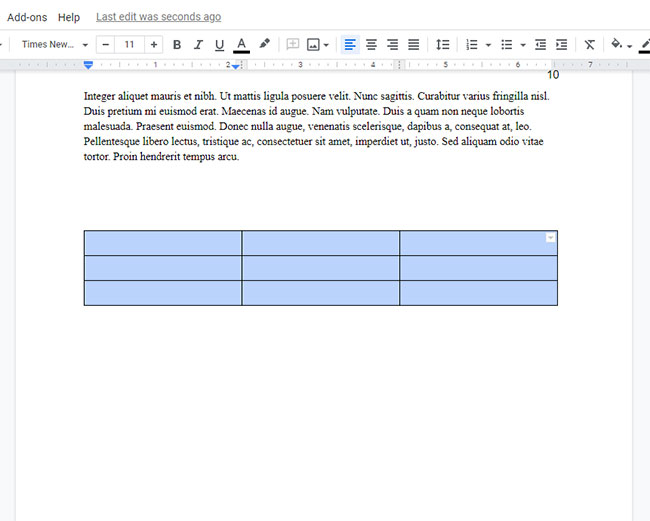
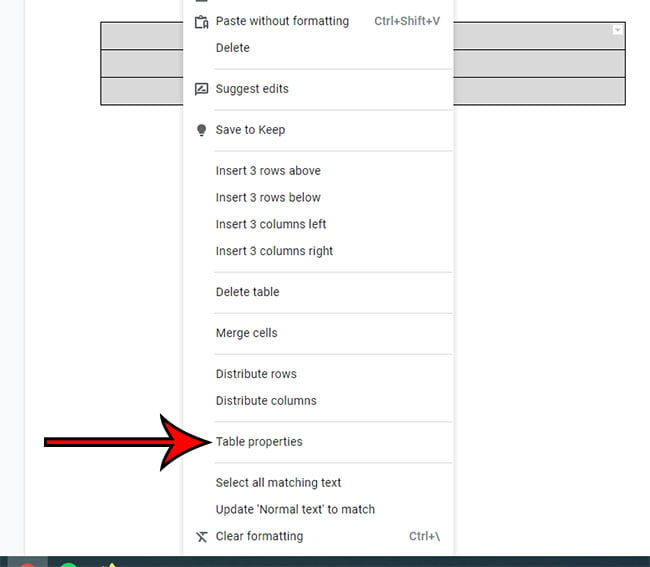
- Go to Format > Table > Table options, or right-click the table and choose Table options. A panel opens with sections named Column, Row, Cell and Table.
Older version shown below: the menu item was called Table properties when this picture was taken, and the current name is Table options.
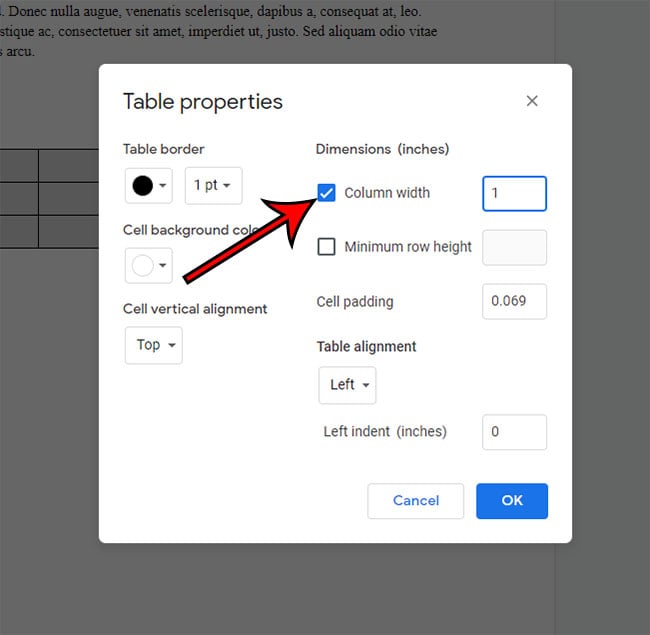
- Under Column, enter a smaller width for the highlighted cells. Under Row, enter a smaller height if the rows are too tall.
- Click Ok (the label Google’s help uses) to apply the sizes.
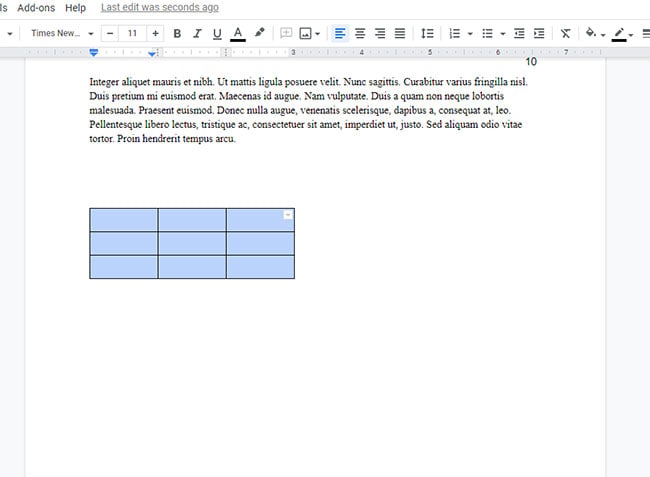
Google’s help does not say which unit the Column and Row boxes use, so lower the value in small steps and look at the result before going further. The table should now leave white space beside it instead of filling the full line.
If you only need one column narrower, setting a value for every cell is overkill. Adjusting a single column’s width in Google Docs walks through that narrower job, including page columns.
Drag a gridline for a quick fix
- Move the pointer over the gridline between two columns or two rows.
- When the pointer turns into a two-sided arrow, click and drag the line toward the cell you want to shrink.
- Release when the column or row is the size you want. Repeat on the right-hand edge of the table to pull the whole table inward.
Dragging is faster for one or two columns, but it is hard to make several columns match by eye. Use the next section to even them out afterward.
Tables in Google Slides work differently. Google documents resizing a Slides table by moving the pointer to any corner of the table until it becomes a two-sided arrow, then dragging in any direction. The Table options steps above are for Docs.
Even out rows and columns
After dragging a few gridlines, columns often end up slightly different widths. To make them equal again, right-click the table and choose Distribute columns, or Distribute rows for the row heights. For the tidiest result, narrow the table first and distribute second, then check the widths again.
Trim cell padding
Cell padding is the space between the text and the cell’s border. A large padding value keeps rows tall even when the text is short.
- Select the cells, then open Table options from the Format menu or the right-click menu.
- Under Cell, enter a smaller cell padding value. The same section sets the vertical alignment of the text.
- Click Ok.
Google lists cell padding as a Docs setting, so do not look for it on a Slides table.
Shrink the text inside the table
Columns cannot get narrower than the words inside them without the text wrapping, so a table full of large text will always look large. Select the cells, then either choose a smaller number in the Font size box on the toolbar, or go to Format > Text > Size > Decrease font size and repeat until the text fits. Google’s font size help covers both routes, and changing font size in Google Docs adds the mobile app steps.
When the table runs past the page edge
A table that has been pasted in from elsewhere can be wider than the page. Narrow the columns first, then use these settings:
- Table alignment: in Table options, the Table section lets you place the smaller table Left, Center or Right. Centering items in Google Docs covers text and images as well.
- Page setup: go to File > Page setup, select Pages at the top, then change Orientation, Paper size or Margins and click OK. Landscape or smaller margins give a wide table more room (see setting 1-inch margins in Google Docs and changing the page size).
- Pageless documents: Google’s page setup help says these page features are not available in pageless format, so switch the document to Pages first.
If the data really belongs in a spreadsheet, see inserting a Google Sheet into a Google Doc.
Shrinking a table in the Docs app
The Google Docs app has its own controls, and they differ slightly between iPhone, iPad and Android.
iPhone and iPad
- Open the document, tap the table, then tap a cell in the row or column you want to change.
- Tap Format, then Table.
- Tap the up or down arrows next to Minimum row height and Column width.
To resize the whole table on iPhone or iPad, tap the square at the top left of the table, then touch and drag the gray bars around its edge.
Android
Tap the table, tap a cell, tap Format, then Table, and use the arrows next to Minimum row height and Column width. Google’s Android help does not offer a whole-table resize: it says to open docs.google.com on a computer to change the table’s size in the document.
Selecting text in the iPhone app takes a little practice; selecting everything in the Google Docs iPhone app shows the tap sequence.
Once the table is the size you want, copy it into other documents rather than resizing a fresh one each time. Copying a table from Google Docs explains how to do that, and removing a table border can make a compact table look lighter still.
Docs table size answers
Can I type one width for the entire table?
Google’s computer help does not describe a single table-width box. Select every cell and set a Column value, which gives each column the same width, or drag the outer gridline. On iPhone and iPad you can drag the gray bars around the table.
Why won’t a row get any shorter?
The mobile setting is called Minimum row height, which suggests the row can still grow to fit what is inside it. Google does not spell out the rule, so check the cell padding and the font size, the two things inside the cell you can reduce.
Does narrowing columns make the text smaller?
No. Column width and font size are separate settings. Narrow columns with large text simply wrap the words onto more lines, which makes rows taller.
Can I remove rows or columns to make the table smaller?
Yes, if the table has empty or unneeded cells. Right-click a cell and use the delete options, or follow deleting a table row in Google Docs, which also covers the phone and tablet apps.
Related guides
- Bring back the hidden menu bar in Google Docs if Format is missing.
- Stop automatic lists in Google Docs
- Add a page in Google Docs
- Rename a document in Google Docs
- Remove text highlighting in Google Docs
- Turn on spell check in Google Chrome
- Make several columns the same width in Google Sheets
- Convert a presentation to PowerPoint in the Google Slides iPhone app
- Set Excel column width in inches (Excel 2013)
- Print without row and column headings in Excel

Kermit Matthews runs Live2Tech from just outside Philadelphia. He is an IT specialist with over 20 years of experience, from a university help desk to small-business IT, IT management and his own consulting practice, and has written tech guides full time since 2020. Steps are checked against the current software on a real device or the maker’s official documentation. More about Kermit.