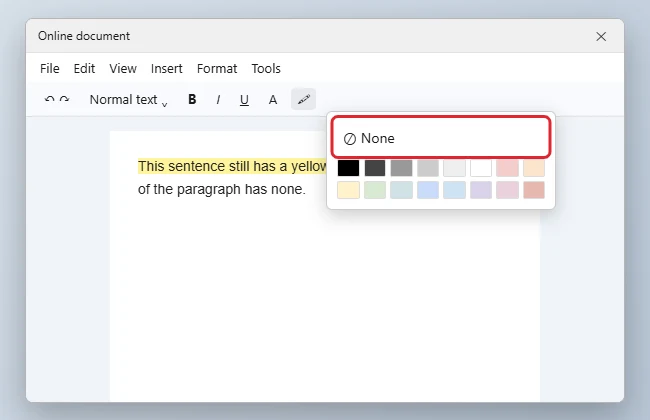
To remove highlighting in Google Docs, select the highlighted text, select the Highlight color button (the marker icon) on the toolbar, and choose None. If you want to remove every kind of formatting at once, including highlighting, select the text and press Ctrl + \ for Clear formatting.
Some “highlights” aren’t highlights at all. Comments, suggestions, table shading, and pasted page backgrounds also color text, and each is removed differently.
Quick Answer
Select the text > Highlight color (marker icon) > None.
Remove Highlight Color
- Select the highlighted text. Press Ctrl + A to select everything.
- Select the Highlight color button on the toolbar. If you don’t see it, select the three dots to show more tools.
- Choose None at the top of the color palette.
If the Color Won’t Go Away
| What you see | Cause | Fix |
|---|---|---|
| Yellow or orange background with a comment bubble | Comment | Resolve or delete the comment |
| Colored, underlined, or struck-through text | Suggested edit | Accept or reject the suggestion |
| Color fills a whole table cell | Cell background | Right-click > Table properties > Cell background color > None |
| Gray or white background on pasted text | Formatting from the source | Clear formatting (Ctrl + \) |
| Whole page tinted | Page color | File > Page setup > Page color > White |
| Blue or purple highlights while searching | Find results | Close the Find box (Esc) |
Remove Highlighting on the Mobile App
- Tap the pencil to edit and select the text.
- Tap the Format button (A with lines).
- Tap Highlight color and choose None.
Troubleshooting
- Only part of the highlight disappears: You selected part of the text. Select the full range, or the whole document.
- The highlight reappears after pasting: Paste with Ctrl + Shift + V to leave out the original formatting.
- Clear formatting also removed bold and fonts: Undo with Ctrl + Z and use Highlight color > None instead.
For more cleanup options, see how to remove formatting from a selection in Google Docs.
Frequently Asked Questions
Can I remove only one highlight color?
Docs has no “find by highlight” tool. Select each highlighted section and choose None.
Will removing highlights affect comments?
No. Comments keep their own highlight until you resolve them.
Summary
- Select the text.
- Highlight color > None.
- Check for comments, suggestions, or table shading if color remains.

Kermit Matthews is a freelance writer based in Philadelphia, Pennsylvania with more than a decade of experience writing technology guides. He has a Bachelor’s and Master’s degree in Computer Science and has spent much of his professional career in IT management.
He specializes in writing content about iPhones, Android devices, Microsoft Office, and many other popular applications and devices.