Many essays and school assignments require double spacing, and you can set it right from the Google Docs app on your iPhone. The trick is to select the whole document first, then change the line spacing in the Format panel. This guide covers the steps, how to set double spacing as you type, and fixes when spacing doesn’t change.
Quick Answer
Open the document, tap the pencil to edit, touch and hold any text, and tap Select all. Tap the Format button (A with lines) at the top, open the Paragraph tab, and tap + next to Line spacing until it reads 2.00.
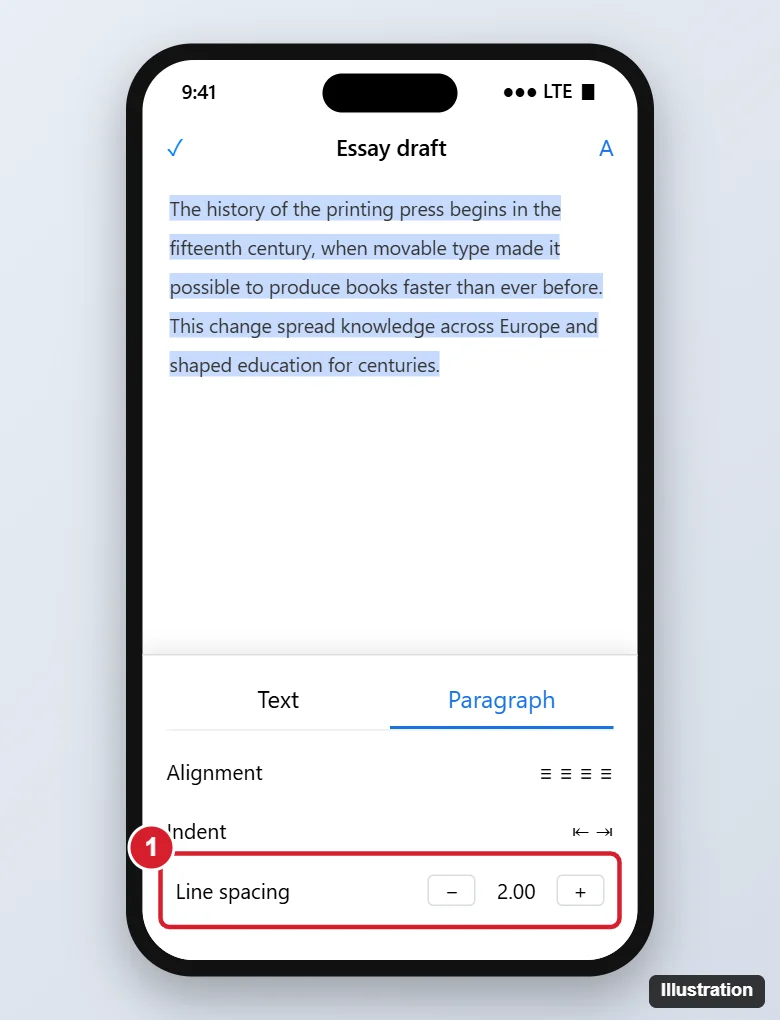
Double Space the Entire Document
- Open the Google Docs app and the document.
- Tap the pencil icon to start editing.
- Touch and hold a word, then tap Select all in the menu that appears.
- Tap the Format icon (the letter A with lines) at the top of the screen.
- Tap the Paragraph tab.
- Next to Line spacing, tap the + (up) arrow until it shows 2.00.
- Tap the document to close the panel, then tap the checkmark to finish editing.
Changes save automatically.
Double Space New Text as You Type
Place the cursor at the end of the document before you start typing, open Format > Paragraph, and set Line spacing to 2.00. New paragraphs continue with that spacing.
Remove Extra Space Between Paragraphs
Many assignments want double spacing without extra gaps between paragraphs. The mobile app has limited paragraph spacing options; for full control, use a computer: select all, click Format > Line & paragraph spacing, choose Double, and choose Remove space before/after paragraph. Or use Custom spacing and set Before and After to 0.
Troubleshooting
- Only part of the text changed: you didn’t select everything. Use Select all again.
- No Format button: you’re in view mode. Tap the pencil to edit, or ask the owner for edit access.
- Headers, footnotes, or tables unchanged: they’re formatted separately; select them individually.
- Word documents (.docx): editing works in the Docs app with Office editing; if options are missing, convert to Google Docs format on a computer (File > Save as Google Docs).
Frequently Asked Questions
What does 2.00 line spacing mean?
It’s double spacing: the space between lines is twice the height of a single line.
Can I set double spacing as the default for new documents?
On a computer, set up a paragraph style and choose Format > Paragraph styles > Options > Save as my default styles. The mobile app doesn’t have this option.
Does this work on Android and iPad?
Yes. The steps are the same in the Google Docs app on Android and iPad.
Summary
- Tap the pencil, then touch and hold text and tap Select all.
- Tap Format (A) and open Paragraph.
- Set Line spacing to 2.00.
- Use a computer to remove extra space between paragraphs if needed.

Kermit Matthews is a freelance writer based in Philadelphia, Pennsylvania with more than a decade of experience writing technology guides. He has a Bachelor’s and Master’s degree in Computer Science and has spent much of his professional career in IT management.
He specializes in writing content about iPhones, Android devices, Microsoft Office, and many other popular applications and devices.