Need to fix a broken link, point it to a new page, or change the words that are linked in Google Docs? You don’t have to delete and re-create it. Google Docs lets you edit a hyperlink’s text and address from a small card that pops up when you click the link. This guide covers editing links on a computer and on your phone, removing links, and a few link tricks most people miss.
Quick Answer
Click anywhere in the link. In the card that appears, click the pencil (Edit link) icon, change the Text or the link address, and click Apply. Or place your cursor in the link and press Ctrl + K (Command + K on Mac).
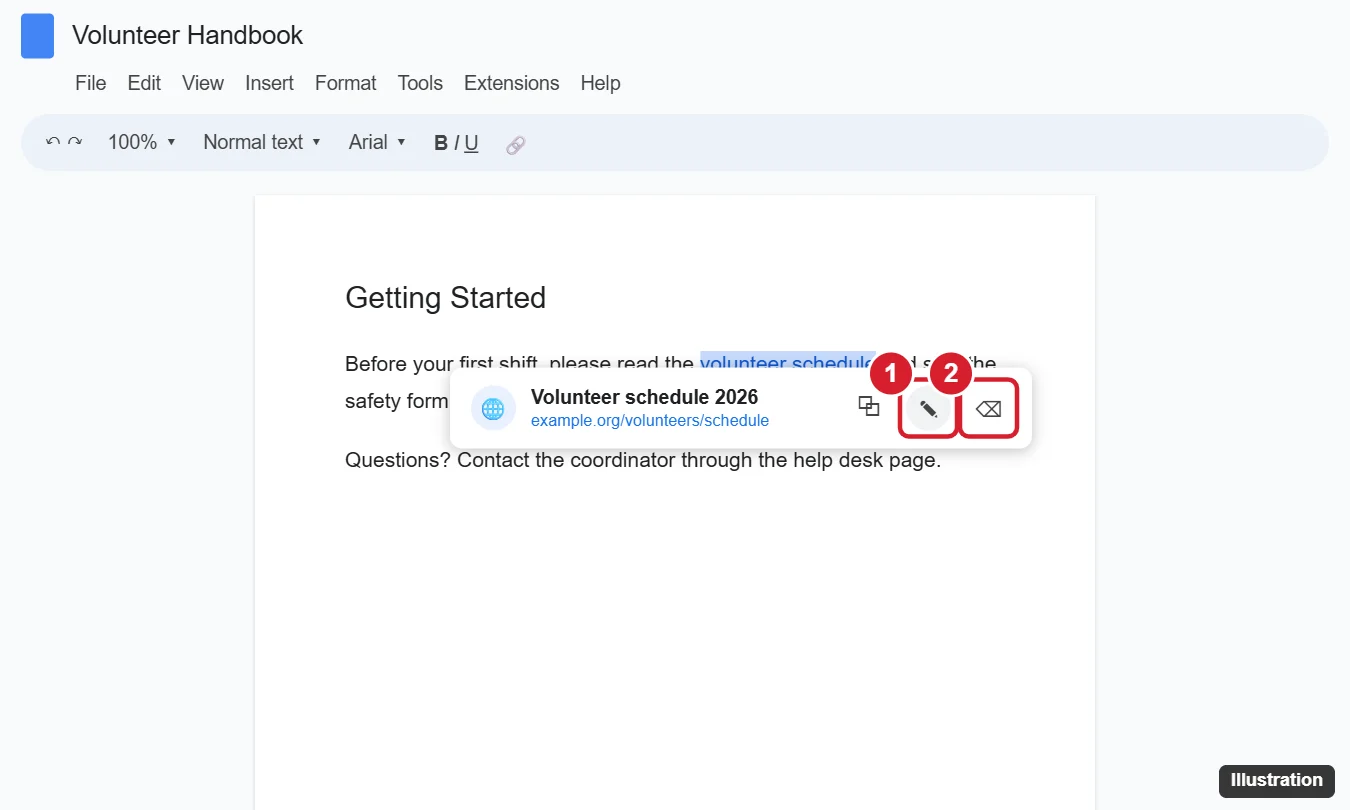
Edit a Hyperlink in Google Docs on a Computer
- Open your document and click anywhere inside the linked text. A link card appears below it with the page title and address.
- Click the pencil icon (Edit link).
- In the Text box, change the words shown in your document if you want.
- In the Link box, paste or type the new address, or pick a suggestion.
- Click Apply or press Enter.
The card also has a Copy link button, and clicking the address itself opens the page in a new tab.
Keyboard shortcut
Put your cursor in the link (or select it) and press Ctrl + K on Windows and ChromeOS, or Command + K on Mac. The edit box opens directly. To edit only part of the text, you can also just type inside the link; the link stays attached to the text.
Link to a heading, bookmark, or another tab
In the edit box, look under the address field for Headings and bookmarks (and Tabs in documents that use tabs). Choose one to link to a spot in the same document. Headings appear when you’ve used Heading styles, and you can add a bookmark anywhere with Insert > Bookmark.
Edit a Link on iPhone, iPad, or Android
- Open the document in the Google Docs app and tap the pencil button to start editing.
- Tap the linked text. A menu or link preview appears.
- Tap Edit link (on some versions, tap the three dots first).
- Change the text or address, then tap the checkmark or Apply.
Remove a Hyperlink
- One link: Click the link and choose the Remove link icon (a broken chain) in the card. The text stays; only the link is removed.
- Right-click menu: Right-click the link and choose Remove link.
- Several links: Select a paragraph or the whole document (Ctrl + A), right-click, and choose Remove link if it appears. If it doesn’t, remove links one by one, or paste the text as plain text with Ctrl + Shift + V into a new spot.
Change How Links Look
Links are blue and underlined by default. To change that, select the linked text and use the Text color (A) button and Underline (Ctrl + U) on the toolbar. The link still works with a different color. To make every link match, change one and use the Paint format brush on the others.
Stop Google Docs From Making Links Automatically
Docs turns typed web addresses into links automatically. To turn this off, go to Tools > Preferences and uncheck Automatically detect links. To undo a single automatic link right after it’s created, press Ctrl + Z.
Related: How to Shorten a Link in Google Docs.
Troubleshooting
- No pencil icon: You’re in Viewing or Suggesting mode, or only have comment access. Switch to Editing using the mode button at the top right, or ask the owner for edit access. In Suggesting mode, your link change appears as a suggestion.
- Link card doesn’t appear: Click directly on the link text, not beside it. Smart chips (links shown as a rounded chip) have their own card; hover over the chip and use its options, or convert it back to a link.
- Link goes to the wrong page after editing: Make sure the address starts with https:// and has no spaces.
Frequently Asked Questions
Can I edit a link without changing its text?
Yes. In the edit box, change only the Link field and leave the Text field alone.
How do I find all links in a document?
Docs doesn’t list links in one place. Use Ctrl + F to search for “http” or scroll through for blue underlined text.
Do edited links update in copies of the document?
No. Each copy has its own links, so edit each copy separately.
Summary
- Click the link to open its card.
- Click the pencil icon, or press Ctrl + K.
- Change the text and address.
- Click Apply.

Kermit Matthews is a freelance writer based in Philadelphia, Pennsylvania with more than a decade of experience writing technology guides. He has a Bachelor’s and Master’s degree in Computer Science and has spent much of his professional career in IT management.
He specializes in writing content about iPhones, Android devices, Microsoft Office, and many other popular applications and devices.