To change the background color in Google Docs, click File > Page setup, click the Page color box, pick a color, and click OK. The color applies to every page. To use a picture as the background instead, insert the image, click it, choose Behind text in the toolbar that appears, and stretch it to cover the page, or add it as a watermark with Insert > Watermark.
Change the page color
- Open your document and click File > Page setup.
- Click the Page color box.
- Choose a color, or click Custom (the +) to enter a hex code.
- Click OK.
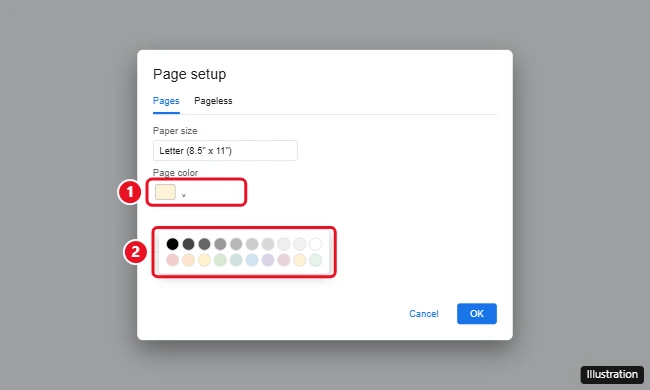
Pick light colors so text stays easy to read, or change the text color to white on a dark background. Click Set as default in Page setup to use the color for new documents.
Use an image as the background
Option 1: Image behind text
- Click Insert > Image and choose your picture.
- Click the image, then click Behind text in the small toolbar below it.
- Drag the corners to cover the page. For a subtle look, click Image options and lower the Transparency or adjust brightness.
Option 2: Watermark
- Click Insert > Watermark.
- On the Image tab, click Select image and upload your picture.
- Adjust the Scale and check or uncheck Faded, then click Done.
Watermarks repeat on every page automatically, which makes them the easiest way to add a background image to a long document.
Change the background on the Google Docs app
- Open the document and tap the three-dot menu.
- Tap Page setup > Page color and choose a color.
Will the background print?
Yes. Page colors and background images print and are included when you download as a PDF. Printing solid colors uses a lot of ink, so check the print preview first.
Frequently asked questions
Can I change the background of just one page?
Not with Page color, which applies to all pages. Place an image or a drawing with a colored rectangle behind text on that page instead.
Why don’t I see Page color in pageless mode?
Pageless documents also support background color in File > Page setup > Pageless. If you don’t see it, switch to Pages.
How do I remove the background color?
Go to File > Page setup > Page color and choose White.
Does dark mode change the background?
Dark mode in the Google Docs mobile app changes how the document looks on your screen only. It doesn’t change the page color others see.

Kermit Matthews is a freelance writer based in Philadelphia, Pennsylvania with more than a decade of experience writing technology guides. He has a Bachelor’s and Master’s degree in Computer Science and has spent much of his professional career in IT management.
He specializes in writing content about iPhones, Android devices, Microsoft Office, and many other popular applications and devices.