Watermarks such as “DRAFT” or “CONFIDENTIAL” sit behind the text on every page of a Word document. Word’s built-in Remove Watermark command deletes standard watermarks in one click, but watermarks added in other ways, or ones stored in several sections, can need a few extra steps. This guide covers every method in Word for Microsoft 365, Word 2021/2019/2016/2013 and Word for Mac, plus what to do when the watermark won’t go away.
Quick Answer
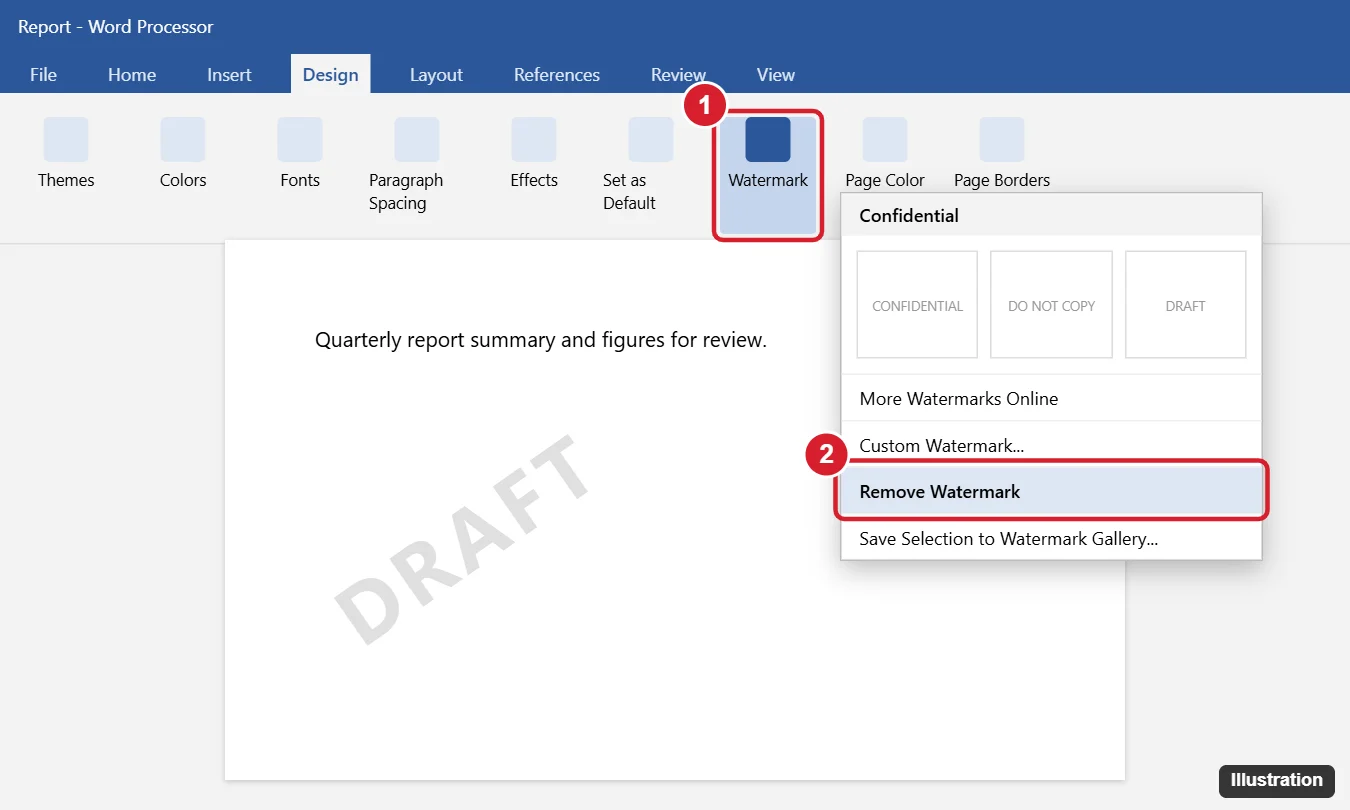
Open the Design tab, click Watermark and choose Remove Watermark. In Word 2010 and earlier, the Watermark button is on the Page Layout tab.
Method 1: Remove Watermark Command
- Open the document.
- Click the Design tab.
- Click Watermark in the Page Background group on the right.
- Choose Remove Watermark.
If the document has several sections, click in each section and repeat, or use Method 2.
Method 2: Delete It From the Header
Watermarks are stored in the header, so you can select and delete them directly:
- Double-click the header area at the top of a page.
- Move the pointer over the watermark until it becomes a four-headed arrow, then click it to select it.
- Press Delete.
- Repeat for each section, and for First Page or Odd/Even headers if those options are turned on.
- Click Close Header and Footer.
Method 3: Use the Selection Pane
If you can’t click the watermark:
- Double-click the header.
- Go to Home > Select > Selection Pane.
- Look for items named PowerPlusWaterMarkObject, WordArt or Picture, select them and press Delete.
Word for Mac
- Click Design > Watermark.
- In the Insert Watermark box, choose No watermark and click OK.
Watermark Won’t Go Away?
- Multiple sections: each section can have its own header. Check every section, and look for Link to Previous being off.
- It’s a page color or background image: check Design > Page Color > No Color.
- It’s a picture in the body: click the image on the page and press Delete. Pictures set to Behind Text can be selected via the Selection Pane.
- Document is protected: Review > Restrict Editing > Stop Protection (you may need the password).
- It’s a PDF opened in Word: watermarks embedded in converted PDFs may become images or text boxes; delete them from the page or header.
- Printed from a template: the watermark may come from the template. Open the template and remove it there.
Replace Instead of Remove
To change the watermark, choose Design > Watermark > Custom Watermark, pick Text watermark or Picture watermark, and click OK. The new one replaces the old one.
A Note on Permissions
Remove watermarks only from documents you own or have permission to edit. Watermarks like “CONFIDENTIAL” often signal that a document shouldn’t be shared.
Frequently Asked Questions
Why is Remove Watermark grayed out?
The document may be protected or in Compatibility Mode. Remove protection or use File > Info > Convert.
Can I remove a watermark in Word for the web?
Word for the web has more limited watermark tools. If you can’t remove it, open the document in the desktop app.
Does removing it affect the header text?
No. Only the watermark is deleted.
Summary
- Design > Watermark > Remove Watermark.
- If it remains, open the header and delete it directly.
- Use the Selection Pane for hard-to-select watermarks.
- Check every section and header type.

Kermit Matthews is a freelance writer based in Philadelphia, Pennsylvania with more than a decade of experience writing technology guides. He has a Bachelor’s and Master’s degree in Computer Science and has spent much of his professional career in IT management.
He specializes in writing content about iPhones, Android devices, Microsoft Office, and many other popular applications and devices.