To add your last name and page number to the top right in Google Docs, click Insert > Page numbers and choose the option that puts numbers in the top-right corner on every page (the first thumbnail). Google Docs adds the number to the header, aligned right. Then click just before the number in the header, type your last name, and add a space. It will read something like Rivera 1 on page one and Rivera 2 on page two, which is the standard MLA format.
Below are the full steps, how to match MLA spacing and font rules, and how to fix common problems like the name showing on only one page.
How to add your last name and page number
- Open your document in Google Docs.
- Click Insert > Page numbers.
- Click the thumbnail with the number in the top-right corner on all pages.
- Click in the header, just to the left of the page number.
- Type your last name and press the Space bar once.
- Click in the body of the document, or press Esc, to leave the header.
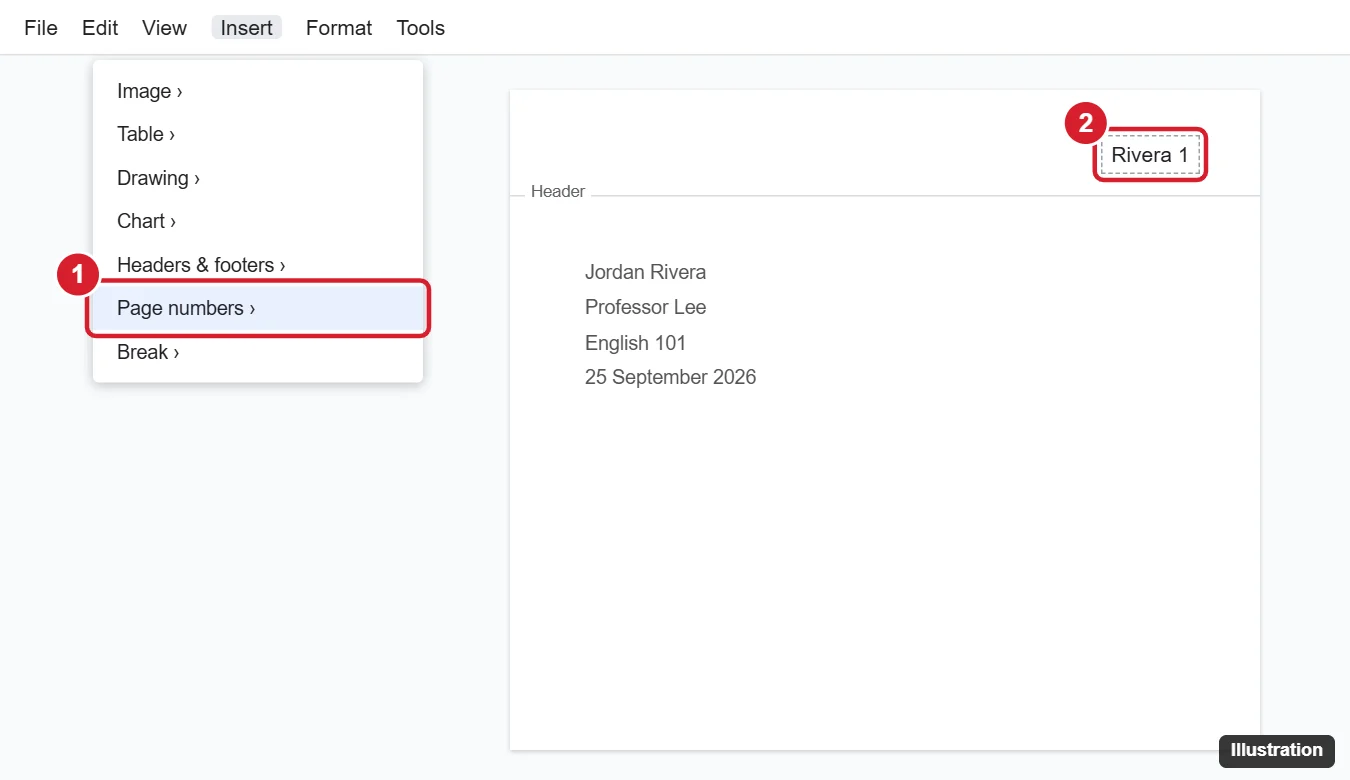
You only need to type your name once. The header repeats on every page, and the number updates automatically.
Match MLA header formatting
- Font: Select the header text and set it to the same font and size as your paper, usually Times New Roman, 12.
- Alignment: The header should be right-aligned. If it isn’t, click in the header and press Ctrl + Shift + R (Command + Shift + R on a Mac).
- Position: MLA puts the header half an inch from the top. Click Format > Headers & footers (or click the header and choose Options > Header format), set Header to 0.5 inches, and click Apply.
- No “p.” or “page”: MLA uses only your last name and the number, with a space between them.
Skip the header on the first page (if needed)
MLA includes the header on every page, including page one. If your teacher or style guide wants no header on the first page:
- Click Insert > Page numbers > More options.
- Uncheck Show on first page and click Apply.
- Or double-click the header and check Different first page, then leave the first page’s header blank.
Troubleshooting
- Your name shows only on the first page. Different first page is checked, so page one has its own header. Uncheck it, or add your name to the header on page two as well.
- The number starts at 2 or another number. Go to Insert > Page numbers > More options, choose Start at, and enter 1.
- There’s a big gap above the header. Set the header margin to 0.5 inches as described above.
- You can’t see headers. Your document may be in pageless format. Switch with File > Page setup > Pages.
Frequently asked questions
Can I do this in the Google Docs mobile app?
Yes, on most devices. Tap the three-dot menu, turn on Print layout, then tap the + > Page number and choose a position. Type your name in the header afterward. The options are more limited than on a computer.
How do I add a page count, like “Page 1 of 5”?
Insert page numbers in the header, type ” of ” after the number, then click Insert > Page numbers > Page count.
How do I do the same thing in Microsoft Word?
See how to add your last name and page number in Word.

Kermit Matthews is a freelance writer based in Philadelphia, Pennsylvania with more than a decade of experience writing technology guides. He has a Bachelor’s and Master’s degree in Computer Science and has spent much of his professional career in IT management.
He specializes in writing content about iPhones, Android devices, Microsoft Office, and many other popular applications and devices.