PowerPoint 2013 doesn’t have a transparency slider for pictures, but you can get the same result by putting the picture inside a shape. Insert a rectangle (Insert > Shapes), right-click it and choose Format Shape, select Picture or texture fill, click File to pick your image, then drag the Transparency slider. Set Line to No line so it looks like a normal picture. In newer versions (Microsoft 365, PowerPoint 2021 and 2019 with updates), just select the picture and click Picture Format > Transparency.
Here are the full steps for PowerPoint 2013, how to make just one color transparent, and the faster method for newer versions.
Method 1: Make a picture transparent in PowerPoint 2013 (shape fill)
- Go to Insert > Shapes and choose a Rectangle.
- Draw the rectangle on the slide, roughly the size you want the picture.
- Right-click the shape and choose Format Shape.
- In the Fill section, select Picture or texture fill.
- Under Insert picture from, click File, choose your image, and click Insert.
- Drag the Transparency slider, or type a percentage. Around 50% to 70% works well for background images.
- Expand Line and choose No line to remove the outline.
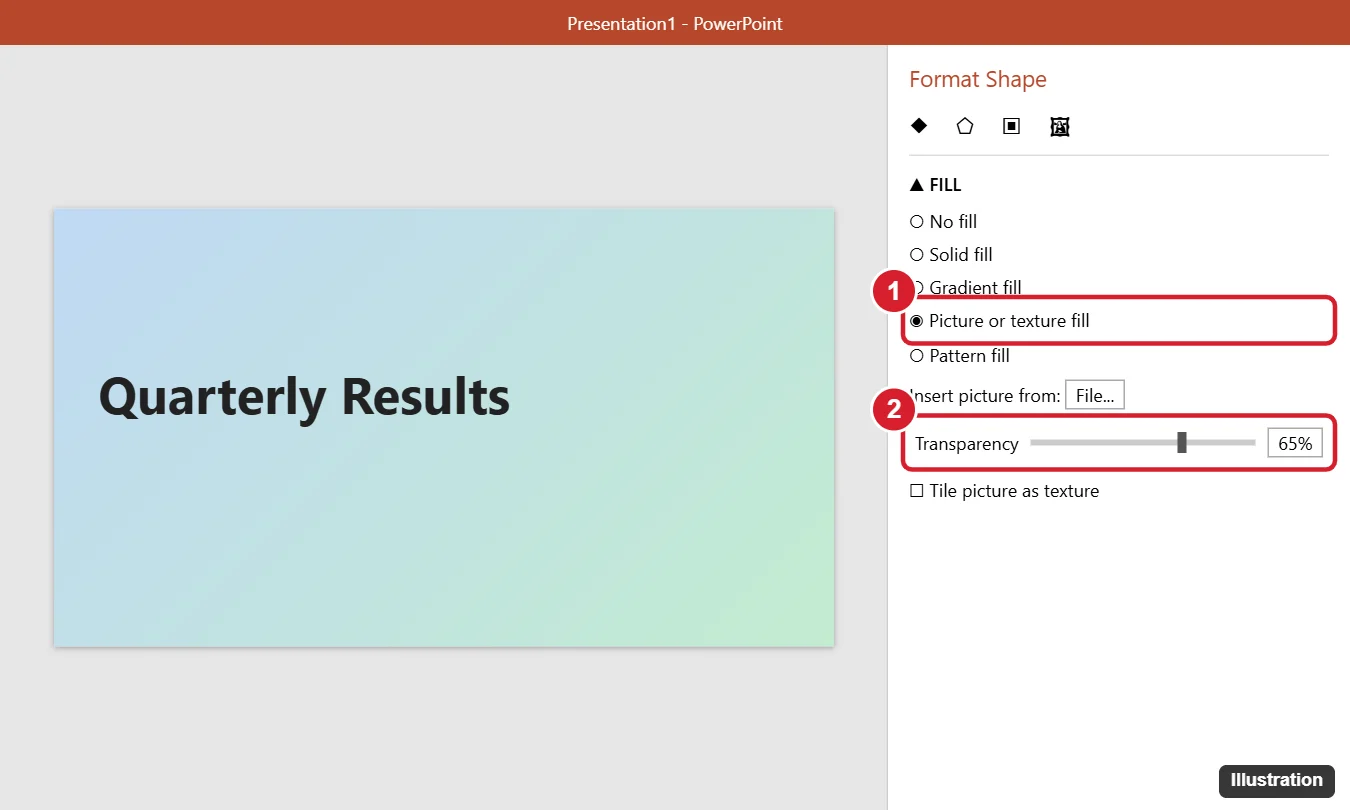
If the picture looks stretched, resize the shape to match the image’s proportions. Hold Shift while dragging a corner to keep the shape’s proportions, or crop with Picture Tools Format > Crop > Fill.
Method 2: Make one color transparent
This is great for removing a solid white background from a logo or clip art.
- Click the picture.
- Go to Picture Tools Format > Color > Set Transparent Color.
- Click the color in the picture you want to remove.
It works best on simple images with one solid background color. For photos, try Remove Background on the same tab instead.
Method 3: Picture transparency in newer PowerPoint
- Click the picture.
- On the Picture Format tab, click Transparency.
- Choose a preset, or click Picture Transparency Options to set an exact percentage.
This is available in PowerPoint for Microsoft 365, PowerPoint 2021, and PowerPoint for the web.
Tips for transparent images on slides
- Text readability: Place the transparent image behind text by right-clicking it and choosing Send to Back.
- Background image for every slide: Right-click the slide background, choose Format Background > Picture or texture fill, and set the transparency there. Click Apply to All to use it on every slide.
- Fade in color: Instead of transparency, Color > Recolor can make a picture lighter, like Washout.
To clean up slide backgrounds, see hiding background graphics in PowerPoint 2013.
Frequently asked questions
Why don’t I see a Transparency button in PowerPoint 2013?
The picture Transparency button was added in later versions. In PowerPoint 2013, use the shape fill method.
Will transparency show when I save as PDF?
Yes. Transparent fills are kept when you save or export to PDF.
How do I make a picture transparent in Google Slides?
Select it and choose Format options > Adjustments > Transparency. See how to increase image transparency in Google Slides.
How do I delete a picture from a slide?
Click it and press Delete. See how to delete a picture in PowerPoint 2013.

Kermit Matthews is a freelance writer based in Philadelphia, Pennsylvania with more than a decade of experience writing technology guides. He has a Bachelor’s and Master’s degree in Computer Science and has spent much of his professional career in IT management.
He specializes in writing content about iPhones, Android devices, Microsoft Office, and many other popular applications and devices.