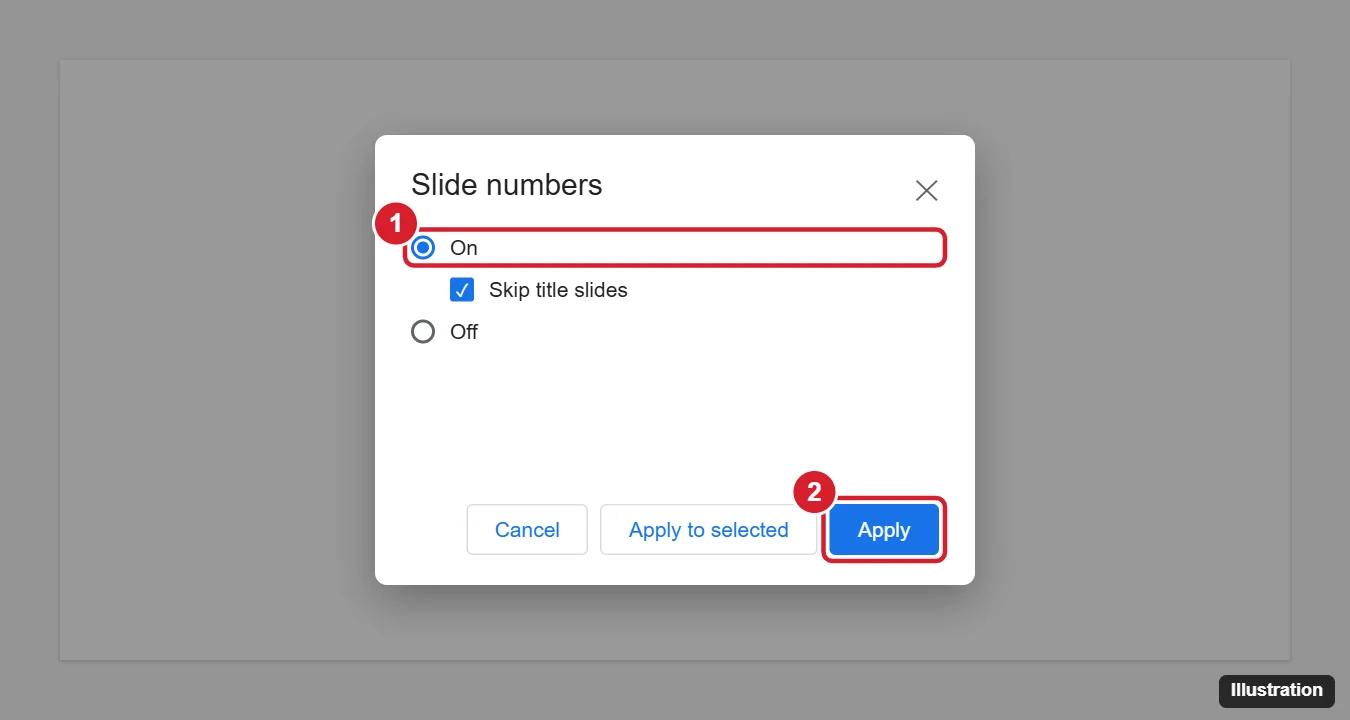
To add slide numbers in Google Slides, click Insert > Slide numbers, choose On, and click Apply. To leave the number off your title slide, check Skip title slides first. To number only some slides, select them in the left panel before you open the menu and click Apply to selected instead.
Slide numbers appear in the bottom-right corner by default. Below, you’ll learn how to change their look and position, remove them, and work around a few things Google Slides doesn’t let you do.
How to add slide numbers in Google Slides
- Open your presentation at slides.google.com.
- Click Insert in the menu bar.
- Click Slide numbers.
- Select On.
- Optional: check Skip title slides to leave numbers off slides that use a Title layout.
- Click Apply to number every slide.
How to number only certain slides
- In the slide panel on the left, click the first slide you want to number. Hold Ctrl (Command on a Mac) and click the others. Hold Shift to select a range.
- Click Insert > Slide numbers and choose On.
- Click Apply to selected.
Hidden (skipped) slides still count toward the numbering, so the numbers may jump if you skip slides while presenting.
How to change the font, size, or position of slide numbers
To change the numbers on one slide, click the number and format it like any text box. To change them on every slide at once, edit the theme:
- Click Slide > Edit theme (called Edit master in older versions).
- Click the top slide in the left panel. This is the main theme slide that controls all layouts.
- Click the slide number placeholder (it looks like #) in the corner.
- Change the font, size, color, or alignment, or drag it to a new spot.
- Check individual layouts below the theme slide, since some layouts have their own number placeholder.
- Close the theme editor with the X at the top right.
If the number is hidden behind an image or shape, right-click that object and choose Order > Send to back.
How to remove slide numbers
- From all slides: Click Insert > Slide numbers, choose Off, and click Apply.
- From some slides: Select those slides, open Insert > Slide numbers, choose Off, and click Apply to selected.
Things Google Slides can’t do (and workarounds)
| What you want | Workaround |
|---|---|
| Start numbering at a number other than 1 | There’s no setting for this. Add numbers as plain text boxes, or add blank slides at the start and skip them. |
| Show “Slide 3 of 20” | Edit the number placeholder in the theme and type “Slide ” before the number. The total has to be typed by hand and updated if you add slides. |
| Different number styles on different layouts | Format the placeholder on each layout in Edit theme. |
If slide numbers don’t show up
- The layout has no number placeholder. Open Slide > Edit theme, select the layout, and add a placeholder, or switch the slide to a different layout.
- The slide uses a Title layout and Skip title slides is checked.
- Something is covering the number. Move or send the covering object to the back.
- The number is the same color as the background. Change its color in the theme editor.
Frequently asked questions
Can I add slide numbers in the Google Slides mobile app?
No. The mobile app doesn’t have the Slide numbers option. Use Google Slides in a web browser on a computer, including on a phone or tablet with a desktop-site view.
Do slide numbers show when I present?
Yes. They appear in presentation mode, in PDF downloads, and when printing.
Do slide numbers stay when I download to PowerPoint?
Yes. When you choose File > Download > Microsoft PowerPoint (.pptx), the numbers carry over, though the style may look slightly different.
How do I make my slides portrait instead of landscape?
See how to make Google Slides vertical.

Kermit Matthews is a freelance writer based in Philadelphia, Pennsylvania with more than a decade of experience writing technology guides. He has a Bachelor’s and Master’s degree in Computer Science and has spent much of his professional career in IT management.
He specializes in writing content about iPhones, Android devices, Microsoft Office, and many other popular applications and devices.