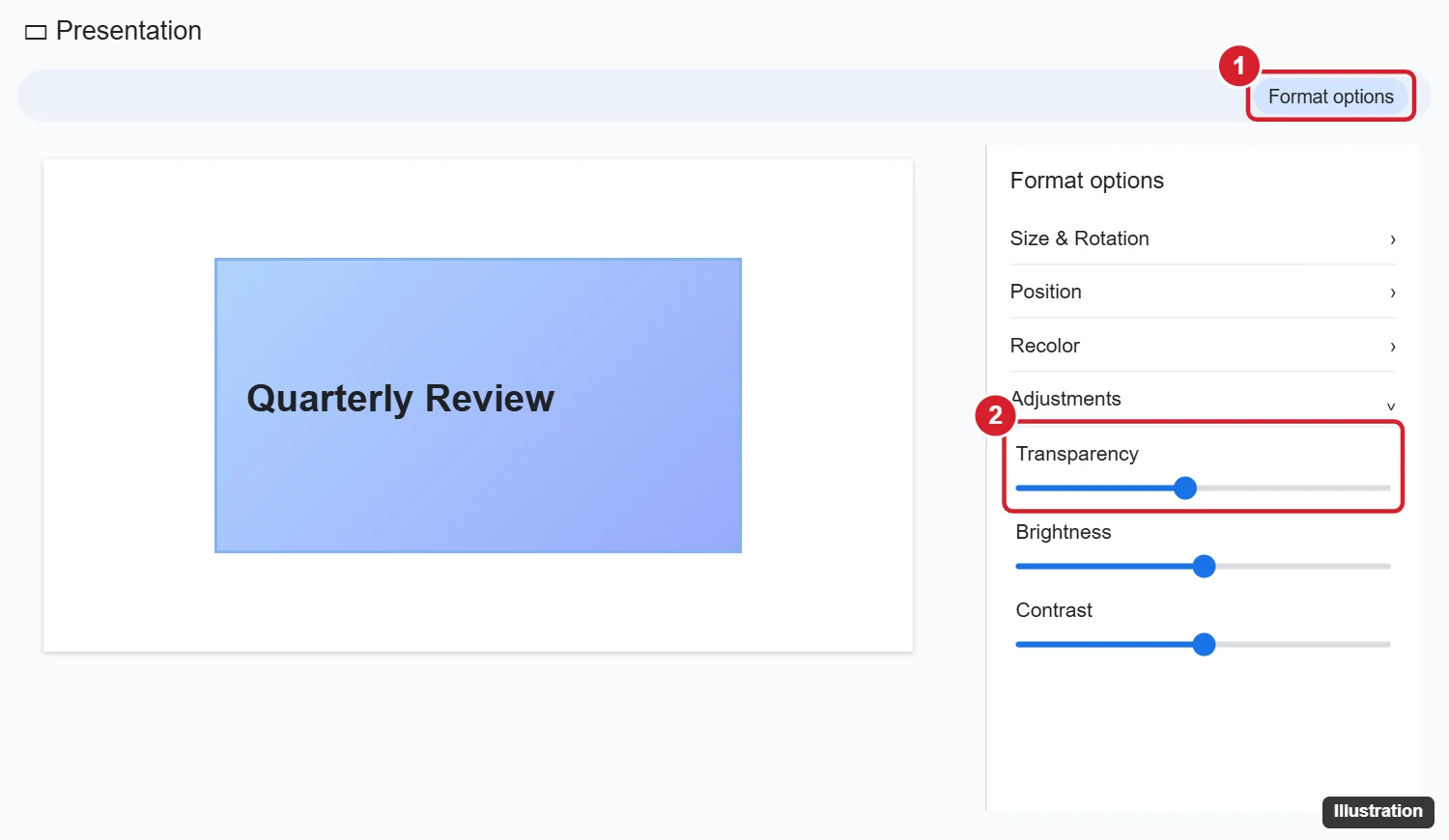
To make an image more transparent in Google Slides, click the image, then click Format options in the toolbar (or right-click the image and choose Format options). In the panel on the right, expand Adjustments and drag the Transparency slider to the right. The more you drag, the more see-through the image becomes, which is useful for background images behind text.
Here’s the full process, plus how to make shapes and text boxes transparent and how to fade an image into the background.
How to increase image transparency in Google Slides
- Click the image to select it.
- Click Format options in the toolbar. You can also go to Format > Format options.
- Click Adjustments to expand it.
- Drag the Transparency slider to the right until the image looks the way you want.
- Close the panel. The change saves automatically.
To undo the change, drag the slider back to the left or click Reset at the bottom of the Adjustments section.
How to make a shape or text box transparent
- Select the shape or text box.
- Click the Fill color (paint bucket) in the toolbar.
- Click Custom (the plus sign under Custom).
- Drag the transparency (opacity) slider, then click OK.
Choose Transparent in the Fill color menu to remove the fill completely.
Tips for using transparent images
- Text over images: A transparency of around 50 to 70% usually makes text easy to read on top.
- Send it behind text: Right-click the image and choose Order > Send to back.
- Use it as a background: Click Slide > Change background > Choose image. Background images can’t be made transparent there, so insert the image normally if you need transparency.
- Recolor instead: In Format options, Recolor can make an image a single light color, which works well as a subtle background.
Also see copying a picture in Google Slides.
Frequently asked questions
Can I make part of an image transparent?
No. Google Slides applies transparency to the whole image. To remove a background, edit the image in another tool first, then insert it as a PNG.
Why don’t I see the Transparency slider?
Make sure you’ve selected an image, not a shape. For shapes, use the Fill color’s custom transparency instead.
Does transparency work when I export to PowerPoint?
Usually, yes. Check the slides after exporting, since some effects may look slightly different.
Can I change image transparency in the Google Slides app?
The phone and tablet apps have limited image adjustments. Use a computer for transparency settings.

Kermit Matthews is a freelance writer based in Philadelphia, Pennsylvania with more than a decade of experience writing technology guides. He has a Bachelor’s and Master’s degree in Computer Science and has spent much of his professional career in IT management.
He specializes in writing content about iPhones, Android devices, Microsoft Office, and many other popular applications and devices.