Changing the font size in Google Docs takes just a couple of clicks, but there is more to it than the size box: you can set exact sizes, change the size for a whole document at once, update the default size for every new document, and make text bigger just for viewing without changing the file. This guide covers all of it on a computer, Android, and iPhone.
Quick Answer
Select the text, then click the font size box in the toolbar (it shows a number, such as 11) and type a new size, or click − or + to adjust it one point at a time. Press Enter to apply. Keyboard shortcuts: Ctrl + Shift + . to increase and Ctrl + Shift + , to decrease (Cmd on a Mac).
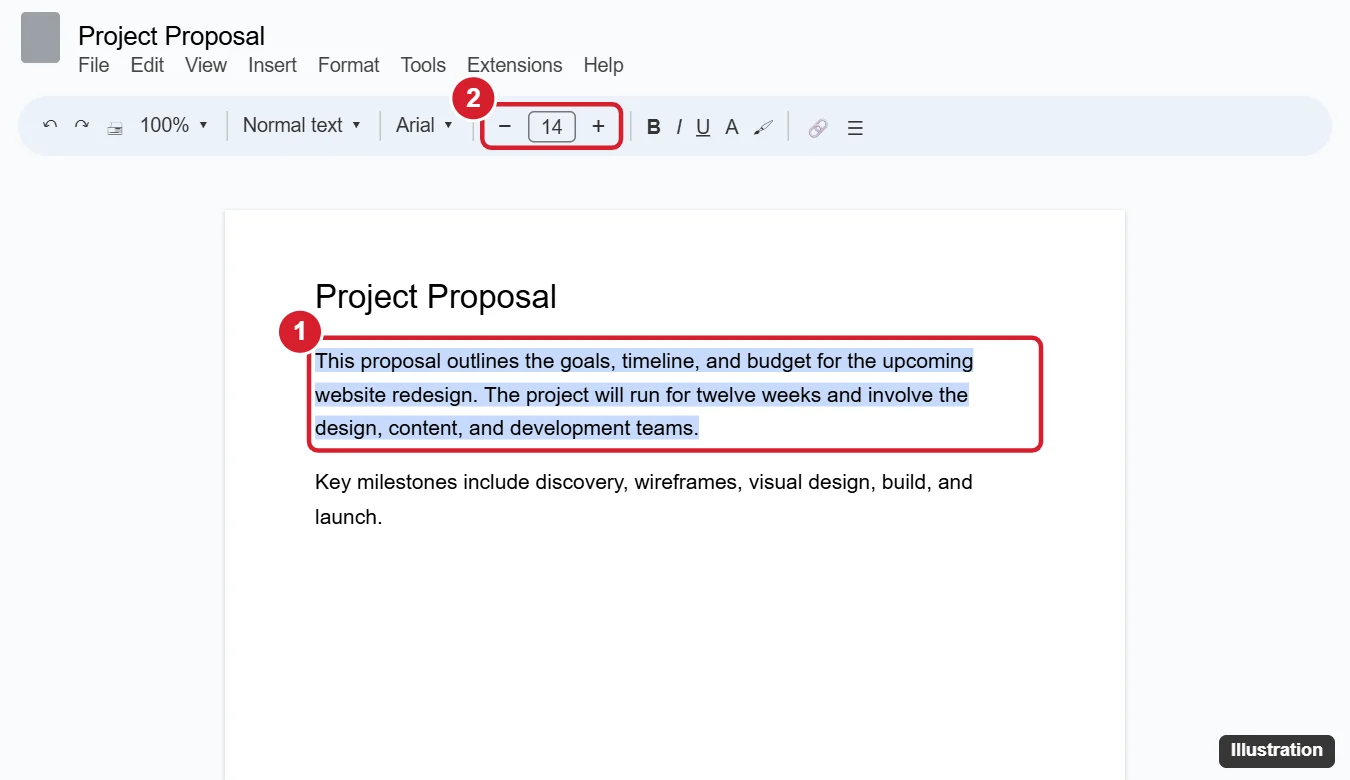
Change Font Size on a Computer
- Open your document in Google Docs.
- Select the text you want to change. To select everything, press Ctrl + A (Cmd + A on Mac).
- In the toolbar, click the number in the font size box.
- Type a new size (for example, 14) and press Enter, or pick a size from the dropdown list.
You can type sizes the list does not include, such as 13 or 10.5. Google Docs supports sizes from 1 to 400 points.
Toolbar not showing? Click the up arrow at the far right of the toolbar, or press Ctrl + Shift + F to toggle compact mode, to bring the menus back.
Keyboard Shortcuts
| Action | Windows / ChromeOS | Mac |
|---|---|---|
| Increase font size | Ctrl + Shift + . | Cmd + Shift + . |
| Decrease font size | Ctrl + Shift + , | Cmd + Shift + , |
| Select all | Ctrl + A | Cmd + A |
| Clear formatting | Ctrl + \ | Cmd + \ |
The increase and decrease shortcuts change the size one point at a time.
Change the Font Size of the Whole Document
If your text uses paragraph styles (Normal text, Heading 1, and so on), changing a style is faster and keeps things consistent:
- Select some text that uses the style, such as a paragraph of Normal text.
- Change its font size.
- Open the style menu in the toolbar (it shows Normal text), hover over that style, click the arrow next to it, and choose Update 'Normal text' to match.
All text using that style updates at once. Repeat for headings if needed.
Change the Default Font Size for New Documents
- Update the styles you want, as above.
- Go to Format > Paragraph styles > Options > Save as my default styles.
New documents you create will use these sizes. To apply your saved defaults to an existing document, choose Format > Paragraph styles > Options > Use my default styles.
Change Font Size on Android and iPhone
- Open the document in the Google Docs app and tap the Edit (pencil) button.
- Select the text by double-tapping a word and dragging the blue handles.
- Tap the Format button (the letter A with lines).
- On the Text tab, use the up and down arrows next to the size to change it.
Make Text Look Bigger Without Changing the Document
If you just want to read more comfortably:
- Use the zoom menu in the toolbar (for example, 100% to 150%).
- Or use your browser zoom: Ctrl + plus and Ctrl + minus (Cmd on Mac).
Zooming does not change the size of the text when the document is printed or viewed by others.
Change Font Size in Specific Parts
- Headers and footers: double-click the header or footer area, select the text, and change the size.
- Tables: select cells, rows, or the whole table and change the size in the toolbar.
- Footnotes: select the footnote text at the bottom of the page and change it.
- Comments: comment text size cannot be changed, but browser zoom makes it larger.
To mark a word or a completed task while keeping the text readable, you can also apply strikethrough in Google Docs.
Troubleshooting
The font size box shows nothing
Your selection includes text of different sizes. Type a size anyway and all selected text will match.
Text size changes back when I type
Your cursor may be picking up formatting from nearby text. Select the text again, or use Format > Clear formatting and reapply the size.
Pasted text is a different size
Paste with Ctrl + Shift + V (Cmd + Shift + V) to paste without formatting, so it matches the surrounding text.
Frequently Asked Questions
What is the default font size in Google Docs?
Normal text is usually 11 point Arial, unless you or your organization changed the default styles.
What is the largest font size in Google Docs?
You can type sizes up to 400 points in the font size box.
Can I change font size for everyone who views the document?
Yes. Changing the font size edits the document itself, so everyone sees it. Zoom only affects your view.
How do I change font size for all headings?
Change one heading, then use Update 'Heading 1' to match in the style menu.
Summary
- Select text and use the font size box or the minus and plus buttons.
- Use Ctrl + Shift + . and Ctrl + Shift + , to change size quickly.
- Update paragraph styles to change the whole document.
- Save as your default styles to change future documents.
- Use zoom to make text look bigger without editing the file.

Kermit Matthews is a freelance writer based in Philadelphia, Pennsylvania with more than a decade of experience writing technology guides. He has a Bachelor’s and Master’s degree in Computer Science and has spent much of his professional career in IT management.
He specializes in writing content about iPhones, Android devices, Microsoft Office, and many other popular applications and devices.