Uncheck Print under Headings on the Page Layout tab: that one box controls whether the row numbers (1, 2, 3) and column letters (A, B, C) appear on paper. It is saved separately for each worksheet, so if a whole workbook prints them, group the sheets and clear the box once for all of them.
The steps follow Microsoft’s current documentation for Excel for Microsoft 365, Excel 2024, 2021, 2019 and 2016 on Windows, with notes for Mac below.
Why Excel prints the A, B, C and 1, 2, 3
Microsoft’s print row and column headings page is clear that by default Excel doesn’t print the column headings or the row headings. If they show up on your printout, the print option for headings was switched on for that worksheet at some point: by you, by a colleague who wanted to proofread cell references, or by the template or file the workbook was copied from.
Two details explain most surprises:
- The setting belongs to the sheet, not the workbook. Fixing Sheet1 leaves Sheet2 printing headings until you fix it too.
- Printing and showing are separate. Microsoft’s Page Setup page says gridlines don’t print by default regardless of whether they show on the sheet, and the headings print box works the same way: it doesn’t change what you see on screen. The on-screen side is covered in how to show row numbers and column letters in Excel.
Clear the Print box on the Page Layout tab
- Click the worksheet tab you want to print.
- On the ribbon, click the Page Layout tab.
- In the Sheet Options group, look under Headings.
- Clear the Print check box.
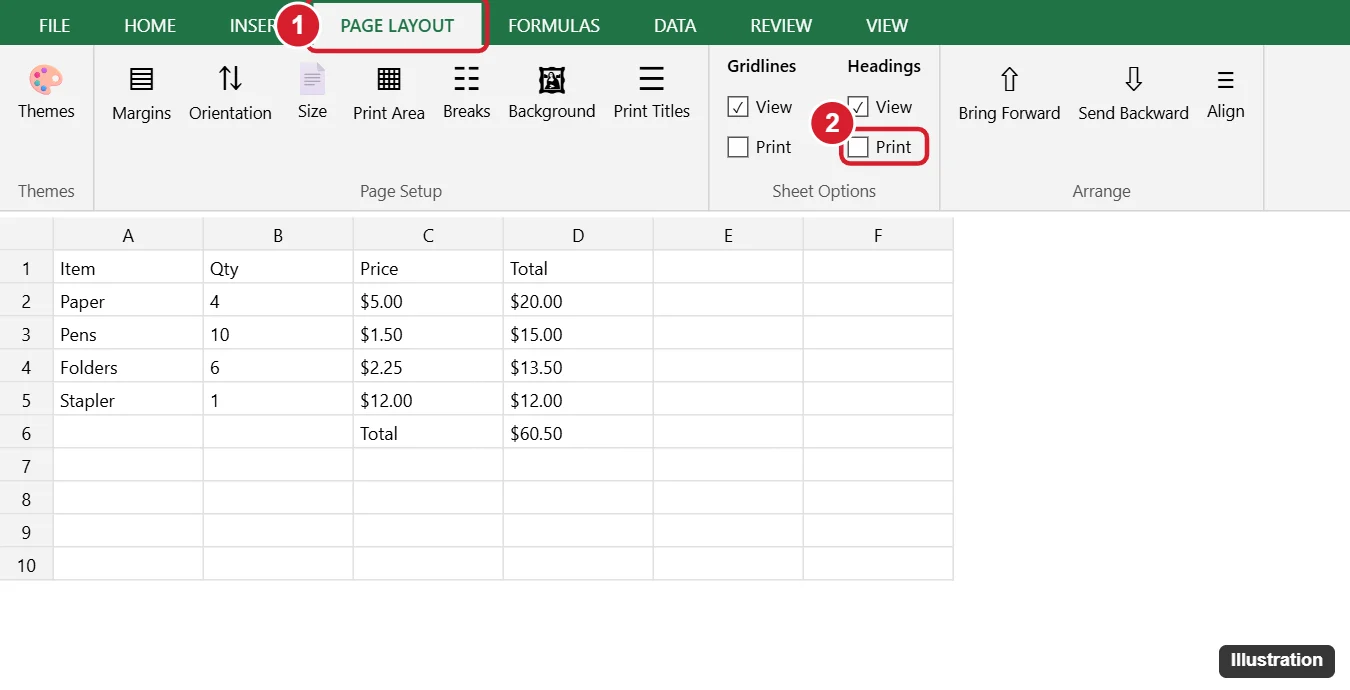
Nothing changes on screen when you do this, which is normal. The change shows up only in print preview and on paper.
Or switch it off in the Page Setup dialog
The Page Setup dialog holds the same setting, along with the other print options for the sheet, so it is a good place to check everything at once.
- On the Page Layout tab, click the small expansion icon (the dialog box launcher) at the corner of the Sheet Options or Page Setup group.
- In the Page Setup dialog, open the Sheet tab.
- Under Print, clear the Row and column headings check box.
- While you’re there, clear the Gridlines box in the same section if you also want a clean page without cell lines (more on that below).
- Click OK.
Microsoft’s Page Setup reference lists the other options on this tab, including print area and print titles.
Confirm it in print preview
Before you send a long report to the printer, look at a preview:
- Press Ctrl+F2 to preview the worksheet, as Microsoft suggests, or press Ctrl+P to open the print screen with its preview.
- If you print the entire workbook, page through to each sheet: every sheet keeps its own setting.
- If the letters and numbers are gone, print. If they are still there, you most likely changed a different sheet: go back and check which tab is active.
Fix several sheets in one go
A monthly workbook with twelve tabs, each printing headings, is the classic case. Microsoft’s headings page notes you can group worksheets to make the change once, and its select worksheets page explains how:
- Hold Ctrl and click each sheet tab you want to change, or right-click any sheet tab and select Select All Sheets.
- Check that Group appears in the title bar.
- On the Page Layout tab, clear Print under Headings.
- Right-click one of the selected tabs and choose Ungroup Sheets.
Don’t skip step 4. While sheets are grouped, Microsoft warns that data you enter or edit in the active worksheet appears in all selected sheets and might replace data on them. Typing a single number into a grouped January sheet would change the same cell in every month.
Gridlines are a separate print setting
Headings and gridlines are easy to confuse because they sit side by side in Sheet Options. Gridlines are the faint lines between cells, and like headings they don’t print by default. If yours do, clear Print under Gridlines in the same group, per Microsoft’s print gridlines page.
For the screen side, see how to hide gridlines in Excel, and if they vanished when you wanted them, how to show missing gridlines again.
Mac, the web and older versions
- Excel for Mac: Microsoft’s print a sheet or workbook page says the Page Layout tab includes options for page setup and printing, including whether to print gridlines and headings. Look for the Headings options on that tab.
- Excel for the web: the Microsoft pages above cover the desktop apps. If you can’t find a headings print option in the browser, open the workbook in the desktop app, change the setting there and save.
- Excel 2013: the steps here are written for current versions, and support for Office 2013 ended on April 11, 2023, with no extension and no extended security updates. If your ribbon looks different, a current version is the safer place to work.
Other print settings that get mixed up with headings
| What you see on paper | What it actually is | Where to look |
|---|---|---|
| A, B, C across the top and 1, 2, 3 down the side | Row and column headings | Page Layout > Sheet Options > Headings > Print (this article) |
| Your own header row (Name, Date, Amount) repeated on every page | Print titles | printing the top row on every page |
| Extra columns or blank pages you didn’t want | The print area | setting the print area or printing part of a spreadsheet |
Microsoft notes you can’t customize the headings themselves, so if a reader needs labels on the page, type them into cells and set them as print titles. The wider set of page options is in the complete guide to printing in Excel, and if you change your mind and want the letters and numbers back for proofreading, see how to print row and column headings in Excel.
Printed headings questions
Why are my columns numbered 1, 2, 3 instead of A, B, C?
That is the R1C1 reference style, not a print setting. Microsoft’s headings page explains that you turn it off under File > Options > Formulas by clearing R1C1 reference style. More detail is in why Excel shows column numbers instead of letters.
Can I print the row numbers but not the column letters?
Not with this setting. The one Print box under Headings covers both, and Microsoft says the headings can’t be customized. If you need row numbers on paper, add a column of numbers to the sheet itself.
Next step: clear the box on the sheet you need, press Ctrl+F2 to confirm, and save the workbook so the setting sticks.

Kermit Matthews runs Live2Tech from just outside Philadelphia. He is an IT specialist with over 20 years of experience, from a university help desk to small-business IT, IT management and his own consulting practice, and has written tech guides full time since 2020. Steps are checked against the current software on a real device or the maker’s official documentation. More about Kermit.