You open a spreadsheet and the column headings read 1, 2, 3 instead of A, B, C, and a simple formula in the formula bar now looks like =RC[-2]+RC[-1]. That happens because the R1C1 reference style option is turned on, and in Excel for Windows you turn it off under File > Options > Formulas. Your data and formulas are untouched; Excel is only labeling and displaying cell references differently.
Turn letters back on in Excel for Windows
These steps apply to Excel for Microsoft 365 on Windows and to Excel 2024, 2021, 2019 and 2016. Excel 2013 uses the same path, so the older screenshots below still match the order of the clicks, even though current screens look different.
- Open any workbook in Excel and click the File tab at the top-left corner of the window.
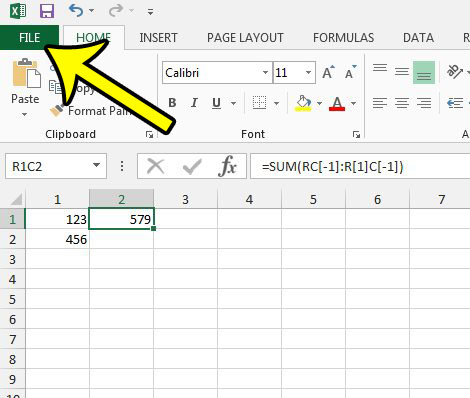
Excel 2013 shown; current versions of Excel look different. - Click Options in the left column. If the Excel window is small and you do not see it, look for More near the bottom of that column, which can hold Options.
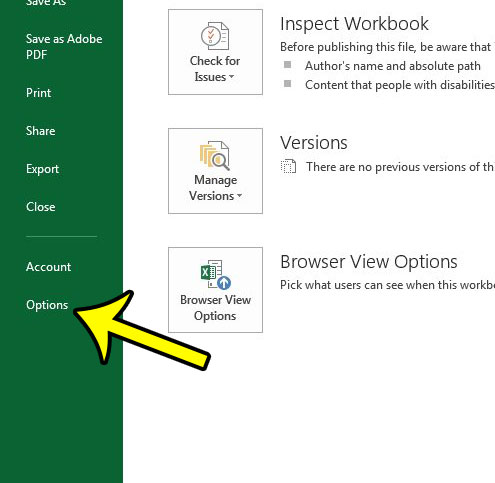
Older Excel version shown; the current File menu looks different. - In the Excel Options window, click Formulas on the left side.
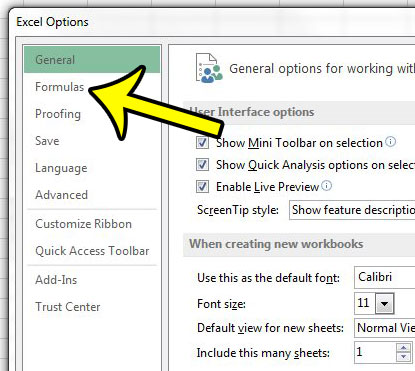
Older Excel version shown; current screens look different. - Under Working with formulas, clear the R1C1 reference style check box (it is the first option in that section), then click OK.
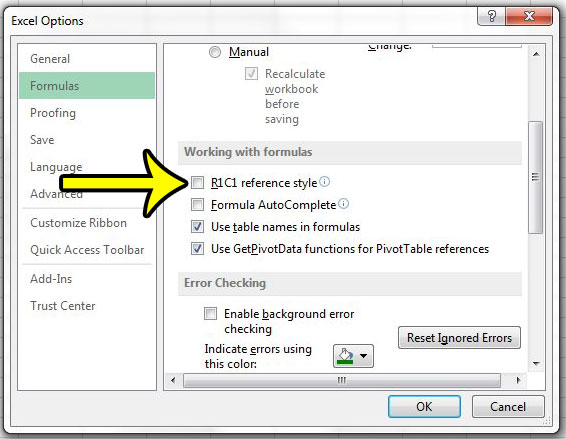
Excel 2013 shown; the check box sits in the same section in current versions.
The headings switch back to letters right away, and formulas show references such as B2 again. The same Formulas page also holds the calculation settings, so if you ever need to switch Excel to manual calculation, that is where you will find it. Microsoft describes this symptom and its cause in a troubleshooting article on numbered columns and rows.
Excel for Mac
The Mac version keeps the setting in a different place. Microsoft’s Mac help page gives this path for Excel for Microsoft 365 for Mac, Excel 2024 for Mac and Excel 2021 for Mac:
- Click the Excel menu at the top of the screen and choose Preferences.
- Under Formulas and Lists, click Calculation.
- Clear the Use R1C1 reference style check box, then close the window.
The column headings return to A, B, C.
Excel for the web
Microsoft’s help pages do not describe an R1C1 reference style option in Excel for the web, and the browser version is not listed on Microsoft’s article about this problem. If a file shows numbered columns in the desktop app, change the setting there. If you only use the web version and see something odd in the headings, check whether the headings are simply hidden (covered in the last section below).
What R1C1 notation means
Excel’s normal style, called A1, names columns with letters (A through XFD, 16,384 columns) and rows with numbers. In R1C1 style, both get numbers: “R” plus a row number and “C” plus a column number. Numbers in square brackets are offsets from the cell that holds the formula, which makes them relative references.
| R1C1 reference | What it points to |
|---|---|
| R2C3 | Row 2, column 3 (the cell A1 style calls C2), as an absolute reference |
| R[-2]C | Two rows up, same column (relative) |
| R[2]C[2] | Two rows down and two columns to the right (relative) |
| R[-1] | The entire row above the active cell |
Here is one formula shown both ways. Say a budget sheet has a cost in B2, tax in C2 and a total in D2:
- A1 style, in D2: =B2+C2
- R1C1 style, same cell: =RC[-2]+RC[-1] (“this row, two columns left, plus this row, one column left”)
An absolute reference such as $B$2 appears as R2C2. Notice that the R1C1 version is identical in every row of the total column, which is one reason the style suits macros: Microsoft notes that it is useful for computing row and column positions in macros and that Excel records some macro commands in R1C1 style. The Overview of formulas in Excel page has the full notation table.
Why the setting changed without you touching it
Microsoft does not document what turns the option on by itself. Two things can change it without you opening the Options page: a macro that sets the reference style (see the next section), or a workbook received from someone who works in R1C1 style. Whichever it was, clearing the check box in the steps above switches the headings back.
Switch styles with a line of VBA
If a macro keeps turning R1C1 on, or you want a quick toggle, the Application.ReferenceStyle property controls the setting. Run this line in the Immediate window of the Visual Basic Editor (Alt+F11, then Ctrl+G) to go back to letters:
Application.ReferenceStyle = xlA1
Use xlR1C1 instead of xlA1 to turn numbered columns on. Microsoft’s ReferenceStyle property reference lists both constants. If macros are blocked, see how to enable macros in Excel on Windows 11 first, and only for files you trust.
Keep letters and still see column numbers
Some readers actually want column numbers, for example to count how far column AF is from column A when writing an INDEX or VLOOKUP formula. You can get them without changing the reference style: insert a helper row at the top of the sheet, type =COLUMN() in the first cell, and fill it to the right. With no argument, COLUMN returns the number of the column the formula sits in, so each cell shows 1, 2, 3 and so on above your letters. Delete the row when you are done.
Numbered columns: common questions
Will turning R1C1 off break my formulas?
No. The option changes how Excel displays references, not where they point, so formulas keep returning the same results after you switch back.
Why are the letters and numbers gone completely?
That is a different setting. When there is no heading bar at all, the headings are hidden, and you can show row numbers and column letters in Excel again from the View tab.
Does R1C1 style change what prints?
Headings do not print by default in either style. If you want them on paper, you can print row and column headings in Excel, and you can just as easily print without column letters and row numbers when you want a cleaner page.
My formulas look normal but show the formula text instead of a result. Is this the same problem?
No. That is usually Show Formulas or a cell formatted as Text. See why Excel shows formulas instead of results for those fixes.

Kermit Matthews runs Live2Tech from just outside Philadelphia. He is an IT specialist with over 20 years of experience, from a university help desk to small-business IT, IT management and his own consulting practice, and has written tech guides full time since 2020. Steps are checked against the current software on a real device or the maker’s official documentation. More about Kermit.