To switch to manual calculation in Excel, go to the Formulas tab, click Calculation Options, and choose Manual. Excel stops recalculating formulas every time you change a cell, which speeds up large workbooks. Press F9 whenever you want to recalculate. These steps work in Excel 2013 and every later version.
Excel 2013 reached end of support on April 11, 2023, so it no longer receives security updates.
Quick Answer
Formulas > Calculation Options > Manual. Press F9 to recalculate.
Turn On Manual Calculation
- Open the workbook.
- Click the Formulas tab.
- In the Calculation group, click Calculation Options > Manual.
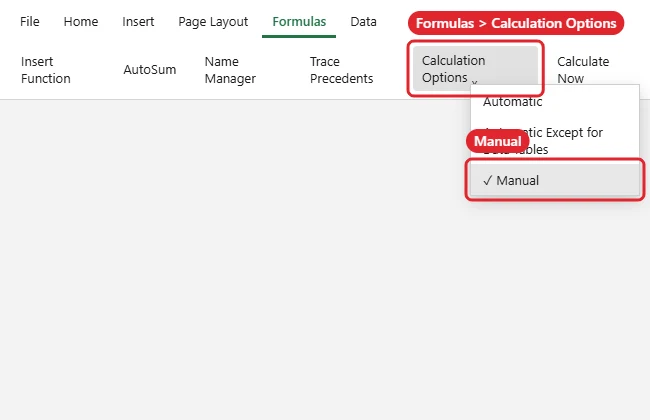
You can also set it in File > Options > Formulas > Workbook Calculation > Manual, where you can also turn off Recalculate workbook before saving.
Recalculate When You Need To
| Shortcut | What it recalculates |
|---|---|
| F9 | All open workbooks (changed formulas) |
| Shift + F9 | The active sheet only |
| Ctrl + Alt + F9 | All formulas in all open workbooks, whether changed or not |
| Formulas > Calculate Now / Calculate Sheet | Same as F9 / Shift + F9 |
Good to Know
- The setting applies to all open workbooks, and the first workbook you open in a session sets the mode.
- “Calculate” appears in the status bar when results are out of date.
- Switch back with Calculation Options > Automatic.
Troubleshooting
- Formulas won’t update: Someone set Manual. Press F9 or switch to Automatic.
- Excel still slow: Volatile functions (NOW, TODAY, OFFSET, INDIRECT) and big data tables slow recalculation. Consider Automatic Except for Data Tables.
- Excel freezing? See force quitting Excel.
Frequently Asked Questions
Does manual calculation affect saved files?
The mode is saved with the workbook and can carry over to other workbooks you open in the same session.
Is there a Mac equivalent?
Yes. Formulas > Calculation Options > Manual, and Command + = to recalculate.
Summary
- Formulas > Calculation Options > Manual.
- Press F9 to recalculate.
- Use Shift + F9 for one sheet.
- Switch back to Automatic when done.

Kermit Matthews is a freelance writer based in Philadelphia, Pennsylvania with more than a decade of experience writing technology guides. He has a Bachelor’s and Master’s degree in Computer Science and has spent much of his professional career in IT management.
He specializes in writing content about iPhones, Android devices, Microsoft Office, and many other popular applications and devices.