To change how often Google Sheets recalculates, go to File > Settings, open the Calculation tab, choose On change, On change and every minute, or On change and every hour under Recalculation, and click Save settings. Sheets recalculates formulas every time you edit the spreadsheet, but functions that depend on time or randomness, such as NOW, TODAY, RAND and RANDBETWEEN, can also refresh on a timer.
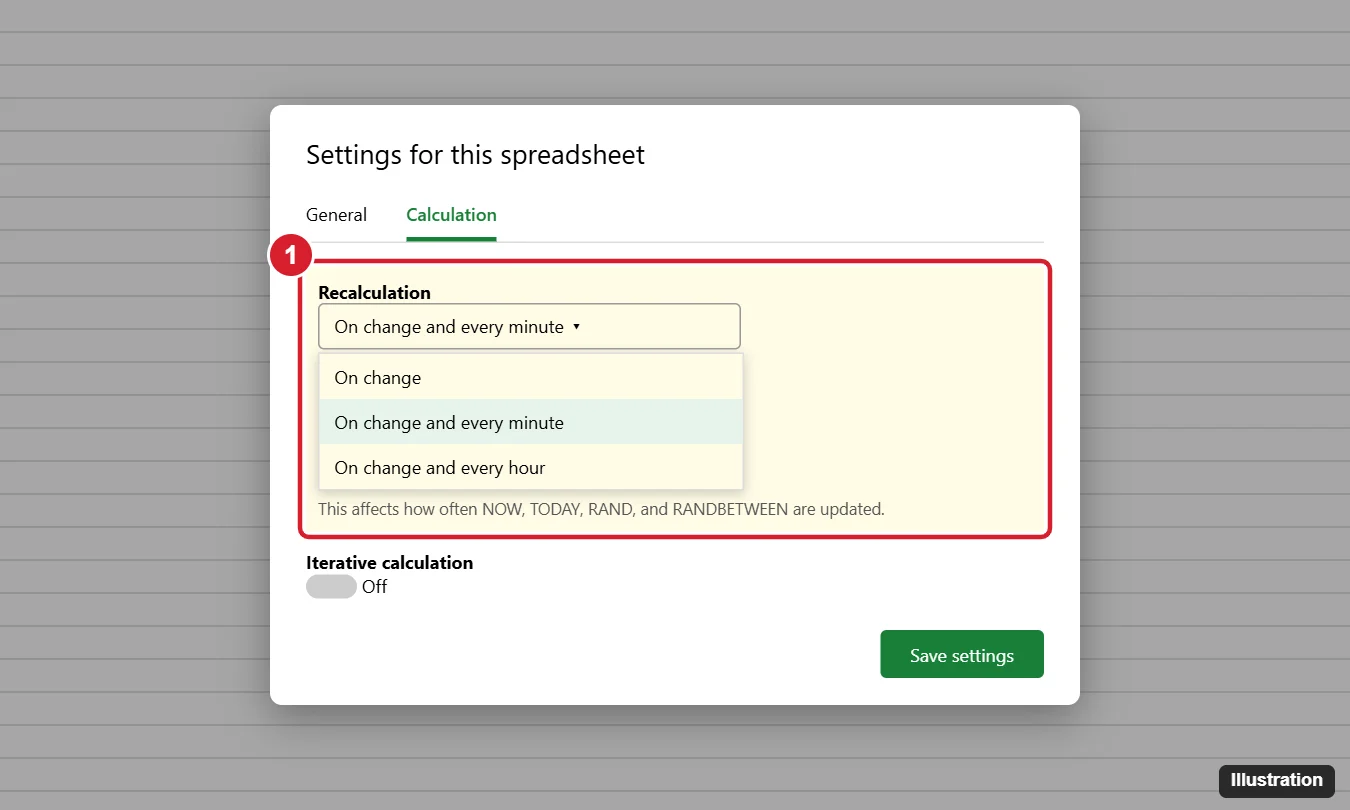
How to Change the Recalculation Setting
- Open the spreadsheet on a computer. (You need edit access.)
- Click File > Settings.
- Click the Calculation tab.
- Open the Recalculation drop-down and pick an option.
- Click Save settings.
The setting applies to the whole spreadsheet and to everyone who uses it.
What Each Option Does
| Option | When volatile functions update | Best for |
|---|---|---|
| On change (default) | Only when someone edits the sheet | Most spreadsheets; fastest |
| On change and every minute | On edits and every minute while open | Live clocks, countdowns, dashboards |
| On change and every hour | On edits and every hour | Daily trackers, age or days-remaining calculations |
Timed updates happen while the spreadsheet is open in a browser. They may also run for time-driven scripts or when the file is viewed later, but they don’t guarantee exact timing.
Does recalculating every minute slow the spreadsheet down?
It can in large files with many volatile formulas. Use it only where needed.
Which Functions Are Affected?
- Volatile functions: NOW, TODAY, RAND, RANDBETWEEN and RANDARRAY recalculate according to this setting.
- Import functions such as IMPORTRANGE, IMPORTHTML, IMPORTXML, IMPORTDATA and IMPORTFEED refresh on their own schedule, roughly every hour, regardless of this setting.
- GOOGLEFINANCE updates on its own delay, often up to 20 minutes.
- Regular formulas always recalculate when their inputs change.
Iterative Calculation (Circular References)
A formula that refers to its own cell, directly or through other cells, is a circular reference and normally shows an error. Turn on Iterative calculation on the same Calculation tab to allow it:
- Max number of iterations: how many times Sheets repeats the calculation (default 50).
- Threshold: Sheets stops when results change by less than this amount (default 0.05).
This is useful for goal-seeking models or timestamps built with formulas, but it can hide mistakes, so turn it on only when you mean to.
Force a Recalculation Now
- Edit any cell, or type something in an empty cell and delete it.
- Reload the browser tab.
- For import functions, change the URL slightly (for example, add a harmless parameter) to trigger a fresh fetch.
Google Sheets doesn’t have an Excel-style F9 key or a manual calculation mode.
Stop Values From Changing
To freeze a timestamp or random number, copy the cells, then use Edit > Paste special > Values only (Ctrl + Shift + V). Keyboard shortcuts also insert static values: Ctrl + ; for today’s date and Ctrl + Shift + ; for the current time. See how to insert a date in Google Sheets.
Other Calculation Settings
The General tab of the same dialog sets the spreadsheet’s Locale and Time zone, which affect how NOW and TODAY display and when “today” changes. If dates look off by hours, check the time zone.

Kermit Matthews runs Live2Tech from just outside Philadelphia. He is an IT specialist with over 20 years of experience, from a university help desk to small-business IT, IT management and his own consulting practice, and has written tech guides full time since 2020. Steps are checked against the current software on a real device or the maker’s official documentation. More about Kermit.