To use VLOOKUP in Excel, click the cell where you want the answer and type =VLOOKUP(lookup_value, table_array, col_index_num, FALSE). For example, =VLOOKUP(E2,$A$2:$C$8,3,FALSE) finds the product ID in E2 in the first column of A2:C8 and returns the price from the third column of that range. The FALSE at the end tells Excel to return only an exact match, which is what you want for IDs, names, and codes. Press Enter, then drag the fill handle down to look up the rest of your list.
Below you’ll find each part of the formula explained in plain English, a worked example you can copy, approximate match for price tiers and grades, how to look up data on another sheet or in another workbook, how to hide #N/A errors, and when it makes more sense to use XLOOKUP instead.
What you need and which versions this covers
VLOOKUP works the same way in every current version of Excel:
- Excel for Microsoft 365 on Windows and Mac (the subscription version)
- Excel 2024 and Excel 2021 on Windows and Mac
- Excel 2019 and Excel 2016
- Excel for the web (free in a browser with a Microsoft account)
The formula you type is identical in all of them. The differences are small: the keyboard shortcut for locking references on a Mac, how links to other workbooks behave in Excel for the web, and the fact that Microsoft 365 can return several results from one formula. Each difference is called out in its own section below.
You need two things before you start: a table that holds the information you want to pull (a price list, an employee list, a product catalog), and a value to look up that also appears in the first column of that table. If you’re working in Google Sheets rather than Excel, the steps are close but not identical; see our guide to how to use VLOOKUP in Google Sheets.
VLOOKUP syntax in plain English
The “V” stands for vertical. VLOOKUP looks down the first column of a range until it finds your value, then moves across that row to the column you name and returns what it finds there. The full syntax is:
=VLOOKUP(lookup_value, table_array, col_index_num, [range_lookup])
Each piece inside the parentheses is called an argument. Here’s what each one does:
| Argument | What it means | Example |
|---|---|---|
| lookup_value (required) | The thing you’re searching for. It can be a cell reference or a typed value. Text you type directly must be in quotation marks. | E2 or "P-104" |
| table_array (required) | The range to search. Its first (leftmost) column must contain the lookup values, and it must also include the column you want to return. | $A$2:$C$8 |
| col_index_num (required) | Which column of the range to return, counting from the left edge of the range. The first column of the range is 1, not column A of the sheet. | 3 |
| range_lookup (optional) | FALSE (or 0) returns an exact match only. TRUE (or 1) returns an approximate match. If you leave it out, Excel uses TRUE. | FALSE |
The square brackets around range_lookup mean it’s optional, but you should almost always type it. Leaving it blank makes Excel use approximate match, which can quietly return the wrong row when your data isn’t sorted. That one habit, ending every VLOOKUP with FALSE unless you deliberately want a range match, prevents most VLOOKUP mistakes.
A simple way to remember the order: what to find, where to look, which column to return, and how closely it must match.
How to use VLOOKUP in Excel, step by step
This example uses a small product list. Columns A to C hold the master data, and column E holds product IDs from an order that need prices. Type this sample data into a blank sheet if you want to follow along:
| A | B | C | D | E | F | |
|---|---|---|---|---|---|---|
| 1 | Product ID | Product | Price | Order item | Price | |
| 2 | P-101 | Desk Lamp | 24.99 | P-104 | ||
| 3 | P-102 | Office Chair | 149.00 | P-107 | ||
| 4 | P-103 | Monitor Stand | 39.50 | P-101 | ||
| 5 | P-104 | USB Hub | 18.75 | P-110 | ||
| 6 | P-105 | Desk Mat | 22.00 | |||
| 7 | P-106 | Cable Tray | 15.25 | |||
| 8 | P-107 | Webcam | 64.99 |
Step 1: Click the cell where the result should appear
Click cell F2, the first empty cell in the Price column next to your order list. This is where VLOOKUP will put the matching price. Any formula you type here shows up in the formula bar above the grid as well as in the cell.
Step 2: Start the formula and enter the lookup value
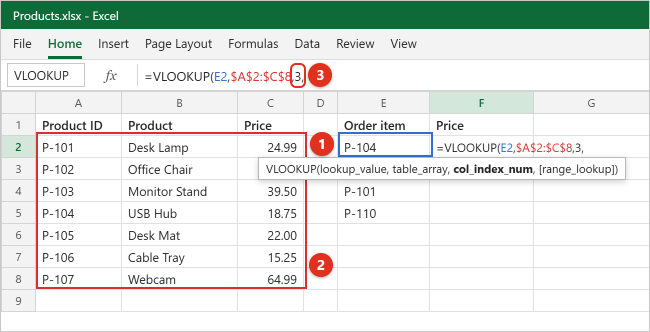
Type =VLOOKUP(. As soon as you type the opening parenthesis, Excel shows a small tooltip under the cell listing the four arguments, with the one you’re on in bold. Now click cell E2 (the product ID you want to find) and type a comma. Your formula should read =VLOOKUP(E2,.
Step 3: Select the table range and lock it
Drag across A2:C8 to select the whole product list. Make sure the range starts with the column that holds the product IDs, because VLOOKUP only searches the first column of whatever you select. Then press F4 once (on a Mac, press Command+T or F4). Excel adds dollar signs so the reference reads $A$2:$C$8. Type a comma. The formula now reads =VLOOKUP(E2,$A$2:$C$8,.
The dollar signs keep the range from sliding down when you copy the formula later. The absolute references section explains why this matters.
Step 4: Type the column number
Count columns from the left edge of your selected range: Product ID is 1, Product is 2, Price is 3. Type 3 and a comma. If you wanted the product name instead, you’d type 2. The number is always relative to the range you selected, so if your range started in column B, column B would be 1.
Step 5: Choose exact match
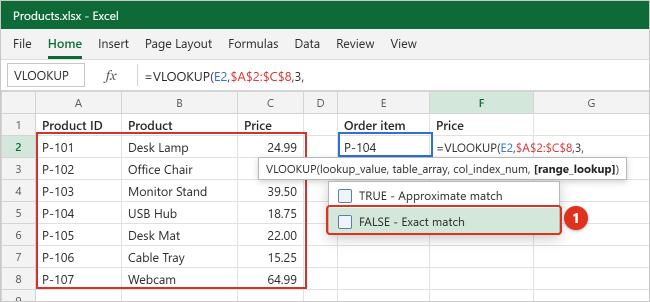
When you type the comma after the column number, Excel usually shows a short list with TRUE (approximate match) and FALSE (exact match). Double-click FALSE, or type FALSE yourself, then type a closing parenthesis. The finished formula is:
=VLOOKUP(E2,$A$2:$C$8,3,FALSE)
Step 6: Press Enter and check the result
Press Enter. Cell F2 shows 18.75, the price of P-104 (USB Hub). If you click F2 again, the formula bar shows the formula, while the cell shows the result. If the cell shows the formula text instead of a number, see why Excel shows formulas instead of results.
Step 7: Copy the formula down the column
Click F2, then point at the small square in its bottom-right corner (the fill handle) until the pointer turns into a thin plus sign. Drag down to F5, or double-click the square to fill down automatically next to your data. Our guide to using the fill handle in Excel covers this in more detail. You should see these results:
| Cell | Formula after copying | Result |
|---|---|---|
| F2 | =VLOOKUP(E2,$A$2:$C$8,3,FALSE) |
18.75 |
| F3 | =VLOOKUP(E3,$A$2:$C$8,3,FALSE) |
64.99 |
| F4 | =VLOOKUP(E4,$A$2:$C$8,3,FALSE) |
24.99 |
| F5 | =VLOOKUP(E5,$A$2:$C$8,3,FALSE) |
#N/A |
Notice that E2 changed to E3, E4, and E5 as the formula moved down, but $A$2:$C$8 stayed the same. The #N/A in F5 is correct: P-110 isn’t in the product list. You’ll replace that error with a friendlier message in the IFNA section.

Prefer filling in boxes? Use Insert Function
If typing commas feels error-prone, click the cell, then click the fx button to the left of the formula bar (or go to Formulas > Insert Function), search for VLOOKUP, and click OK. The Function Arguments dialog box gives you one box per argument with a short description of each, and it previews the result before you click OK. On a Mac, the same button opens the Formula Builder pane, which you can also open with Shift+F3.
Exact match vs approximate match
The fourth argument decides how VLOOKUP treats a value that isn’t an exact match.
Exact match (FALSE or 0)
With FALSE, VLOOKUP returns a result only when it finds the lookup value itself. If it doesn’t, you get #N/A. Your data doesn’t need to be sorted. Use exact match for anything that identifies a specific item: product codes, employee IDs, invoice numbers, email addresses, names. Exact match isn’t case-sensitive, so “desk lamp” matches “Desk Lamp.”
Approximate match (TRUE or 1)
With TRUE, or with the argument left out, VLOOKUP looks for the largest value in the first column that is less than or equal to your lookup value. That’s ideal for tiers and brackets: discounts by order size, shipping by weight, commission rates, or letter grades. It requires the first column to be sorted from smallest to largest. If it isn’t, Excel may return a result from the wrong row without warning you.
Here’s a discount table in H1:I5, sorted by the lowest order total in each tier:
| H | I | |
|---|---|---|
| 1 | Order total from | Discount |
| 2 | 0 | 0% |
| 3 | 100 | 5% |
| 4 | 250 | 10% |
| 5 | 500 | 15% |
If an order total of 320 is in cell K2, =VLOOKUP(K2,$H$2:$I$5,2,TRUE) returns 10%. There’s no 320 in column H, so VLOOKUP settles on 250, the largest value that doesn’t go over 320. An order of 99.99 returns 0%, and an order of 1,000 returns 15%. Each row in the table is the starting point of a tier, which is why the first row must be 0: if the smallest value in the first column is larger than your lookup value, VLOOKUP returns #N/A.
Approximate match does not mean “closest.” A lookup of 249 returns 5%, not 10%, even though 250 is nearer. If you want a near match for text, such as names that are almost spelled right, approximate match won’t do that either; use wildcards with exact match instead (see variations).
Why the dollar signs matter
Excel normally uses relative references, which shift when you copy a formula. That’s what you want for the lookup value: E2 should become E3 in the next row. It’s not what you want for the table range. Without dollar signs, copying =VLOOKUP(E2,A2:C8,3,FALSE) down one row produces =VLOOKUP(E3,A3:C9,3,FALSE). The range has slid down, so it no longer includes P-101 in row 2, and lookups for that product start returning #N/A a few rows down.
An absolute reference such as $A$2:$C$8 stays fixed no matter where you copy it. The dollar sign before the letter locks the column, and the one before the number locks the row. To add them:
- Windows: click inside the range reference in the formula bar and press F4. Pressing it repeatedly cycles through $A$2, A$2, $A2, and A2. On some laptops you need to hold Fn while pressing F4.
- Mac: press Command+T or F4 (you may need Fn+F4).
- Any version, including Excel for the web: type the dollar signs yourself. This always works, even if your browser or keyboard intercepts F4.
Two other ways avoid the problem entirely. You can use whole columns, such as =VLOOKUP(E2,A:C,3,FALSE), which don’t shift when copied down. Or you can turn the product list into an Excel table (Insert > Table, or Ctrl+T) and use its name, such as =VLOOKUP(E2,Products,3,FALSE). A table reference is fixed and also grows automatically when you add new rows to the bottom of the list, which a typed range like $A$2:$C$8 doesn’t do. To rename a table, click inside it and edit the Table Name box on the Table Design tab.
Hide #N/A with IFNA or IFERROR
An exact-match VLOOKUP returns #N/A (not available) when the value isn’t found. That’s useful information, but it looks alarming in a finished report and it breaks totals: a SUM over a column with one #N/A returns #N/A. You can replace the error with text, a zero, or a blank.
IFNA: replace only “not found”
=IFNA(VLOOKUP(E5,$A$2:$C$8,3,FALSE),"Not found")
IFNA checks the VLOOKUP result. If it’s #N/A, IFNA shows the second argument instead; otherwise it shows the price as normal. Use 0 instead of “Not found” if the column will be added up, or "" (two quotation marks with nothing between) to leave the cell looking empty. IFNA is available in Excel 2016 and every later version, including Microsoft 365 and Excel for Mac.
IFERROR: replace any error
=IFERROR(VLOOKUP(E5,$A$2:$C$8,3,FALSE),"Not found")
IFERROR works the same way, but it catches every error type: #N/A, #VALUE!, #REF!, #DIV/0!, #NUM!, #NAME?, and #NULL!. That’s broader than you usually want. If you mistype the column number and VLOOKUP returns #REF!, IFERROR hides that mistake behind “Not found,” and you may never notice the formula is broken. For lookups, IFNA is the safer choice because it hides only the “value isn’t in the list” case and lets real mistakes show.
Tip: add error handling last. Get the plain VLOOKUP working first, confirm the results are right, and then wrap it.
VLOOKUP from another sheet
Keeping the master list on its own sheet tab is common, and VLOOKUP handles it with no extra setup. Suppose the product list is on a sheet named Price List and your order list is on Orders.
- On the Orders sheet, click the cell for the result and type
=VLOOKUP(. - Click the cell with the product ID on the Orders sheet, then type a comma.
- Click the Price List sheet tab at the bottom of the window and select the product list. Excel writes the sheet name into the formula for you.
- Press F4 to lock the range, type
,3,FALSE), and press Enter. Excel takes you back to the Orders sheet and shows the result.
The finished formula looks like this:
=VLOOKUP(A2,'Price List'!$A$2:$C$8,3,FALSE)
The exclamation point separates the sheet name from the range. The single quotation marks are required when the sheet name contains spaces or characters other than letters; Excel adds them automatically when you click to select. If you type the reference by hand and the sheet is named Products with no space, Products!$A$2:$C$8 is fine. If you later rename the sheet tab, Excel updates the formula for you.
VLOOKUP from another workbook
VLOOKUP can also read a table in a separate file. Microsoft calls this a workbook link (it used to be called an external reference). The easiest way to build one is with both files open.
Excel for Windows and Mac
- Open both workbooks: the one that holds the product list (the source) and the one where you want the results (the destination).
- In the destination workbook, click the result cell, type
=VLOOKUP(, click the lookup cell, and type a comma. - Switch to the source workbook (on Windows, use View > Switch Windows or click its icon on the taskbar), click the correct sheet, and select the table range.
- Type
,3,FALSE)and press Enter. Excel returns you to the destination workbook with the result.
While the source file is open, the reference shows the file name in square brackets:
=VLOOKUP(A2,[Prices.xlsx]Products!$A$2:$C$8,3,FALSE)
When you close the source file, Excel automatically adds the full path, for example:
=VLOOKUP(A2,'C:\Reports\[Prices.xlsx]Products'!$A$2:$C$8,3,FALSE)
Excel inserts workbook links with dollar signs already in place, which is what you want for a lookup range. Keep these points in mind:
- Security prompt: when you reopen the destination file, Excel may show a message bar about links. Click Enable Content to let it refresh values from the source. If you don’t, Excel keeps the last values it saved and doesn’t update them.
- Moving or renaming the source file breaks the link. Go to Data > Queries and Connections > Workbook Links (older versions use the Edit Links command instead), open the menu next to the source file, and choose Change source to point it at the new location.
- Sharing: anyone you send the destination file to needs access to the source file at the same path, or they’ll see the last saved values only.
Excel for the web
In Excel for the web, both workbooks must be saved in an online location your Microsoft 365 account can reach, such as OneDrive or SharePoint. The steps are the same: start the formula, switch to the browser tab with the source workbook, and select the range. Excel saves the formula but doesn’t switch you back to the original tab automatically, so return to it yourself. The reference uses the file’s full web address instead of a drive path. Values update when you refresh the browser window.
If you only need the data once, it’s often simpler to copy the product list into a sheet of the destination workbook and look it up there. That avoids broken links entirely.
Excel for Mac and Excel for the web
The VLOOKUP formula and its arguments are exactly the same on every platform, so a workbook made on Windows works on a Mac or in a browser without changes. The practical differences are:
| Task | Excel for Windows | Excel for Mac | Excel for the web |
|---|---|---|---|
| Lock a reference | F4 | Command+T or F4 | Type the $ signs (F4 may be taken by your browser or keyboard) |
| Guided entry | fx button or Formulas > Insert Function | fx button opens Formula Builder (Shift+F3) | Type the formula; the argument tooltip works the same |
| Other workbook | File path added when source is closed | Same idea, with the Mac file path | Both files must be in OneDrive or SharePoint |
| Copy down | Drag or double-click the fill handle | Drag or double-click the fill handle | Drag the fill handle |
Useful VLOOKUP variations
Look up partial text with wildcards
With exact match (FALSE) and a text lookup value, you can use wildcards. An asterisk (*) stands for any number of characters and a question mark (?) stands for exactly one. =VLOOKUP("Desk*",$B$2:$C$8,2,FALSE) finds the first product whose name starts with “Desk” (Desk Lamp) and returns 24.99. To use a cell instead of typed text, join it to the wildcard: =VLOOKUP("*"&H2&"*",$B$2:$C$8,2,FALSE) finds the first name that contains whatever is in H2. To search for a real asterisk or question mark, put a tilde (~) in front of it. Notice the range starts at column B here, because that’s where the names are.
Let MATCH find the column number
A typed column number like 3 doesn’t change if someone inserts a column inside the table, so the formula starts returning the wrong column. You can have Excel find the number by looking up the header instead:
=VLOOKUP(E2,$A$1:$C$8,MATCH("Price",$A$1:$C$1,0),FALSE)
MATCH returns the position of “Price” in the header row (3). If a new column is inserted before Price, MATCH returns 4 and the lookup keeps working. Note that the range now starts at row 1 so it includes the headers.
Look up two conditions with a helper column
VLOOKUP accepts only one lookup value. To match on two things, such as first and last name, add a helper column as the first column of the table that joins them, for example =B2&" "&C2, and look up the joined value: =VLOOKUP(H2&" "&I2,$A$2:$E$50,5,FALSE). The space in the middle stops “Ann Lee” and “Anne Lee” style combinations from running together.
Return several results at once (Microsoft 365)
In Excel for Microsoft 365, and in Excel 2021 and 2024, you can give VLOOKUP a range of lookup values and it returns one result per value. Typing =VLOOKUP(E2:E5,$A$2:$C$8,3,FALSE) in F2 fills F2 through F5 in one go; this is called spilling. The cells it spills into must be empty, or you’ll see a #SPILL! error. In Excel 2019 and earlier, stick to one lookup value per formula and copy it down.
One related warning from Microsoft: in versions with spilling, a formula like =VLOOKUP(A:A,A:C,2,FALSE) that uses a whole column as the lookup value tries to return a million results and shows #SPILL!. Use a single cell (A2) or put the @ operator in front (@A:A).
VLOOKUP limits and when to switch to XLOOKUP
VLOOKUP has been in Excel for decades and still works well, but it has built-in limits you should know about:
- It only looks to the right. The lookup column must be the first column of the range, so VLOOKUP can’t find a product name and return the product ID if the ID is to its left. You’d have to move columns around.
- It returns the first match only. If a value appears twice in the first column, you always get the row of the first one.
- The column number is fixed. Inserting or deleting columns inside the range can make it return the wrong column unless you use MATCH as shown above.
- Approximate match is the default. Forget FALSE and you can get wrong answers without an error.
- Lookup values longer than 255 characters return #VALUE!.
- It isn’t case-sensitive. “abc” and “ABC” count as the same value.
XLOOKUP is Microsoft’s newer replacement. It uses separate ranges for the lookup column and the return column, so it can look left or right, it defaults to exact match, and it has a built-in argument for a “not found” message. The same price lookup becomes =XLOOKUP(E2,$A$2:$A$8,$C$2:$C$8,"Not found"). Because it points at the return column directly rather than counting columns, inserting a column doesn’t break it.
Here’s how to decide:
- Use XLOOKUP if you and everyone who opens the file use Excel for Microsoft 365, Excel 2021, Excel 2024, or Excel for the web, and you’re building something new.
- Use VLOOKUP if anyone opening the file uses Excel 2019 or Excel 2016. Microsoft says XLOOKUP isn’t available in those versions, so the formulas won’t calculate there. VLOOKUP is also the right call when you’re editing an existing workbook that already uses it, or when your table is already arranged with the lookup column on the left.
- Use INDEX and MATCH if you need to look left in Excel 2019 or 2016:
=INDEX($A$2:$A$8,MATCH("USB Hub",$B$2:$B$8,0))returns P-104.
Learning VLOOKUP first isn’t wasted effort. The ideas are the same in XLOOKUP, and you’ll keep running into VLOOKUP in shared workbooks for years.
Troubleshooting VLOOKUP errors
#N/A when the value is clearly in the list
This is the most common VLOOKUP problem. Check these causes in order:
- Extra spaces. “P-104 ” with a trailing space doesn’t match “P-104”. Data pasted from websites and exported reports often carries invisible spaces. Clean the column with a helper formula such as
=TRIM(A2), then paste the cleaned values back over the original (Paste Special > Values). Microsoft also suggests CLEAN to strip nonprinting characters. - Numbers stored as text. The number 1001 and the text “1001” look identical but don’t match. Text numbers are usually left-aligned and may show a small green triangle in the corner of the cell. Select the column, go to Data > Text to Columns, and click Finish to convert it, or click the warning icon and choose Convert to Number. Make sure the lookup value and the first column of the table are the same type.
- The lookup column isn’t first. If your range starts at column B but the IDs are in column C, VLOOKUP is searching the wrong column. Start the range at the ID column.
- The range shifted when copied. Click a lower result cell and check the formula bar. If the range has moved (A5:C11 instead of A2:C8), add dollar signs and copy it down again.
- Approximate match with an unsorted list. If you left out FALSE, add it.
Wrong value returned, with no error
This almost always means range_lookup is TRUE or missing and the first column isn’t sorted. Add FALSE as the last argument. If you meant to use approximate match, sort the first column from smallest to largest (Data > Sort A to Z). Also check the column number: 2 when you meant 3 returns a real value, just from the wrong column.
#REF!
The column number is larger than the number of columns in your range. =VLOOKUP(E2,$A$2:$C$8,4,FALSE) asks for column 4 of a three-column range. Either reduce the number or widen the range to include the column you want. #REF! also appears if a column or sheet the formula points to was deleted; press Ctrl+Z (Command+Z on a Mac) right away to undo the deletion.
#VALUE!
Either the column number is less than 1 (0, a negative number, or a nested formula that returned 0), or the lookup value is longer than 255 characters. Use a whole number of 1 or more. For very long text, use INDEX and MATCH or XLOOKUP.
#NAME?
Excel doesn’t recognize something in the formula. Usually the function name is misspelled (VLOKUP) or text in the formula is missing its quotation marks: =VLOOKUP(P-104,...) should be =VLOOKUP("P-104",...). If the formula uses XLOOKUP and you’re on Excel 2019 or 2016, that also shows #NAME? because the function doesn’t exist there.
The formula doesn’t update when the data changes
Check Formulas > Calculation Options and make sure Automatic is selected. If you’re looking up another workbook, the source may need to be open, or links may need to be enabled from the message bar.
How to undo or remove a VLOOKUP
Press Ctrl+Z right after entering a formula to remove it. To keep the results but drop the formulas (for example, before sending the file to someone without the source workbook), select the result cells, copy them, and use Home > Paste > Paste Values. The prices stay as plain numbers and no longer change if the product list changes.
Frequently Asked Questions
What does FALSE mean at the end of VLOOKUP?
FALSE sets the range_lookup argument to exact match, so VLOOKUP returns a result only when it finds the lookup value itself and shows #N/A otherwise. You can type 0 instead of FALSE; Excel treats them the same.
What happens if I leave out the last argument?
Excel uses TRUE, which is approximate match. On an unsorted list this can return a value from the wrong row with no error, so always type FALSE unless you’re looking up a sorted range of tiers or brackets.
Can VLOOKUP look to the left?
No. VLOOKUP searches the first column of the range and can only return values from that column or columns to its right. To look left, use XLOOKUP in Microsoft 365, Excel 2021 or Excel 2024, or INDEX with MATCH in any version.
Is VLOOKUP case-sensitive?
No. VLOOKUP treats “usb hub,” “USB Hub,” and “USB HUB” as the same value and returns the first one it finds.
Why does VLOOKUP return #N/A for a value I can see?
The two values aren’t truly identical. The usual causes are a leading or trailing space, a number stored as text in one place and as a number in the other, or a lookup range that slid down when you copied the formula. Fix the data with TRIM or Text to Columns, and lock the range with dollar signs.
Can VLOOKUP return more than one match?
No. It always returns the first match. In Microsoft 365, Excel 2021 or Excel 2024, the FILTER function returns every matching row, for example =FILTER(A2:C8,B2:B8="Desk Lamp").
How do I use VLOOKUP between two sheets?
Start the formula on one sheet, then click the other sheet’s tab while selecting the table range. Excel writes the sheet name for you, as in =VLOOKUP(A2,'Price List'!$A$2:$C$8,3,FALSE).
Does VLOOKUP work in Excel for the web?
Yes. The formula and arguments are the same as in the desktop apps. To look up data in another workbook from Excel for the web, both files must be saved in OneDrive or SharePoint.
What’s the difference between VLOOKUP and HLOOKUP?
VLOOKUP searches down the first column of a table. HLOOKUP searches across the first row and returns a value from a row below it. Use HLOOKUP only when your labels run across the top instead of down the side. XLOOKUP handles both layouts.
Should I still learn VLOOKUP if XLOOKUP exists?
Yes. Many existing workbooks use VLOOKUP, it’s the only one of the two that works in Excel 2019 and 2016, and the concepts carry straight over to XLOOKUP.
Next steps
Start with one exact-match lookup on your own data, lock the range, copy it down, and then wrap it in IFNA once the results look right. When you’re comfortable, try the approximate-match tier example or move the product list to its own sheet. For the full argument reference and more examples, see Microsoft’s VLOOKUP function page. If you also work in Google Sheets, our VLOOKUP guide for Google Sheets covers the differences, including pulling data from another spreadsheet with IMPORTRANGE.

Kermit Matthews is a freelance writer based in Philadelphia, Pennsylvania with more than a decade of experience writing technology guides. He has a Bachelor’s and Master’s degree in Computer Science and has spent much of his professional career in IT management.
He specializes in writing content about iPhones, Android devices, Microsoft Office, and many other popular applications and devices.