If your Excel printouts show the column letters (A, B, C) across the top and row numbers (1, 2, 3) down the side, a setting called Print Headings is turned on. Excel does not print headings by default, so someone (or a template) switched it on for that worksheet. This guide shows how to turn it off in Excel 2013, and the same steps work in Excel 2016, 2019, 2021, and Microsoft 365. It also covers gridlines, applying the change to several sheets, and how to check the result before printing.
Quick Answer
Click the Page Layout tab, find the Sheet Options group, and uncheck Print under Headings. Then press Ctrl + P to confirm in Print Preview that the letters and numbers are gone.
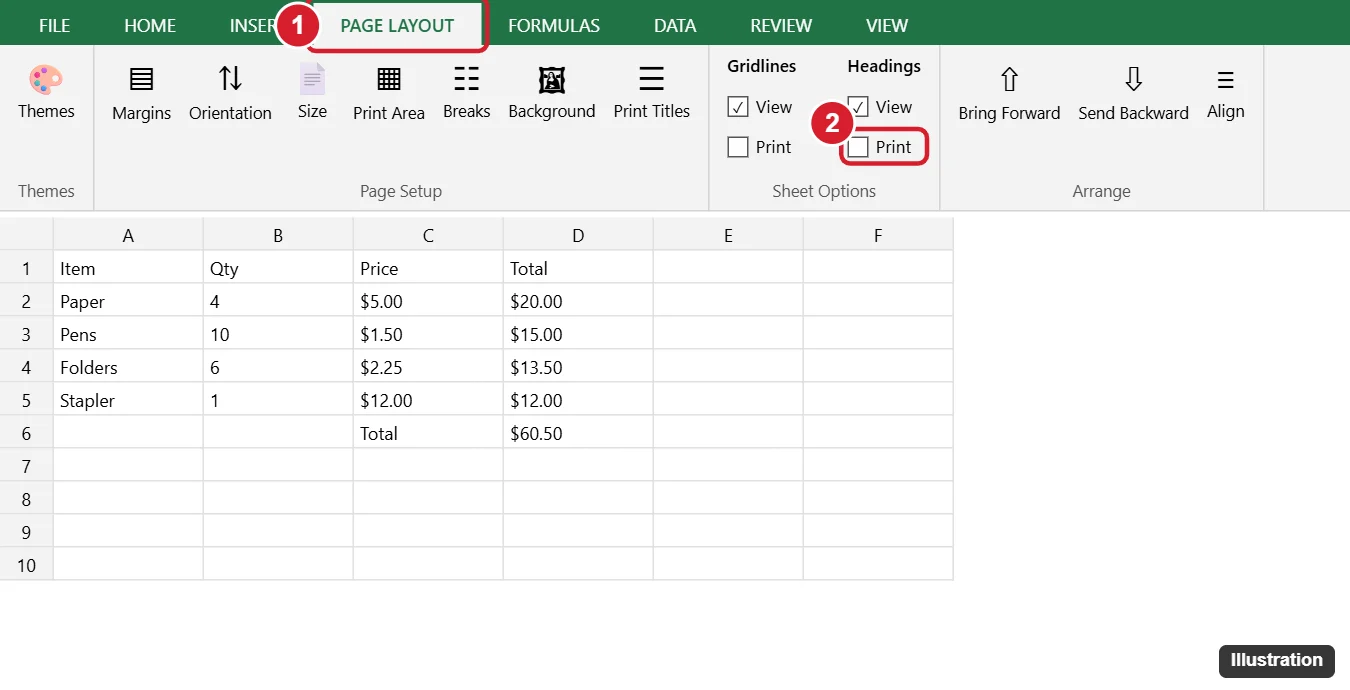
Method 1: Page Layout Tab
- Open the workbook and click the worksheet you want to print.
- Click the Page Layout tab on the ribbon.
- In the Sheet Options group, look under Headings.
- Uncheck Print.
The View checkbox under Headings only controls whether you see the letters and numbers on screen. It does not affect printing.
Method 2: Page Setup Dialog
- On the Page Layout tab, click the small arrow (dialog launcher) in the bottom-right corner of the Page Setup or Sheet Options group.
- Click the Sheet tab.
- Under Print, uncheck Row and column headings.
- Click OK.
You can also reach this dialog from File > Print > Page Setup at the bottom of the print settings.
Check the Result in Print Preview
Press Ctrl + P or go to File > Print. The preview on the right shows exactly what will print. If the headings are gone, click Print.
Apply the Setting to Multiple Sheets
Print settings are saved separately for each worksheet. To change several at once:
- Hold Ctrl and click each sheet tab at the bottom (or right-click a tab and choose Select All Sheets).
- Uncheck Headings > Print on the Page Layout tab.
- Right-click any selected tab and choose Ungroup Sheets when you are done, so you do not accidentally edit all sheets at once.
Remove Gridlines From Printouts Too
Gridlines work the same way. In Page Layout > Sheet Options, uncheck Print under Gridlines. If you want lines on specific cells, add borders instead with Home > Borders, since borders always print.
Other Print Settings Worth Checking
| Setting | Where | Why |
|---|---|---|
| Print Area | Page Layout > Print Area > Set Print Area | Print only a selected range |
| Print Titles | Page Layout > Print Titles | Repeat your own header row on every page (different from column letters) |
| Fit to page | Page Layout > Scale to Fit, or File > Print > Scaling | Fit all columns on one page |
| Orientation | Page Layout > Orientation | Landscape for wide sheets |
| Headers and footers | Insert > Header & Footer | Add page numbers or titles |
Troubleshooting
Headings still print after unchecking
Make sure you changed the correct worksheet. Each sheet has its own setting. Also check the Page Setup Sheet tab to confirm Row and column headings is unchecked.
The option is grayed out
You may be editing a cell. Press Esc to exit cell editing, then try again. Charts selected on a chart sheet also hide some sheet options.
Every new workbook prints headings
Your default template may have the setting turned on. Open a new workbook, turn off the setting, and save it as Book.xltx in your XLSTART folder to update the default, or check with your IT department on managed PCs.
Frequently Asked Questions
Does Excel print row numbers and column letters by default?
No. They only print if Headings > Print is turned on for that sheet.
How do I print my column titles on every page?
Use Page Layout > Print Titles and set Rows to repeat at top. This repeats your own header row, not the A, B, C letters.
Can I hide headings on screen too?
Yes. Uncheck View under Headings, or go to View > Show and uncheck Headings.
Do these steps work on a Mac?
Yes. In Excel for Mac, the Page Layout tab has the same Headings and Print options.
Summary
- Go to Page Layout > Sheet Options.
- Uncheck Print under Headings.
- Repeat for each sheet, or group sheets to change them together.
- Check Print Preview before printing.

Kermit Matthews is a freelance writer based in Philadelphia, Pennsylvania with more than a decade of experience writing technology guides. He has a Bachelor’s and Master’s degree in Computer Science and has spent much of his professional career in IT management.
He specializes in writing content about iPhones, Android devices, Microsoft Office, and many other popular applications and devices.