The sheet opens, and the A, B, C labels across the top and the 1, 2, 3 labels down the side are gone. In current versions of Excel for Microsoft 365, the usual fix is the View tab: select the Headings check box in the Show group. If that box is already checked, the table below helps you find the real cause before you work through the steps for your version of Excel.
Which problem do you have?
Excel calls the row numbers and column letters headings. Several different settings can make them look missing or wrong, so match what you see to a cause first.
| What you see | Likely cause | Where to fix it |
|---|---|---|
| No letters at the top and no numbers on the left | Headings are turned off for this sheet | View tab, or File > Options > Advanced |
| Numbers across the top instead of letters | R1C1 reference style is on | File > Options > Formulas |
| Letters and numbers show, but some are skipped (for example, C jumps to F) | Rows or columns are hidden | Unhide the rows or columns |
| Headings look fine on screen but not on paper (or the reverse) | Printing headings is a separate setting | Page Layout tab, Sheet Options group |
| Only one sheet in the workbook is missing headings | The setting is saved per worksheet | Fix that sheet, or group the sheets first |
Turn headings back on in Excel for Windows
These steps are for Excel for Microsoft 365 on Windows, and Excel 2016 through 2021 use the same labels; Excel 2013, shown in the screenshots below, used them too, though its ribbon looks different.
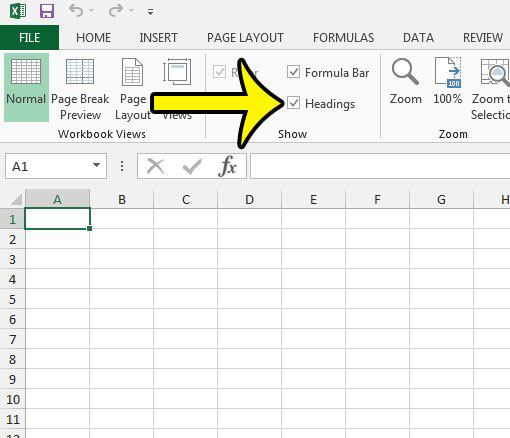
- Open the workbook and click the sheet tab where the headings are missing.
- Click the View tab at the top of the window.

- In the Show group, select the Headings check box. The row numbers and column letters should appear right away. Clearing the same box hides them again.
Second ribbon route: the Page Layout tab
The Page Layout tab has a Sheet Options group with a Headings section. Its View check box controls the on-screen headings, and the Print check box beside it controls whether they print. Make sure you click View, not Print, when the goal is to see them on screen.

Use Excel Options when you want to pick the sheet
Excel Options lets you set headings for any sheet in an open workbook without switching to it.
- Select File > Options > Advanced.
- Scroll to Display options for this worksheet and choose the sheet in the list next to that heading.
- Select Show row and column headers, then click OK.
Microsoft’s Excel advanced options reference describes this box as showing row numbers on the left side and column letters at the top. If your Office language uses right-to-left mode, the row numbers appear on the right side instead, which is normal.
Fix several sheets at once
Because the setting belongs to each worksheet, a workbook that someone else built can have headings off on some tabs and on for others. To change several sheets in one pass, group the worksheets: hold Ctrl and click each sheet tab (or click the first tab, hold Shift and click the last), then toggle Headings on the View tab. Afterward, right-click any selected tab and choose Ungroup Sheets, because any typing you do while sheets are grouped lands on every one of them. If a sheet tab itself is missing, see how to show the sheet tabs in Excel.
When the Headings box does not respond
- You are still editing a cell. If the cursor is blinking inside a cell, press Enter or Esc first, then try the box again.
- The window is partly off the screen. If the Excel window was dragged so its left edge is off the monitor, the row numbers can look missing. Maximize the window to rule this out.
- The top rows only look missing. If row 1 does not appear even though 2, 3, 4 do, the row may be hidden or the view may be frozen below it. See how to hide or unhide an entire row or column and how to keep the top row visible with Freeze Panes.
Numbers instead of letters across the top
If the headings are visible but the columns read 1, 2, 3 rather than A, B, C, the workbook is using the R1C1 reference style, and your formulas will show addresses like R2C3 instead of C2. Go to File > Options > Formulas, and under Working with formulas, clear the R1C1 reference style check box. There is more detail on columns labeled with numbers instead of letters.
Excel for Mac and Excel for the web
Excel for Mac and Excel for the web also have a View tab, and in current versions a Headings check box is normally found there. Microsoft’s support pages do not spell out these steps for either version, so if you do not see the box, look in the Mac app’s settings under View for a row and column headings option. If you cannot find the box in Excel for the web, open the file in the desktop app and change it there; the setting is saved with the sheet.
Printing headings is a separate setting
Showing headings on screen does not make them print, and hiding them on screen does not remove them from a printout. Microsoft’s page on how to print row and column headings covers the Print check box. For the full printing steps, see how to print row and column headings in Excel, or the opposite task, how to print without column letters and row numbers. To make a long printout easier to read, you can also print the top row on every page.
Headings questions
Can I rename the column letters to something like Name or Price?
No. Microsoft notes that the headings themselves cannot be customized. Type your labels into row 1 instead, and freeze that row if you want it to stay in view.
Does hiding headings change my formulas or data?
No. It only changes what is drawn on screen. Cell addresses, formulas and sorting all work the same way with headings hidden.
Why do the headings come back off when someone else opens the file?
The setting is saved with each worksheet in the file. If a coworker turns it off and saves, it will be off for you too, so turn it back on and save the workbook.
Are headings the same thing as gridlines?
No. Gridlines are the light lines between cells, with their own check box on the View tab. If those are what disappeared, see how to hide or show the lines in a spreadsheet.

Kermit Matthews runs Live2Tech from just outside Philadelphia. He is an IT specialist with over 20 years of experience, from a university help desk to small-business IT, IT management and his own consulting practice, and has written tech guides full time since 2020. Steps are checked against the current software on a real device or the maker’s official documentation. More about Kermit.