You build a tidy sales table, then notice a gap: there is no column for a new month, or for the category you forgot. The fastest fix in current Microsoft 365 Excel for Windows is to right-click the column letter to the right of where the new column belongs and choose Insert. You can also use Home > Insert > Insert Sheet Columns, or select the column and press Ctrl+Shift+Plus sign (+).
Where the new column lands
Excel always inserts a new column to the left of the column you select. So if your table runs from column A to column E and you want a blank column between C and D, you select column D. The old column D and everything after it shift one place to the right.
Three things happen for you automatically:
- Formulas follow the data. Cell references that point to cells that moved are updated, so a total that read =SUM(D2:D20) now reads =SUM(E2:E20) and still adds up the same numbers.
- Formatting can carry over. The new column can pick up the formatting of a neighboring column, and you can change which side it copies from (see the Insert Options section below).
- Nothing is overwritten. Inserting only adds blank cells. If you want to bring in a column of data you copied instead, use Insert Copied Cells, explained in ways to copy a column in Excel without overwriting data.
Insert one column in Excel for Windows
These three routes all do the same job. Pick the one that matches how you like to work.
Right-click the column letter
- Open the workbook and go to the sheet you want to change.
- Click the column letter at the top of the sheet, to the right of where the new column should go. The whole column is highlighted.
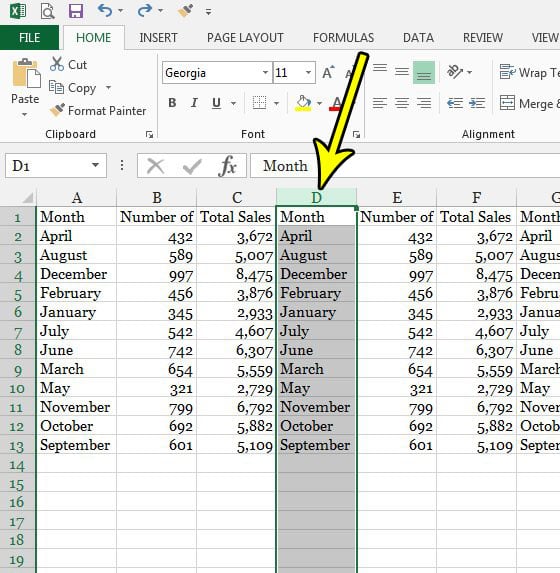
Older Excel version shown; current screens look different. - Right-click the selected column letter and choose Insert. A blank column appears to the left of your selection.
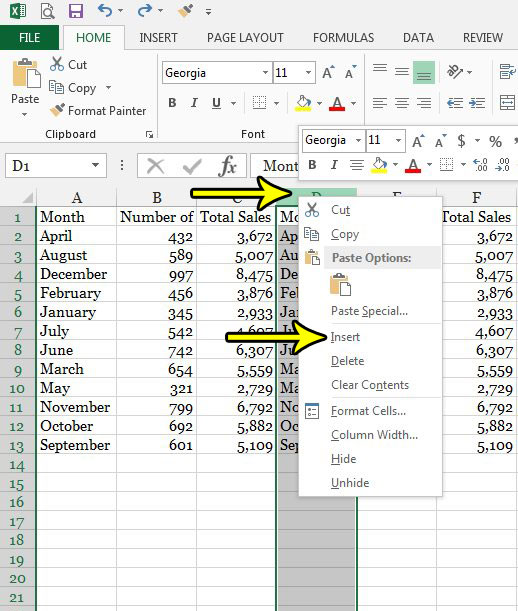
Older Excel version shown; the right-click menu in current Excel looks different.
If you cannot see column letters at all, the headings are switched off. Turn them back on with how to show row numbers and column letters in Excel.
Use the Home tab
- Click any cell in the column to the right of where you want the new one.
- On the Home tab, in the Cells group, click the arrow under Insert.
- Choose Insert Sheet Columns.

This route is handy because you do not have to select the whole column first; one cell is enough.
Use the keyboard
- Click a cell in the column to the right of where the new column should go.
- Press Ctrl+Spacebar to select the entire column.
- Press Ctrl+Shift+Plus sign (+), the shortcut Microsoft lists for opening the Insert dialog box. With a whole column already selected, Excel may add the column straight away; if the Insert dialog box opens, choose the option for an entire column and click OK.
On many keyboards the plus sign shares a key with the equal sign, which is why you hold Shift.
Insert several columns at once
Adding columns one at a time is slow when you need a block of them, such as three new quarters in a budget.
- Click the first column letter where the new columns should start, then drag across (or Shift+click) until you have selected as many columns as you want to add. To add three, select three.
- Right-click any of the selected column letters and choose Insert.
Excel inserts the same number of blank columns to the left of your selection.
Columns in different places: in Excel for Windows, hold Ctrl while you click separate column letters (for example C and F), then right-click one of them and choose Insert. Excel adds one blank column to the left of each selected column.
Repeat the last insert: after inserting one column, click another column and press F4 or Ctrl+Y. Both repeat your last action, if Excel can repeat it.
Add a column to an Excel table
If your data is formatted as an Excel table (banded rows and filter buttons in the header), the table has its own commands, and they insert columns only inside the table instead of through the whole sheet.
- Click a cell in the table column to the right of where the new column should go.
- Right-click, point to Insert, and choose Table Columns to the Left.
When you right-click a cell in the last column of the table, you also get Table Columns to the Right. An even quicker way to add a column at the end is to start typing in the empty cell next to the last header; Excel extends the table to include it. You can also change the table’s range with Table Design > Resize Table.
Excel for Mac and Excel for the web
Excel for Mac: select the column letter to the right of where you want the new column (select five columns to add five). Hold Control, click the selected columns, and choose Insert from the pop-up menu. The new columns go to the left of your selection, and references adjust just as they do on Windows.
Excel for the web: right-click the column letter to the right of where you want the new column and choose Insert 1 Column Left. If you selected several columns first, the command shows the number of columns it will add.
Excel 2021, 2019, 2016 and 2013: the right-click Insert command and Home > Insert > Insert Sheet Columns work the same way; only the look of the ribbon and menus differs.
Choose the formatting with Insert Options
Right after you insert a column, a small Insert Options button can appear next to the new column. Select it and choose a formatting option, for example to match the column on one side rather than the other. That matters when, for example, the column to the left holds dates and the one to the right holds currency.
If the button never shows up, go to File > Options > Advanced, and under Cut, copy, and paste select Show Insert Options buttons. To change the number format of the whole new column later, see how to switch the format for a whole column in Excel.
When Insert is greyed out or Excel refuses
The sheet is protected
A protected worksheet blocks inserting unless its owner allowed it. Check the Review tab: if the ribbon shows Unprotect Sheet, the sheet is protected.
- Go to Review > Unprotect Sheet, or File > Info > Protect > Unprotect Sheet.
- Enter the password if one was set.
- Insert your column, then protect the sheet again with Review > Protect Sheet.
If you own the file and others need to add columns, select the Insert columns check box under Allow all users of this worksheet to when you protect it. Microsoft cannot recover a forgotten sheet password, so ask whoever set it.
The last column is not empty
An Excel worksheet has a fixed 16,384 columns (the last one is XFD) and 1,048,576 rows. Inserting a column pushes everything right, so if any cell near the far right edge holds data or formatting, Excel may refuse because nothing can be pushed past the end of the sheet. Press Ctrl+End to jump to the last cell that contains data or formatting. If it lands far beyond your real data, select the columns between your data and that point, go to Home > Clear > Clear All, save the workbook, and try the insert again. Microsoft explains this in Locate and reset the last cell on a worksheet.
The column you expect is missing
If letters skip (for example C then E), a column is hidden rather than missing. Unhide it with how to unhide columns in Excel, and see how to hide rows and columns in Excel for the reverse.
Inserting columns: quick answers
How do I add a column after the last column of my data?
Just type in the first empty column to the right; nothing needs inserting.
Can I undo an insert?
Yes. Press Ctrl+Z right away to remove the column you just added, along with any shift it caused.
Will my totals include the new column?
Formulas keep pointing at the same cells after columns shift. A column inserted inside a range, such as between the first and last column of a SUM, is usually taken into the range, while one added just outside it is not, so check any total that should cover the new column.
Does this work the same in Google Sheets?
The idea is similar, but the menus differ. See how to insert a column in Google Sheets.
Once the new column is in place, you may want to set the column width in inches or add up the column with SUM. Microsoft’s own walkthrough, Insert or delete rows and columns, also covers deleting columns with Home > Delete > Delete Sheet Columns.

Kermit Matthews runs Live2Tech from just outside Philadelphia. He is an IT specialist with over 20 years of experience, from a university help desk to small-business IT, IT management and his own consulting practice, and has written tech guides full time since 2020. Steps are checked against the current software on a real device or the maker’s official documentation. More about Kermit.