Missing Excel gridlines almost always come down to one of three things: the Gridlines check box on the View tab is cleared, the cells have a fill color (even white), or the gridline color has been changed to white or something very pale. Start with the one-click fix: View > Show group > Gridlines. Steps are for Excel for Microsoft 365 on Windows, with Mac and web notes.
Start here: which of these looks like your sheet?
Gridlines are the faint lines Excel draws around cells on screen. They aren’t part of your data, they apply to a whole worksheet at a time, and they don’t print unless you ask them to. Match what you see to a likely cause, then jump to that section.
| What you see | Most likely cause | Where to go |
|---|---|---|
| No lines anywhere on the sheet | Gridlines switched off for this sheet | The Gridlines switch is off |
| Lines everywhere except one block of cells | Fill color on those cells (white counts) | Only some cells have no lines |
| Lines missing, but the Gridlines box is already checked | Gridline color set to white, white borders, or a conditional format | Gridlines are on but invisible |
| Lines on one tab, none on another | The setting is per sheet | One sheet has lines, another doesn’t |
| Fine on screen, missing on paper or in a PDF | Print option off, or Draft quality on | On screen but not on paper |
| A double line or a jump in row numbers or column letters | Hidden rows or columns | Hidden rows or columns |
If what you actually want is the opposite, a clean sheet with no lines at all, see how to hide gridlines in Excel.
The Gridlines switch is off
This is the cause when the whole sheet is blank white. Someone, maybe you while tidying a report, cleared the box, and Excel remembered it for that sheet.
- Click the View tab on the ribbon.
- In the Show group, select the Gridlines check box.
The same switch also sits on the Page Layout tab, which is handy if you’re already there setting up printing. The pictures for this route come from Excel 2010, where the path was the same; current ribbons look different.
- Click the Page Layout tab.

Older Excel version shown; current screens look different. - In the Sheet Options group, under Gridlines, select the View check box.
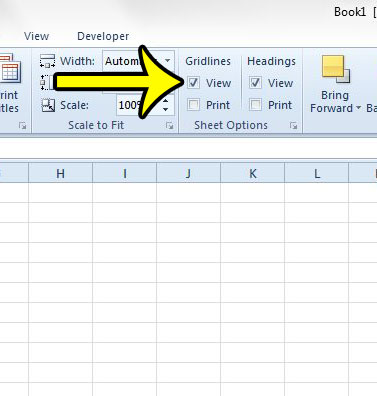
The View box under Gridlines, shown in Excel 2010.
Either box shows the gridlines on screen. Microsoft’s show or hide gridlines page documents the View tab route for Windows and the Page Layout route for Excel for Mac.
Only some cells have no lines
When gridlines show on most of the sheet but vanish over a block of cells, those cells almost certainly have a fill color. Fill sits on top of gridlines and covers them. The trap is white: a cell filled with white looks exactly like an empty cell, yet Microsoft notes that if you change the fill color to white, the gridlines remain hidden. You have to remove the fill completely.
- Select the cells with no lines. To catch every filled cell on the sheet, press Ctrl+A, but only if you’re happy to lose all fill colors.
- On the Home tab, in the Font group, click the arrow next to Fill Color.
- Select No Fill.
Colored cells are usually there for a reason, such as a highlighted total row or a shaded header. More on choosing and removing colors is in filling a cell with color in Excel.
Keep the fill and add lines with borders
If you want both the color and the lines, use borders. Borders are lines you draw on specific cells; unlike gridlines, they print by default and can be any color.
- Select the filled cells.
- On the Home tab, in the Font group, click the arrow next to Borders.
- Select All Borders.
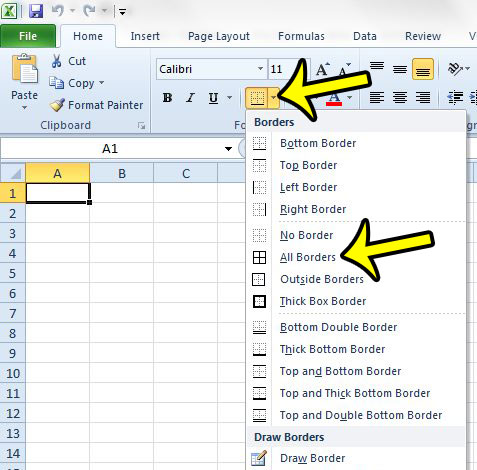
The Borders menu in an older Excel version; All Borders is still the option to pick.
Black borders look heavier than gridlines. For a closer match, pick More Borders at the bottom of the same menu, choose a light gray in the Color box on the Border tab, and apply it to the outline and inside lines.
Gridlines are on but invisible
The Gridlines box is checked, there’s no fill, and you still see nothing. Three less obvious causes remain.
The gridline color was changed
Excel lets you pick the gridline color per sheet. A white or very pale color makes them disappear on a white background. To reset it in Excel for Windows, following Microsoft’s gridline color steps:
- Click File, then Options.
- Choose the Advanced category and scroll to Display options for this worksheet.
- Check that the right sheet is named in the box next to that heading, and that Show gridlines is selected.
- In the Gridline color box, select Automatic to return to the default color, then click OK.
White borders are covering them
A template or a copied range can carry white borders. They sit over the gridlines the same way fill does. Select the affected cells, open the arrow next to Borders on the Home tab, and choose No Border. That removes every border on the selection, including ones you meant to keep, so select only the area that looks wrong.
A conditional format adds a fill
Conditional formatting can paint cells white or another color when a rule is true, so lines vanish only in some rows, and the pattern changes as the data changes. No Fill won’t stick because the rule reapplies it.
- To see and remove one rule: on the Home tab, in the Styles group, click the arrow next to Conditional Formatting, then Manage Rules. Delete or edit the rule that sets the fill.
- To remove all of them: Home > Conditional Formatting > Clear Rules > Clear Rules from Entire Sheet (or Clear Rules from Selected Cells). This deletes every rule, including useful ones, so prefer Manage Rules when you’re not sure.
How rules work, and how to write ones that don’t hide your grid, is explained in using conditional formatting in Excel.
One sheet has lines, another doesn’t
Gridlines are a per-sheet setting, so each tab keeps its own choice. A workbook often has a dashboard tab with lines off next to data tabs with lines on. That’s normal; switch them on for the tab you’re working on.
Watch for grouped sheets. If you select several tabs at once, Excel shows Group in the title bar, and a change to the Gridlines box applies to every selected sheet. That’s how a whole workbook can lose its lines in one click. You can use it on purpose: select the tabs, tick Gridlines once, then right-click a tab and choose Ungroup Sheets so later edits don’t spread.
Gridlines also can’t be turned on for only part of a sheet. If you want lines around one table and nothing elsewhere, turn gridlines off and add borders to that range instead.
On screen but not on paper
Gridlines don’t print by default, which surprises people who see them on screen all day. To include them:
- On the Page Layout tab, in the Sheet Options group, select the Print check box under Gridlines. If the box is dimmed, click an empty cell first; a selected chart, picture or other object disables it.
- Press Ctrl+P (or click File > Print) and check the preview.
Still no lines in the preview? Microsoft’s print gridlines guide lists two more checks. First, Draft quality: on the Print screen, click Page Setup, open the Sheet tab, and clear Draft quality if it’s selected. Second, gridlines print only around cells that contain data, so an empty grid for people to fill in by hand won’t print. Set a print area that covers the empty cells, or draw borders on them. Microsoft also suggests updating the printer driver if lines still drop out.
Two neighboring settings get confused with this one. Row numbers and column letters are headings, not gridlines; to add or drop them, see printing row and column headings and printing without column letters and row numbers.
Hidden rows or columns
Sometimes what looks like a missing gridline is actually a hidden row or column. The tell is a jump in the headers (row 7 followed by row 12, or column C followed by F) and a double line where they meet. To show them, select the rows or columns on each side, right-click the selection and choose Unhide, or double-click the double line between the headers. More detail is in hiding and showing rows and columns.
Excel on a Mac and in a browser
- Excel for Mac: click the Page Layout tab, and under Gridlines select the View check box. For printing, select the Print check box under Gridlines, then use File > Print.
- Excel for the web: on the View tab, in the Show group, select the Gridlines check box. Printing gridlines isn’t supported in the web version; Microsoft suggests applying borders (Home > Font group > Borders > All Borders) to get a similar look on paper.
Still stuck?
If none of the above explains it, check whether the problem follows the file or the app. Open a new blank workbook. If it has gridlines, the issue lives in the original file’s settings, so go back over fill, color and conditional formatting on that sheet. If even a new workbook shows none on any sheet, try starting Excel in safe mode by holding Ctrl while you open it and clicking Yes when asked. Safe mode starts Excel without add-ins and other extras, so if gridlines appear there, something that loads at startup is the likely cause. As a last step, Microsoft’s Office repair tool offers Quick Repair and the more thorough Online Repair.
Gridline problems and fixes
Why do gridlines disappear exactly where I highlighted cells?
Highlighting is a fill color, and fill covers gridlines. Remove it with No Fill, or keep it and add light gray borders.
I set the fill to white to “clear” it. Why are the lines still gone?
White is still a fill. Only No Fill brings gridlines back.
Why do my printed gridlines stop where my data ends?
Excel prints gridlines only around cells with data. Set a print area that includes the empty cells, or use borders for a blank form.
How can I tell a gridline from a border at a glance?
Clear the Gridlines box on the View tab for a moment. Anything still showing is a border; anything that disappears was a gridline. Tick the box again afterward.
Does this work the same in Word?
Word has its own gridlines for page layout and tables, with different switches. See showing or removing gridlines in Word.
Once your lines are back and the sheet is ready to print, it often helps to repeat the top row on every printed page so column headings appear on each sheet of paper.

Kermit Matthews runs Live2Tech from just outside Philadelphia. He is an IT specialist with over 20 years of experience, from a university help desk to small-business IT, IT management and his own consulting practice, and has written tech guides full time since 2020. Steps are checked against the current software on a real device or the maker’s official documentation. More about Kermit.