Google Docs has a number of different tools and formatting settings that let you customize your document. If you’ve inserted a table into your document, however, you might be wondering how to adjust certain table properties, such as the background color, table borders and border color, and more. Fortunately you can adjust all of these settings, and you can even remove a table border in Google Docs if you don’t need one at all.
When you create a new table in a Google Docs document, that table will have a thin black border around each of its cells. This is helpful when you need to provide a visual separation between each of the cells in the table.
But you may find yourself in a situation where you need to change that border, possible even removing it entirely. Luckily this is a setting that you can adjust in Google Docs. The steps below will show you where to find the option that lets you remove your Google Docs table border.
Google Docs: Remove Table Border
- Open your Google Docs document that contains the table to modify.
- Right-click on the table, then select Table properties.
- Click the Table border width dropdown menu, then select the 0 pt option.
- Click OK to save your changes.
Keep reading for additional information on removing a table border in Google Docs, including pictures of these steps.
How to Make a Table Without a Border in Google Docs (Guide with Pictures)
These steps were performed in the Google Chrome desktop Web browser. Note that these steps assume that you already have a table in your document.
Step 1: Sign into Google Drive at https://drive.google.com and open the document with the table.
Step 2: Right-click anywhere on the table, then choose Table properties.
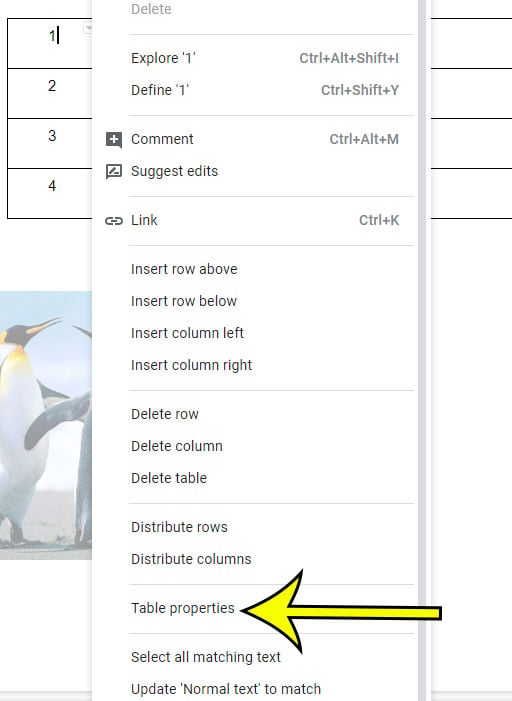
Step 3: Click on the Table border width dropdown menu under Table border, then choose the 0 pt option.
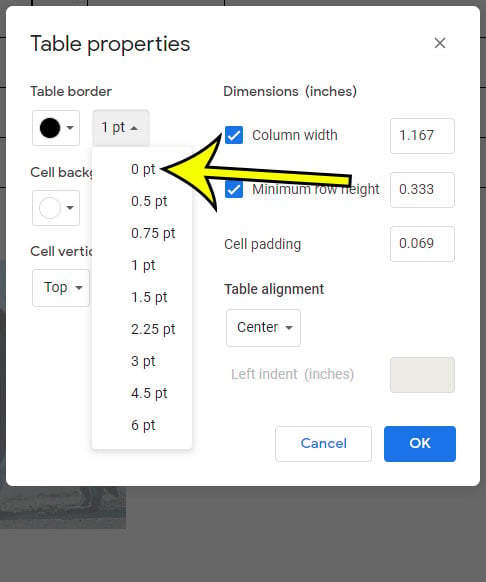
Step 4: Click OK to save your changes.

Do you need to make a copy of your Google Docs format in a different file type? Find out about the available Google Docs conversion types and learn how you can convert to one of those file types within Google Docs.
As you can see in the image above, the Table properties menu has a couple of different options that are specific to your table borders. We have already discussed removing the table border entirely by making the border size “0” but you could also choose the make the border color the same as the page background color.
Regardless of how you choose to get rid of your table borders, you can select Table properties from the shortcut menu at any time and customize different settings for your table’s appearance. Take note to select the cells you want to customize, however, as this is an important part of making changes to an existing table within a Google Docs document.
Prefer to recolour it? See changing table border colour in Google Docs.
Hidden borders are also handy when you build a business card template in Google Docs on perforated card sheets.

Kermit Matthews runs Live2Tech from just outside Philadelphia. He is an IT specialist with over 20 years of experience, from a university help desk to small-business IT, IT management and his own consulting practice, and has written tech guides full time since 2020. Steps are checked against the current software on a real device or the maker’s official documentation. More about Kermit.