To remove duplicates in Excel, click any cell in your data, go to Data > Remove Duplicates, check the columns that must match for a row to count as a duplicate, and click OK. Excel keeps the first copy of each row, deletes the later copies, and shows a message with how many duplicates it removed and how many unique values remain. Because the deleted rows are gone once you save, make a copy of your data first, or highlight the duplicates so you can check them before you delete anything.
This guide walks through that main method step by step, then covers the safer options: highlighting duplicates with conditional formatting, copying unique records with Advanced Filter, building a duplicate-free list with the UNIQUE function, and cleaning up extra spaces and capitalization so Excel actually spots the repeats.
What you need and which versions this covers
- Excel for Microsoft 365 on Windows is the main version used in the steps. Excel 2024, 2021, 2019, and 2016 for Windows use the same Remove Duplicates, Advanced Filter, and conditional formatting commands.
- Excel for Mac (Microsoft 365, 2024, and 2021) has the same commands on the Data and Home tabs. The differences are covered in their own section.
- Excel for the web has Remove Duplicates on the Data tab. See the web section for what’s different.
- The UNIQUE function needs Excel for Microsoft 365, Excel 2024, Excel 2021, or Excel for the web. It isn’t available in Excel 2019 or 2016, which need the COUNTIF method instead.
- A worksheet you can edit. Remove Duplicates doesn’t work on a protected sheet, on outlined data, or on data with subtotals.
One term to know before you start: in Excel, a duplicate is a row whose values in the columns you choose exactly match an earlier row. If you check every column, a row is a duplicate only when every cell matches. If you check one column, such as Email, any row with a repeated email counts as a duplicate, even when its other cells are different.
Before you start: make a backup
Remove Duplicates deletes rows from your sheet. You can press Ctrl + Z right away to bring them back, but once you save and close the workbook, Undo can’t help. If AutoSave is turned on for a file stored in OneDrive or SharePoint, Excel saves the change for you within seconds, so a backup matters even more.
The quickest backup is a copy of the sheet inside the same workbook:
- Right-click the sheet tab at the bottom of the window.
- Click Move or Copy.
- Check Create a copy, choose where to put it, and click OK.
You’ll see a new tab with the same name plus “(2)”. Work on one sheet and leave the other alone. You can also copy just the columns you’re cleaning to another sheet; our guide on how to copy a column in Excel covers every way to do that.
Also check that your data is laid out as a simple list: one header row, no blank rows or columns in the middle, and no merged cells. A blank row splits the list in two, and Excel will only check the part around the cell you clicked.
Step 1: Highlight duplicates first (optional but recommended)
Highlighting doesn’t delete anything. It colors every repeated value so you can see what Remove Duplicates would treat as a match, and spot rows you actually want to keep.
Step 1: Select the cells to check
Select the column (or columns) you want to inspect. For a customer list, that might be the Email column, B2:B9. Don’t include the header row, or Excel will compare it too.
Step 2: Open the Duplicate Values rule
On the Home tab, click Conditional Formatting > Highlight Cells Rules > Duplicate Values. A small Duplicate Values dialog box opens, and you’ll see a live preview on the sheet.
Step 3: Choose Duplicate and a format
Leave the first box set to Duplicate (switch it to Unique if you want to color the values that appear only once). In the box next to values with, pick a format, such as Light Red Fill with Dark Red Text, and click OK.
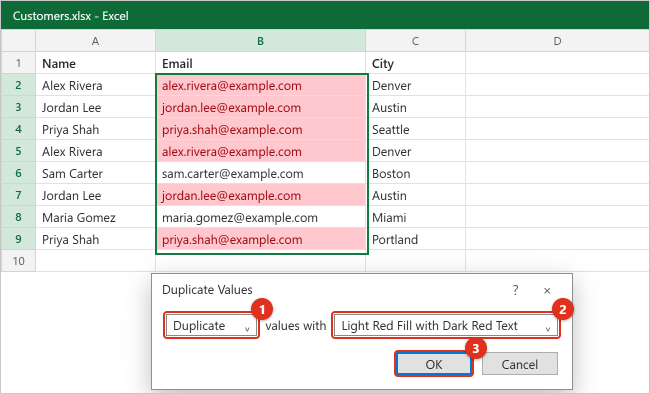
Notice that both copies of each repeated value are colored, including the one Remove Duplicates will keep. The rule colors values, not rows, so it can’t tell you which copy is first. To clear the colors later, select the cells and choose Home > Conditional Formatting > Clear Rules > Clear Rules from Selected Cells.
Two limits to know: Excel can’t apply this rule to the Values area of a PivotTable, and it compares one cell at a time. To highlight whole duplicate rows across several columns, use a formula rule (covered in the COUNTIF section).
How to remove duplicates with Data > Remove Duplicates
These steps are for Excel for Microsoft 365 on Windows and also match Excel 2024, 2021, 2019, and 2016.
Step 1: Click inside your data
Click any single cell in the list. Excel automatically selects the whole block of connected data around it, including the header row. If your list has blank rows or you want to clean only part of a sheet, select the exact range yourself instead, such as A1:C9. If your data is an Excel table, clicking any cell in the table is enough.
Avoid selecting just one column in a list with several columns. If you do, Excel shows a Remove Duplicates Warning that offers to expand the selection to the surrounding data or continue with only the current selection. Choose to expand it in almost every case. Removing duplicates from one column alone deletes cells from that column only, which shifts its values up and breaks the link between each name, email, and city.
Step 2: Open Remove Duplicates on the Data tab
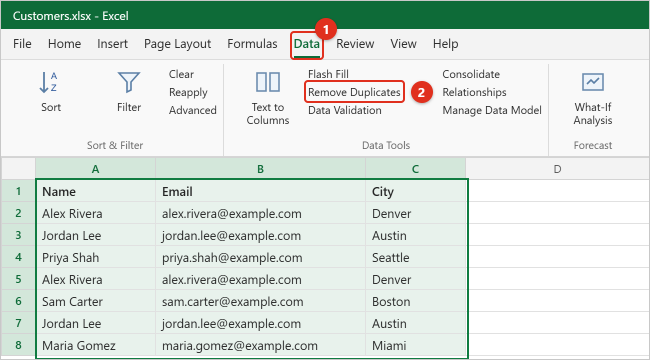
Click the Data tab, then click Remove Duplicates in the Data Tools group. On a narrow window, the Data Tools buttons may shrink to small icons; hover over them to see their names. Keyboard users can press Alt, then A, then M to open it using the ribbon’s KeyTips.
Step 3: Confirm My data has headers
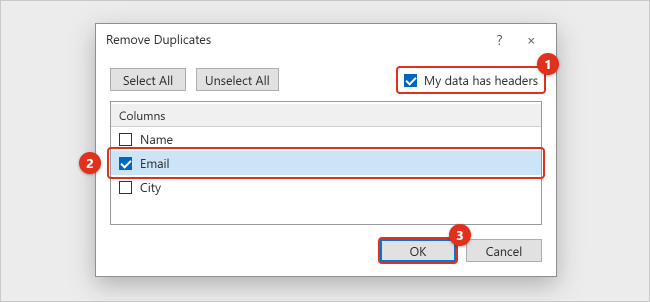
The Remove Duplicates dialog box opens. If the first row of your selection holds column names, make sure My data has headers is checked. Excel then lists the columns by name (Name, Email, City) and leaves the header row out of the comparison. If the box is unchecked, the list shows Column A, Column B, and so on, and Excel treats your header row as data.
Step 4: Choose which columns define a duplicate
Under Columns, every column is checked at first. That’s the safest choice: a row is removed only if it matches another row in every column.
- Leave all columns checked to remove only exact duplicate rows.
- Click Unselect All, then check one or more columns, to remove rows that match in just those columns. For example, check only Email to keep one row per email address.
- Click Select All to check everything again.
Whatever you check, Excel deletes the entire row of each duplicate within your selection, not just the cells in the checked columns.
Step 5: Click OK and read the message
Click OK. Excel deletes the duplicate rows, moves the remaining rows up to close the gaps, and shows a message saying how many duplicate values were found and removed and how many unique values remain. Click OK to close it. If Excel says no duplicates were found but you can see repeats, jump to why Excel misses duplicates.
Step 6: Check the result
Scroll through the list and compare the row count with what you expected. Select a column and look at the Count on the status bar at the bottom of the window for a quick total. Remove Duplicates only changes cells inside the selected range or table, so anything to the right of or below your list stays where it is. If the result looks wrong, press Ctrl + Z right away.
Step 7: Save the cleaned file
When you’re happy with the result, save the workbook. If you might need the original later and you didn’t copy the sheet, use File > Save As and give the cleaned version a new name.
Worked example: all columns vs. one column
Here’s a small customer list with eight rows of data. Row 5 is an exact copy of row 2, row 7 is an exact copy of row 3, and row 9 has the same name and email as row 4 but a different city.
| Row | Name | City | |
|---|---|---|---|
| 2 | Alex Rivera | [email protected] | Denver |
| 3 | Jordan Lee | [email protected] | Austin |
| 4 | Priya Shah | [email protected] | Seattle |
| 5 | Alex Rivera | [email protected] | Denver |
| 6 | Sam Carter | [email protected] | Boston |
| 7 | Jordan Lee | [email protected] | Austin |
| 8 | Maria Gomez | [email protected] | Miami |
| 9 | Priya Shah | [email protected] | Portland |
What happens depends entirely on the columns you check in Step 4:
| Columns checked | Rows removed | Rows left | What you lose |
|---|---|---|---|
| Name, Email, City (all) | 5 and 7 | 6 | Nothing unique. Both Priya rows stay because their cities differ. |
| Email only | 5, 7, and 9 | 5 | The Portland address for Priya Shah, because the Seattle row comes first. |
| Name and Email | 5, 7, and 9 | 5 | Same as Email only in this list. |
The second row of that table is the trap many people fall into. Removing by one column is the right call when you really want one row per customer, but Excel decides which row survives purely by position: the first one wins. If the later row holds the newer address, sort the list first (for example, newest date at the top) so the row you want to keep comes first, and then remove duplicates.
Remove duplicates based on some columns
Checking only some columns is how you answer questions like “one row per email,” “one order per invoice number,” or “one entry per person per day.” A few tips make it safer:
- Leave out columns that are always unique. A timestamp, row ID, or “Date added” column makes every row different. If those columns are checked, Excel will report that it found no duplicates.
- Sort before you remove. Since Excel keeps the first match, sort by the column that decides which copy is best, such as Last Updated (newest to oldest) or Amount (largest to smallest). Use Data > Sort and make sure the whole list is selected so the rows stay together.
- Keep the other columns in the selection. Unchecked columns are still deleted along with their row. That’s what you want; it keeps each record intact.
- Preview with a helper column. If you’re unsure, add a COUNTIFS flag (shown below) that marks the rows Remove Duplicates would delete, filter on it, and look before you commit.
Remove duplicates from an Excel table
If your data is formatted as an Excel table (the kind you create with Insert > Table or Ctrl + T), click any cell in it. You can use Data > Remove Duplicates as usual, or open the Table Design tab and click Remove Duplicates in its Tools group. Both open the same dialog box. A table always has a header row, and the table shrinks to fit the remaining rows.
Keep the original: copy unique records with Advanced Filter
Advanced Filter can either hide duplicate rows or copy one copy of each row to another spot, leaving your original data untouched. It’s a good choice when you need to keep the full list, or when you want to compare the before and after side by side. These steps work on Windows and Mac.
Step 1: Select your list
Click a cell in the list, or select the whole range including the header row, such as A1:C9. Advanced Filter compares whole rows across every column in the range, so select only the columns you want compared. Selecting just the Email column, for instance, gives you a list of unique emails.
Step 2: Open Advanced Filter
On the Data tab, in the Sort & Filter group, click Advanced. The Advanced Filter dialog box opens with your range already entered in List range.
Step 3: Choose where the results go
Pick one option:
- Filter the list, in-place hides the duplicate rows. Nothing is deleted. To show everything again, click Data > Clear.
- Copy to another location places the unique rows somewhere else. Click in the Copy to box and then click the top-left cell of an empty area, such as E1.
Step 4: Check Unique records only and click OK
Check Unique records only. Leave Criteria range empty unless you also want to filter by a condition. Click OK. With the sample list, Excel copies the header plus six rows to E1:G7, the same six rows that Remove Duplicates would keep with all columns checked.
If you see a message that you can only copy filtered data to the active sheet, start the Advanced Filter from the sheet where you want the results, then type or select the source range on the other sheet in the List range box. The copied list is a one-time snapshot. If the original data changes, run Advanced Filter again, or use the UNIQUE function instead.
Use the UNIQUE function for a list that updates itself
The UNIQUE function returns the distinct values or rows from a range as a formula result. Your original data stays exactly as it is, and the list updates automatically when the data changes. It works in Excel for Microsoft 365, Excel 2024, Excel 2021, Excel for the web, and the Excel mobile apps.
The syntax is =UNIQUE(array, [by_col], [exactly_once]):
- array is the range to check, such as A2:C9.
- by_col is optional. Leave it out (or use FALSE) to compare rows, which is what you want for most lists. TRUE compares columns instead.
- exactly_once is optional. Leave it out to get one copy of everything. TRUE returns only the values that appear exactly once, with every repeated value left out completely.
Step 1: Click an empty cell with room below it
The result spills, which means it fills as many cells down (and across) as it needs, starting from the cell with the formula. Pick a cell with plenty of empty space below and to the right, such as E2.
Step 2: Type the formula
Use the formula that matches what you need. With the sample data:
| Formula | What it returns |
|---|---|
=UNIQUE(A2:C9) |
The six distinct rows (all three columns) |
=UNIQUE(B2:B9) |
The five distinct email addresses |
=SORT(UNIQUE(B2:B9)) |
The same five emails in A to Z order |
=UNIQUE(B2:B9,,TRUE) |
Only the emails that appear once: [email protected] and [email protected] |
=ROWS(UNIQUE(B2:B9)) |
The number of distinct emails: 5 |
Step 3: Press Enter and check the spill range
Press Enter. The results fill the cells below, and a thin blue border appears around the spilled list when you click inside it. Only the first cell contains the formula; the rest are its results.
If you see #SPILL!, something is in the way. Clear the cells in the area where the list needs to go and the results will appear. If your source is an Excel table, refer to the table column, such as =UNIQUE(Customers[Email]), and the list grows automatically when you add rows to the table.
To turn the formula results into ordinary values (for example, before you delete the original data), select the spilled list, press Ctrl + C, then right-click the same spot and choose Paste Options > Values.
Flag duplicates with COUNTIF (any version)
If you have Excel 2019 or 2016, or you want to see exactly which rows are repeats before deleting them, add a helper column. COUNTIF counts how many times a value appears; our guide on counting a word in Excel with COUNTIF explains the function in more detail.
- In D1, type a header such as Repeat?
- In D2, type
=COUNTIF($B$2:B2,B2)>1and press Enter. The range starts at a locked cell ($B$2) and grows as you copy it down, so each row only looks at the rows above it and itself. - Drag the fill handle (the small square at the bottom-right corner of D2) down to the last row.
The first copy of each email shows FALSE, and every later copy shows TRUE. Those TRUE rows are exactly what Remove Duplicates would delete with only Email checked. To match on more than one column, use COUNTIFS with a pair of ranges for each column, for example =COUNTIFS($A$2:A2,A2,$B$2:B2,B2,$C$2:C2,C2)>1 for all three columns.
To delete the flagged rows in older versions, turn on filters with Data > Filter, filter the Repeat? column to show only TRUE, select those visible rows, right-click, and choose Delete Row. Then clear the filter. To keep the originals, filter to FALSE and copy the visible rows to a new sheet instead.
The same formula works as a conditional formatting rule that colors entire rows. Select A2:C9, choose Home > Conditional Formatting > New Rule > Use a formula to determine which cells to format, enter =COUNTIFS($A$2:$A2,$A2,$B$2:$B2,$B2,$C$2:$C2,$C2)>1, pick a format, and click OK. Only the second and later copies of each full row are colored.
One caution: COUNTIF treats * and ? as wildcards, so values containing those characters can be counted as matches when they aren’t. For lists like part numbers with asterisks, use the case-sensitive EXACT formula in the next section, which doesn’t use wildcards.
Why Excel misses duplicates: spaces, case, and formats
When Excel reports “no duplicates” for values that look identical, the cells almost always differ in a way you can’t see. Remove Duplicates compares what appears in each cell, and any extra character makes two values different.
Extra spaces
“Sam Carter” and “Sam Carter ” (with a trailing space) are different values. The TRIM function removes all spaces from text except single spaces between words, which fixes leading, trailing, and doubled spaces.
- Insert an empty column next to the messy one.
- Type
=TRIM(A2)in the first cell and fill it down. - Copy the new column, right-click the original column’s first cell, and choose Paste Options > Values to replace the messy text.
- Delete the helper column and run Remove Duplicates again.
Text copied from web pages often contains a nonbreaking space (character 160), which TRIM alone doesn’t remove. Use =TRIM(SUBSTITUTE(A2,CHAR(160)," ")) to convert those to normal spaces and trim them in one step. For line breaks and other nonprinting characters, wrap the text in CLEAN as well: =TRIM(CLEAN(A2)).
Capitalization
Remove Duplicates, the Duplicate Values highlight, UNIQUE, and COUNTIF all ignore case, so “Alex Rivera” and “ALEX RIVERA” count as the same value. That’s usually what you want for names and emails. Power Query is the exception: it compares text case-sensitively, so convert text to the same case there first (see the Power Query section).
If case does matter, for example with product codes where “ab-100” and “AB-100” are different items, flag repeats with EXACT, which is case-sensitive. In a helper column, enter =SUMPRODUCT(--EXACT($B$2:B2,B2))>1 and fill it down. TRUE marks the second and later case-sensitive copies, and you can filter and delete those rows as in the COUNTIF method. To make names consistent instead, use UPPER, LOWER, or PROPER in a helper column; see how to capitalize the first letter of each word in Excel.
Number and date formats
Because Excel compares the displayed value, the same date shown as 3/8/2026 in one cell and Mar 8, 2026 in another is treated as unique, and so is 1 next to 1.00. Select the column and apply one format with Home > Number Format before removing duplicates. On the other hand, two cells with different formulas that show the same result in the same format do count as duplicates.
Numbers stored as text
Numbers imported from other systems are sometimes stored as text, often marked by a small green triangle in the cell’s corner. Mixed text and real numbers can keep Excel from treating values as a match, especially in formulas. Select the cells, click the warning icon that appears, and choose Convert to Number, then try again.
Remove duplicates with Power Query
Power Query is Excel’s built-in tool for importing and cleaning data. It’s worth using when you get a fresh export every week, because you set up the cleanup once and refresh it. It’s also handy after combining files, such as when you merge multiple CSV files into one and the same rows appear in more than one file. These steps are for Excel for Microsoft 365 on Windows.
- Click a cell in your data and choose Data > From Table/Range. If the data isn’t a table yet, Excel asks to create one; confirm the range and that it has headers, then click OK.
- In the Power Query Editor, click the header of the column that defines a duplicate. Hold Ctrl and click more headers to compare several columns, or press Ctrl + A to select them all.
- On the Home tab, click Remove Rows > Remove Duplicates.
- Click Close & Load to put the cleaned table on a new sheet. Your source data isn’t changed.
When new rows are added to the source, click Data > Refresh All to run the cleanup again. Remember that Power Query is case-sensitive: before step 3, you can select the columns and choose Transform > Format > lowercase (or UPPERCASE) so “Alex” and “alex” are treated as the same. Microsoft’s Power Query documentation on working with duplicate values covers the Keep Duplicates option as well.
Excel for Mac
Excel for Mac (Microsoft 365, 2024, and 2021) has the same tools, with Mac keyboard shortcuts.
Step 1: Select your data
Click a cell in the list, or select the exact range, including the header row.
Step 2: Click Remove Duplicates
On the Data tab, click Remove Duplicates in the Data Tools area of the ribbon.
Step 3: Choose the columns and confirm
Check the columns to compare. To pick only a few, clear Select All first and then check the ones you want. Confirm that the header option is checked if your first row holds column names, then click the button to remove the duplicates. To reverse it, press Command + Z right away.
To highlight duplicates first on a Mac, choose Home > Conditional Formatting > Highlight Cells Rules > Duplicate Values. Advanced Filter is under Data > Advanced with the same Filter the list, in-place, Copy to another location, and Unique records only options. UNIQUE works in Excel for Microsoft 365, 2024, and 2021 for Mac. Microsoft’s Mac instructions are in Filter for or remove duplicate values.
Excel for the web
Excel for the web, in your browser at Microsoft365.com, can remove duplicates too.
Step 1: Select the data
Select the range, or click a cell inside a table.
Step 2: Open Remove Duplicates
On the Data tab, select Remove Duplicates.
Step 3: Uncheck columns you don’t want compared
In the Remove Duplicates dialog box, clear any columns that shouldn’t be part of the match, and select OK. A message tells you how many duplicates were removed; select OK to close it. Press Ctrl + Z or select Undo to reverse it.
Excel for the web saves changes automatically, so copy the data to another sheet or make a copy of the workbook before you start. If something goes wrong after the change is saved, a workbook stored in OneDrive or SharePoint has a version history you can restore from. Microsoft’s web instructions don’t cover Advanced Filter, so use the UNIQUE function in the browser, or open the file in the Excel desktop app (look for the Open in Desktop App option) if you need Advanced Filter or Power Query.
Troubleshooting
Remove Duplicates is grayed out
- You’re still editing a cell. If the cursor is blinking inside a cell, press Enter or Esc first.
- The sheet is protected. Click Review > Unprotect Sheet (you may need the password from whoever protected it).
- Several sheets are grouped. If the title bar says “Group,” right-click a sheet tab and choose Ungroup Sheets.
- You clicked inside a PivotTable. Remove duplicates from the PivotTable’s source data, then refresh the PivotTable.
- The file is read-only or opened in Protected View. Click Enable Editing in the yellow bar, or save a copy you can edit.
Excel says it can’t remove duplicates from outlined or subtotaled data
Remove Duplicates doesn’t work on data with an outline or subtotals. Click Data > Subtotal > Remove All to remove subtotals, and Data > Ungroup > Clear Outline to remove grouping. Then remove duplicates and add the subtotals back if you need them.
Excel found no duplicates, but I can see them
Check for extra spaces, nonbreaking spaces, different number or date formats, and text stored as numbers, as covered in why Excel misses duplicates. Also check the columns you selected in the dialog box: a checked ID, timestamp, or notes column can make every row unique. And remember that Excel compares whole rows within one list. Two separate lists side by side won’t be matched against each other; stack them into one column first.
Too many rows were removed
Press Ctrl + Z immediately. This usually happens when only one or two columns were checked, so rows that differed in other columns were treated as duplicates. Run it again with more columns checked, or sort first so the row you want to keep comes first.
Data got out of line after removing duplicates
If names no longer line up with their emails, Excel removed duplicates from one column only, probably because you chose to continue with the current selection in the warning. Undo it, select the whole list, and run Remove Duplicates again.
Some rows weren’t checked
A blank row or column inside the data stops Excel’s automatic selection. Select the whole range yourself (click the first cell, then Ctrl + Shift + End to extend to the last used cell) before opening Remove Duplicates.
The counts in the message look odd
The numbers Excel reports after removal can include empty cells and cells that contain only spaces. Delete blank rows first if you want the counts to match your real records.
How to undo Remove Duplicates
Press Ctrl + Z on Windows or the web, or Command + Z on a Mac, or click Undo. This works only until you close the workbook. After that, your options are the backup copy you made, or File > Info > Version History for a file saved in OneDrive or SharePoint, where you can open or restore an earlier version. This is why Microsoft’s guide to filtering for unique values or removing duplicates recommends copying the original data to another sheet or workbook before you start.
Frequently Asked Questions
Does Remove Duplicates keep the first or the last copy?
It keeps the first copy, meaning the one closest to the top of the list, and deletes the later ones. To keep a different copy, sort the list so that row comes first, then remove duplicates.
Can I remove duplicates without deleting anything?
Yes. Use Advanced Filter with Copy to another location and Unique records only, or type =UNIQUE(A2:C9) in an empty cell. Both give you a duplicate-free list and leave the original data alone. Conditional formatting only highlights duplicates, so it’s a way to review them, not remove them.
Is Remove Duplicates case-sensitive?
No. “Apple” and “APPLE” are treated as the same value. For a case-sensitive check, use a helper column with =SUMPRODUCT(--EXACT($A$2:A2,A2))>1, which returns TRUE for the second and later exact-case copies, then filter and delete those rows.
How do I remove both copies of a duplicate, not just the extras?
Use =UNIQUE(A2:A100,,TRUE), which lists only values that appear exactly once. In older versions, add a helper column with =COUNTIF($A$2:$A$100,A2)>1 (a fixed range this time), filter to TRUE, and delete every flagged row.
What’s the keyboard shortcut for Remove Duplicates?
There’s no single shortcut key, but on Windows you can press Alt, then A, then M to open it through the ribbon’s KeyTips. Press the keys one after another, not all at once.
Why is the Remove Duplicates button missing or grayed out?
It’s on the Data tab in the Data Tools group. It’s grayed out when you’re editing a cell, the sheet is protected, sheets are grouped, you’ve clicked inside a PivotTable, or the file is open in Protected View or read-only. Fix whichever applies and the button becomes available.
Can I remove duplicates across two columns or two sheets?
Within one list, check both columns in the Remove Duplicates dialog box so a row is removed only when both match. Excel doesn’t compare separate lists or sheets against each other, so copy them into one list first, then remove duplicates. UNIQUE can also stack two lists in Excel for Microsoft 365, for example =UNIQUE(VSTACK(Sheet1!A2:A50,Sheet2!A2:A50)).
Does removing duplicates affect formulas elsewhere in the workbook?
It can. Rows are deleted and the remaining rows move up, so formulas that point at specific cells in the list may now refer to different records, and SUM or COUNT results will change. Formulas that refer to a whole table or column adjust automatically. Check any totals or lookups that use the list after you clean it.
Does this work the same in Google Sheets?
Not exactly. Google Sheets uses Data > Data cleanup > Remove duplicates and doesn’t have Excel’s one-click Duplicate Values rule. Our guide on highlighting duplicates in Google Sheets shows the formula approach there.
Next step
For a one-time cleanup, make a copy of the sheet, highlight duplicates to see what you’re dealing with, then use Data > Remove Duplicates with the right columns checked. If you clean the same kind of list again and again, set it up once with UNIQUE or Power Query so the duplicate-free version updates on its own.

Kermit Matthews is a freelance writer based in Philadelphia, Pennsylvania with more than a decade of experience writing technology guides. He has a Bachelor’s and Master’s degree in Computer Science and has spent much of his professional career in IT management.
He specializes in writing content about iPhones, Android devices, Microsoft Office, and many other popular applications and devices.