This article contains affiliate links. If you buy through one of them, Live2Tech may earn a commission at no extra cost to you. As an Amazon Associate, Live2Tech earns from qualifying purchases. Details are in our disclaimer.
A dark Safari address bar means you are in Private Browsing. There is no off switch: you leave it by opening a normal tab. To limit it on a child’s iPhone, use the Screen Time website filter covered further down; Apple does not document a switch that removes Private Browsing.
The short version
In Safari on current versions of iOS, tap the More button, then tap New Tab. The address bar turns white or gray, which means you are browsing normally again, as Apple describes in its instructions for turning Private Browsing on or off. Your private tabs are not deleted; they stay in the Private group until you close them, and they lock if Locked Private Browsing is turned on.
Leave Private Browsing in current versions of iOS
Apple gives two ways back to normal browsing. Use whichever matches what you see on screen.
Option 1: open a normal tab from the More button
- Open Safari. If it opens straight into a dark page, you are still in Private Browsing from last time.
Older iOS version shown; current screens look different. - Tap the More button in the toolbar.
- Tap New Tab, not New Private Tab.
- Check the address bar. White or light gray means a normal tab.
Option 2: switch Tab Groups from the tab overview
- Tap the Tabs button (two overlapping squares) to see all open tabs.

Older iOS version shown; the Tabs button has moved and changed shape. - Swipe left across the tab bar at the bottom to open a regular Tab Group, such as the one showing your number of normal tabs.
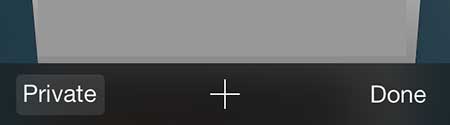
Older iOS version shown; the Private button pictured here no longer exists. - Tap any tab in that group, or tap the plus button to start a fresh one.
Apple’s iPhone User Guide page on private browsing notes that the private sites stay open after you switch away and that Private Browsing locks. If the lock is on, the next person who picks up the phone cannot open the private tabs without your Face ID, Touch ID or passcode.
How to tell which mode you are in
| What you see | Mode | What Safari keeps |
|---|---|---|
| Dark or black address bar and tab bar | Private Browsing | No browsing history or AutoFill entries saved on the iPhone |
| White or light gray address bar | Normal browsing | History, cookies and AutoFill as usual |
| A lock and a prompt for Face ID, Touch ID or passcode when you open the Private group | Private, locked | The private tabs are waiting behind the lock |
Private Browsing hides your activity on this iPhone only. Websites, your employer’s network and your internet provider can still see the visits. For what the mode does and does not protect, see how to use Private Browsing on iPhone.
Close the private tabs you left behind
Leaving Private Browsing does not close its tabs. To clear them out:
- Tap the Tabs button and swipe to the Private group. Confirm with Face ID, Touch ID or your passcode if asked.
- Tap the X on each tab you want gone, or swipe a tab to the side.
- To close everything in the group, touch and hold Done; if Safari offers Close All Tabs, tap it. Otherwise close tabs one by one.
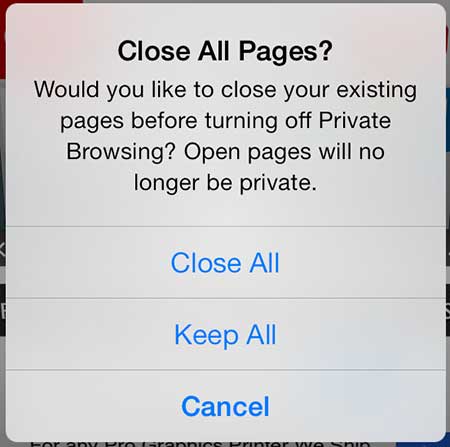
Older iOS version shown; the Close All and Keep All prompt is from iOS 7. - Swipe back to a normal Tab Group.
There is more detail, including what to do when the close option does not appear, in the walkthrough to close all private tabs in Safari.
If Safari looks different on your iPhone
Safari’s layout has changed several times, so match the steps to your screen rather than to a version number.
- iOS 17 and earlier: Apple’s instructions are to tap the Tabs button, then swipe or tap to the [number] Tabs tab group, for example “8 Tabs”. That number is your count of normal tabs.
- Single tab bar at the top: some people move the address bar to the top in Settings. The Tabs and More buttons still exist, just in different spots.
- iPad: the same idea applies, but the tab groups live in the sidebar, so open the sidebar and choose a group other than Private.
- Very old iOS (iOS 7 era): a Private button sat at the bottom-left of the tab screen with a Close All or Keep All prompt. That control is gone on any iPhone that runs a current version of iOS.
Stop private tabs asking for Face ID
On iOS 17 and later, Safari can lock private tabs behind Face ID, Touch ID or your passcode. Turning the lock off does not take you out of Private Browsing; it only stops the prompt. Apple explains the feature on its locked Private Browsing page.
- Open Settings > Apps > Safari. On older iOS versions, Safari is listed directly in Settings.
- Scroll to Privacy & Security.
- Turn off Require Face ID to Unlock Private Browsing. On Touch ID iPhones it says Require Touch ID; Require Passcode to Unlock Private Browsing is also offered.
The lock uses your iPhone passcode, so a strong one matters; here is how to set a passcode on your iPhone if you have not. If Face ID itself keeps failing on the prompt, troubleshooting Face ID that stops working is a separate fix.
Keep Private Browsing off a child’s iPhone
Apple does not offer a setting labeled “turn off Private Browsing”. What it does document is a website filter for a child’s device. Many guides report that once Safari’s adult-content filter is on, the Private option disappears from Safari, but Apple’s own pages do not state this, so check the child’s phone after you set it.
From your own iPhone with Family Sharing
- Open Settings > Family and tap your child’s name.
- Tap Apps & Websites, then Restrictions.
- Under Websites, tap Filtering.
- Choose Limit Adult Websites, or Approved Websites Only for a younger child.
- On the child’s iPhone, open Safari and tap the More button. If New Private Tab is missing or does nothing, the filter is doing its job.
On the child’s iPhone directly
If you manage Screen Time on the child’s device instead, open Settings > Screen Time > Content & Privacy Restrictions and look for the web content setting. Third-party guides describe it as App Store, Media, Web & Games > Web Content > Limit Adult Websites; labels vary by iOS version and Apple’s current guide does not list that exact path. Protect the setting with a Screen Time passcode the child does not know, or they can switch it back. The steps to set a Screen Time passcode walk through that part.
Two stronger options exist, with trade-offs:
- Block Safari completely: some guides describe turning Safari off under the allowed-apps list in Content & Privacy Restrictions. That removes private and normal browsing alike.
- School or company iPhones: an organization that manages the device may restrict Safari features. If the option is missing on a work phone, ask the IT team.
To reverse any of this later, see how to turn off Screen Time restrictions.
Chrome and other browsers on iPhone
Safari’s settings do not touch other browsers. In Chrome, private mode is called Incognito: open the tab switcher, go to the Incognito tabs, close them, then switch to the normal tabs. Edge calls the mode InPrivate and Firefox calls it Private Browsing, and each has its own tab switcher. The ways to open an Incognito tab in Chrome on iPhone show where the switcher is, and there is a separate look at getting out of incognito mode on iPhone. Other browsers have their own private modes, which is another reason some parents block or remove extra browser apps.
When Private Browsing keeps coming back
- Safari reopens in Private every time: Safari returns to the mode you last used. Switch to a normal tab before you leave the app.
- The Private group will not go away: it always exists as a place to hold private tabs. Close its tabs if you want it empty.
- The filter did not remove the Private option: force close Safari, restart the iPhone, and make sure it runs the latest iOS update. If Private still appears, rely on Approved Websites Only or block Safari instead.
Private Browsing questions
Does closing Safari end Private Browsing?
No. Swiping Safari away from the app switcher does not change modes or close private tabs. On iOS 17 and later they lock if you turned on the Face ID, Touch ID or passcode requirement, but they are still there next time.
Can I see what was viewed in Private Browsing?
Not from Safari’s history, because private pages are not saved there. For a parent, the documented tool is the Screen Time website filter, which limits what can be opened in the first place.
Will switching to a normal tab sign me out of sites?
No. Normal tabs keep their own cookies and logins. Sites you signed into only in a private tab will ask you to sign in again in a normal tab. To clear normal-mode data as well, see how to delete cookies on iPhone.
Accessories for the iPhone you browse on
One caution if you mirror your iPhone to a TV with AirPlay: Private Browsing saves nothing on the phone, but everyone in the room can still see the screen. Want a box to mirror Safari and videos to? Check out the Apple TV 4K to compare current models and prices.
Need a spare charging cable? iPhone 15 and later models charge through USB-C, so look at Amazon Basics USB-C to USB-C cables. Older iPhone models with a Lightning port need a USB-C to Lightning cable instead, and Amazon Basics versions usually cost less than the Apple-branded ones.

Kermit Matthews runs Live2Tech from just outside Philadelphia. He is an IT specialist with over 20 years of experience, from a university help desk to small-business IT, IT management and his own consulting practice, and has written tech guides full time since 2020. Steps are checked against the current software on a real device or the maker’s official documentation. More about Kermit.