A website keeps signing you back into the wrong account, a shopping cart refuses to empty, or a page still shows yesterday’s data no matter how often you reload it. Clearing Safari’s cookies usually fixes it. On current versions of iOS, open Settings > Apps > Safari and tap Clear History and Website Data. To remove cookies for just one site, or to keep your history, go to Advanced > Website Data on the same screen instead.
Pick the right kind of cleanup
Safari gives you three levels of cleanup, and the right one depends on the problem. A cookie is a small file a website saves in Safari so it can remember things about you, such as the fact that you’re signed in, what’s in your cart, or which language you picked. Website data is the wider bucket that holds cookies along with cached copies of pages and other stored site files.
| Your situation | Best option | What you lose |
|---|---|---|
| One site misbehaves or keeps the wrong login | Remove that site in Website Data | Only that site’s cookies and stored data |
| Many sites act up, but you want your history list | Remove All Website Data | All cookies and cache; history stays |
| You want a full clean slate (shared or sold phone, privacy) | Clear History and Website Data | History, cookies, cache and site permissions for the timeframe you choose |
| You never want sites to store cookies | Block All Cookies | Existing cookies now, and many sign-ins from then on |
If you’re not sure, start small. Removing one site’s data fixes most single-site problems and leaves every other login on the phone alone.
This is the full reset. Apple notes that clearing your history also removes cookies and the permissions you gave websites, such as access to your location or notifications. Your AutoFill information is not removed.
- Open the Settings app.
- Scroll down and tap Apps, then tap Safari. (Typing “Safari” in the search field at the top of Settings also gets you there.)
- Scroll down and tap Clear History and Website Data.
- Choose a timeframe. Picking a short window, such as the last hour, only removes data from that window. To remove every cookie, choose the option that covers all history.
- If you use Safari profiles, choose the profile to clear, or all profiles.
- Tap Clear History to confirm.
The next sites you visit will treat you as a new visitor. Apple’s support article on clearing Safari history, cache and cookies on iPhone describes this same path.
Clearing from inside Safari
You can also start the same cleanup without leaving the browser. In Safari, open the menu that lists your history (the book or menu icon, depending on your layout), view History, and tap Clear. You then choose the timeframe and profile, just as in Settings. This route is handy when you’re already in Safari and a page is acting up, but the result is the same as the Settings method above.
You don’t have to lose your history to get rid of cookies. If you want to keep your list of visited pages (so you can find that recipe again) but wipe cookies and cached files, use Website Data.
- Open Settings > Apps > Safari.
- Scroll to the bottom and tap Advanced.
- Tap Website Data. Safari lists each site that has stored data and how much space it uses.
- Scroll to the bottom of the list and tap Remove All Website Data.
- Tap Remove Now to confirm.
Your History list stays intact, and so do your bookmarks and Reading List. You’ll still be signed out of sites, because the sign-in cookies are gone.
This is the gentlest fix. Say an online store keeps showing an old cart, or a news site insists you’ve hit your free article limit. Deleting only that site’s data resets it without signing you out of your bank, email or anything else.
- Go to Settings > Apps > Safari > Advanced > Website Data.
- Wait a moment for the list to load. If it’s long, use the search field at the top and type part of the site’s name.
- Swipe left on the site and tap Delete. You can also tap Edit, tap the red minus button beside one or more sites, and then tap Delete.
- Go back to Safari and reload the site.
A single website can appear under more than one name. A store might store data under its main domain and under a separate domain it uses for checkout or sign-in. If the problem continues, search for the brand name and remove every matching entry.
Blocking cookies stops websites from storing any new cookies in Safari. It sounds like the most private choice, but many sites need cookies to keep you signed in or to hold items in a cart, so you may find logins that won’t stick and checkouts that fail.
Know before you turn it on: when you choose Block All, Safari removes the cookies and website data already on the phone, quits, and reloads your tabs. You’ll be signed out everywhere at once.
- Open Settings > Apps > Safari > Advanced.
- Turn on Block All Cookies.
- Tap Block All to confirm.
To undo it, turn the same switch off. Sites can then store cookies again, though you’ll need to sign back in. The full walkthrough for turning cookies back on is in how to allow cookies on your iPhone.
A lighter option is Safari’s cross-site tracking protection, a privacy setting on the main Safari settings screen that limits how trackers follow you between sites while still letting ordinary sign-ins work. Its exact name and location can vary between iOS versions, so look for a switch with “Cross-Site Tracking” in the Privacy and Security part of Safari settings.
Knowing what goes and what stays saves a lot of worry before you tap the button.
What goes away:
- Sign-ins on websites in Safari, so you’ll be asked to log in again.
- Site preferences such as language, dark mode on a site, or region.
- Cookie consent choices, so the “Accept cookies” banners return.
- Items in shopping carts that weren’t saved to an account.
- Cached page files, which means some pages load a little slower the first time.
- If you cleared history too: the pages you visited and permissions you granted to sites.
What stays:
- Saved passwords. These live in the Passwords app and iCloud Keychain, not in Safari’s website data, so Safari can still fill them in when you sign back in.
- AutoFill information such as your contact card and saved cards, according to Apple.
- Bookmarks, Favorites and Reading List.
- Data stored inside other apps, including other browsers and apps that have their own sign-in.
Clearing cookies on the phone also doesn’t remove anything a website keeps on its own servers, such as your account’s order history or a search history saved to your account. That has to be deleted from the site or service itself.
If Clear History and Website Data is gray
A grayed-out button has two common causes, according to Apple:
- There’s nothing to clear. If history and website data are already empty, the button has nothing to act on.
- Screen Time is limiting web content. If Content and Privacy Restrictions limit websites on the phone, Safari won’t let you clear history. Go to Settings > Screen Time > Content & Privacy Restrictions and check the web content setting. On a child’s phone, a parent or guardian with the Screen Time passcode has to change it.
A work or school iPhone managed by an organization may also restrict these settings. In that case, ask the IT team instead of trying to work around it.
If you cleared everything and a site still remembers you, check if you’re using a different browser or the site’s own app. Each app keeps its own cookies.
If you only need a clean session now and then, such as checking a flight price or using a friend’s phone, Private Browsing is easier than clearing data afterward. Safari doesn’t keep the history of private tabs, and cookies from those tabs are discarded when you close them. The setup is explained in how to use Private Browsing on iPhone.
Some people also turn off JavaScript to stop certain scripts from running. That breaks many modern sites, so treat it as a troubleshooting step rather than a privacy setting. If you want to try it, see how to turn off JavaScript in Safari on iPhone.
Everything above affects Safari only. If you browse in another app, clear cookies there too. Menu names in these apps change with updates, so treat the paths below as a guide.
- Chrome: tap More (three dots), tap Delete Browsing Data, choose a Time Range, tap Browsing Data and make sure Cookies, Site Data is selected, tap Confirm, then tap Delete Browsing Data again. Google lists these steps in its Chrome help page on deleting browsing data. Clearing history in Chrome is covered in deleting browsing history in Chrome on iPhone.
- Firefox: tap the menu button, tap Settings, under Privacy tap Data Management, then tap Clear Private Data. To clear one site, use Website Data on the same screen. Mozilla describes this in its Firefox for iOS help article. The details are in clearing cookies in the Firefox iPhone app.
Older iOS: the iPhone 6 screens
On older iOS versions, before Settings grouped apps under an Apps section, Safari had its own entry in the main Settings list. The steps were otherwise similar. The pictures below show those older screens.
- Open Settings.

How to Delete Cookies on iPhone (Safari, Chrome and Firefox) 6 - Scroll down and tap Safari in the main list.

How to Delete Cookies on iPhone (Safari, Chrome and Firefox) 7 - Tap Clear History and Website Data.
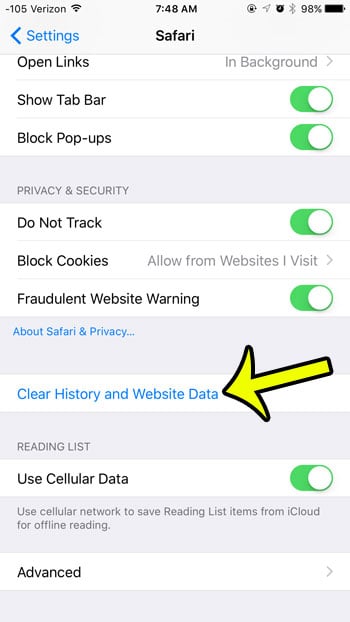
How to Delete Cookies on iPhone (Safari, Chrome and Firefox) 8 - Tap the red Clear History and Data button to confirm. Older versions had no timeframe choice; everything was removed at once.

How to Delete Cookies on iPhone (Safari, Chrome and Firefox) 9
On those versions, Website Data sat under Settings > Safari > Advanced. If you don’t see Apps in your Settings list, use that shorter path for every section above.
Does clearing cookies on my iPhone also clear them on my Mac or iPad?
Clearing history in Safari can sync to other devices signed in to the same Apple Account with Safari turned on in iCloud settings, since your history syncs. Cookies and cached files are stored on each device, so removing website data on the iPhone doesn’t necessarily sign you out on the Mac. Clear each device separately if you need a clean start everywhere.
Will I lose two-factor “remember this device” settings?
Usually, yes. Sites that skip the verification code on a trusted browser store that trust in a cookie. After clearing, expect to enter a code the next time you sign in, so keep your phone number or authenticator app handy.
Is clearing cookies the same as clearing the cache?
Not quite. Cookies store information about you; the cache stores copies of page files so they load faster. Safari’s Remove All Website Data and Clear History and Website Data options remove both at once, and there’s no built-in switch to clear only the cache in Safari settings.
How often should I clear cookies?
There’s no schedule you need to follow. Clear one site when it misbehaves, and clear everything when you hand the phone to someone else, before selling it, or if you’ve used it on public Wi-Fi to sign in to something sensitive and want a fresh start.
Why does a site still show me as signed in after I cleared Safari?
You may be opening it in its own app or a different browser, or the site may have opened inside another app’s built-in browser. Check which app you were using when you signed in, and clear or sign out there.
Next step: if the problem was a single site, try removing just its entry in Website Data before you reach for the full reset. It keeps every other login on the phone in place.
Clearing cookies does not remove saved form details, so turn off Safari AutoFill as well if names and addresses keep filling in.
Getting back out is just as quick, and leaving Private Browsing on iPhone takes a single tap on New Tab.

Kermit Matthews runs Live2Tech from just outside Philadelphia. He is an IT specialist with over 20 years of experience, from a university help desk to small-business IT, IT management and his own consulting practice, and has written tech guides full time since 2020. Steps are checked against the current software on a real device or the maker’s official documentation. More about Kermit.