Safari keeps filling in your old address, a card you meant to delete, or a password on a phone the whole family uses. AutoFill has separate controls for contact info, passwords and payment cards, so you can turn off all of it or only the part that bothers you. For names and addresses, go to Settings > Apps > Safari > AutoFill and turn off Use Contact Info. These steps cover current versions of iOS, with notes for older ones.
Three kinds of AutoFill, three places to turn them off
Before you start, decide which kind of information you want to stop. Each one lives in a different part of Settings.
| What fills in | Where to turn it off | Example |
|---|---|---|
| Your name, address, phone number and email | Settings > Apps > Safari > AutoFill > Use Contact Info | A checkout form fills in a home address you moved away from |
| Saved passwords and passkeys | Settings > General > AutoFill & Passwords > AutoFill Passwords | A shared iPhone offers your email login to everyone |
| Payment cards | Wallet app > AutoFill (remove the card), or the Credit Cards switch on older iOS | An expired card keeps appearing above the keyboard |
Turning a switch off stops the suggestions. It does not delete what is saved. To erase the stored details as well, use the section on deleting saved information further down.
Turn off contact info AutoFill in Safari
Apple’s guide to filling in forms on iPhone uses this path for contact info. It only affects Safari.
- Open the Settings app.

- Scroll down and tap Apps, then tap Safari. On older versions of iOS, Safari is listed directly in Settings, so scroll down and tap it there.

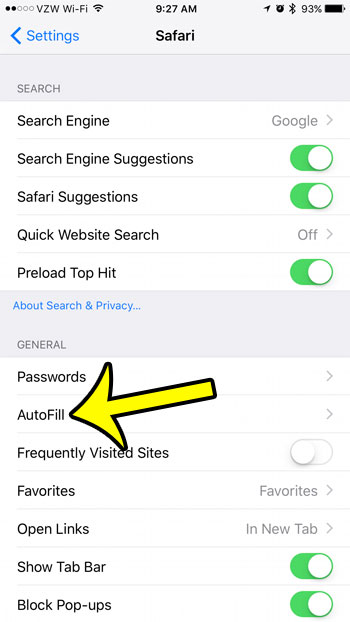
- Tap AutoFill. It is in the General section of Safari settings, near the top.
- Turn off Use Contact Info. The switch turns gray when it is off. If your screen also shows a Credit Cards switch (older iOS versions), turn that off too to stop card suggestions.
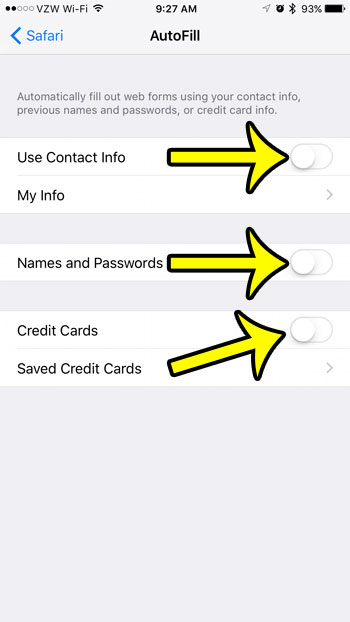
The change takes effect the next time you tap a form field. Safari stops offering the AutoFill Contact button above the keyboard, and you type each field yourself.
Fix the info instead of turning it off
If AutoFill is useful but fills in the wrong details, you may not need to turn it off. On the same AutoFill screen, tap My Info and choose the correct contact card. Safari fills forms from that card, so updating your address in the Contacts app updates what AutoFill uses. When you are filling a form, you can also tap AutoFill Contact and choose another contact to fill a different person’s details once.
Turn off password AutoFill
Passwords are no longer in Safari settings. They have their own screen that covers Safari and every other app that asks you to sign in.
- Open Settings and tap General.
- Tap AutoFill & Passwords.
- Turn off AutoFill Passwords. Apple’s AutoFill support page calls this switch AutoFill Passwords and Passkeys.
Your iPhone then stops offering saved passwords and passkeys above the keyboard. The passwords stay saved in the Passwords app, and you can still open that app and copy a password by hand. Apple’s page on AutoFill passwords and passkeys describes the same screen for turning the feature back on.
The AutoFill & Passwords screen may also list other apps that can fill passwords, such as a password manager you installed. If it does, you can choose there which apps fill passwords.
A word of caution before you turn password AutoFill off: if you rely on it, make sure you can find or reset your important passwords first.
Stop payment cards from filling in
Apple’s current guide to filling in payment information manages AutoFill cards in the Wallet app rather than with a Safari switch.
- Open the Wallet app.
- Tap the More button, then tap AutoFill.
- Tap the card you no longer want offered, then use Remove From AutoFill. You may need to confirm with Face ID, Touch ID or your passcode.
Removing a card from AutoFill stops Safari from suggesting it at checkout. It does not cancel the card. If you only want to stop the Apple Pay check that some websites run, see disabling the Apple Pay check in Safari, which is a separate setting.
On older iOS versions, cards were stored under Settings > Safari > AutoFill > Saved Credit Cards, with a Credit Cards switch to turn card AutoFill off. If you see those options on your iPhone, use them.
Delete the information that is already saved
Turning AutoFill off hides suggestions; deleting removes the data. Do both on a phone you are giving away or sharing.
- Saved passwords: open the Passwords app, find the account, tap Edit, then tap Delete. On iOS 17 or earlier, passwords are in Settings > Passwords, and the button is Delete Password. Apple explains this on its page about managing saved passwords and passkeys. For more detail, including recovering one you deleted by mistake, see deleting a saved password on iPhone.
- Payment cards: remove them from Wallet > AutoFill as described above.
- Contact info: AutoFill reads your My Info card, so edit that card in Contacts or pick a different one in Safari AutoFill settings. Deleting your own contact card is rarely what you want, because other apps use it too.
- Browsing traces: addresses Safari suggests while you type a web address come from history, not AutoFill. Clearing cookies and history on iPhone removes those.
AutoFill is not predictive text
If words or phrases still pop up above the keyboard after you turn AutoFill off, those are probably keyboard predictions, not AutoFill. The keyboard learns words you type often, including names and email addresses, and offers them in the suggestion bar in every app.
To turn those suggestions off, go to Settings > General > Keyboard and turn off Predictive Text (called Predictive on some versions), as Apple describes in using predictive text on iPhone. Turning it off removes the word suggestions above the keyboard but does not affect saved passwords, contact info or cards.
A quick way to tell the two apart: AutoFill suggestions name what they will fill in, such as a contact, a saved password with a key icon or a card. Predictive text offers single words or short phrases.
Word suggestions above the keyboard are a different feature from AutoFill, and predictive text has its own switch in Keyboard settings.
Chrome, Firefox and password manager apps
The Safari switches do not change other browsers. Chrome, Firefox, Edge and similar apps save their own addresses, cards and passwords, and each has an autofill or payment section in its own settings menu. Open the browser, go to its settings, and look for sections named something like Addresses, Payment methods or Passwords.
Password managers can also fill passwords in Safari and other apps when they are turned on in AutoFill & Passwords. If one is listed there, you can stop it filling from that screen, or change its behavior inside the app itself.
Safari AutoFill on a Mac
If you also use Safari on a Mac, it has its own AutoFill settings. In Safari on the Mac, open Safari > Settings, click AutoFill, and clear the boxes for the kinds of information you do not want filled in. Changing your iPhone does not change your Mac, and the reverse is also true, although passwords saved to iCloud Keychain appear on both.
AutoFill questions
Will turning off AutoFill delete my saved passwords?
No. Turning off AutoFill Passwords only stops the suggestions. Your passwords stay in the Passwords app until you delete them, and they come back into use as soon as you turn the switch on again.
Can I keep password AutoFill but stop addresses?
Yes. Turn off Use Contact Info in Safari AutoFill and leave AutoFill Passwords on. The two switches are independent.
Why does a website still fill in my email after I turned AutoFill off?
Some sites remember what you typed using their own cookies, and the keyboard may suggest an address you type often. Clearing that site’s data in Safari, or turning off Predictive Text in Keyboard settings, deals with each case.
Does turning off AutoFill make a shared iPhone safe?
It helps, but it is not the same as separate accounts. Anyone who knows the passcode can still open the Passwords app and Wallet after confirming with the passcode. On a shared device, use a passcode only you know, or remove the saved data entirely.
How do I turn AutoFill back on?
Repeat the same steps and turn the switches back on. For contact info, also check that My Info points to your current contact card. If you are cleaning up other Safari settings at the same time, allowing pop-ups on iPhone and viewing saved passwords on older iOS versions are good next stops.

Kermit Matthews runs Live2Tech from just outside Philadelphia. He is an IT specialist with over 20 years of experience, from a university help desk to small-business IT, IT management and his own consulting practice, and has written tech guides full time since 2020. Steps are checked against the current software on a real device or the maker’s official documentation. More about Kermit.