You tap “View statement” on your bank’s site, or “Open exam” on a school portal, and nothing happens. Most likely the browser blocked the pop-up window the site needed. In Safari, open Settings > Apps > Safari and turn off Block Pop-ups, then reload the page. Chrome, Firefox and Edge each have their own switch inside the app, covered below for any iPhone or iPad on current iOS.
First, check which browser opened the page
Each browser on iPhone keeps its own pop-up setting. Turning off the blocker in Safari does nothing for Chrome, and the other way around. Look at the app you were in when the site stopped responding:
- Safari is changed in the iPhone’s Settings app.
- Chrome, Firefox and Edge are changed inside the browser app itself.
- A link opened inside another app (an email app, social app or chat app) may be showing the page in that app’s built-in browser. Tap the option to open the page in Safari or your main browser first, then follow the steps for that browser.
Also worth knowing: cookie banners, sign-up boxes and chat bubbles that appear on top of a page are usually part of the page itself, not separate windows. The pop-up blocker doesn’t control them, so allowing pop-ups won’t make them appear or disappear.
Allow pop-ups in Safari on iPhone and iPad
- Open the Settings app.

- Scroll down and tap Apps, then Safari. On iOS 17 and earlier, Safari is listed directly in Settings, so just tap Safari.
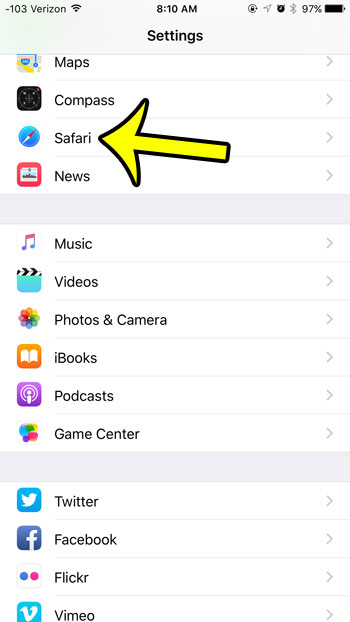
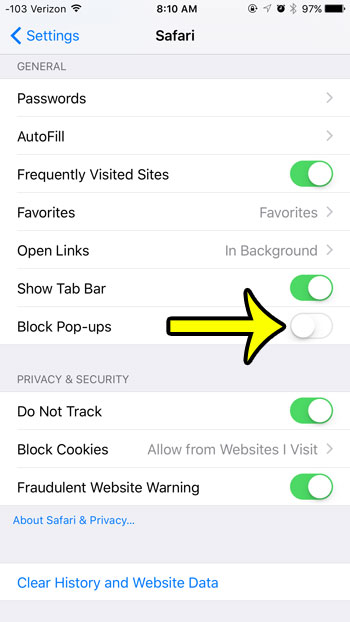
- In the General section, turn off Block Pop-ups. The switch turns gray when pop-ups are allowed.

- Switch back to Safari, reload the page, and tap the button or link that should open the window again. A page loaded before you changed the setting may not pick it up until you reload.
The older screenshots above show an earlier version of iOS, where Safari sat in the main Settings list. The switch name and its gray “off” position are the same today.
Why Safari is all or nothing
Safari on iPhone and iPad has one pop-up switch for every website. There is no list of allowed sites the way there is on a Mac, where you can allow pop-ups for a single website. Apple’s page on blocking pop-up ads and windows in Safari shows the same single switch for iPhone and iPad. That is why the safest habit on iPhone is to turn blocking off, finish the task, and turn it back on. There is a shorter walkthrough of just this Safari switch in allowing popups in Safari on iPhone.
The steps are the same on iPad. If you later want to stop pop-ups again there, see blocking pop-ups in Safari on iPad.
Allow pop-ups in Chrome (every site or just one)
Chrome is the one major iPhone browser with a per-site option, so it is a good choice if you only trust one site.
Allow pop-ups for all sites
- Open Chrome and tap More (the three dots).
- Tap Settings > Content Settings > Block Pop-ups.
- Turn Block Pop-ups off.
Allow pop-ups for one site
- Leave Block Pop-ups on and open the site that needs the window.
- When Chrome shows a Pop-ups blocked message at the bottom of the page, tap Always show.
Google’s help page on blocking or allowing pop-ups in Chrome lists the same steps under its iPhone and iPad tab. For more detail on the Chrome switch, see stopping pop-up blocking in the Chrome iPhone app.
Allow pop-ups in Firefox
- Open the Firefox app.
- Tap the menu button (three lines), usually at the bottom right.
- Tap Settings.
- Find Block Pop-up Windows and turn it off.
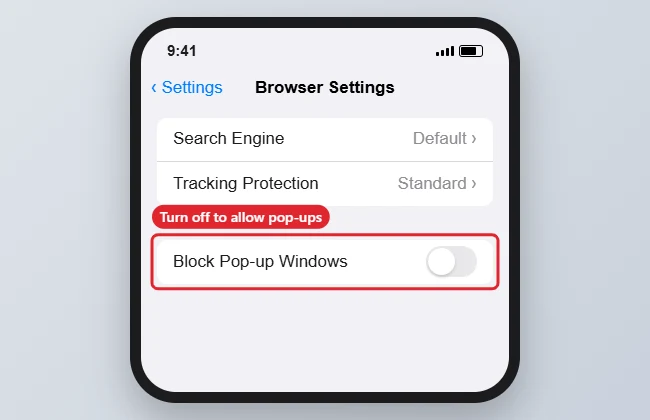
- Go back to the site, reload it, and retry the action.
Firefox’s settings screen has no per-site pop-up list, so like Safari it is all or nothing. The section that holds the switch has moved between Firefox versions; if you can’t spot it, scroll the whole Settings screen. Keep Firefox updated from the App Store, since newer versions may need a newer iOS.
Allow pop-ups in Microsoft Edge
- Open Edge and tap the menu (three lines or three dots, depending on version).
- Tap Settings, then Privacy and Security.
- Tap Block Pop-ups and turn it off.
Edge has rearranged its menus several times, so labels can differ on your copy. Allowing pop-ups in Edge on iPhone walks through the Edge screens in more detail.
Where each browser keeps the setting
| Browser | Where to change it | One site only? |
|---|---|---|
| Safari | Settings > Apps > Safari > Block Pop-ups (Settings > Safari on iOS 17 and earlier) | No |
| Chrome | More > Settings > Content Settings > Block Pop-ups | Yes, tap Always show |
| Firefox | Menu > Settings > Block Pop-up Windows | No |
| Edge | Menu > Settings > Privacy and Security > Block Pop-ups | Varies by version |
Turn pop-up blocking back on
When the bank statement has downloaded or the exam is submitted, go back to the same switch and turn it on again: Block Pop-ups in Safari, Chrome and Edge, or Block Pop-up Windows in Firefox. Most pop-ups on the wider web are ads or scams, so leaving the blocker off for weeks invites trouble. In Chrome, sites you allowed with Always show keep their exception, so you only need to change this if you turned blocking off for all sites.
The pop-up still won’t open
- The page wasn’t reloaded: reload, then tap the button again.
- It opened as a new tab: some sites open their “pop-up” in a new tab instead of a window. Check the tab count or tab overview.
- A content blocker is active: ad blockers installed as Safari extensions can stop pop-ups too. Turn them off temporarily under Settings > Apps > Safari > Extensions, then try again.
- JavaScript is off: sites use JavaScript to open pop-ups, so the window can’t appear if it is disabled. See turning JavaScript back on in iPhone Safari. If a page misbehaves the other way, you can briefly turn off JavaScript in Safari to test whether a script is responsible.
- Screen Time limits: on a child’s or managed iPhone, Settings > Screen Time > Content & Privacy Restrictions may block the site or Safari features.
- Private tab quirks: some sign-in windows behave differently in a private tab. Try a normal tab, and when you’re done you can close all your private tabs at once.
- Stale site data: clearing history and website data in Safari’s settings can fix a sign-in window that loops. It signs you out of sites, so have passwords ready.
- The site has an app: banking and school apps often avoid pop-up windows entirely.
Stay safe while pop-ups are allowed
- Close any pop-up that says your iPhone has a virus, needs cleaning or has won a prize. iPhones don’t show warnings like that in a web page.
- Before entering a password or card number, check that the address bar shows the site you expect.
- Never install a profile or app because a pop-up told you to.
- Keep Safari’s Fraudulent Website Warning turned on.
Pop-up questions
Why did the Safari setting move?
Starting with iOS 18, Apple moved built-in app settings into a single Apps list near the bottom of Settings. Safari’s options, including Block Pop-ups, are now under Settings > Apps > Safari.
Is it safe to allow pop-ups for a short time?
For a site you trust, yes. The risk comes from other sites you visit while blocking is off, which is why turning it back on afterward matters.
Will allowing pop-ups also allow ads inside the page?
Ads that are part of the page show either way. The setting only controls new windows a site tries to open. For ad blocking options, see blocking ads in Chrome on iPhone.
The site works on my computer but not my iPhone. Why?
Your computer’s browser may already have that site on an allowed list, while the iPhone browser is still blocking. Check the pop-up setting for the browser you use on the phone.
Once the site that needed the window works, switch the blocker back on so pop-ups from other sites stay out of your way.

Kermit Matthews runs Live2Tech from just outside Philadelphia. He is an IT specialist with over 20 years of experience, from a university help desk to small-business IT, IT management and his own consulting practice, and has written tech guides full time since 2020. Steps are checked against the current software on a real device or the maker’s official documentation. More about Kermit.