To turn off JavaScript in Safari on an iPhone, open Settings, tap Apps > Safari, scroll to the bottom, tap Advanced, and turn off JavaScript. On iOS 17 and earlier, including older models like the iPhone 7, the path is Settings > Safari > Advanced. Many websites will stop working properly until you turn it back on.
Quick Answer
Settings > Apps > Safari > Advanced > turn off JavaScript. (iOS 17 and earlier: Settings > Safari > Advanced.)
How to Turn Off JavaScript in Safari
- Open the Settings app.
- Tap Apps, then Safari. On iOS 17 or earlier, tap Safari directly.
- Scroll to the bottom and tap Advanced.
- Turn off JavaScript.
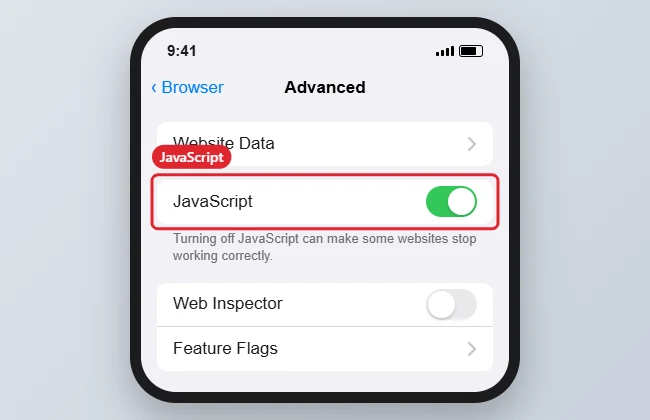
To undo it, return to the same screen and turn JavaScript back on. See how to enable JavaScript on iPhone for fixes if sites still don’t work afterward.
What Changes When JavaScript Is Off
| Effect | Details |
|---|---|
| Fewer pop-ups and animations | Many ads and overlays rely on JavaScript |
| Broken site features | Menus, sign-in forms, video players, and shopping carts often stop working |
| Some sites won’t load at all | Web apps such as email and maps need JavaScript |
| Only Safari is affected | Other browsers and apps with their own browsers keep their settings |
Better Alternatives to Turning It Off
- Block pop-ups: Settings > Apps > Safari > Block Pop-ups. See how to manage pop-ups on iPhone.
- Use a content blocker: Install one from the App Store, then enable it in Settings > Apps > Safari > Extensions.
- Reader view: Tap the page menu in the address bar and choose Show Reader for a clean, script-free view of articles.
- Private Browsing: Limits tracking without breaking sites.
On a Mac, see how to disable JavaScript in Safari on a Mac.
Troubleshooting
- The Advanced option isn’t visible: Scroll all the way to the bottom of Safari’s settings.
- The JavaScript switch is grayed out: A Screen Time restriction or a work profile may manage Safari settings.
- Sites still behave the same: Close and reopen the tab. Pages already loaded don’t change until they reload.
Frequently Asked Questions
Is it safe to turn off JavaScript?
Yes, it’s safe, but many websites won’t work correctly. It’s mainly useful for troubleshooting or reading simple pages.
Does this affect Chrome on iPhone?
No. Chrome and other browsers have their own settings.
Can I turn off JavaScript for only one site?
Safari on iPhone doesn’t offer per-site JavaScript settings. Use a content blocker for finer control.
Summary
- Open Settings > Apps > Safari.
- Tap Advanced.
- Turn off JavaScript.
- Turn it back on if websites stop working.

Kermit Matthews is a freelance writer based in Philadelphia, Pennsylvania with more than a decade of experience writing technology guides. He has a Bachelor’s and Master’s degree in Computer Science and has spent much of his professional career in IT management.
He specializes in writing content about iPhones, Android devices, Microsoft Office, and many other popular applications and devices.