Websites use cookies to keep you signed in, remember shopping carts, and save preferences. If a site keeps logging you out or says “cookies are disabled,” Safari on your iPhone may be blocking them. This guide shows how to enable cookies in Safari on the iPhone 11 and every other model, what the related privacy settings do, how to allow cross-site cookies for sites that need them, and how to fix sites that still don’t work.
Quick Answer
Open Settings > Apps > Safari (on iOS 17 and earlier, Settings > Safari). Under Privacy & Security, turn off Block All Cookies. Reload the website. If a sign-in or payment page still fails, temporarily turn off Prevent Cross-Site Tracking.
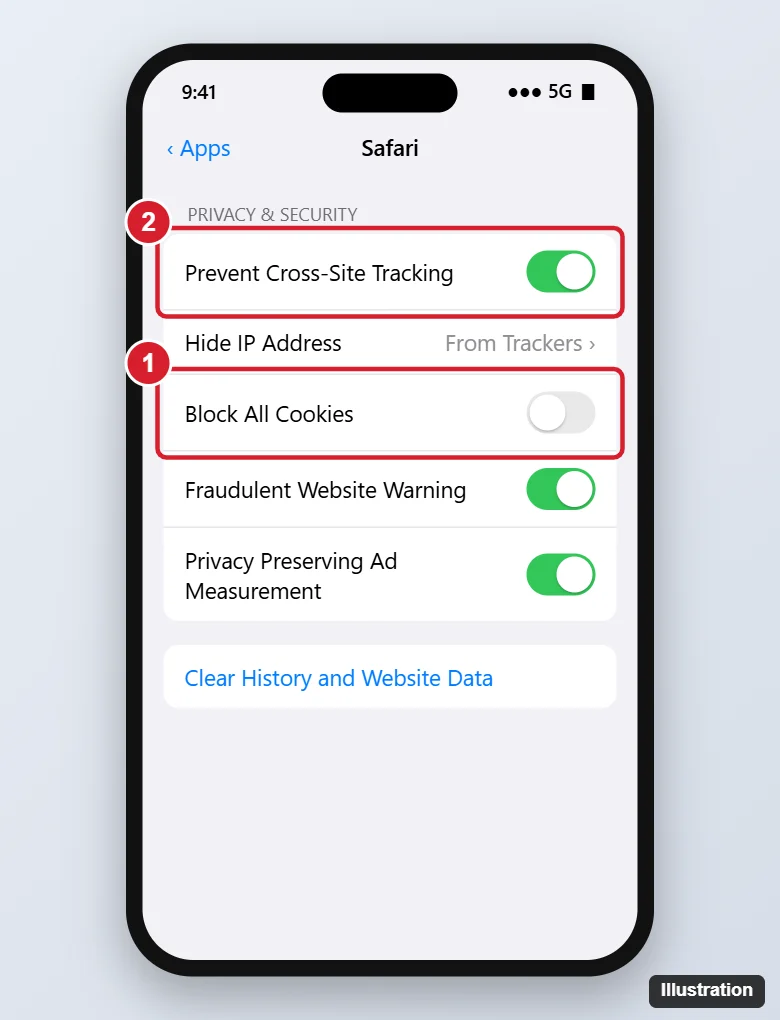
Enable Cookies in Safari
- Open Settings.
- Tap Apps > Safari, or Safari on older iOS versions.
- Scroll to Privacy & Security.
- Turn off Block All Cookies (grey means cookies are allowed).
- Go back to Safari and reload the page.
Understand Safari’s Cookie Settings
| Setting | What it does | Recommended |
|---|---|---|
| Block All Cookies | Blocks every cookie, so many sites won’t let you sign in | Off |
| Prevent Cross-Site Tracking | Limits third-party cookies that follow you across sites | On, and turn off only if a site breaks |
| Hide IP Address | Hides your IP from trackers | From Trackers |
| Clear History and Website Data | Deletes existing cookies and history | Use when troubleshooting |
When a Site Still Doesn’t Work
Some sign-in systems, embedded payment forms, and school or work portals rely on cookies from another domain. Try:
- Turn off Prevent Cross-Site Tracking, then reload the site and sign in.
- Turn it back on when you’re done, to protect your privacy.
- Make sure you aren’t in Private Browsing, which clears cookies when you close the tabs.
- Remove site data for just that site in Settings > Apps > Safari > Advanced > Website Data. Swipe left on the site and tap Delete, then sign in again.
- Turn off content blockers for that site. Tap the page menu (the icon in the address bar) and choose Turn off Content Blockers.
Cookies Setting Greyed Out?
Screen Time restrictions can lock Safari’s settings. Go to Settings > Screen Time > Content & Privacy Restrictions and check the web content and account change settings. You may need the Screen Time passcode. On managed work or school phones, a profile may enforce it.
Other Browsers on iPhone
- Chrome: cookies are on by default. Check Settings > Privacy and Security > Third-party cookies for its options.
- In-app browsers (links opened inside other apps) use their own cookie storage. Open the link in Safari if sign-in fails.
Frequently Asked Questions
Are cookies safe to enable?
First-party cookies are needed for normal browsing and are generally safe. Keeping Prevent Cross-Site Tracking on limits third-party tracking cookies.
Does enabling cookies on my iPhone affect my Mac?
No. Safari settings are set separately on each device.
How do I delete cookies later?
Go to Settings > Apps > Safari > Clear History and Website Data, or delete individual sites under Advanced > Website Data.
Summary
- Go to Settings > Apps > Safari.
- Turn off Block All Cookies.
- Temporarily turn off Prevent Cross-Site Tracking if a site still fails.
- Check Private Browsing, content blockers, and Screen Time if problems continue.

Kermit Matthews is a freelance writer based in Philadelphia, Pennsylvania with more than a decade of experience writing technology guides. He has a Bachelor’s and Master’s degree in Computer Science and has spent much of his professional career in IT management.
He specializes in writing content about iPhones, Android devices, Microsoft Office, and many other popular applications and devices.